

Managers see the simulations for the products they are assigned to; admins see every product in the company.
Testers and Rounds
Assign testers, set deadlines and run counts, manage rounds.
Reviewing and Approving Changes
Read Reddy’s reading of a round, answer its questions, approve the plan.
Graduating to Trainees
End testing, go live, keep improving from trainee feedback.
Versions and Audit Trail
Every change that shipped, who asked, who approved, what it touched.
Rolling Back a Change
Undo the newest change through the same approval flow.
Systems Simulations Built by Reddy
Send materials up to 2 GB and let the team build it.
The Simulations list
Click Simulations in the left navigation. Simulations are grouped by product, and each row shows the numbers that matter right now.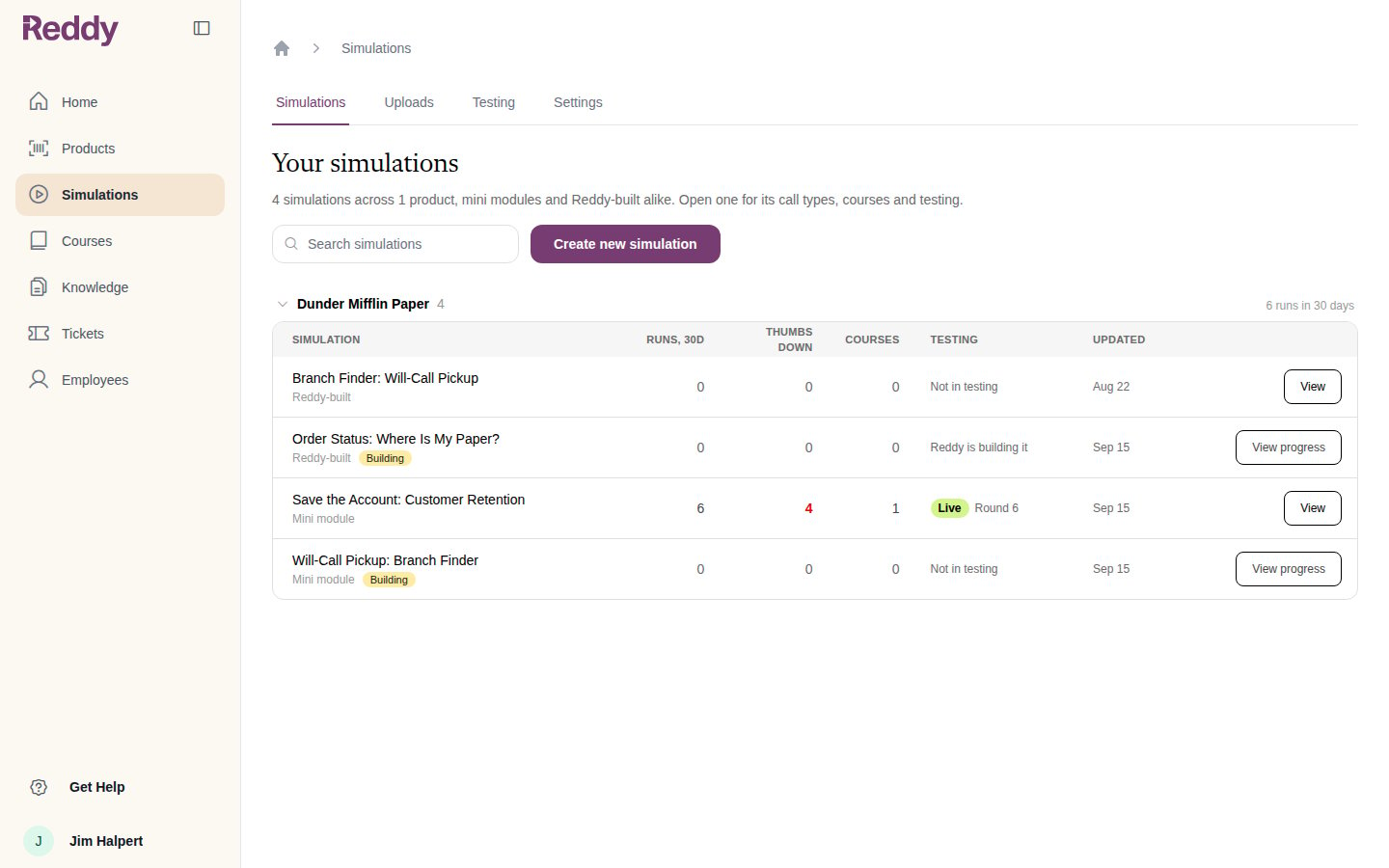
Use the search box to filter by name. Create new simulation opens the create dialog described in the two builder guides.
A simulation’s page
Click View on any row. The page opens on Overview, with the sidebar actions (Edit, Add to a course, Preview) and the at-a-glance numbers.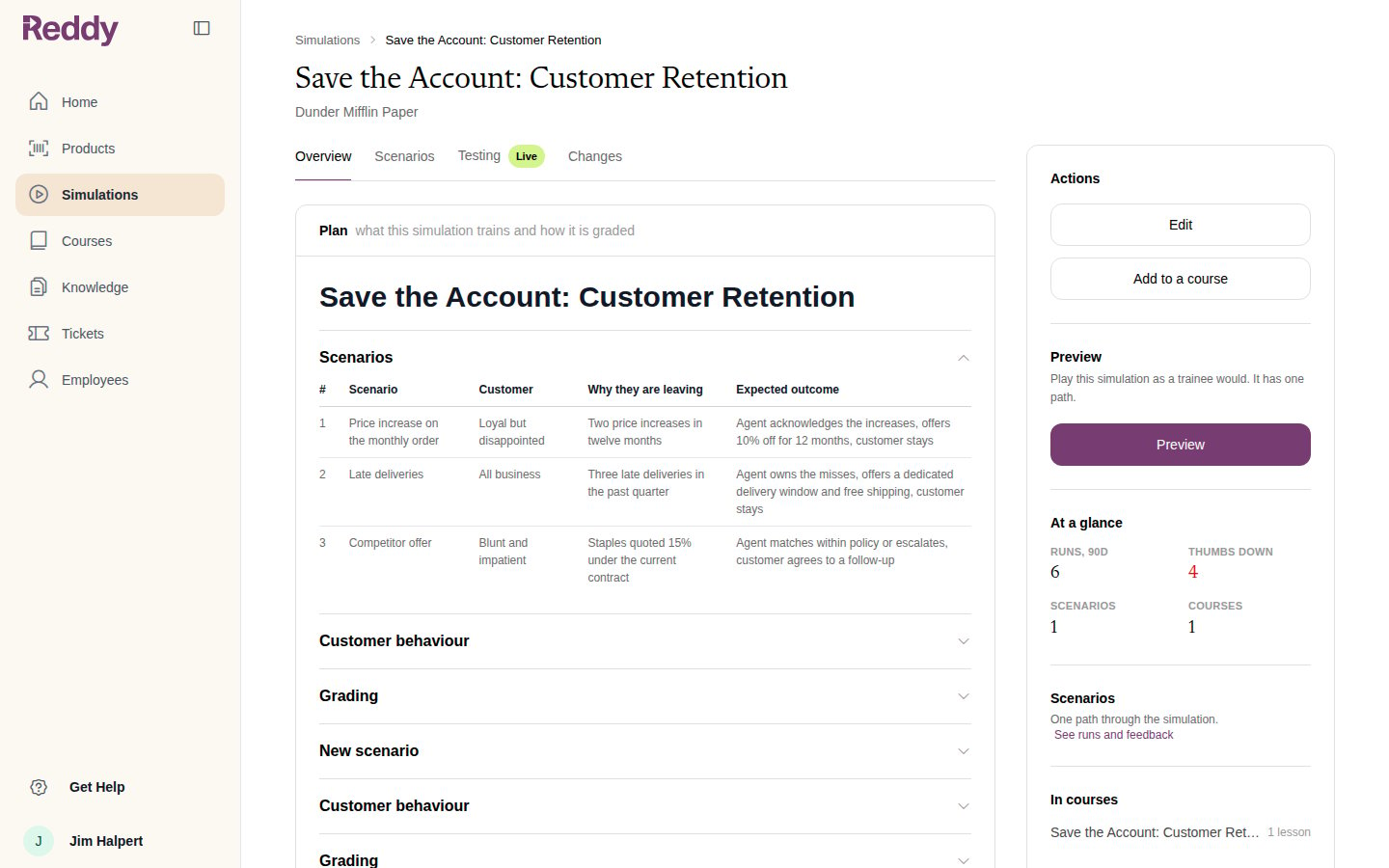
While a simulation is in test mode, Edit is disabled. Changes ship through the testing round after your approval instead. Graduate the simulation to trainees to edit it here again.
Testing across all simulations
The Testing tab at the top of the Simulations area shows every simulation’s testing status in one table. Open a row to drill into that simulation’s Testing tab.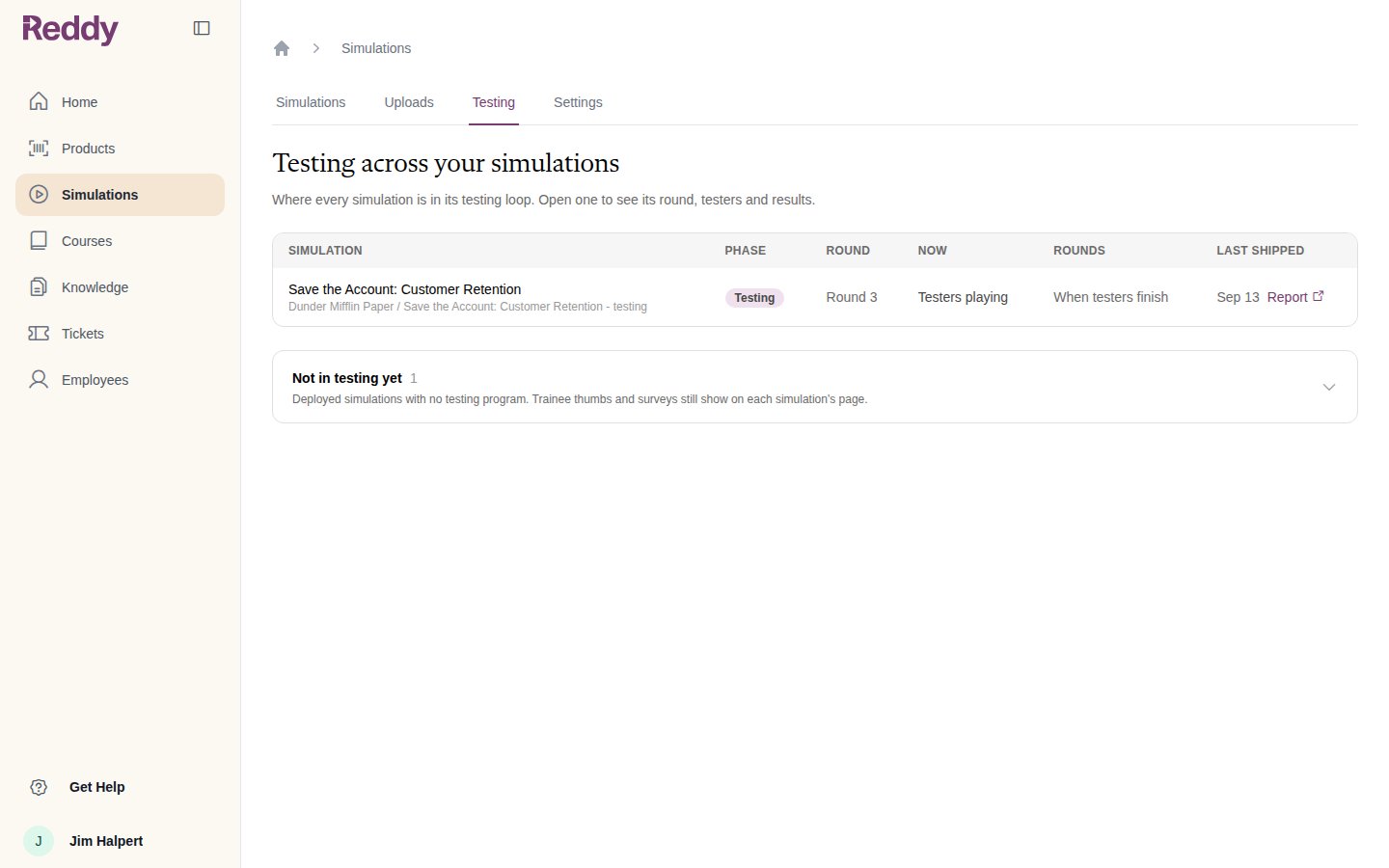
Uploads
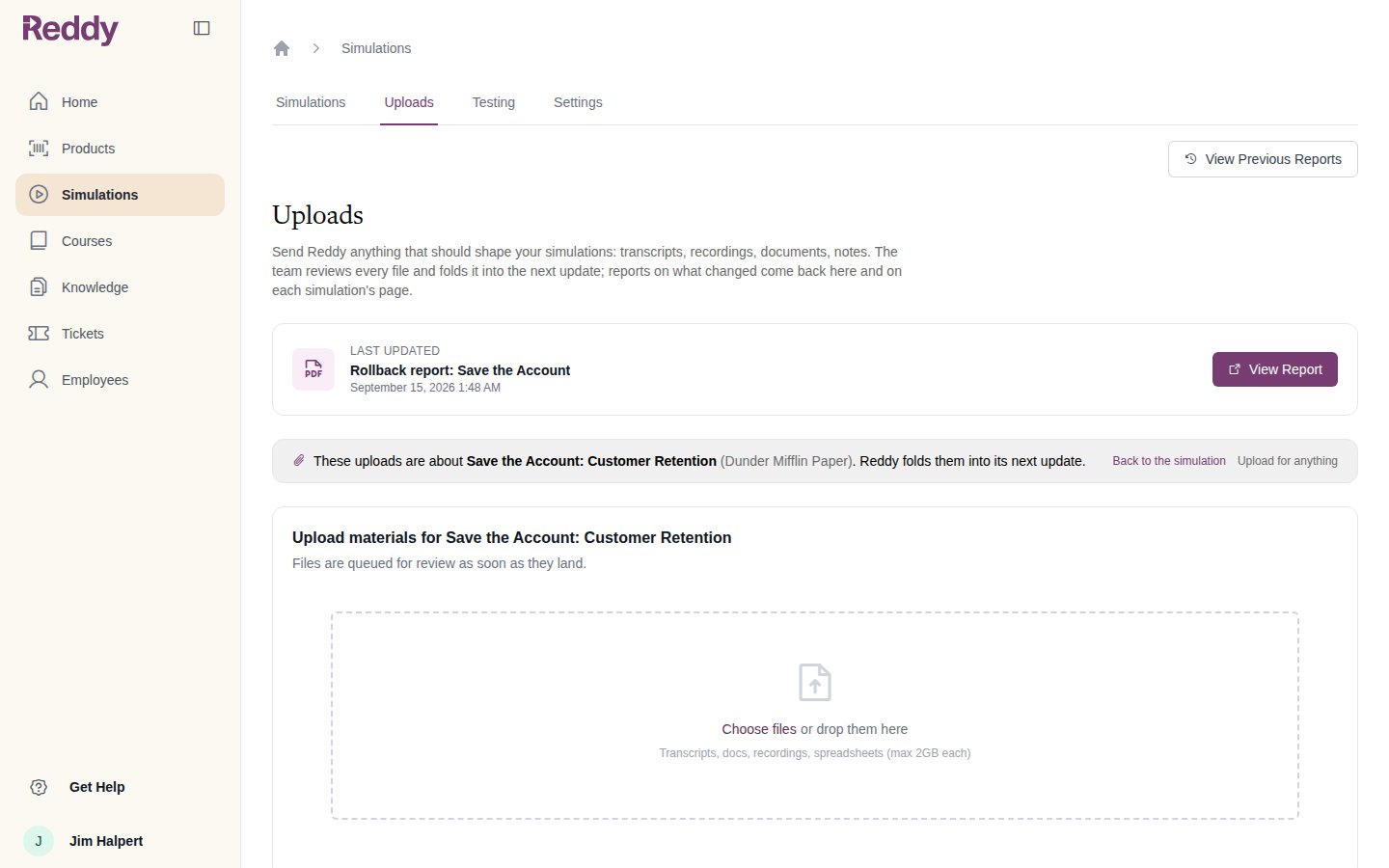
The Uploads tab is where you send Reddy anything that should shape your simulations: transcripts, recordings, documents, notes. Files can be up to 2 GB each. The team reviews every file and folds it into the next update; reports on what changed come back here and on each simulation’s page.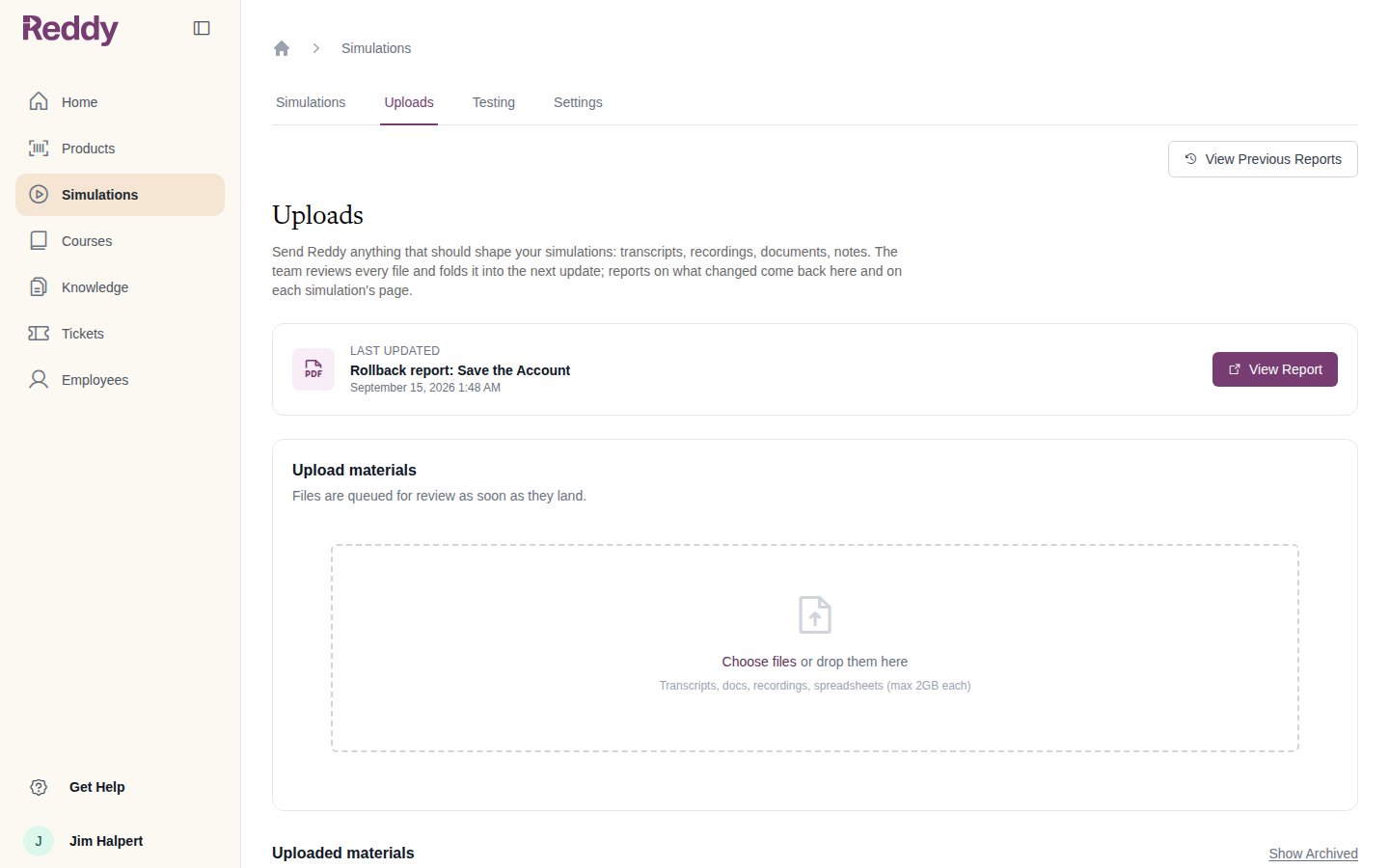
Settings
The Settings tab holds runs per tester, approvers and the live-round cadence for each simulation in testing, plus tester deadlines and reminders. It is described in Testers and Rounds.FAQ
Where did the Sim Dropbox go?
Where did the Sim Dropbox go?
It is the Uploads tab. Everything you uploaded before, and every report Reddy sent back, is still there.
Why can a manager on my team not see a simulation I can see?
Why can a manager on my team not see a simulation I can see?
Managers see the simulations for the products they are assigned to. Ask an admin to assign the product on the manager’s profile.
Can I download a file I uploaded?
Can I download a file I uploaded?
Not from the simulation’s page. Uploaded materials are listed by name so you can see what Reddy worked from. If you need a copy back, ask your Reddy contact.