

Only company admins can configure surveys. Managers and admins can read the responses on any training session.
Finding your surveys
1
Open Settings
Click your name at the bottom of the left navigation panel, then open Settings.
2
Go to the Surveys tab
Select the Surveys tab. Every survey in your company is listed here.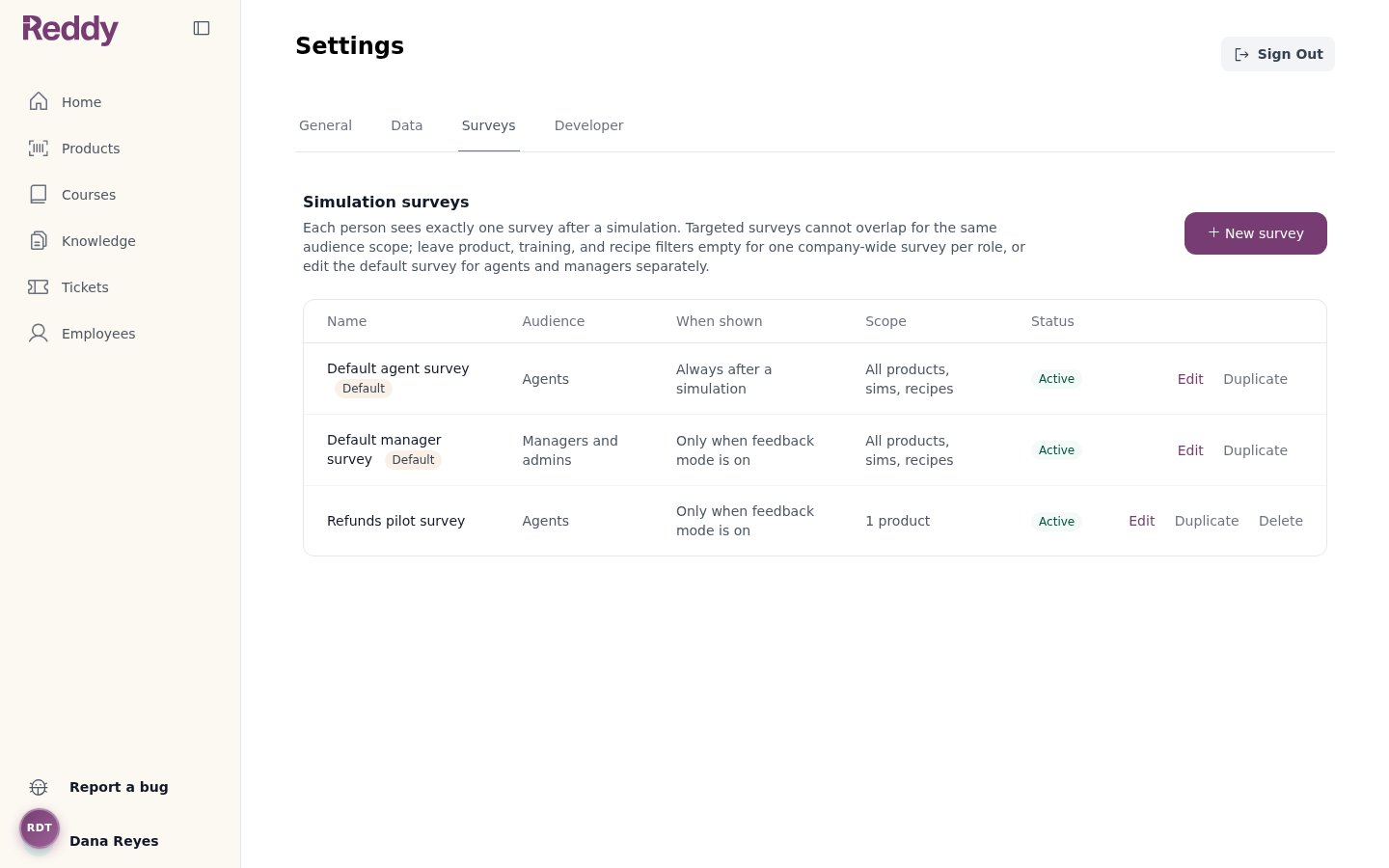
Use Edit to change a survey, Duplicate to copy it as a starting point, or Delete to remove it.
Duplicating a survey creates an inactive copy named “<original name> copy”. Set its audience and scope, then tick Active to turn it on. Default surveys cannot be deleted — untick Active if you want to stop showing one.
Editing a survey
Click Edit on any survey to open the editor. The left side is the survey definition; the right side is a live preview of exactly what the trainee will see.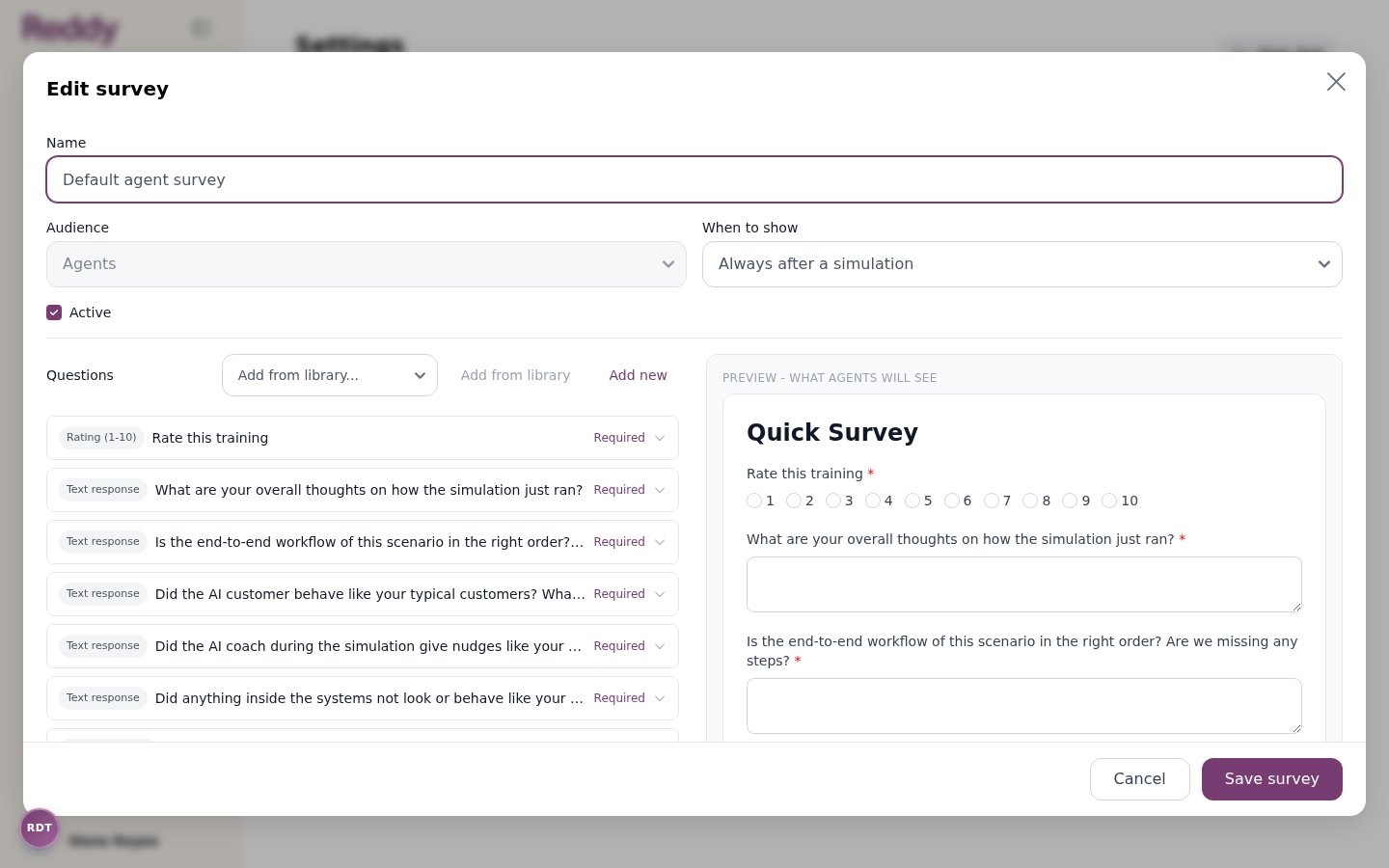
Name, audience, and when to show
- Name — for your reference only. Trainees never see it.
- Audience — Agents or Managers and admins. This is locked on the two default surveys.
- When to show — see the table below.
- Active — untick to keep the survey without showing it to anyone.
Targeting a narrower audience
Non-default surveys can be limited to a slice of your training. Leave all three filters empty and the survey matches everyone in the role.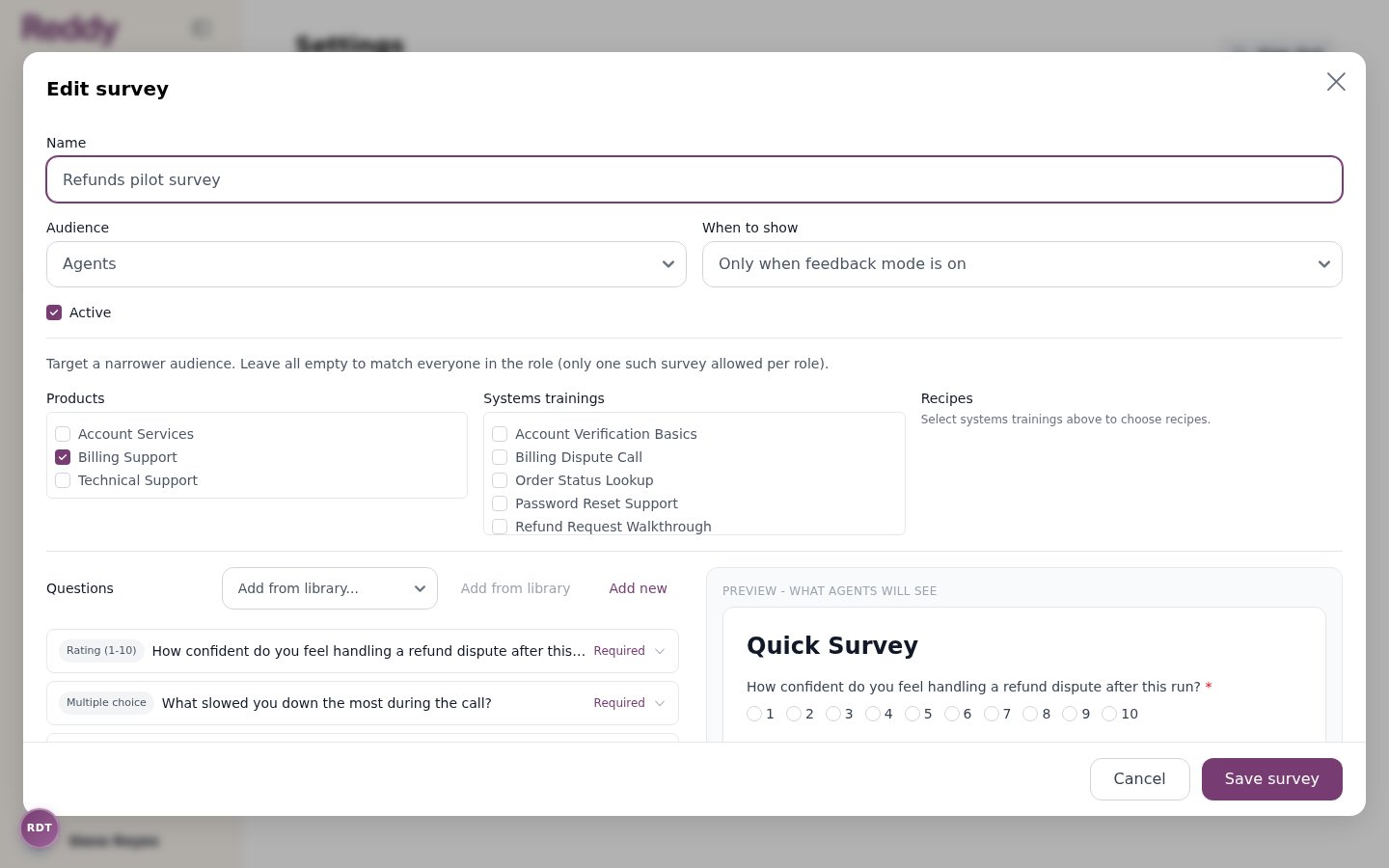
- Products — only simulations for these products
- Systems trainings — only these simulations
- Recipes — only these scenarios. Pick one or more systems trainings first, and the recipe list fills in with their scenarios
Questions
Add questions with Add new, or pick one from Add from library — the library holds every question already used in your other surveys, so wording stays consistent across surveys.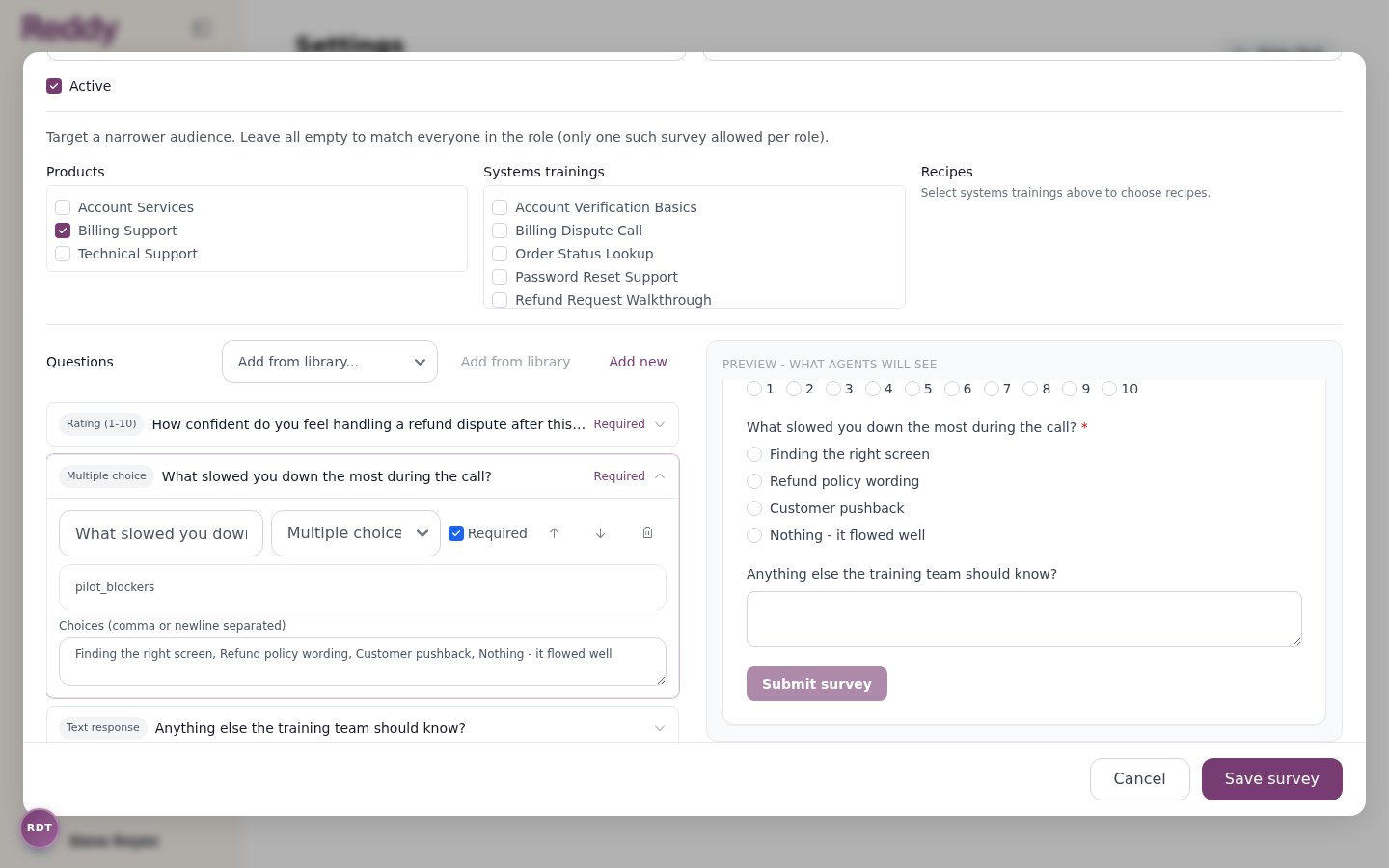
- Label — the question as the trainee reads it
- Type — see the table below
- Required — new questions are required by default
- Field name — optional. A short key used when exporting responses; Reddy generates one if you leave it blank
- Choices — multiple-choice questions only, comma or newline separated
Click Save survey when you are done. Changes apply to the next simulation that finishes; runs already in progress keep the survey they started with.
What trainees see
At the end of a simulation, the survey appears on the coaching screen under the feedback, as a Quick Survey card. Required questions are marked with a red asterisk.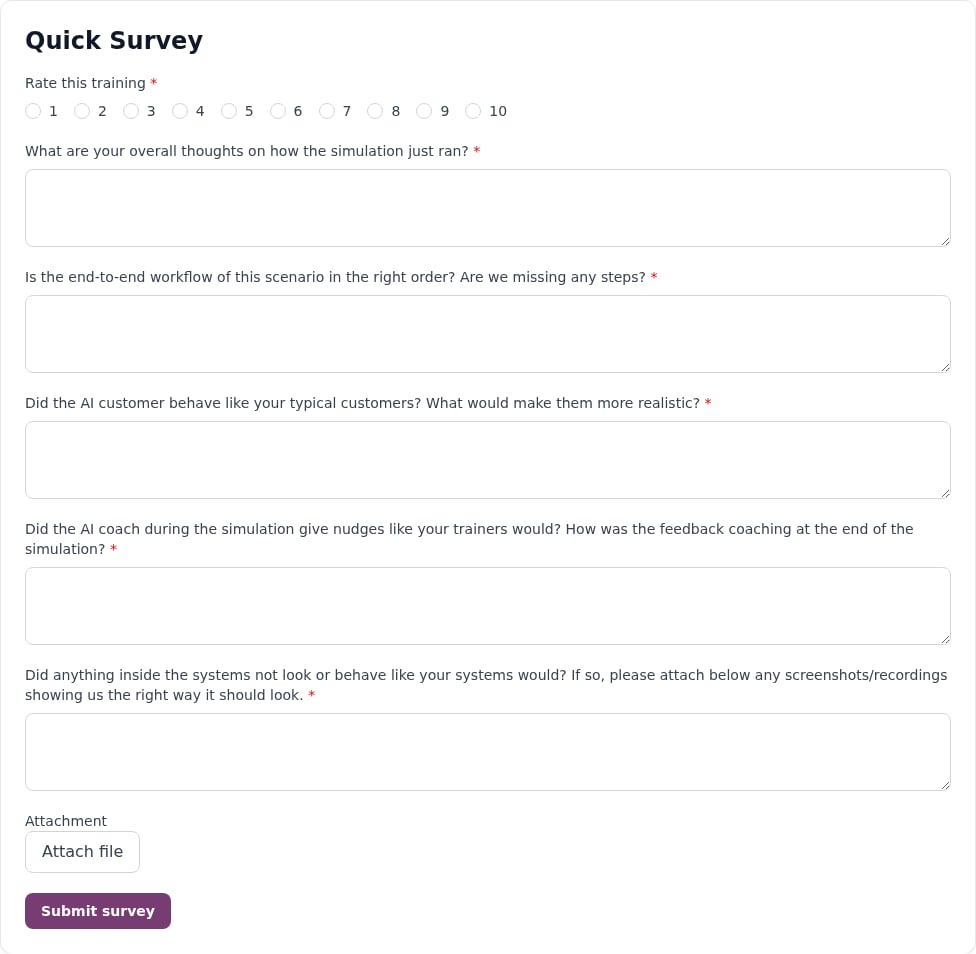
- One survey per simulation run. Submitting again overwrites the previous answers.
- Answers are only saved when the trainee clicks Submit survey. If they try to leave the page with answers typed in, Reddy warns them first.
- Uploaded files are attached to the session and stay available to managers.
Reading the responses
From the Dashboard, find the training session you want to review and click its timestamp, then open the Survey tab next to Insights, Transcript, Chat, and Feedback.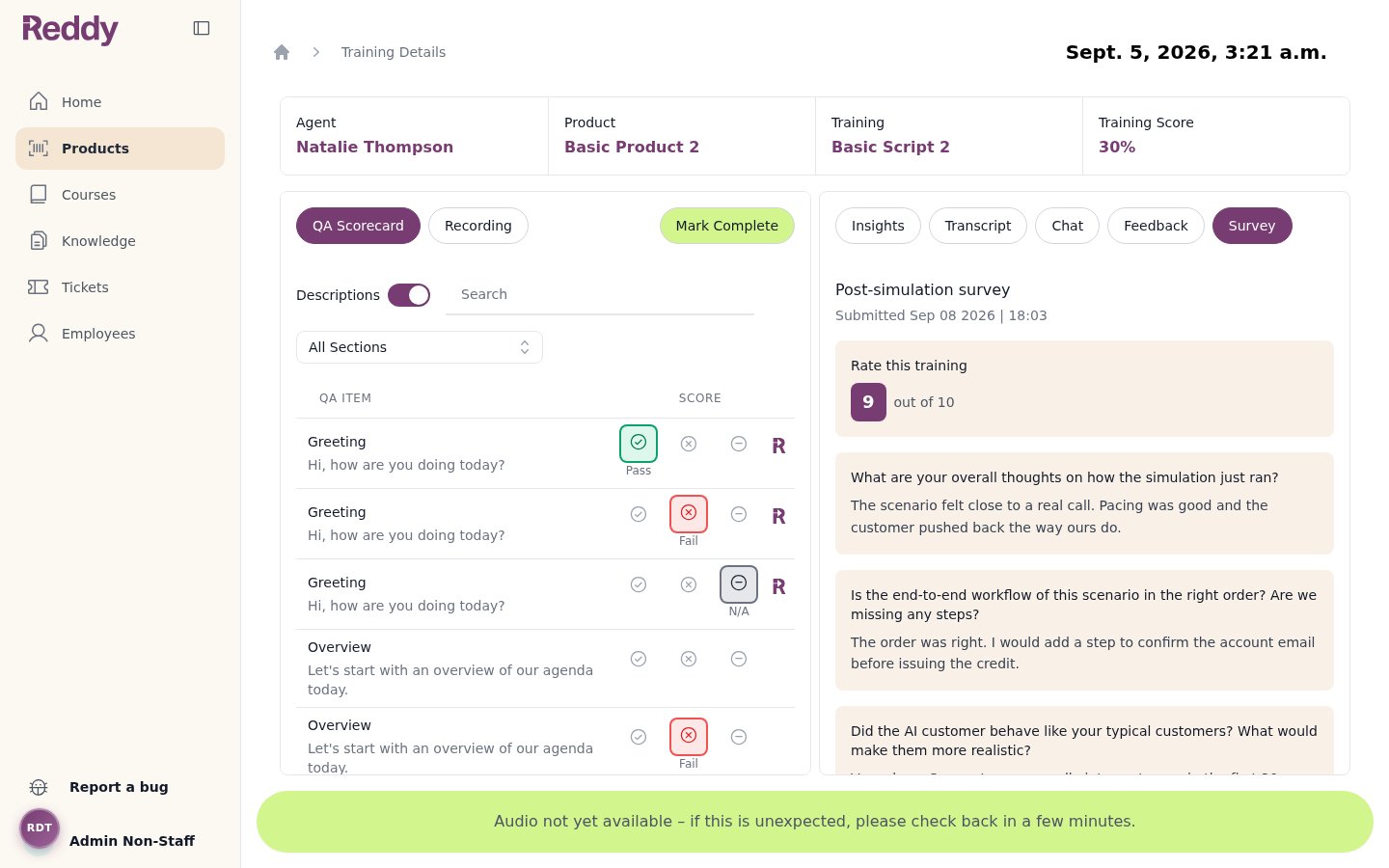
The tab labels each answer with the question wording that was on screen when the trainee answered, so editing a survey later does not relabel old responses.
FAQ
Who can configure surveys?
Who can configure surveys?
Company admins. Managers can read survey responses on training sessions but cannot change the surveys themselves. The Surveys tab is hidden for anyone else.
My trainees are not seeing a survey. What should I check?
My trainees are not seeing a survey. What should I check?
Three things, in order: the survey is Active; its Audience matches the person running the simulation (agents and managers get different surveys); and, if When to show is Only when feedback mode is on, that Feedback Mode is enabled on the lesson. Also check the scope filters — a survey limited to a product or simulation will not appear anywhere else.
Can someone see two surveys after one simulation?
Can someone see two surveys after one simulation?
No. Reddy resolves exactly one survey per person per run: the most specifically targeted match, or the default survey for their role if nothing else matches.
Why was my survey rejected when I saved it?
Why was my survey rejected when I saved it?
Another active survey for the same role uses the same combination of filters and overlaps with the one you are saving. The error message names it — narrow the scope of one of them, or make one inactive. Trainees never see two surveys either way: when several could match, Reddy picks the most specific one.
Can I stop using the default survey?
Can I stop using the default survey?
Yes. Open it and untick Active. Default surveys cannot be deleted, but an inactive one is never shown. Bear in mind that with no default in place, anyone outside your targeted surveys sees no survey at all.
Can a trainee change their answers?
Can a trainee change their answers?
Only while the coaching screen is still open — submitting again replaces the earlier answers for that run. Once they leave the page, that run’s survey is final.
Can I export survey responses?
Can I export survey responses?
Not through the public API today — the documented endpoints in the API reference do not cover simulation sessions. Read responses on the Survey tab of each training session, and talk to your Reddy contact if you need a bulk export.