

Agents can only be assigned simulations for products they’re already assigned to. For example, if an agent is assigned to “AT&T Sales,” you can only assign them AT&T-related training simulations.
Assigning to Individual Agents
1
Navigate to Agent Profile
Go to Employees tab and click the agent’s name to open their profile.
2
Select Modules to Assign
Click “Select Modules to Assign” dropdown and choose the training simulation(s).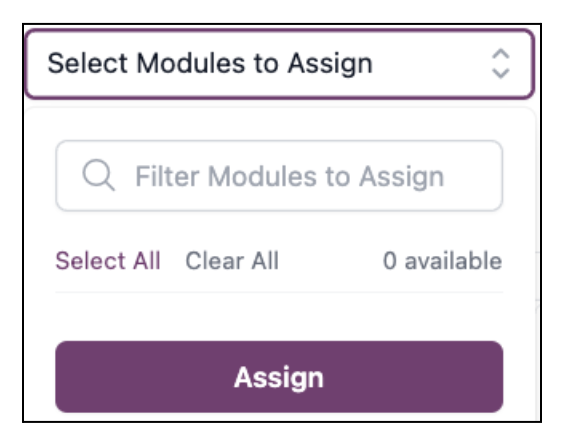
3
Apply Assignment
Click Apply to assign the training. The agent receives an instant notification.
Bulk Assignment
Assign training to multiple agents simultaneously.1
Access Assignments Tab
Navigate to Assignments from the left navigation.
2
Click Bulk Assign
Click Bulk Assign in the top right corner.
3
Select Agents
Choose agents to assign training:
- Quick select: Select all direct reports
- Manual entry: Enter agent emails (comma-separated)
4
Select Training Modules
Search or browse available training simulations.
5
Complete Assignment
Click Bulk Assign to complete. All selected agents receive notifications immediately.
Agent Experience
When you assign training, here’s what agents see: Notification Alert:- Notification bell appears in their dashboard
- Alert displays with a “Practice” button
- Click to jump directly to the assigned simulation
- Agents complete the simulation at their convenience
- Notification marks as read once finished
- Assignment status updates automatically in the Assignments table
Tracking Assignments
View and manage all training assignments in the Assignments tab.Assignments Table
Available Columns:- Completed: Status indicator (green checkmark when complete)
- Assignee: Agent name
- Assignment: Training simulation name
- Assigned By: Manager who made the assignment
- Date Assigned: When the assignment was created
- Due Date: Target completion date (if set)
- Date Completed: When agent finished the training
FAQ
Can I set a due date for assignments?
Can I set a due date for assignments?
Yes. When creating assignments, you can set a due date to establish completion expectations. Agents see this in their notification.
What happens if I assign a simulation for a product the agent isn't assigned to?
What happens if I assign a simulation for a product the agent isn't assigned to?
You can’t. The system only shows simulations for products the agent is already assigned to, ensuring assignments are relevant to their role.
Can agents see who assigned them training?
Can agents see who assigned them training?
No. Agents see the assignment notification and training details, but not who assigned it.
How do I know if an agent completed their assignment?
How do I know if an agent completed their assignment?
Check the Assignments table. Completed assignments show a green checkmark in the “Completed” column and display the completion date.
Can I remove an assignment?
Can I remove an assignment?
Assignments remain visible for tracking purposes. If an agent hasn’t started, contact your Reddy Project Manager for removal options.