

Communications Channels
8:00a to 6:00p Pacific Time
Reach out to Reddy through your established communication channel (Slack, Microsoft Teams, or email).
Outside PT business hours
Use Get Help > Get live support inside Reddy. It reaches Reddy’s globally distributed team, so you’re more likely to get a response before PT business hours.
Get Help in Reddy
Every Reddy user has a Get Help button at the bottom of the left navigation panel. It is available on the manager dashboard and the agent dashboard, and on mobile.

- Get live support
- Report a bug
Chat with the Reddy Team
Use live support for urgent issues, or whenever you need help outside PT business hours.1
Open Get Help
Click Get Help at the bottom of your navigation panel.
2
Choose Get live support
Select Get live support. A chat window opens in the bottom-right corner of your screen.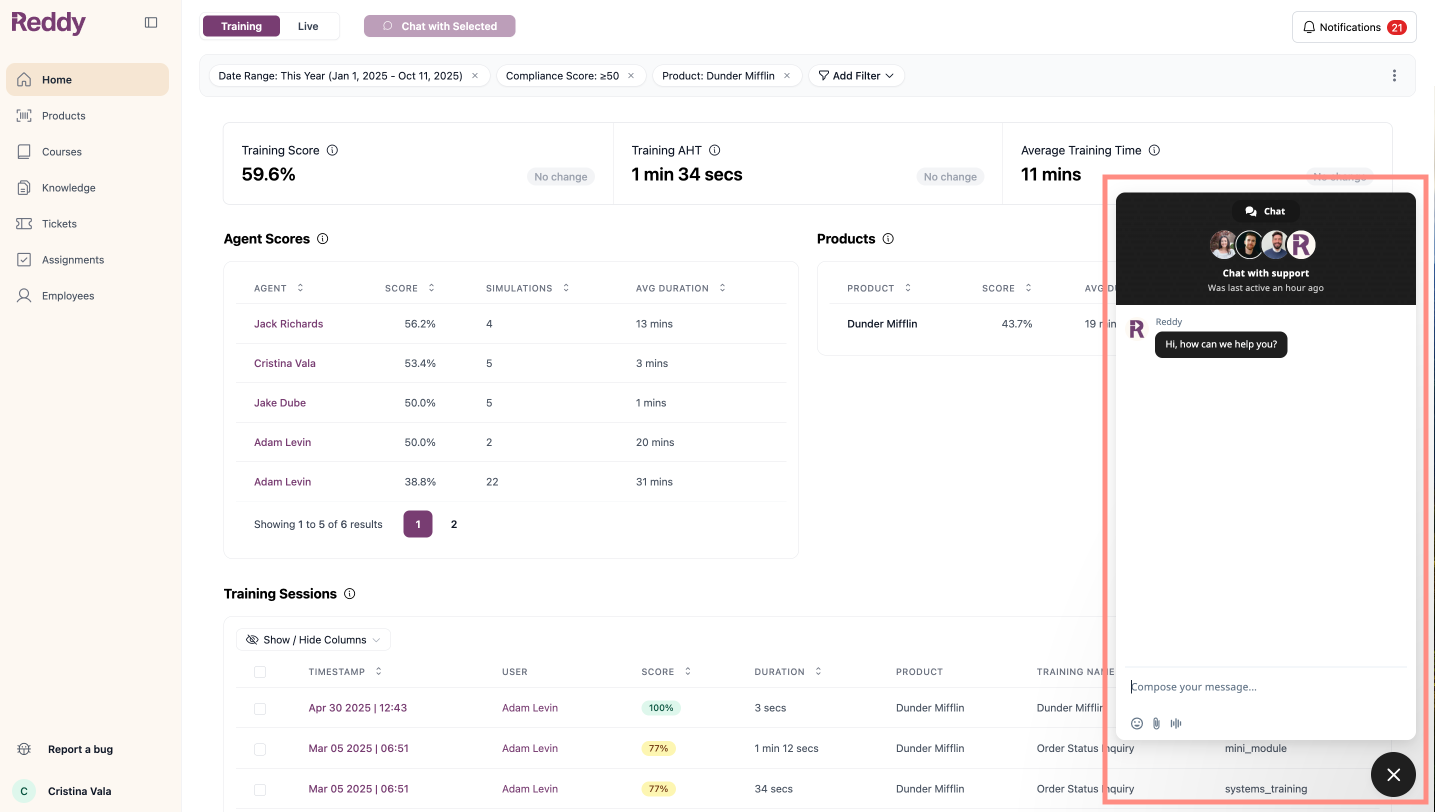
3
Describe the issue and attach files
Type your message with as much detail as possible:
- When the issue occurred
- What you were trying to do
- What actually happened
- Where in Reddy (page or feature)
- Any error messages you saw
4
Work with the team
A Reddy team member will work with you until your issue is resolved. If escalation is needed, we’ll create a separate ticket for tracking.
When you close the chat window, the chat icon hides again. Reopen it any time through Get Help > Get live support.

Reporting Issues During a Simulation or Live Call
Agents can also report a problem without leaving a training simulation or a live call. These reports go to the same support team.Try These First
Before reporting an issue, try these common fixes:Microphone Not Working
Microphone Not Working
The most common issue, but usually a quick fix! If your microphone fails the check before starting a simulation, try these steps:
- Check browser microphone permissions
- Test microphone in system settings
- Try a different browser
- Restart your computer
General Technical Issues
General Technical Issues
If you’re experiencing loading problems, glitches, or errors:
- Refresh the page - Often resolves temporary issues
- Clear cache and cookies - Clear Chrome cookies
- Try incognito/private window - Opens a fresh browser without extensions
- Update your browser - Ensure you’re on the latest version
- Try a different browser - Switch to Chrome, Firefox, or Safari
- Try a different device - Test if the issue persists elsewhere
Report an Issue
Still having a problem? Use the Report an Issue button in the panel you are working in.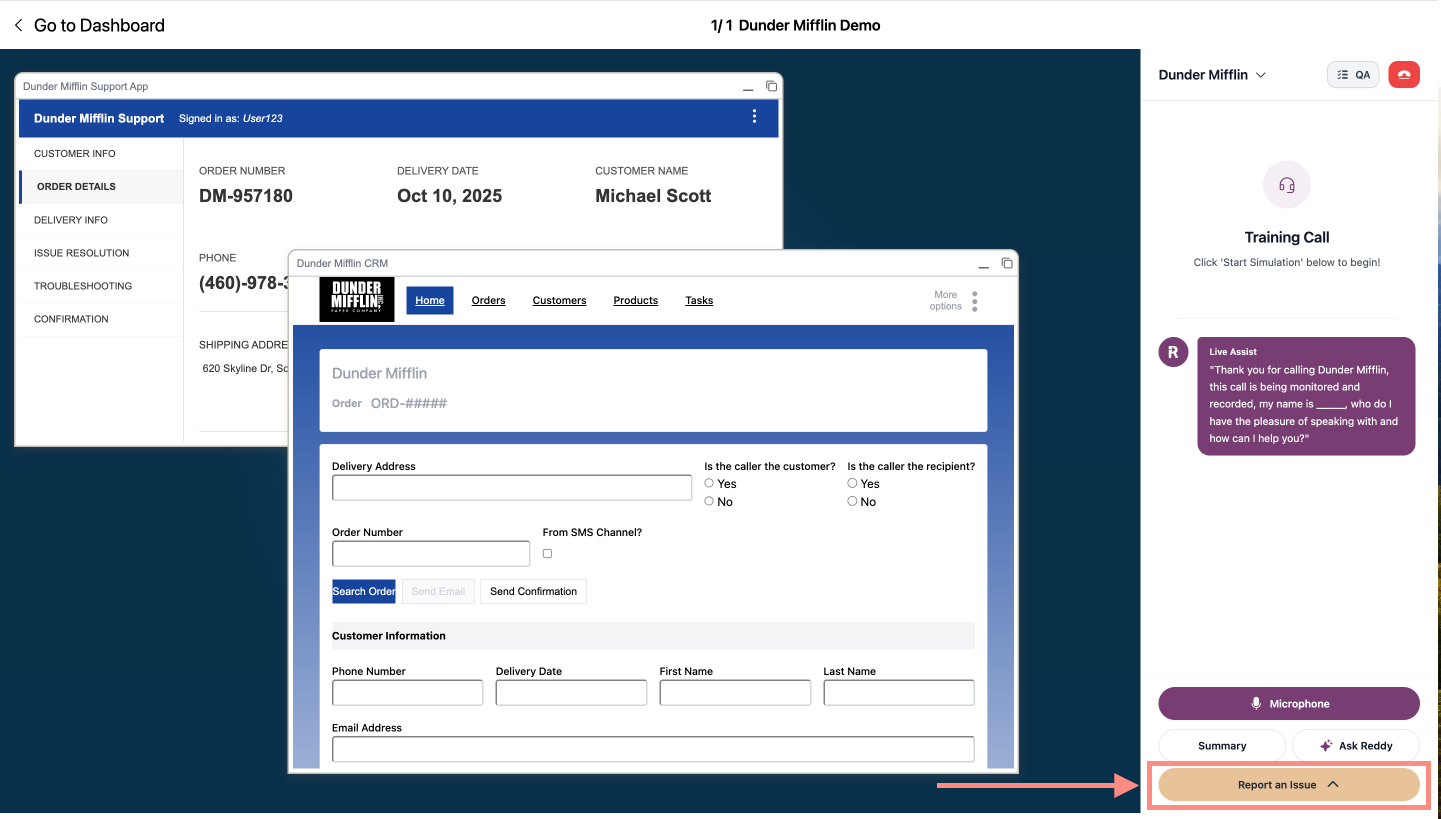
Training Simulation Issues
Training Simulation Issues
1
Click Report an Issue
Click “Report an Issue” at the bottom of your training simulation panel.
2
Select Issue Type
Choose from: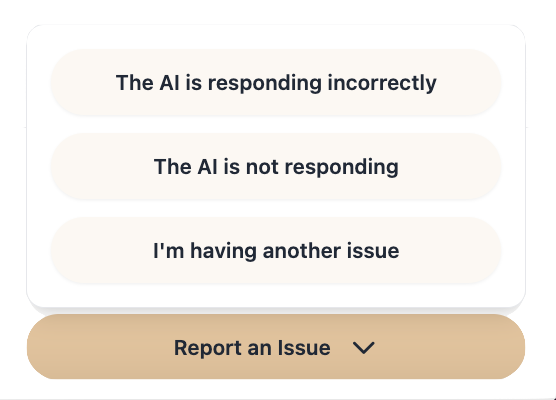
- The AI is responding incorrectly
- The AI is not responding
- I’m having another issue
3
Describe & Submit (If Other)
If you selected “I’m having another issue,” a form opens on the bottom right. Describe the issue with as much clarity as possible:
- What issue did you run into?
- What did you expect to happen?
Live Assist Issues
Live Assist Issues
1
Click Report an Issue
Click “Report an Issue” at the bottom of your live assist transcript panel.
2
Select Issue Type
Choose from: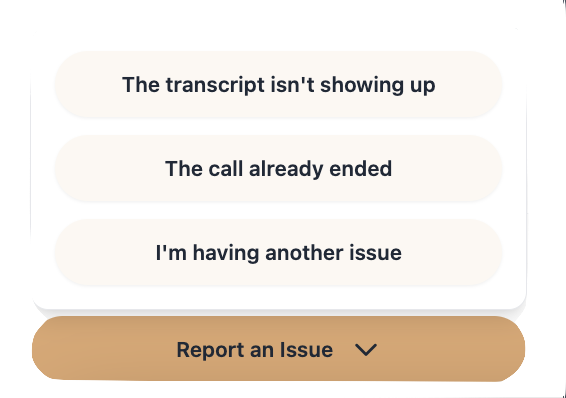
- The transcript isn’t showing up
- The call already ended
- I’m having another issue
3
Describe & Submit (If Other)
If you selected “I’m having another issue,” a form opens on the bottom right. Describe the issue with as much clarity as possible:
- What issue did you run into?
- What did you expect to happen?
Additional Resources
Your Communication Channel
For critical business issues during PT business hours, reach out to Reddy directly through your established Slack, Microsoft Teams, or email channel.
Product Requests
Submit feature requests and enhancement ideas through the Reddy ticketing system.
Reddy Status Page
Check real-time status and uptime for Reddy services and scheduled maintenance.
FAQ
It is the middle of the night in California. Who will answer the live chat?
It is the middle of the night in California. Who will answer the live chat?
Reddy’s team is distributed around the world, and the live chat is routed to whoever is online. Outside PT business hours it is the fastest way to reach a person.
Should I message Reddy on our channel and also open a live chat?
Should I message Reddy on our channel and also open a live chat?
Pick one based on the time of day. During PT business hours, your established communication channel is the right first stop. Outside those hours, use the live chat and the team will loop in the right people.
I don't see a chat icon in the corner of my screen.
I don't see a chat icon in the corner of my screen.
That is expected. The chat icon only appears after you choose Get Help > Get live support, and hides again when you close the chat.
Where do bug reports go?
Where do bug reports go?
Straight to the Reddy support team, together with the page you were on, your browser, and your operating system. If we need more information we will follow up with you.