

Troubleshooting Steps
1
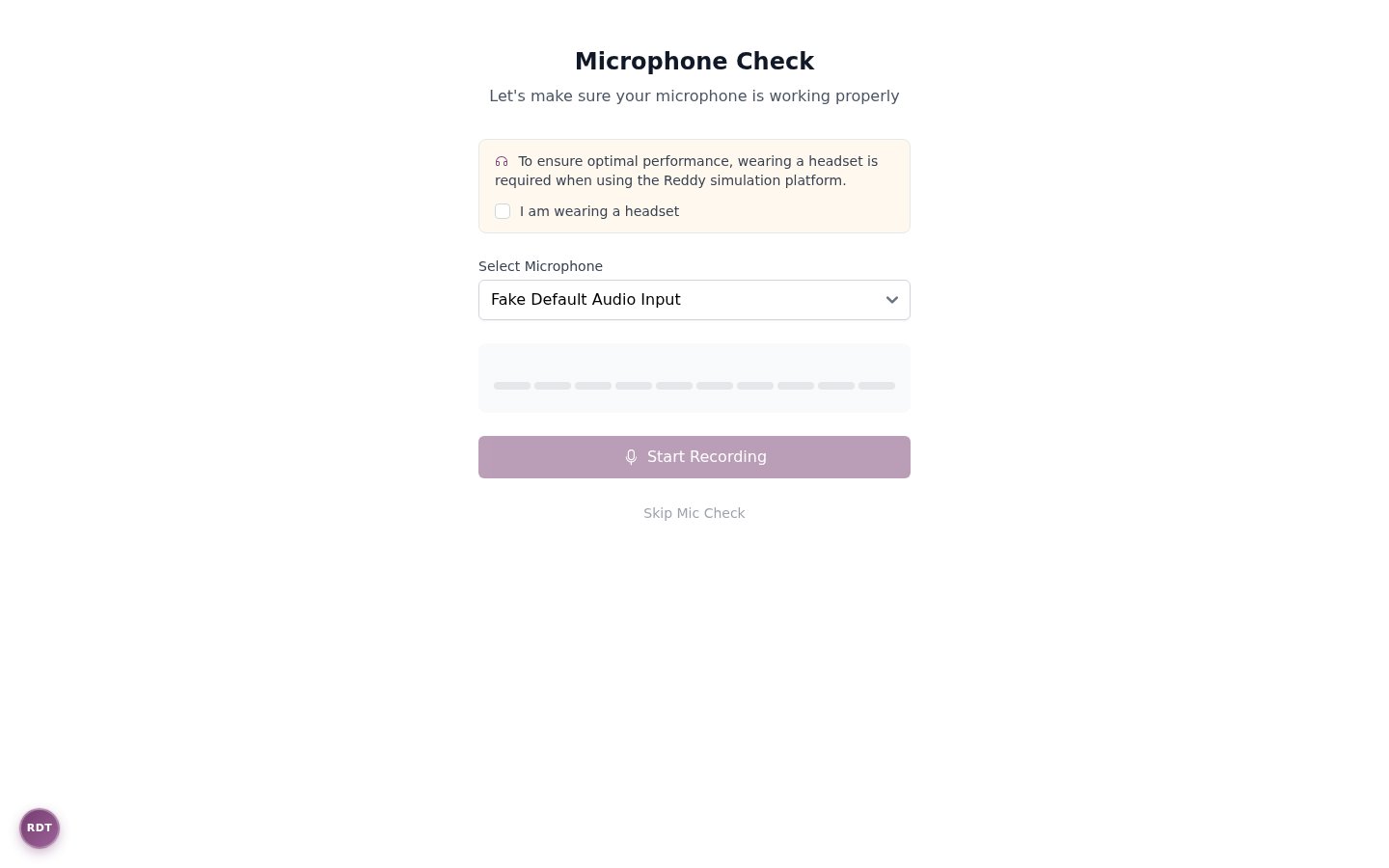
Confirm you are wearing a headset
Read the headset notice at the top of the page, then check I am wearing a headset.The Start Recording button stays disabled until you confirm. Put on your headset before continuing.
Skip Mic Check at the bottom of the page bypasses the recording test and does not require the headset checkbox.
2
Refresh the page
Start by refreshing the page. This may reveal additional microphone options if you plugged in a new mic or changed Windows settings.
3
Check microphone selection
Check the dropdown menu for available microphone options and choose the correct device for your microphone.
These options are defined by Windows based on connected devices. Try each option to determine which one works best.
4
Start recording
After confirming your headset, click the Start Recording button at the bottom of the page.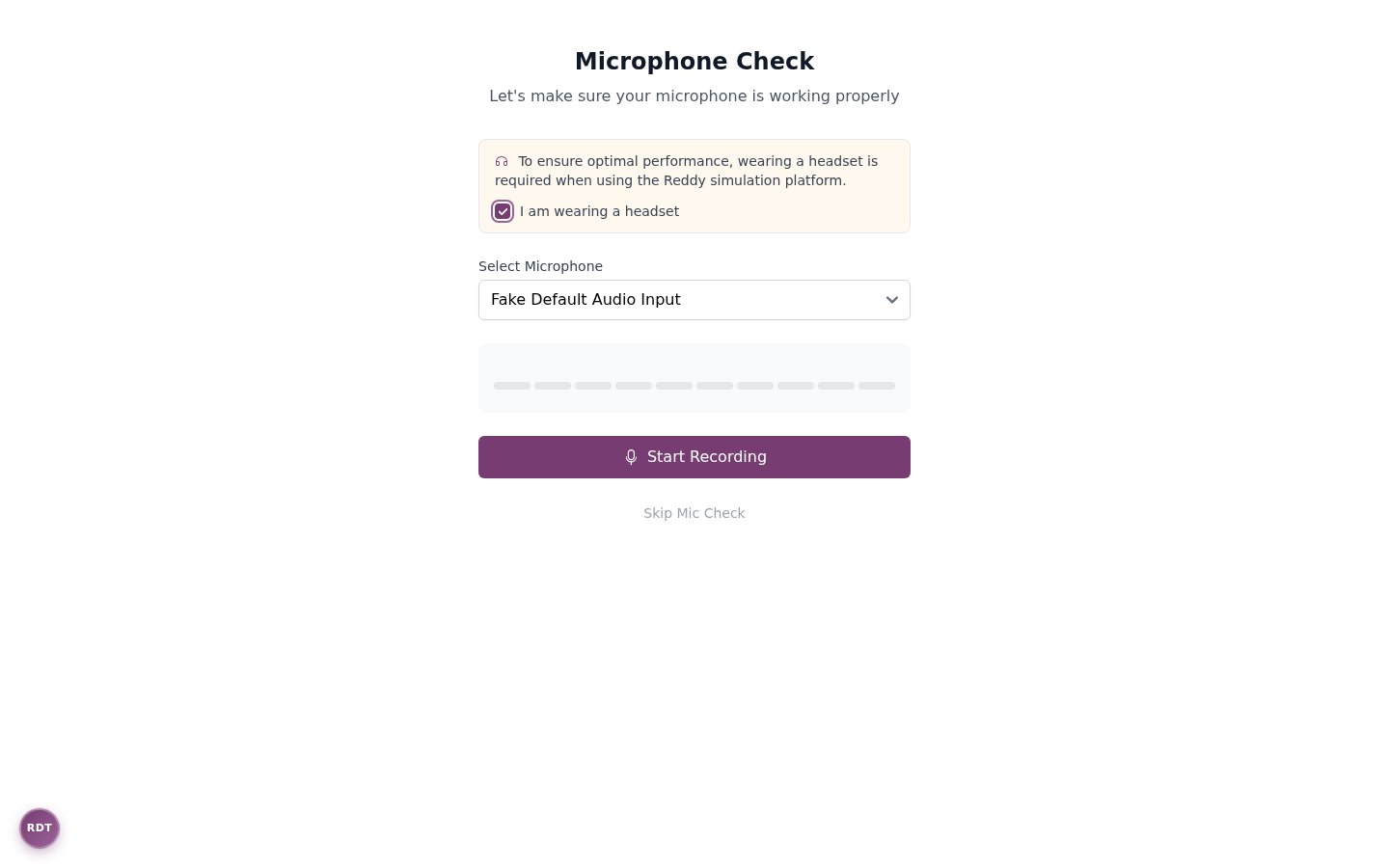
5
Grant browser permissions
Watch for a popup requesting permission to access your microphone.If the popup has closed, check near the search bar in your browser for permission settings.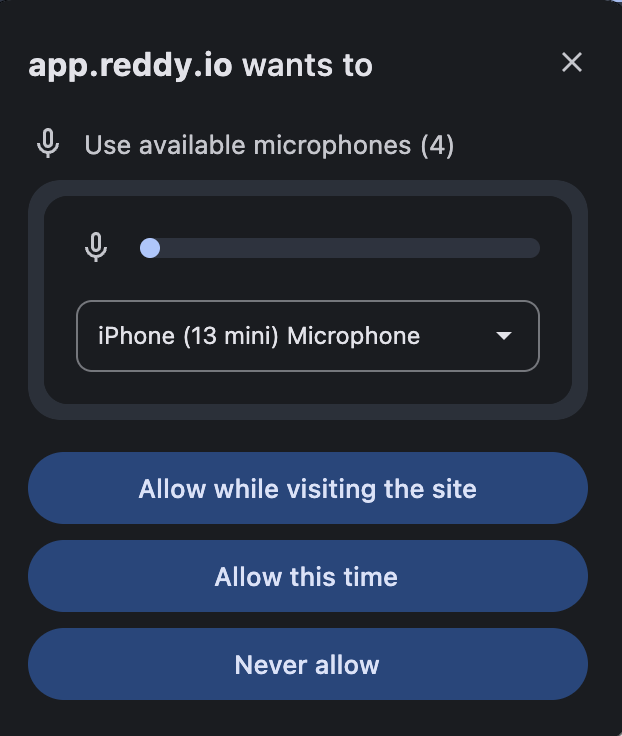
Ensure you’ve clicked Allow to grant microphone access.
6
External microphone check
If problems continue, consider using an external microphone check tool to verify Windows settings.
You can use webcammictest.com to test your microphone outside of the Reddy platform.
Still Having Issues?
If problems persist after following all the steps above, contact Reddy support for further assistance.Get Help
See how to reach the Reddy team: your established communication channel during PT business hours, or Get Help live support at any other time.
For the best training experience, we recommend using a high-quality headset with a built-in microphone to ensure clear audio during simulations.