

During Your Call
- Desktop app runs in the background
- Transcript displays in real-time
- QA checklist tracks requirements
- AI assistance available on demand
Product Verification
Reddy auto-detects the product based on queue name (95% accuracy) and displays the appropriate QA checklist. Verify product accuracy: Check that the displayed product matches your call. If incorrect, manually select the correct product from the dropdown. Manual override: The QA checklist and grading adjust when you change products.Completed QA items won’t show as checked after product change, but post-call grading ensures your score reflects actual performance.
Post-Call Feedback
After each live call, review your personalized performance analysis. Feedback Panel: Click “Feedback” in the post-call pop-up to open deeper call insights with action-ready summaries. What You’ll See: Agent Areas of Improvement: Customizable summary highlighting key wins, compliance gaps, and next-best actions prioritized for quick follow-up. Agent Strengths: Recognition of what you did well—specific skills and behaviors you demonstrated effectively. Call Summary: Overview of the customer interaction, key discussion points, and resolution details. QA Item Breakdown:- Missed QAs: Requirements you didn’t complete (shown in red)
- What Went Well: Requirements you completed successfully (shown in green)
Core Features
Transcript Panel
Transcript Panel
The transcript shows everything said during the call in real-time. Review what the customer said if you missed it.Auto Scroll: Automatically follows the conversation to the latest verbiage.Manual Control:
- Scroll up to reference earlier call moments
- Auto scroll disables when you scroll up
- Click “Scroll to End” to return to the current part and re-enable auto scrolling
QA Checklist
QA Checklist
The QA checklist shows required steps for every call.
- Follow checklist to ensure smooth call flow
- Hover over QA items to see specific requirements
- Collapse completed items to focus on what’s next
Toggle Between Checklist and Transcript
Toggle Between Checklist and Transcript
Click between QA checklist and transcript panel as needed during calls.
- QA checklist: Track call requirements
- Transcript panel: Review conversation details
Ask Reddy
Ask Reddy
When a customer asks a question you don’t know, use Ask Reddy instead of putting them on hold.
- Click the “Ask Reddy” button in your application interface
- Reddy analyzes the recent transcript to infer the question
- AI searches all company documents instantly
- Get accurate answers in seconds
Call Summary
Call Summary
Click the Summary button during a call to get key call details: caller name, email, phone, address, and brief summary.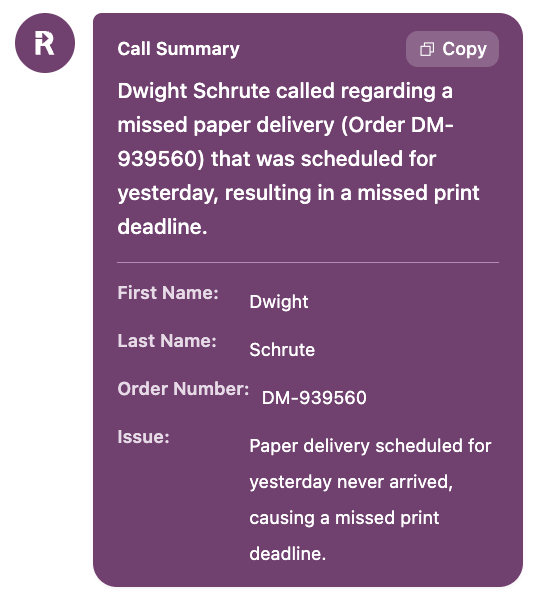
Summary details are customized for your company’s needs. Need additional details summarized? Ask your manager.