

Simulation Interface Overview
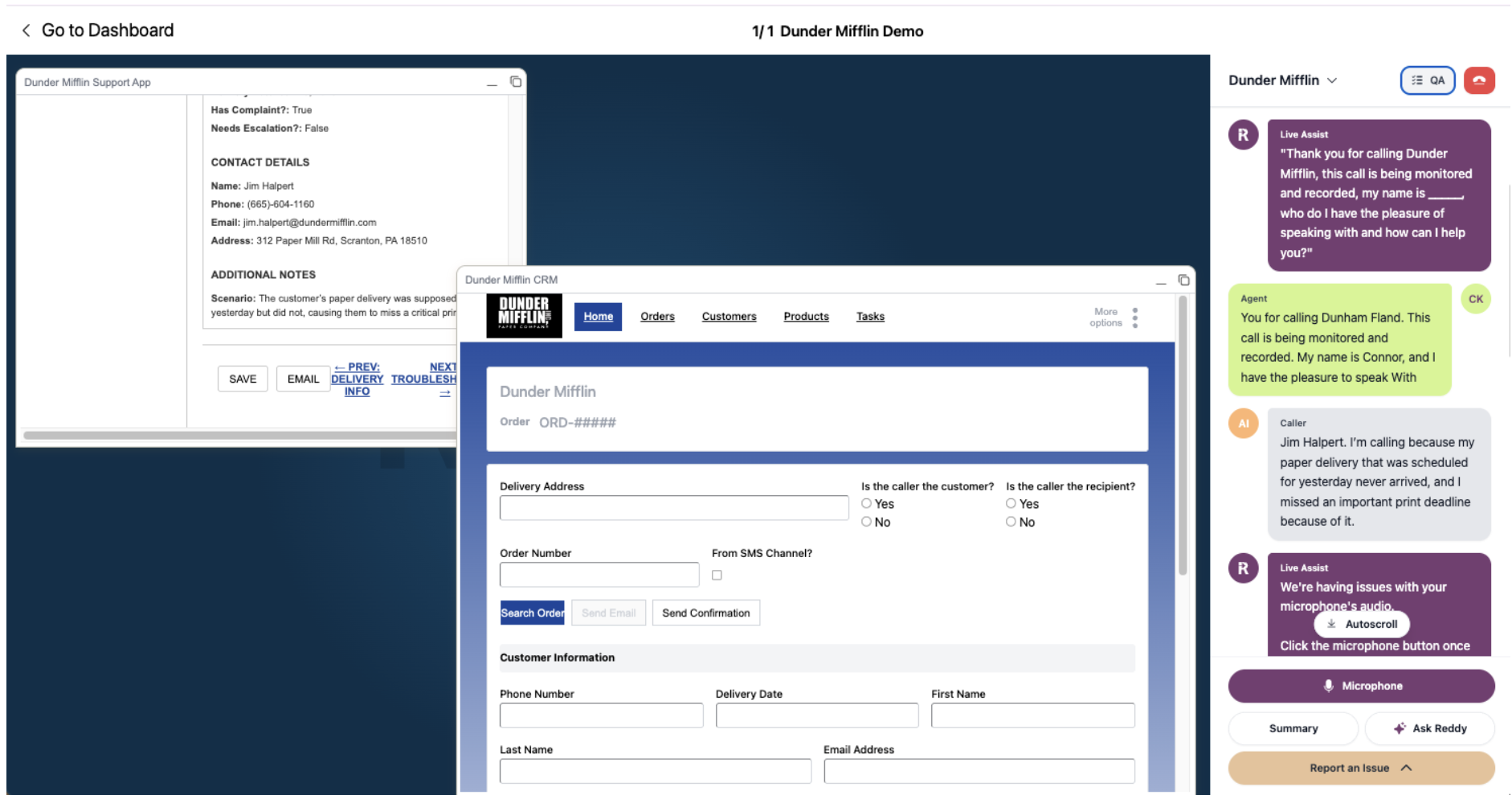
- Left Side: Simulated Desktop
- Right Side: Reddy Live Assist Panel
Simulated DesktopRecreations of apps that you’ll use during the call and your work.
- Realistic environment: Mimics your actual desktop experience
- Integrated applications: Access to tools you’ll use during real calls
- Practice space: Safe environment to learn and practice procedures
Live Assist Panel Components
The right panel displays different types of information with subtle color coding:- Live Assist (purple) Advice from our AI coach providing real-time guidance and suggestions during your simulation.
- Agent transcription (grey) Transcription of what you say during the simulation, helping you track your own communication.
- Caller transcription (green) Transcription of the AI customer responses, so you can follow the conversation flow.
Starting Your First Simulation
1
Start the simulation
Click the purple “Start Simulation” button in the bottom right to begin your training session.
Your simulation is now active and ready for interaction.
1
Read the initial Live Assist instructions
When you start a simulation, Live Assist will provide you with context and instructions. Pay close attention to these initial bubbles.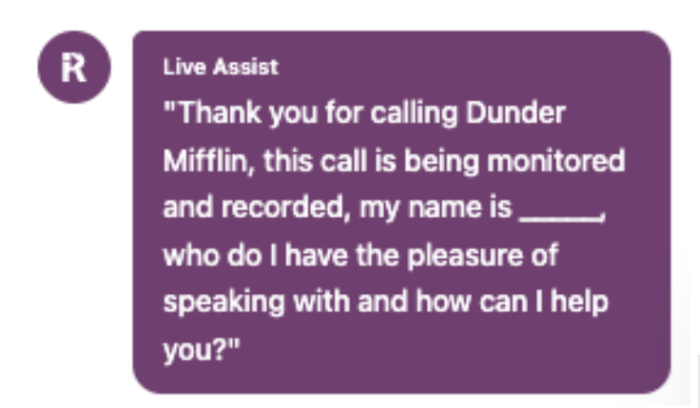
These instructions set the stage for your simulation and provide important context about the customer and situation.
2
Follow Live Assist guidance
Live Assist will provide you with specific instructions, such as:“Greet the customer and ask how you can help today.”
3
Speak your response
Begin speaking your response to the customer. For example:“Thanks for calling Dunder Mifflin, my name is [your name], how can I help?”
4
Your response is submitted automatically
As soon as you stop talking, your response will be submitted automatically.
No need to click anything - just finish speaking and your turn will be processed.
5
Listen to AI customer response
The AI customer will respond back in a green bubble with their message.
Watch the green bubble to understand the customer’s response and what they need help with.
6
Continue the conversation
This process continues as you: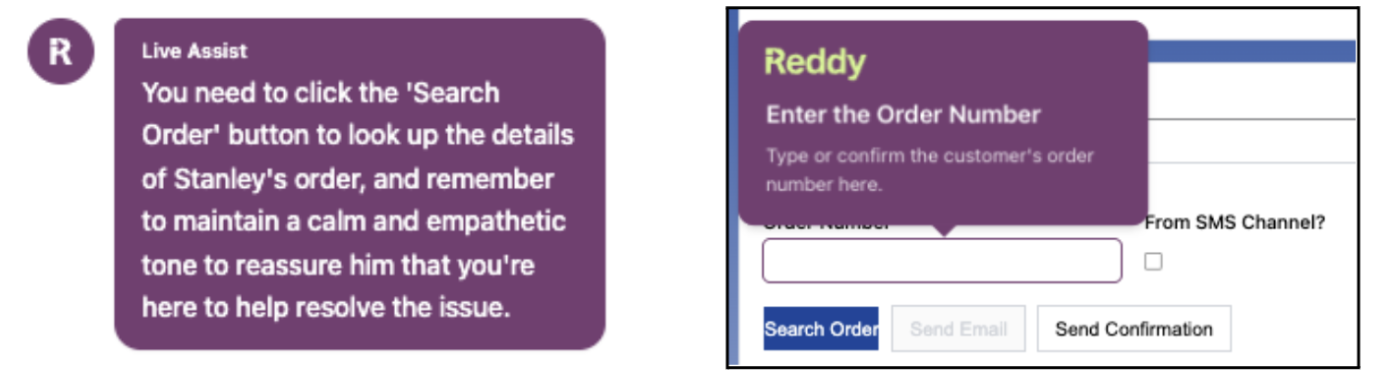
- Receive Live Assist guidance for each step
- Speak your response to the customer
- Listen to the AI customer in the green bubble
- Follow Tours for desktop actions when needed
Continue this cycle until you successfully help the customer and complete all required steps and tours.
Audio Controls
1
Mute controls
Use the audio controls to manage your participation:
- Mute: Click to mute yourself during the simulation
- Unmute: Click to unmute yourself and resume speaking
2
Troubleshooting microphone issues
If you’re experiencing microphone problems, we have a dedicated troubleshooting guide to help you resolve common issues.
Microphone Troubleshooting
Step-by-step guide to resolve microphone issues during training simulation setup.
How Simulations End
Automatic Completion
The simulation will end automatically when you complete all the required steps and tours. Simply follow the guided experience and the system will handle the rest.Stop Before Completion
If you need to exit the simulation before completing it:- Click the red hang up button in the top right corner
- Confirm by clicking End Simulation in the popup
Additional Features
AI-Powered Tools
Ask Reddy
Ask Reddy
When a customer asks a question you don’t know, use Ask Reddy instead of putting them on hold.
- Click the “Ask Reddy” button in your application interface
- Reddy analyzes the recent transcript to infer the question
- AI searches all company documents instantly
- Get accurate answers in seconds
Summary
Summary
Generate a summary of the call and pull out key items
- Automatic call summarization
- Key points extraction
- Important details highlighting
QA Checklist
QA Checklist
Review the QAs you’re being graded on
- View assessment criteria
- Track your performance against standards
- Understand what’s being evaluated
Best Practices for Successful Simulation Runs
Follow the Guided Experience
Let Live Assist and Tours guide you
Let Live Assist and Tours guide you
Trust the guided experience
- Live Assist provides real-time coaching based on the conversation
- Tours show you exactly where to click and what actions to take
- Following this guidance ensures you learn the proper procedures
Stick to the recommended flow for optimal learning.
Avoid clicking out of order
Avoid clicking out of order
Stay on track with the process
- Try not to skip around too much in the interface
- Don’t click buttons out of the recommended order
- Follow the sequential steps as presented
Learning-Focused Approach
1
Take your time
Go slow to learn effectivelyWe all want to reduce handle times, but while you’re getting the hang of the simulation environment.
2
Use available help resources
Get assistance when neededIf you get stuck or something feels broken:
- Use the “Report Issue” button for technical problems
- Ask your supervisor for procedural clarifications
- Review the guidance provided by Live Assist
Troubleshooting Common Issues
Simulation not responding
Simulation not responding
Interface issues
- Wait a few seconds for the system to process your input
- Check your internet connection
- Refresh the page if necessary (note: this will restart your simulation)
Next Steps
After completing your first simulation:- Review your performance - Check your scores and feedback
- Identify improvement areas - Look at what you can do better next time
- Practice regularly - Consistent practice leads to mastery
- Apply learnings - Use insights from simulations in real calls
You’re now ready to complete your first simulation successfully! Remember to take your time and follow the guidance provided.
Report an Issue: Let us know how we can improve the simulation experience!