

Only the program’s approvers see Reddy’s reading, its questions and its plan. Approvers are the simulation’s creator plus anyone added under Approvers on the Settings tab.
When the round closes
Once every tester has met their runs, Reddy reviews the round. If it needs to know more before proposing a change, the update tile reads Awaiting answers and approvers see Answer the agent’s questions.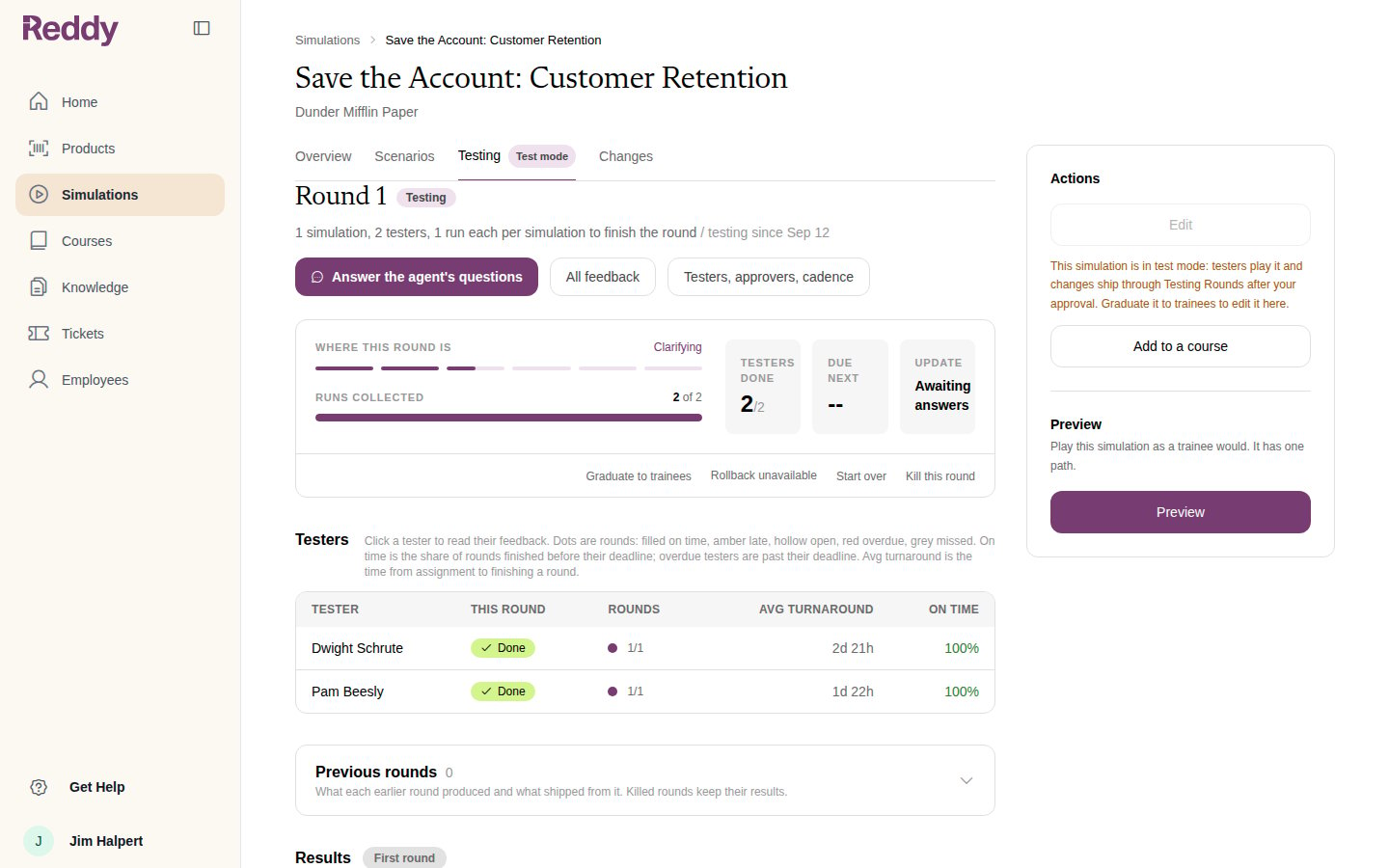
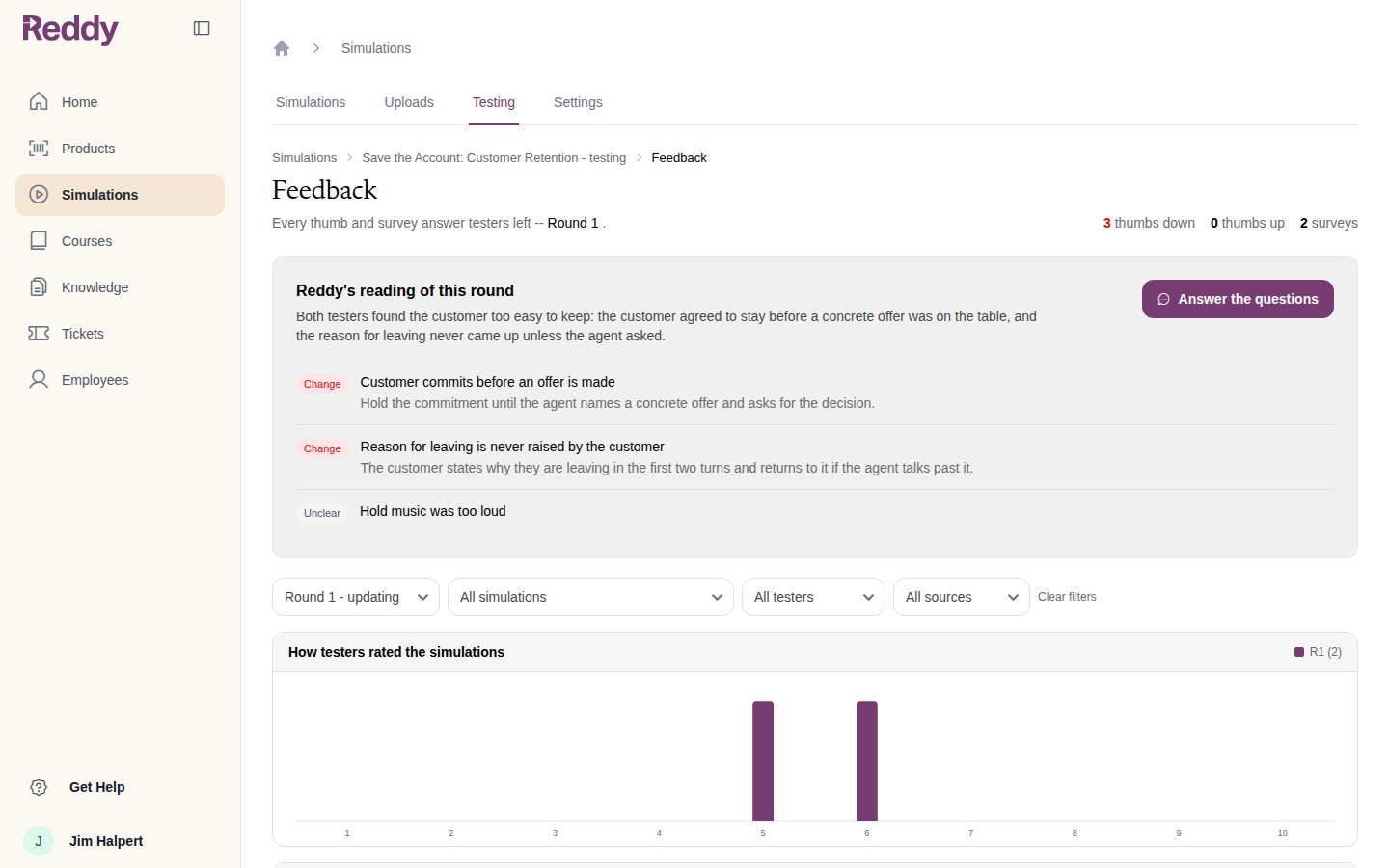
Reddy’s reading of the round
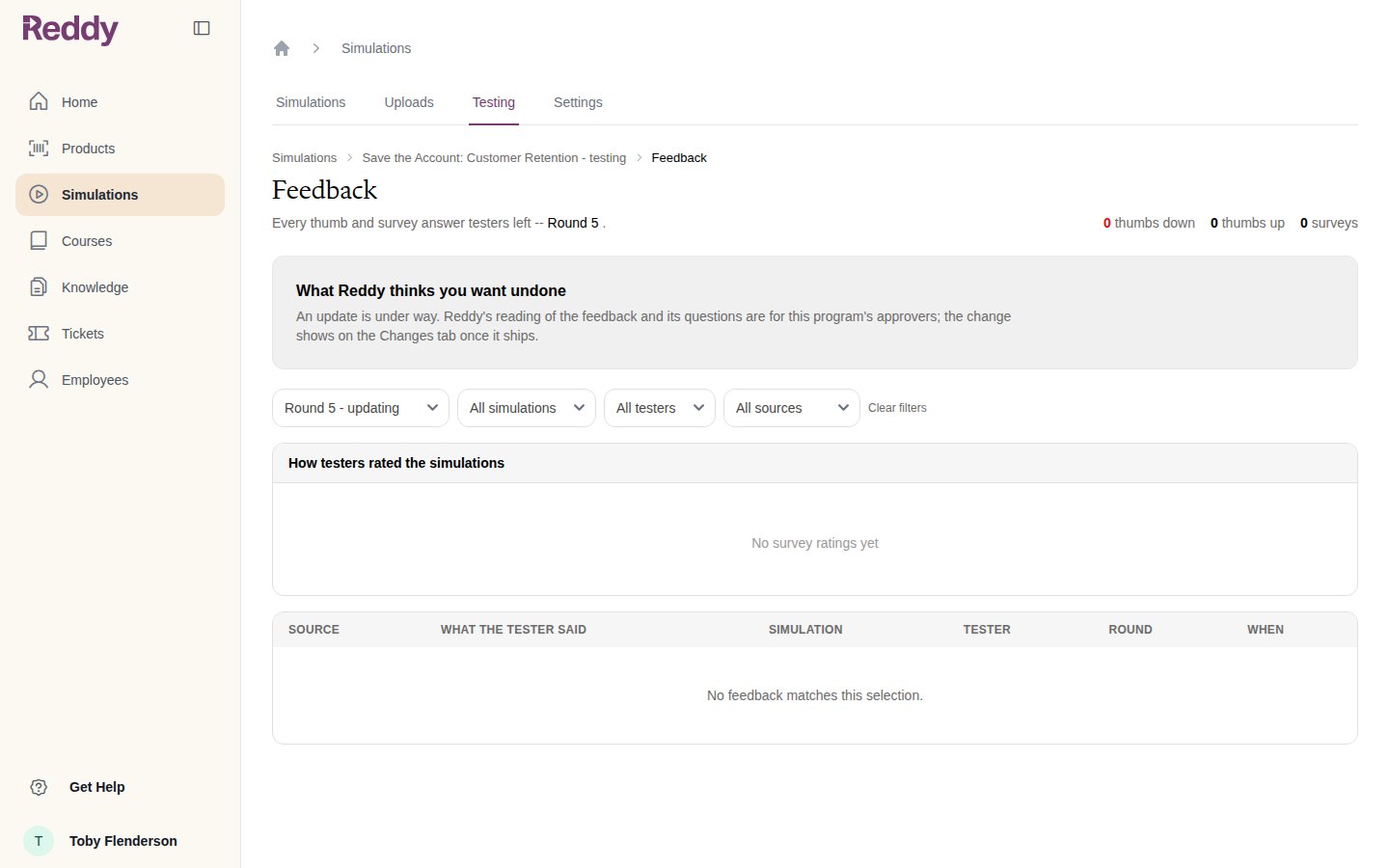
The button opens the round’s Feedback page. At the top, Reddy’s reading of this round summarises what testers said and lists each finding with a verdict:- Change: something Reddy proposes to fix, with the change it has in mind
- Unclear: something it heard but will not act on
Answering the questions
Answer the questions opens a two-step wizard: Questions, then Change plan. Reddy asks one question at a time with suggested answers and the one it recommends. Click an answer to move on, or None of these. I’ll write my own to type your own.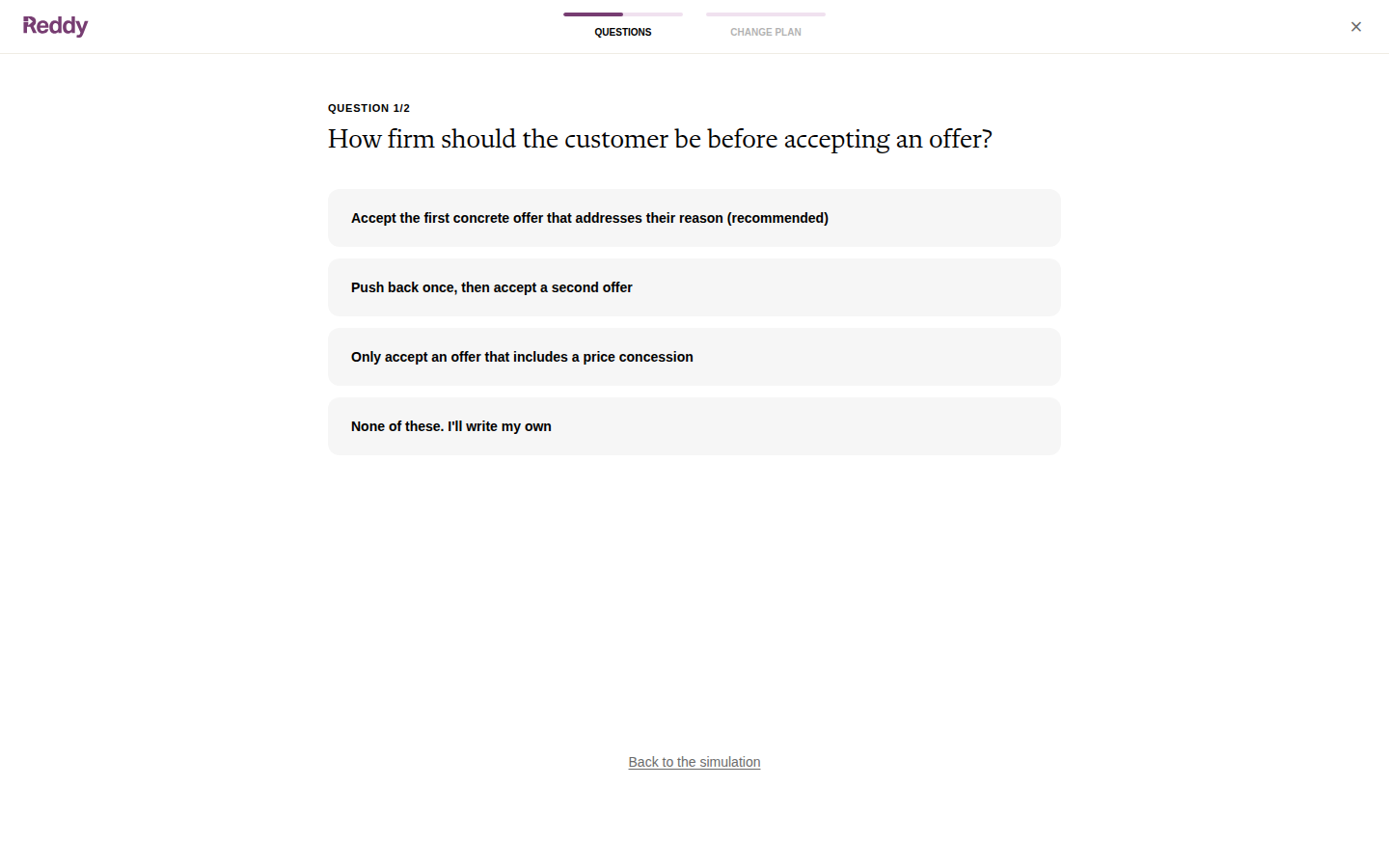
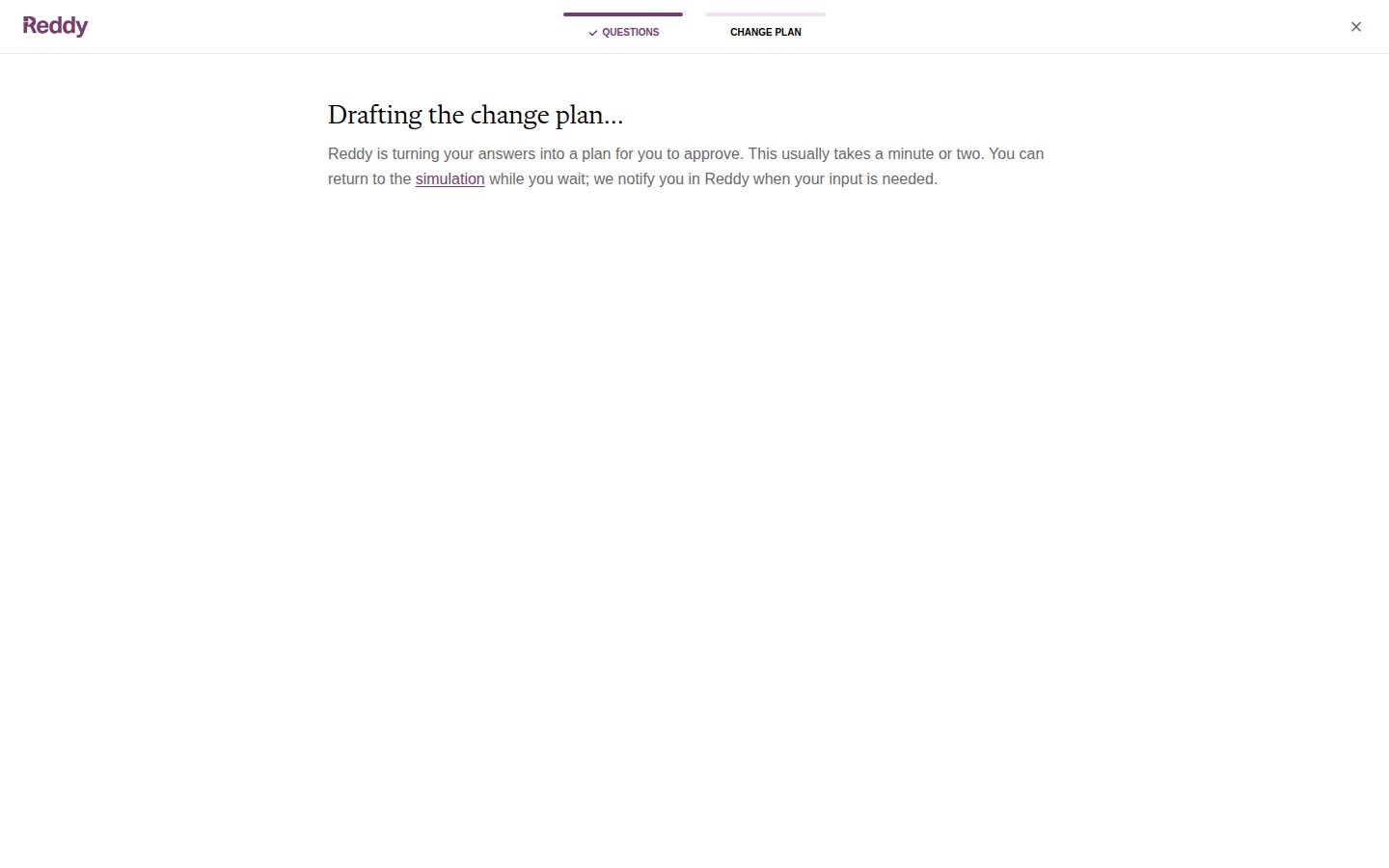
The change plan
The plan is written for you, not for engineers: a summary, each change as Now, After and Why, and what happens to grading.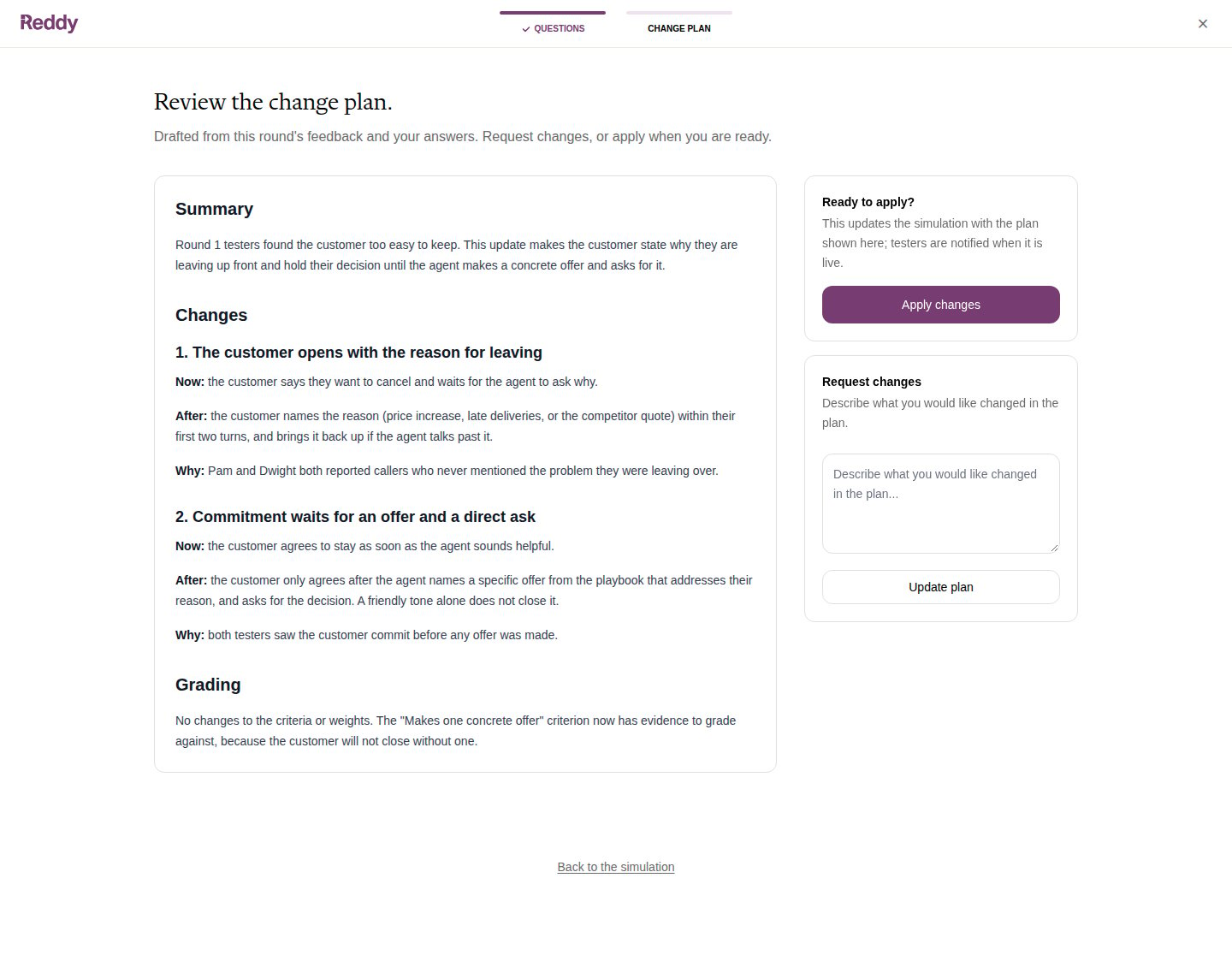
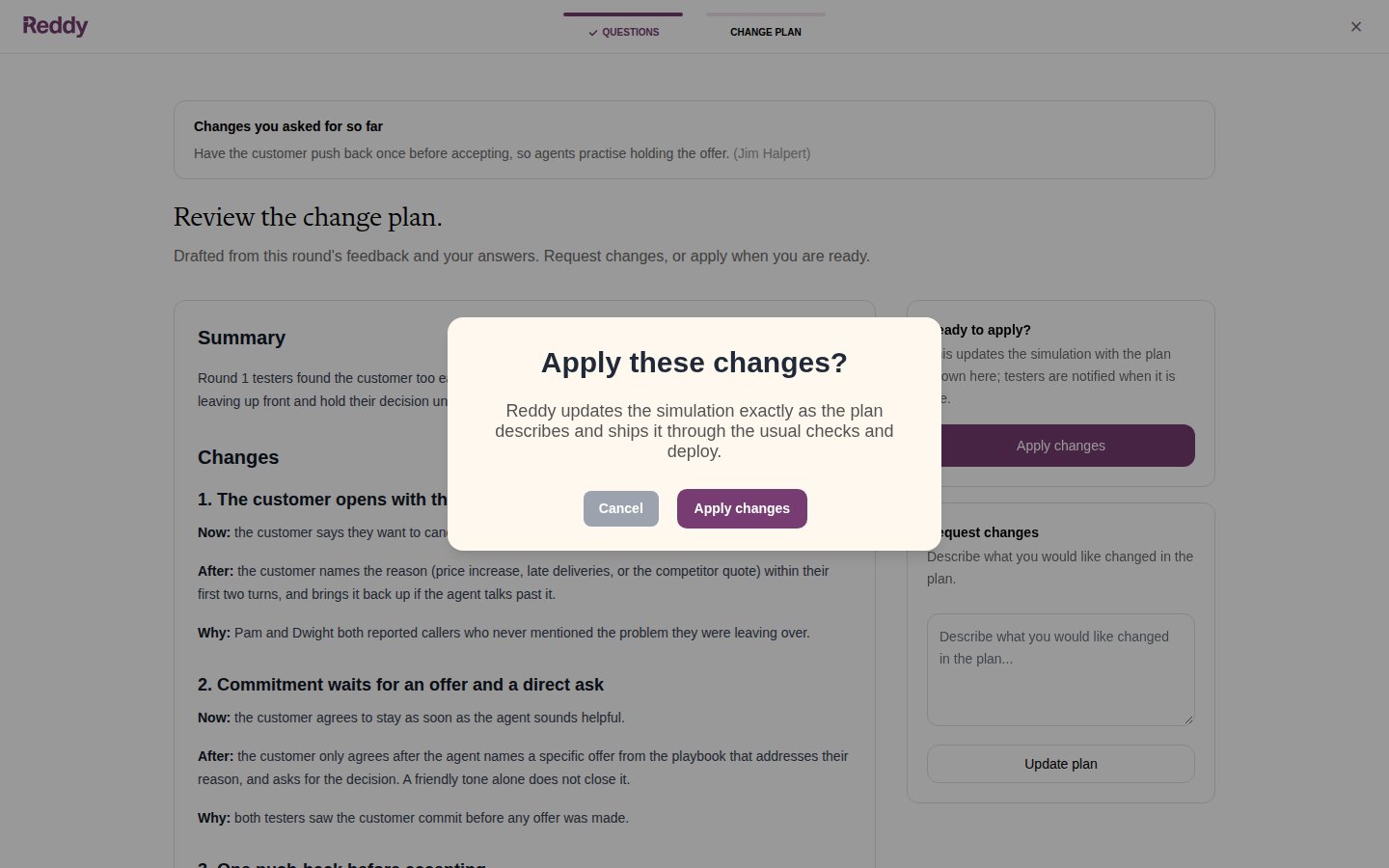
- Apply changes approves the plan. Reddy updates the simulation as written and ships it through the usual checks and deploy.
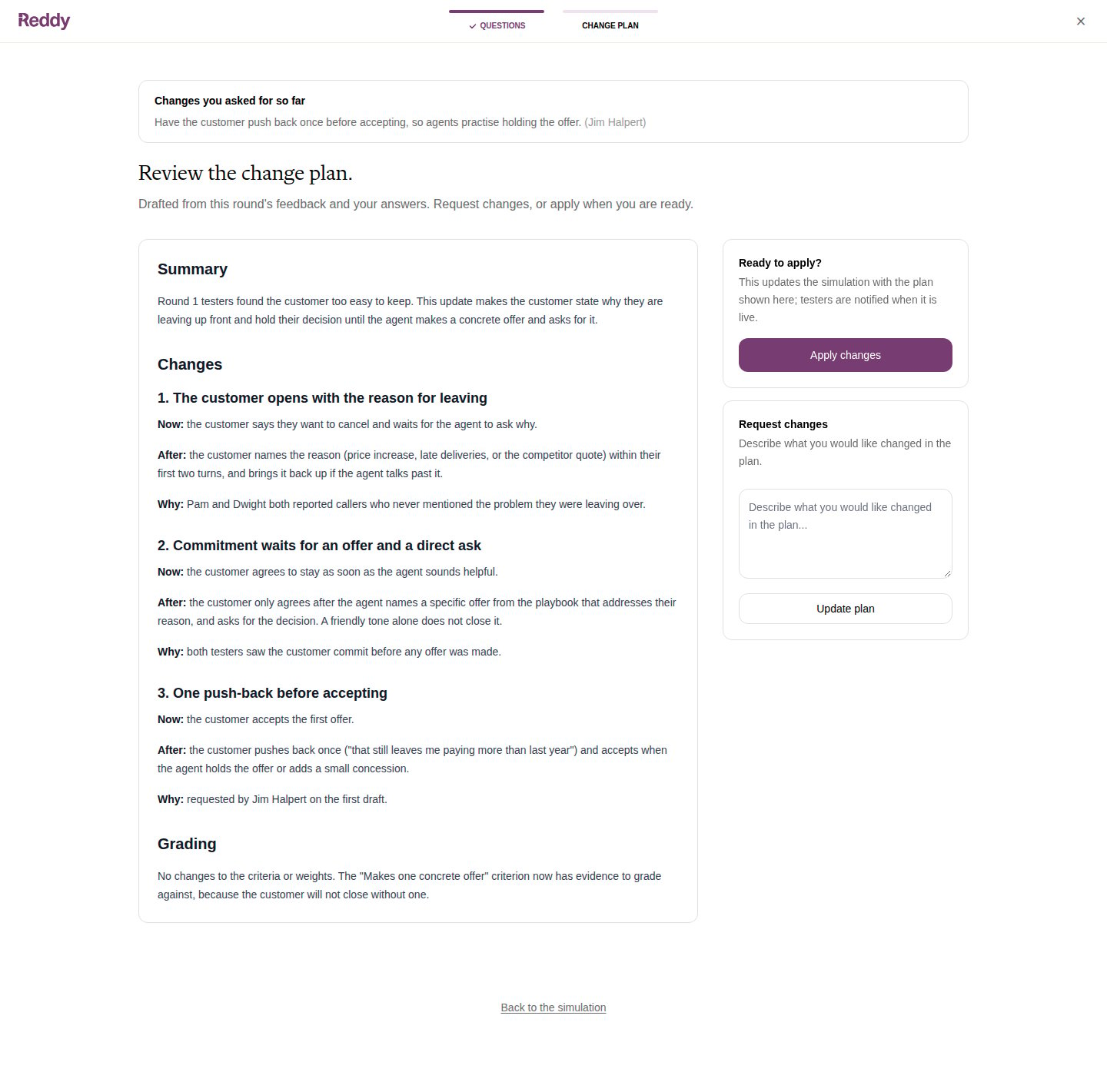
- Request changes sends it back. Describe what should be different and click Update plan. Reddy redrafts, and everything you asked for so far is listed above the new plan.
While it ships
The round card reads Updating simulations and the update tile Running. This usually takes one to two hours. Testers’ lessons stay locked until the new version is live.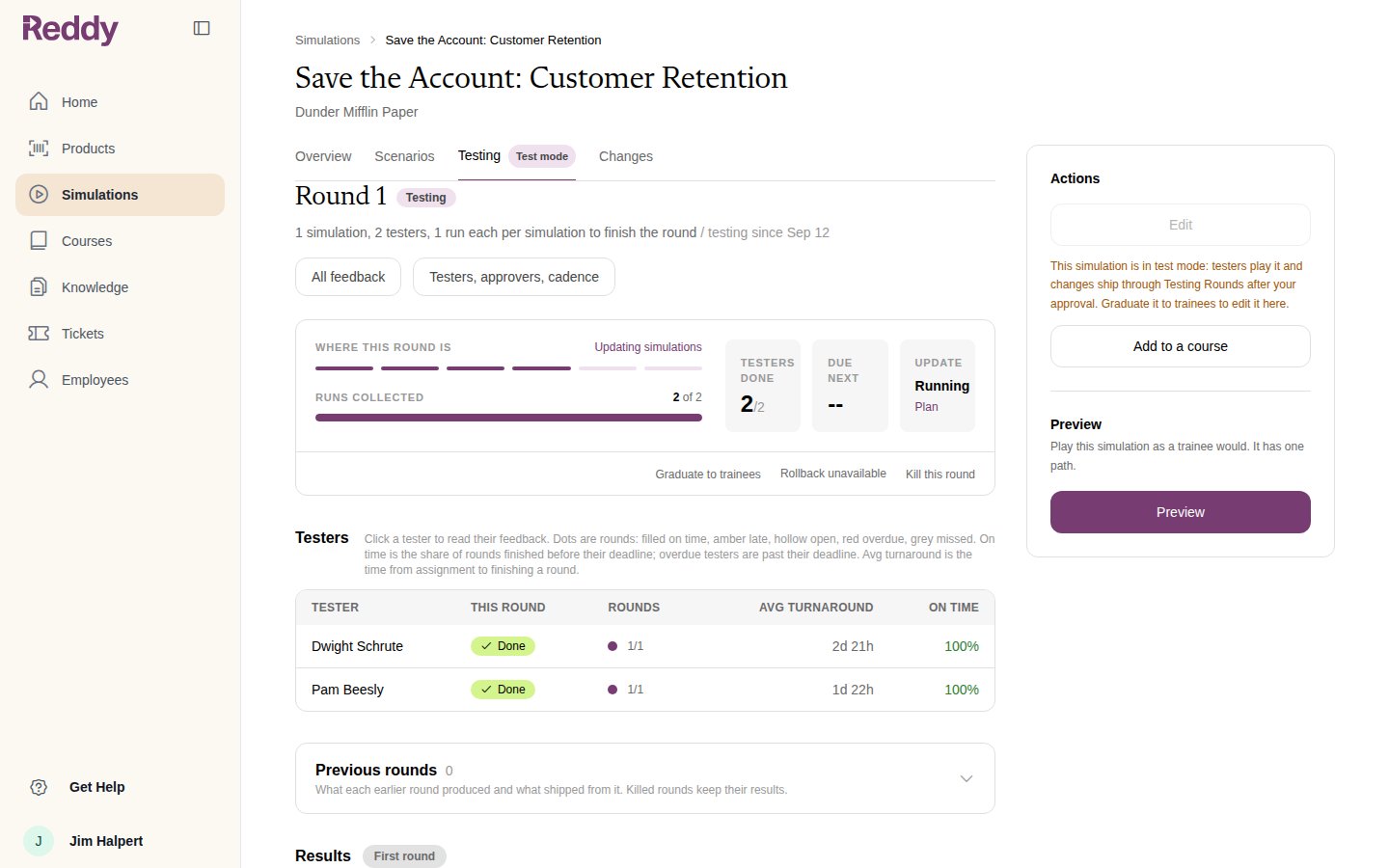
The next round
When the update lands, the next round opens on the new version and testers are notified. The update tile shows Last shipped with the Report Reddy wrote and the Plan you approved. The shipped change is also a new version on the Changes tab; see Versions and Audit Trail.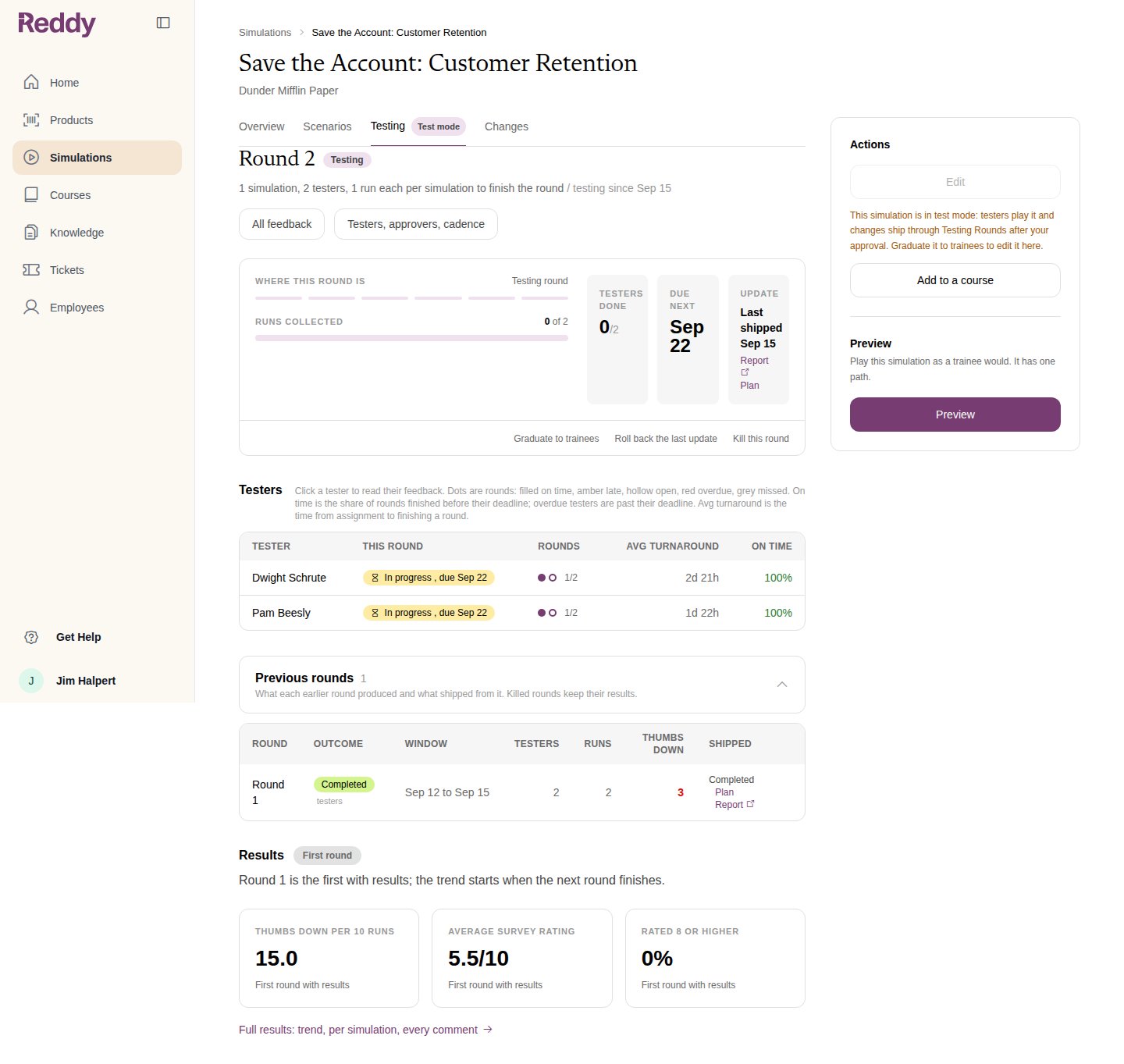
FAQ
Can I edit the plan text myself?
Can I edit the plan text myself?
Use Request changes to tell Reddy what should be different. It redrafts, and your requests stay listed above the plan so the history is clear.
What if I disagree with a finding marked Change?
What if I disagree with a finding marked Change?
Ask for it to be dropped in Request changes, or answer the related question to steer it. Findings you dismiss are remembered so Reddy does not raise them again from the same feedback.
Nobody answered the questions. What happens?
Nobody answered the questions. What happens?
The round waits. Testers’ lessons stay locked until an approver answers or someone kills the round. Approvers are notified in the app when questions or a plan are waiting on them.
Where do I find an old plan or report?
Where do I find an old plan or report?
On the simulation’s Changes tab, or under Previous rounds on the Testing tab.