

Every session has a coach and an agent. Sessions in a coaching plan are scheduled automatically when the program is published. You can add more at any time.
Adding a session
From an agent’s page in the program, or from the program’s Sessions tab, click Add Session and choose a type.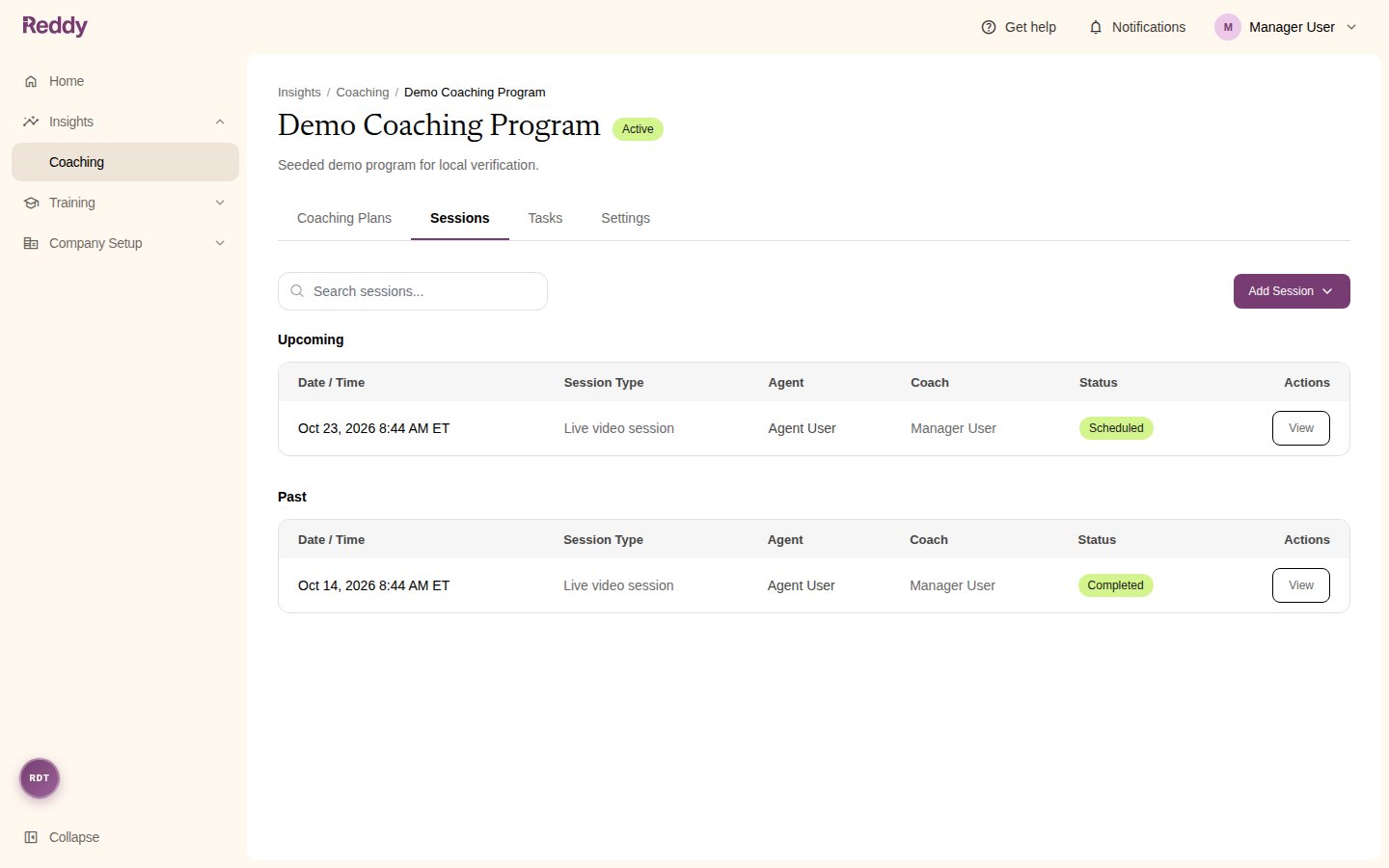
Scheduling a live video or audio session
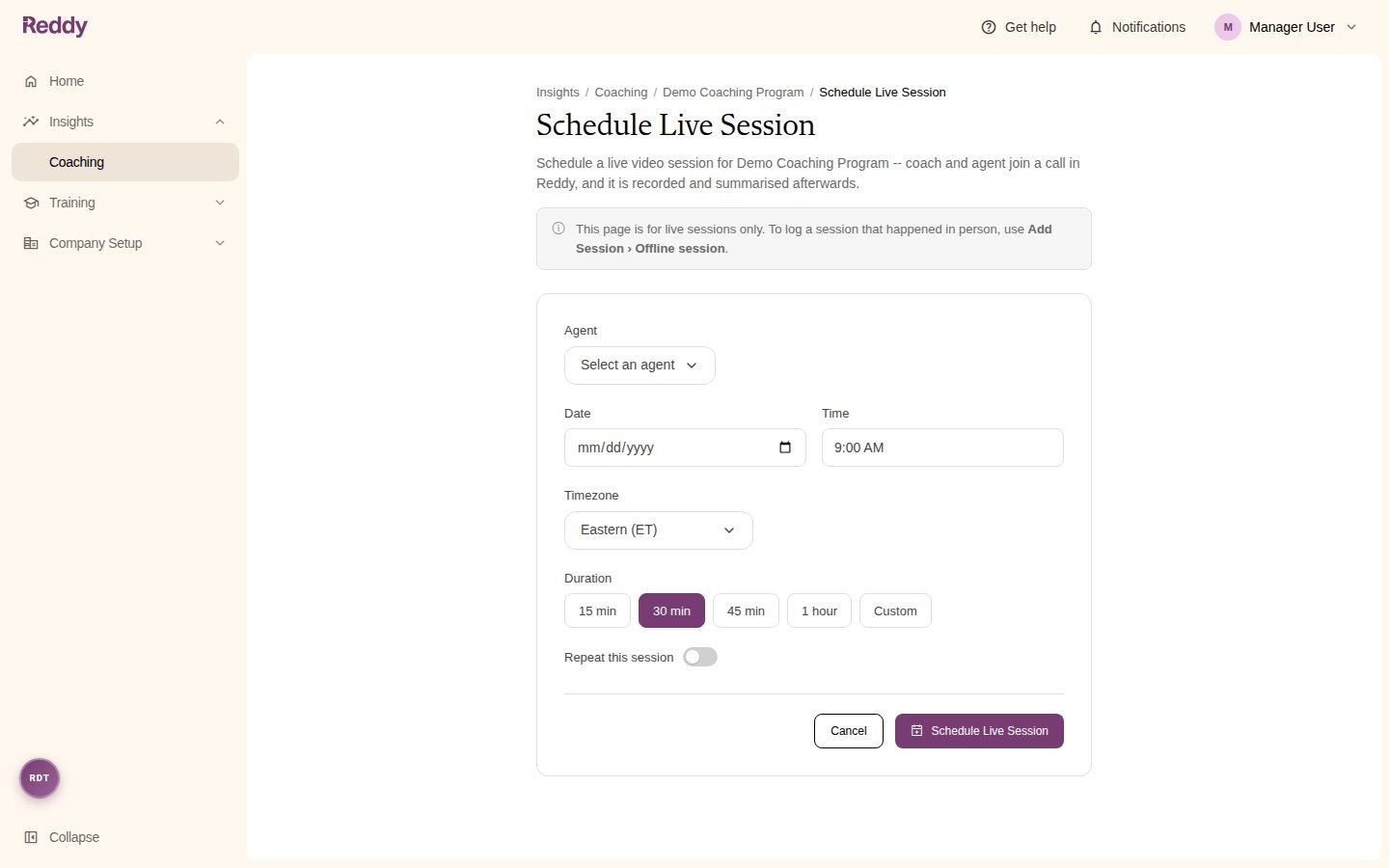
The agent gets an in-app notification when the session is scheduled. Both coach and agent get a reminder about 24 hours before it. Reddy does not send calendar invites, so add the session to your calendar yourself if you need to.
Logging an offline session
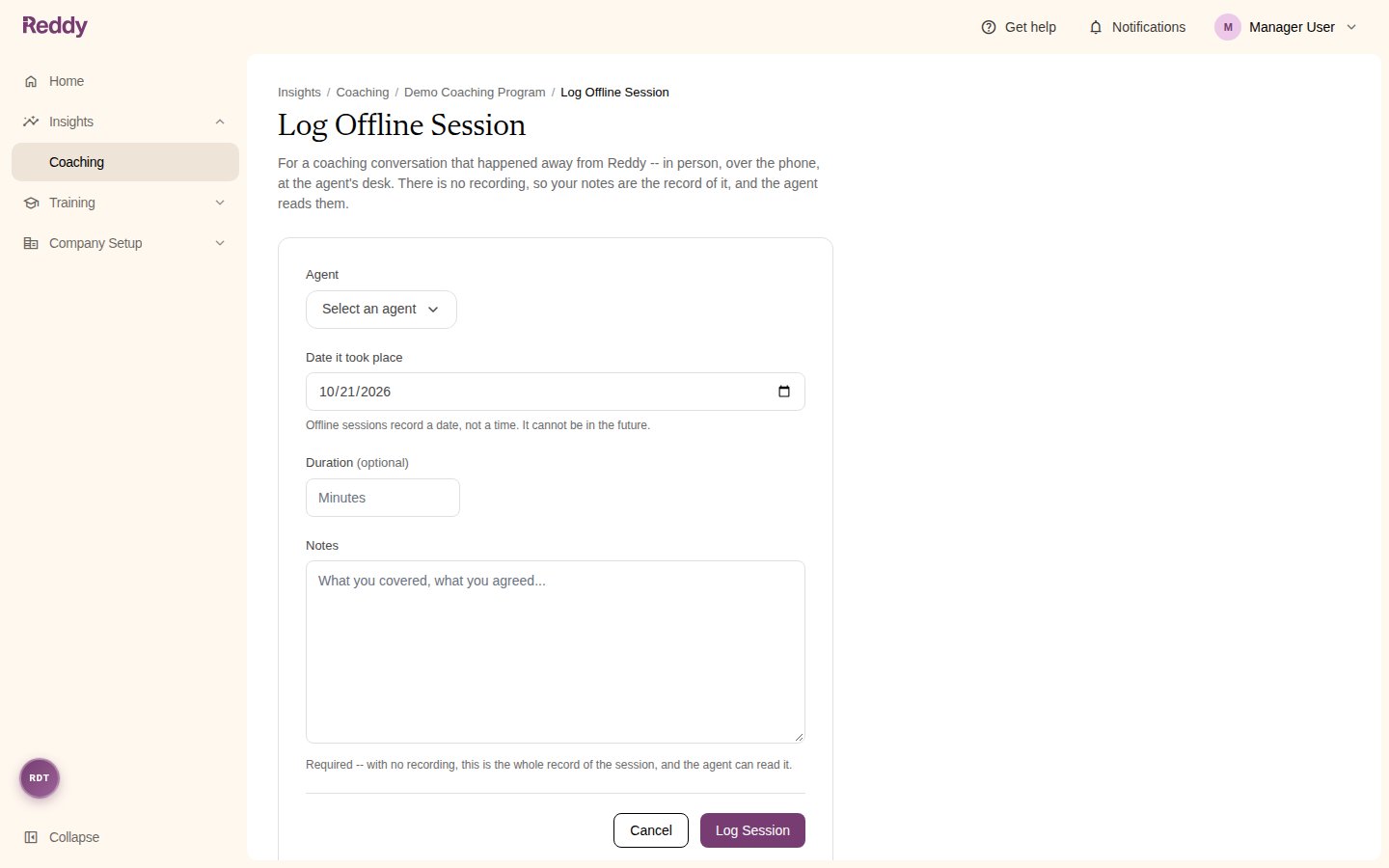
- Agent
- Date it took place: a date only, not a time. It cannot be in the future.
- Duration (optional), in minutes
- Notes: required. With no recording, your notes are the whole record of the session, and the agent can read them.
The session page
Every live session has three stages across the top: Preparation, Session, and Review.Preparation
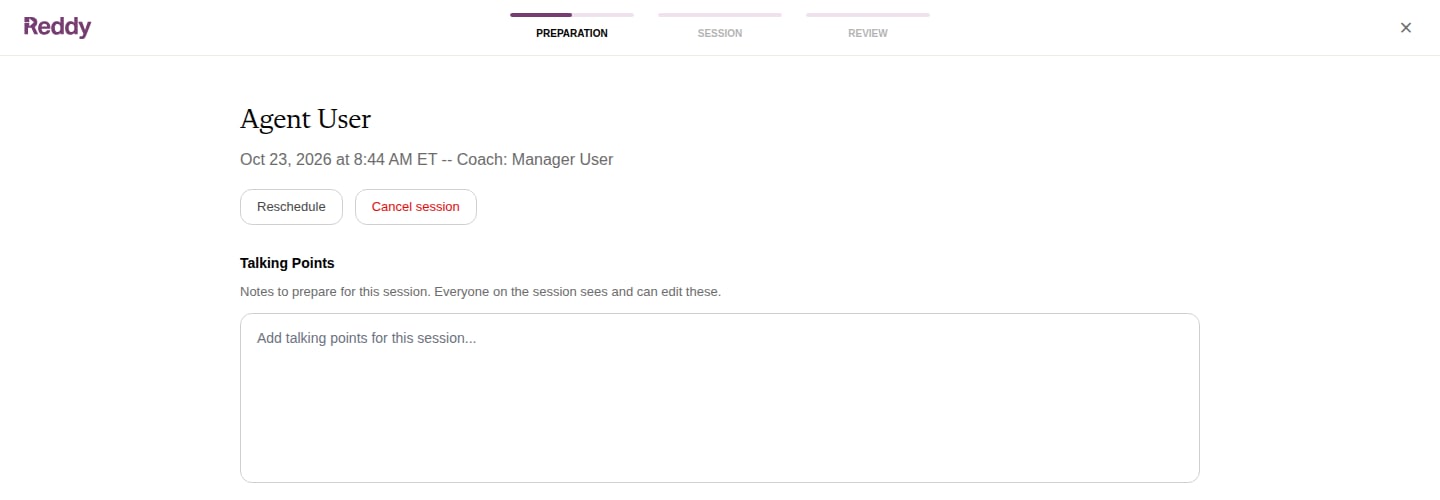
- Talking Points: shared notes for the session. Coach and agent can both add to them, and they save automatically.
- Goals: the agent’s current goal cards.
- Past Session Notes: the summaries from the last three completed sessions with this agent.
- Coaching Plan: the agent’s plan, for context.
Running a live video session
1
The coach starts the session
Click Start Session (or Start Video Session on the Session stage). The call opens in a new tab. Recording begins automatically when the coach joins.
2
The agent joins
Until the coach starts, the agent sees “You will be able to join the session once the manager starts it.” Once it starts, they see Join Session.
3
Talk
The call supports camera, microphone, and screen sharing. A reminder at the top asks you not to show live customer data on screen.
4
End the session
The coach clicks End Session. The session is marked completed and processing begins.
Video sessions record the audio only, not the picture. Coach and agent both need to allow camera and microphone access in the browser.
Running a live audio session
Use this when you and the agent are in the same room. Only the coach opens Reddy.1
Open the recorder
On the session page, click Start audio session.
2
Check the microphone
Pick the Microphone and watch the Input level meter move when people speak. If it stays still, Reddy shows “No sound yet — check the room can be heard by this mic.”
3
Record
Tell everyone in the room they are being recorded, then click Start recording. You can stop and start again; each recording is kept and the transcript covers all of them.
4
Finish
Click End Session. Any recording in progress stops and processing begins.
Review
After a live session ends, Reddy turns the recording into a transcript and drafts a Summary. This usually takes 1-2 minutes, and the page updates by itself when it is ready.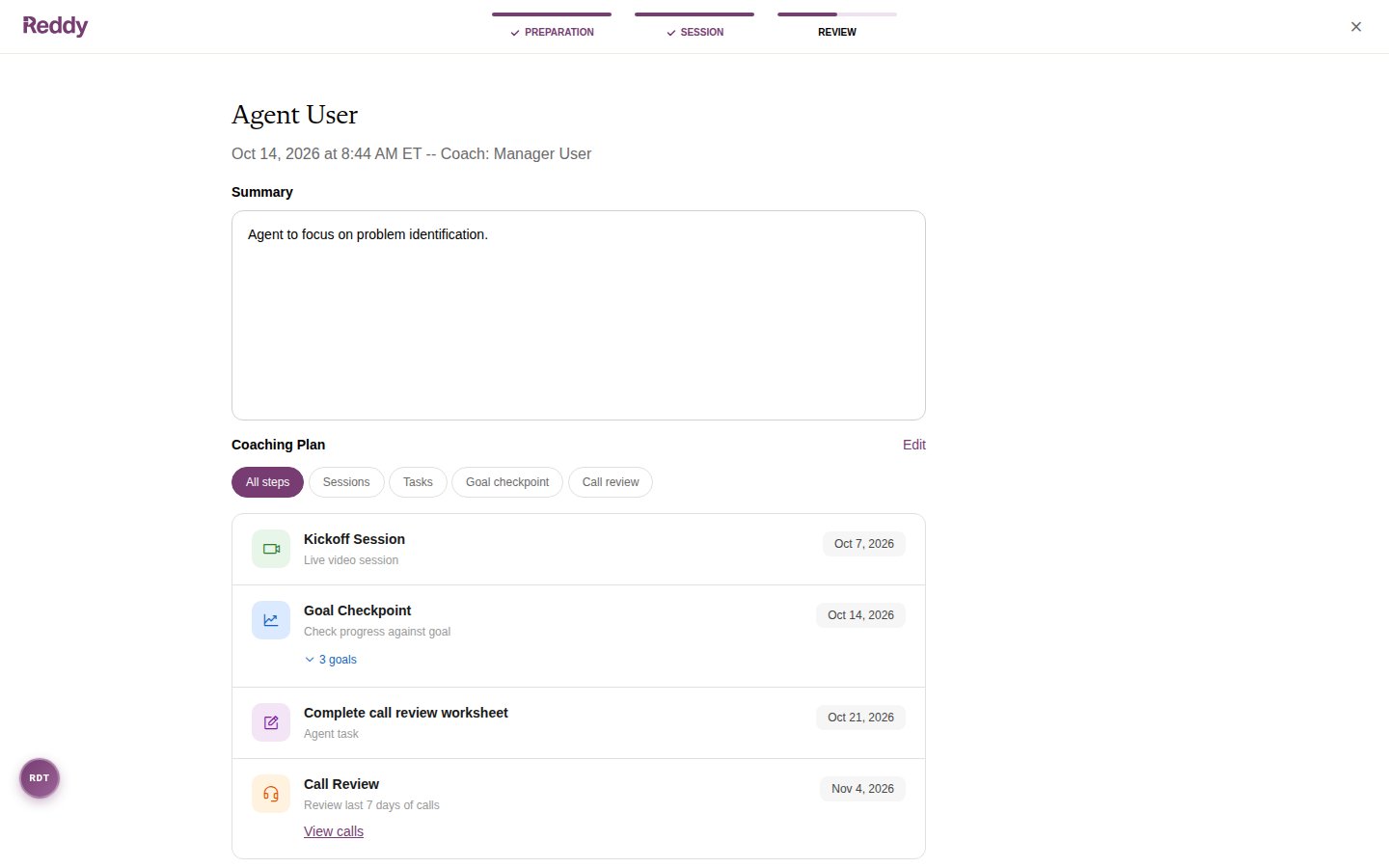
- Summary: the AI-drafted summary. Edit it freely; Reddy never overwrites your changes.
- Recording and Transcript (on the Session stage): play back the audio and read who said what. Speakers are labelled as the coach, the agent, or someone else.
- Coaching Plan: click Edit to adjust the plan based on what you discussed, or + Add milestone to add a new session, task, or goal checkpoint.
- Goals: the agent’s current goal cards.
The agent’s response
After the coach saves the review, the agent can open the session and choose:- Acknowledge Review: they agree with the review.
- Dispute: they explain what they disagree with. A comment is required, and the coach sees it on the session page.
Who can see a session
- The agent, for their own sessions, once the program is published for them.
- Their coach and other managers who coach them.
- Managers further up their reporting line, as read-only.
- Admins.