

Where tasks come from
While a program is a draft, plan tasks show on the agent’s page as Planned and are created when you publish.
Creating a task by hand
1
Open the Tasks tab
Open the program and click the Tasks tab, then Create Task.
2
Describe the task
Enter a Title and an optional Description.
3
Choose who it is for
Under Assign to, pick Agent to put it on an agent’s coaching page, or Manager to make it a to-do for you or a manager on your team.
4
Set a due date (optional) and save
Click Create task.
Working with tasks
Tasks have three statuses: To Do, In Progress, and Done.- On the program’s Tasks tab, change a task’s status from the dropdown, or click its title to see its details.
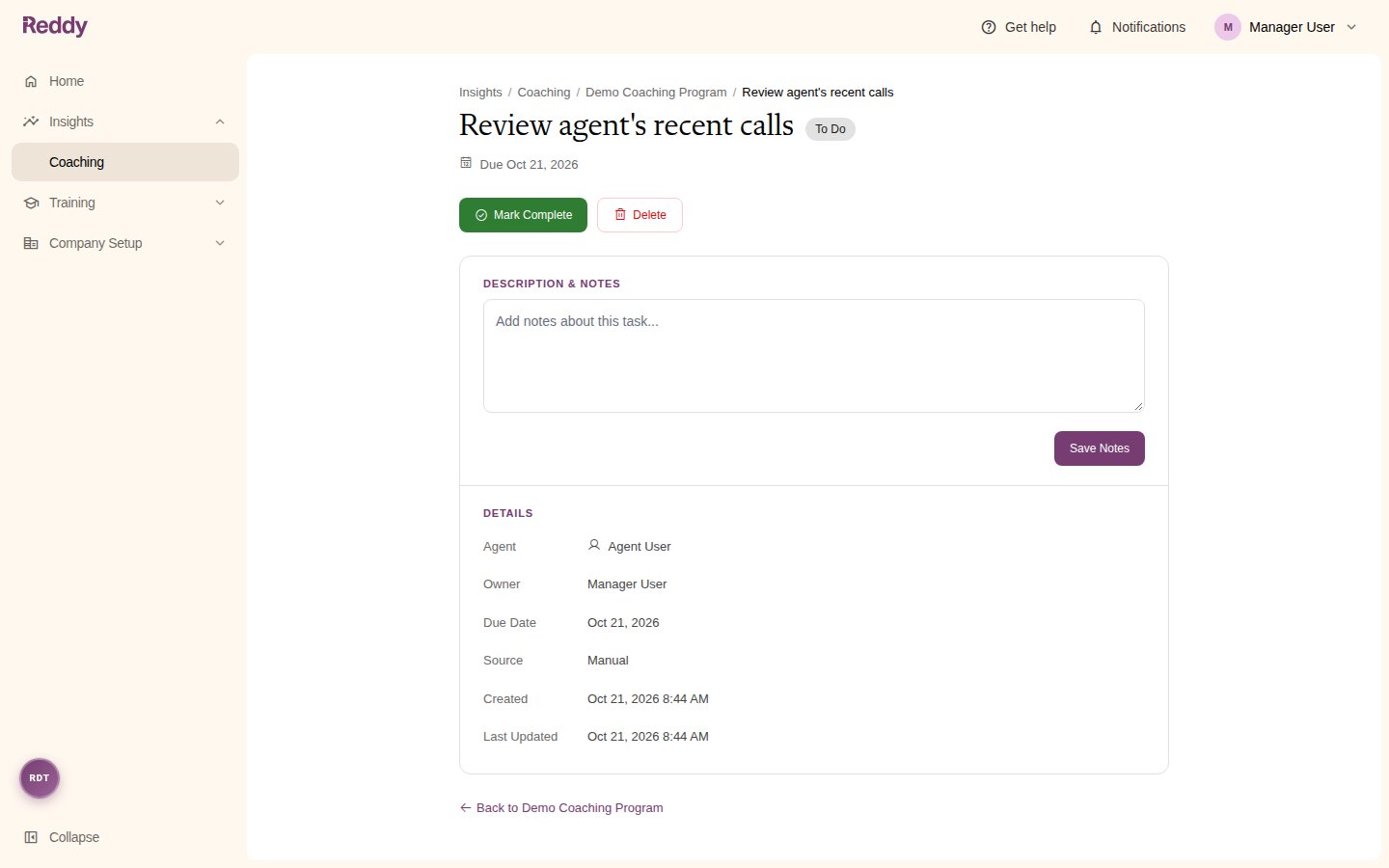
- Open a task to add notes and click Save Notes, mark it done with Mark Complete, or remove it with Delete.
Where tasks show up
Managers see tasks for their own team and tasks they own. Admins see every task.
What agents can do
Agents see every task about them on their program page, including tasks owned by their manager and tasks from Reddy. They can open a task, add notes, change its status, or mark it complete. Agents cannot create tasks.Good to know
- Removing a Task step from the plan deletes the unfinished tasks it created, for every agent. Tasks you created by hand are never affected by plan changes.
- Completing a task does not move the agent’s plan progress bar. Plan progress follows step dates and completed sessions.
- Tasks do not change on their own when the due date passes. Check the Due Date column for anything late.
- Tasks in an archived program are read-only.