

Finding your programs
Insights > Coaching lists every program you can see.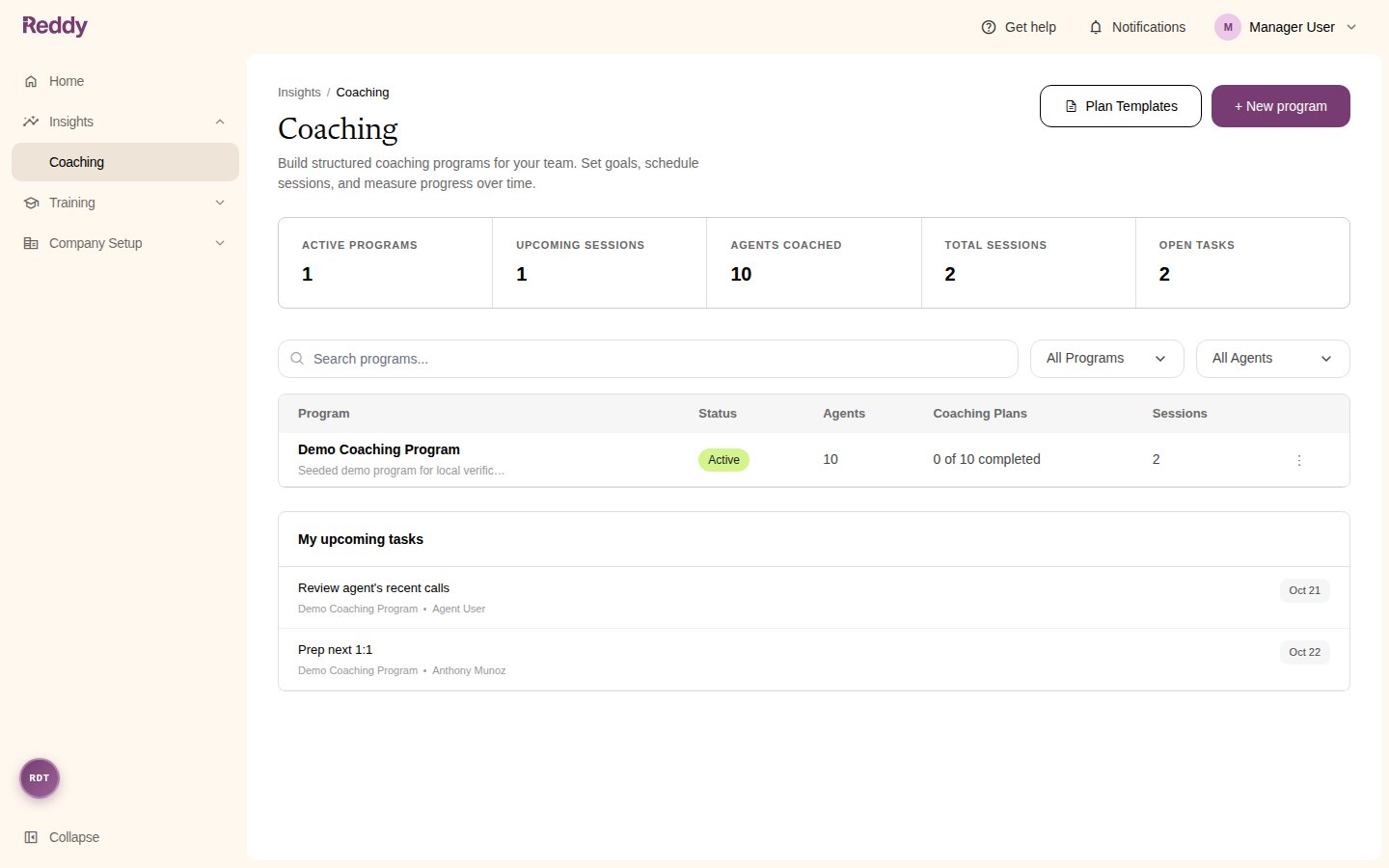
- Summary tiles: Active Programs, Upcoming Sessions, Agents Coached, Total Sessions, and Open Tasks.
- Search programs…: find a program by name.
- Status filter: All Programs, Active, Upcoming, Draft, Completed, or Archived.
- Agent filter: show only programs that include a given agent. Admins also get a Manager filter for programs covering anyone in that manager’s reporting line.
- Program table: status, number of agents, how many coaching plans are completed, and the session count. The row menu (three dots) offers View, plus Duplicate and Archive for people who can manage the program.
Program statuses
Programs do not complete on their own. Mark agents completed when their coaching is done.
The program page
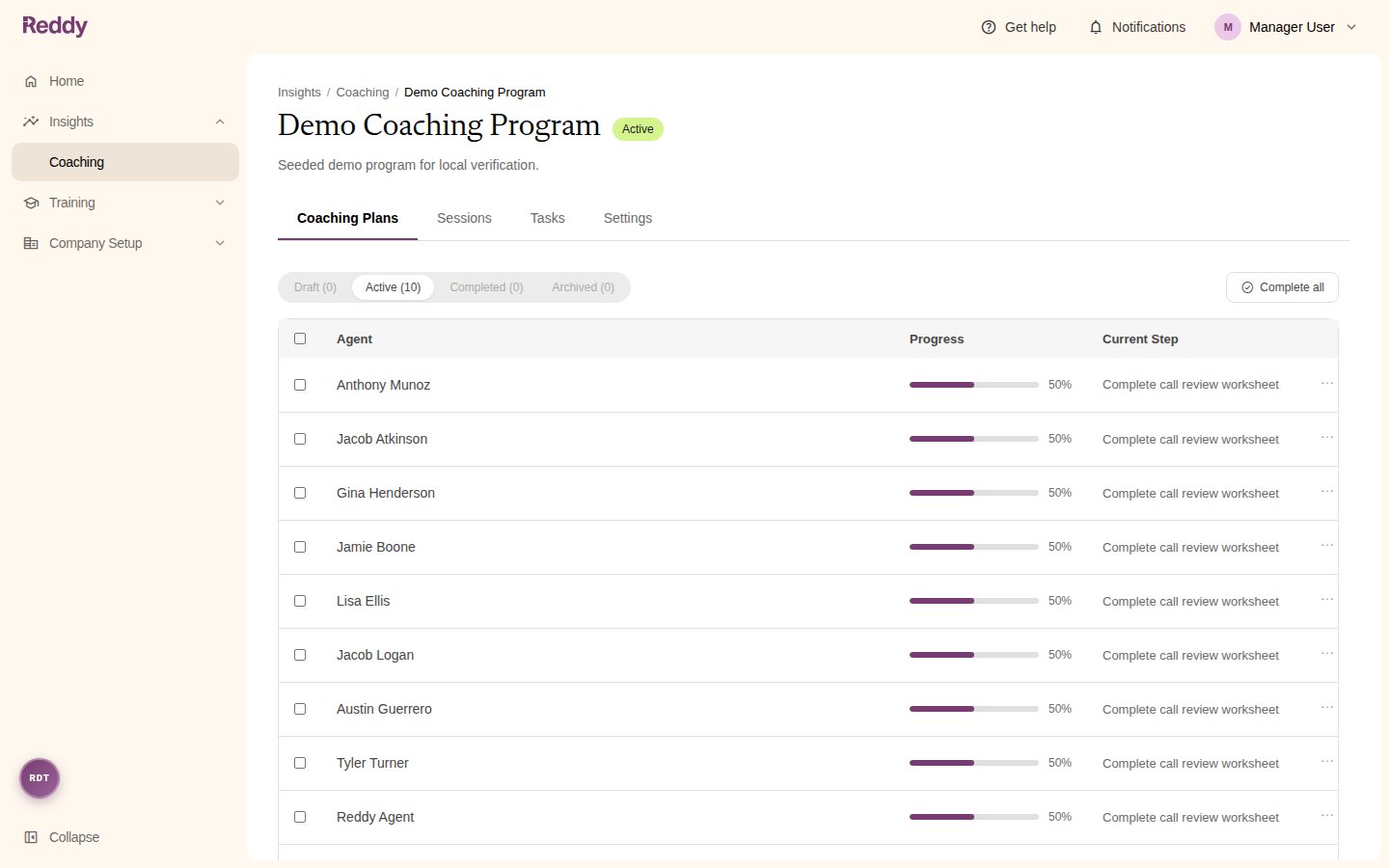
When you can see only one agent in a program, Reddy takes you straight to that agent’s page.
The agent’s page in a program
Click an agent on the Coaching Plans tab to open their page in that program. It brings together:- Coaching plan on the left, with Edit.
- Goals on the right, with Add new goal.
- Sessions and Tasks at the bottom.
- A status menu at the top right (Active, Completed, Archived, or Draft) and the Add Session button.
Publishing and drafts
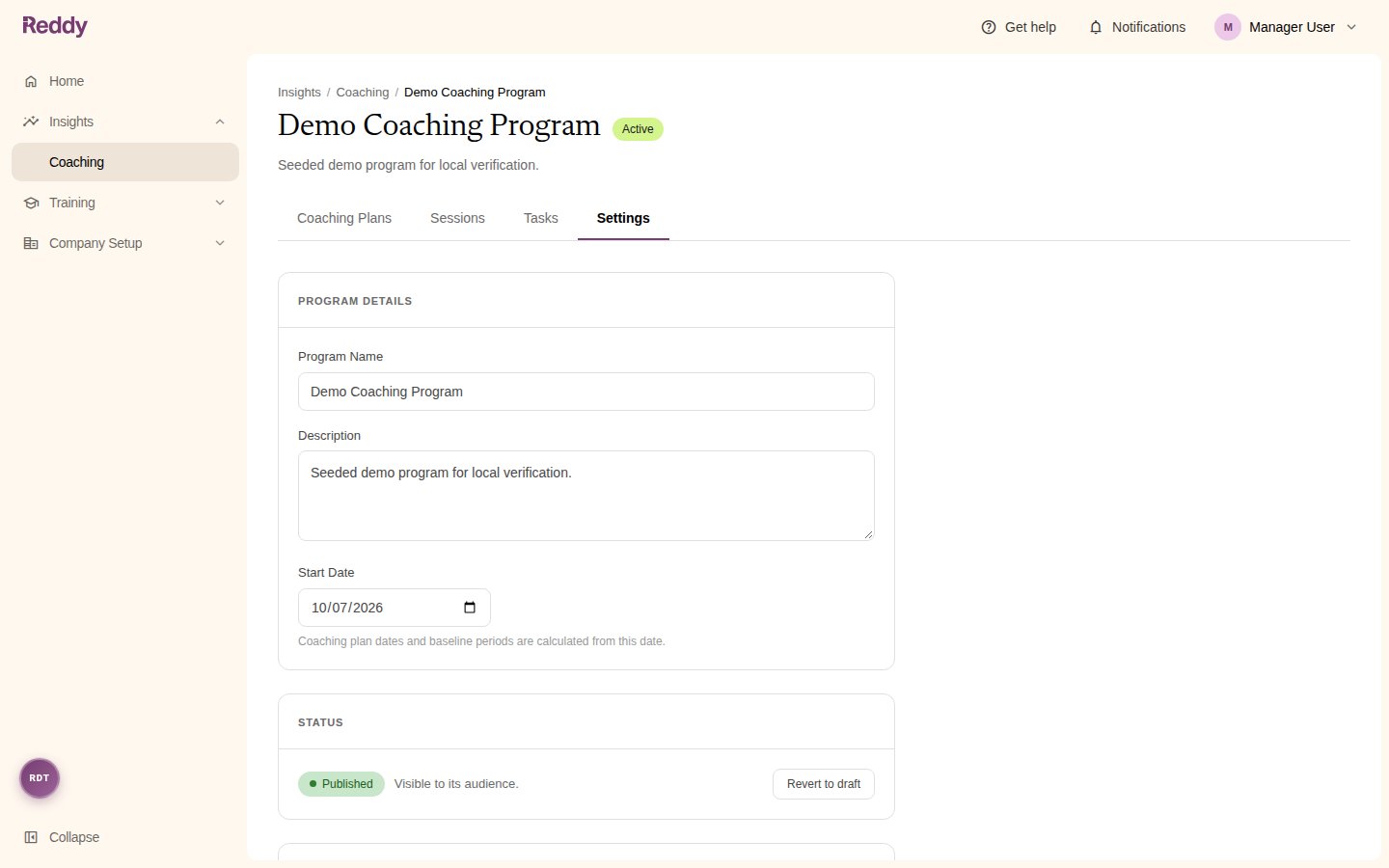
- Publish the whole program: on the Settings tab, under Status, click Publish. Every agent’s sessions and tasks are created and each agent is notified.
- Publish one agent at a time: on a draft program, open the agent’s row menu on the Coaching Plans tab and choose Publish for this agent only, or use Publish for only on their page. Everyone else stays in draft. This is a good way to pilot a program.
- Publish for everyone: when some agents are still held in draft, this publishes the rest.
- Revert to draft: hides the program from all agents again. Sessions and tasks already created are kept. Publishing again does not create duplicates or re-notify agents.
Completing, archiving, and restoring agents
From the agent’s row menu on the Coaching Plans tab, or the status menu on their page:- Mark completed: the agent’s coaching in this program is finished. Tick several agents and click Mark N as completed, or use Complete all for everyone.
- Reopen: moves a completed agent back to active.
- Archive: hides the program from that agent only. Restore them from the Archived view with Restore to active.
- Move to draft: hides the program from that agent until you publish them again.
Editing a program
On the Settings tab:
Click Save Changes to save the details and call settings.
Changing the audience
Click Edit under Audience, change your selection, and click Save Audience. On a published program:- Agents you add get their sessions and tasks and are notified.
- Agents you remove drop out of the program. Sessions already scheduled for them are not cancelled, so cancel any you no longer need.
When people join, leave, or change teams
The audience is a rule, so membership follows your org data:- New hires who join a selected team, product, or the company are added to the program automatically and can see it. Their sessions and tasks are created the next time someone saves the audience or publishes. To set them up straight away, open Settings > Audience > Edit and click Save Audience.
- An agent who moves teams or changes product leaves a By Team or By Product program that no longer covers them. Their past sessions and tasks are kept, and their current manager can still see their coaching.
- An agent picked by name stays in the program until they are archived in Reddy or no longer have the agent role.
- Archived users drop out of every program.
Duplicating a program
From the program row menu on the Coaching home, or Settings > Program actions > Duplicate. Reddy opens the create wizard filled in with a copy of the program: the name with ” (Copy)”, the same audience, goals, call settings, and plan. The start date is set to today and the copy starts as a draft. Nothing is created until you finish the wizard.Archiving and deleting a program
- Archive hides the program from agents and makes it read-only for everyone. Use Unarchive from the Coaching home row menu to bring it back.
- Delete this program (under Danger Zone on the Settings tab) permanently removes the program with all its coaching plans, sessions, and goals. This cannot be undone. Archive instead if you may need the history. To delete an archived program, unarchive it first.