

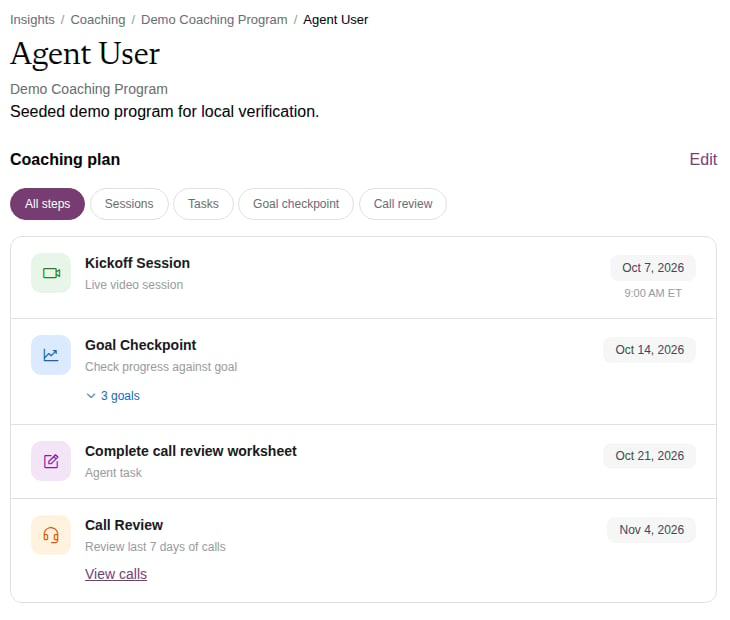
Step types
Building and editing a plan
You build the plan in step 4 of the create wizard. After that, edit it from an agent’s page in the program: click Edit next to Coaching plan.- Add step adds a new step at the end.
- Between steps, the minus and plus buttons set the gap: “Same day” or “N days later”. The default is 7 days.
- Use the arrows to reorder, and the trash icon to delete (“Delete this step from the coaching plan?”).
- Click Save plan when you are done.
What changes apply to whom
- Session steps belong to one agent. Moving or deleting a session on one agent’s plan only affects that agent. Deleting a scheduled session step cancels the session and notifies the agent.
- Task, lesson, goal checkpoint, and call review steps are shared across the program. When a program manager adds or removes one, it is added or removed for every agent in the program, and unfinished tasks from a removed step are deleted.
- A direct manager who does not manage the program can change their agents’ sessions, but not the shared steps.
Plan progress
The Coaching Plans tab on a program shows each agent’s progress as a percentage, with their current step. A step counts as done once its date has passed or, for sessions, once the session is completed. Ticking off a task does not move the bar by itself.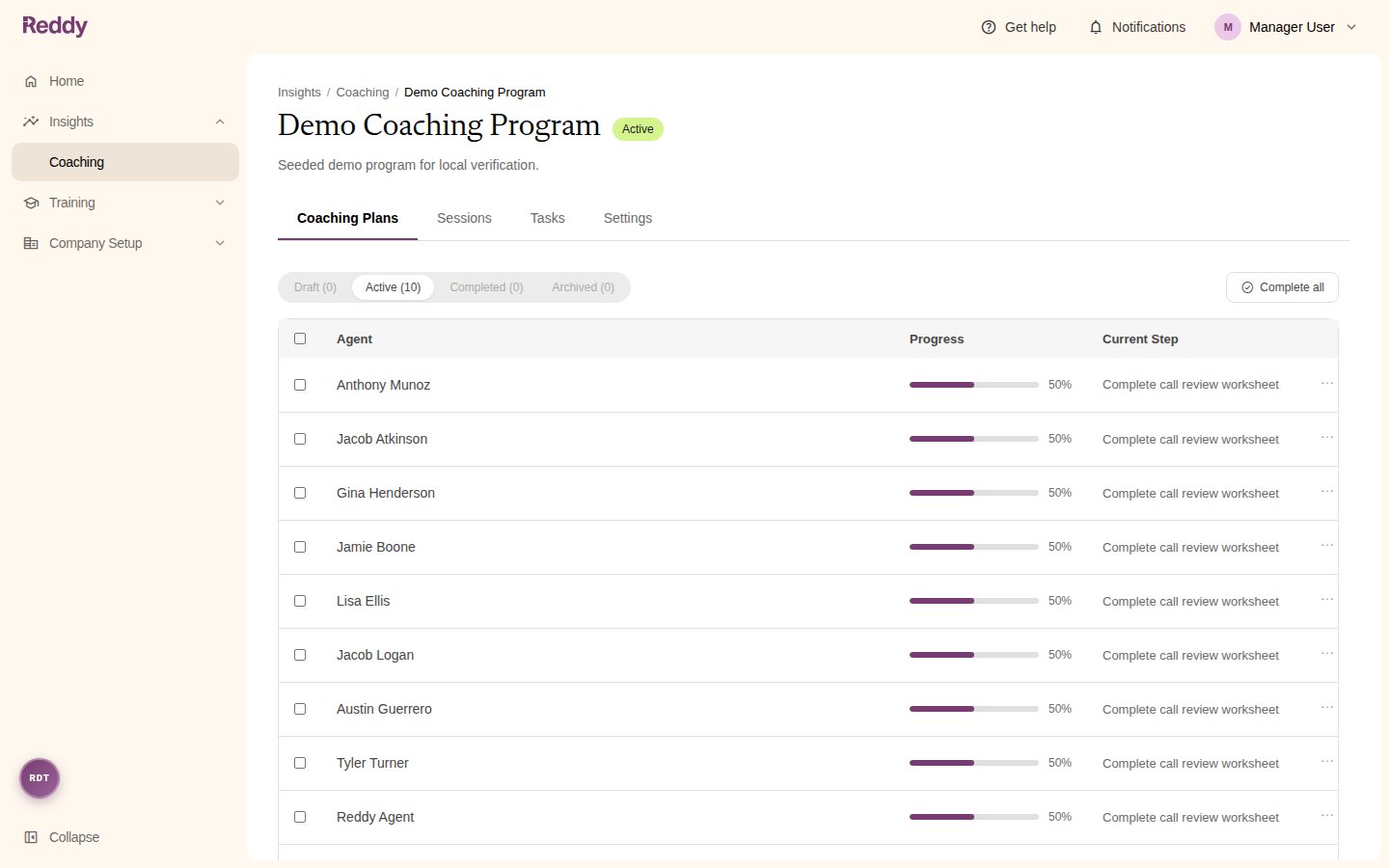
Plan templates
Templates let you reuse a plan you know works, such as a new-hire onboarding cadence. Open Insights > Coaching and click Plan Templates.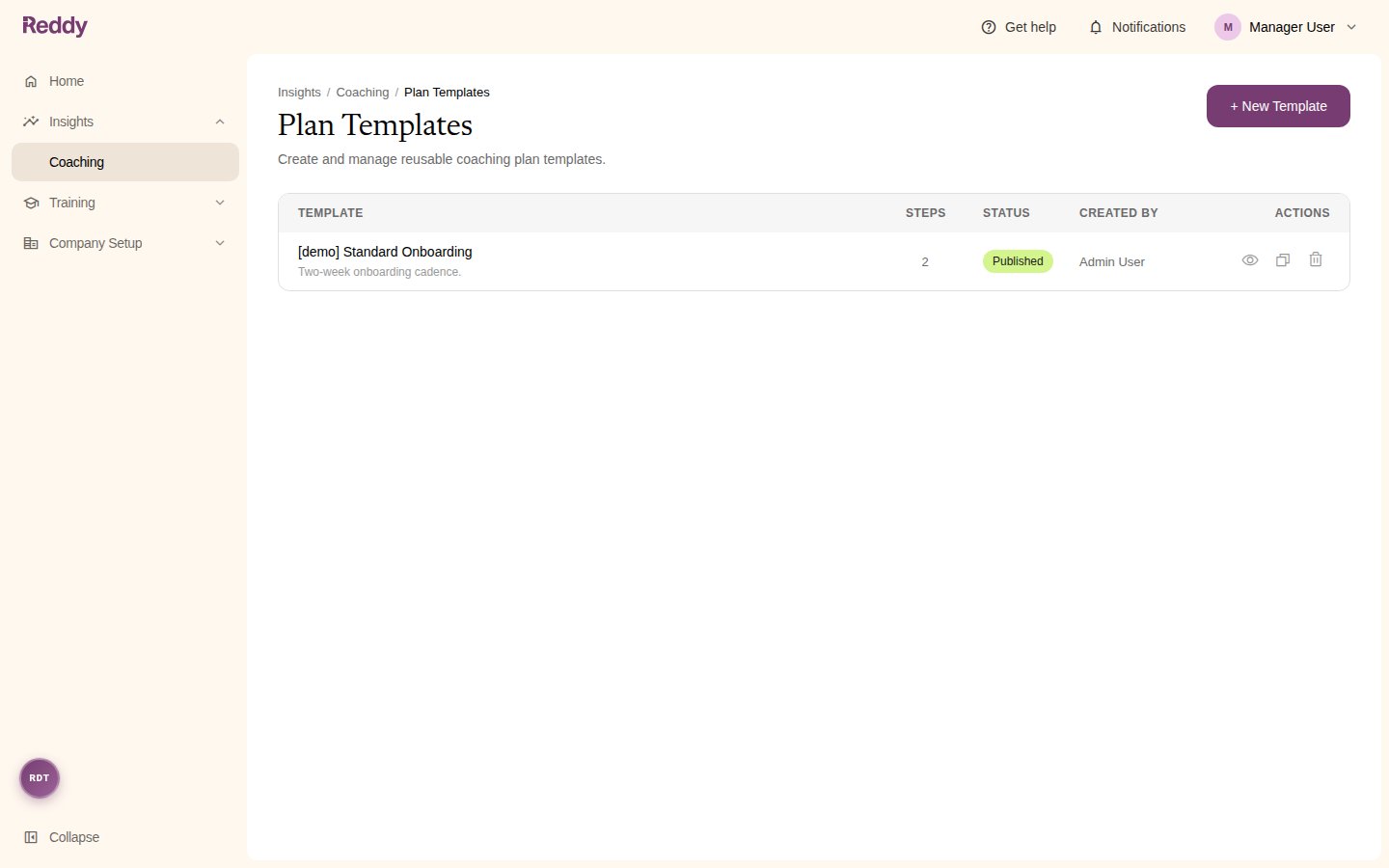
Creating a template
1
Start a new template
Click + New Template. Enter a Template Name and an optional description, then click Continue.
2
Build the steps
Add steps exactly as you would in a program plan.
3
Save it
Click Create & Publish to make it available when creating programs, or Save as Draft to keep working on it later.
Managing templates
- The eye icon shows a template’s steps, with Edit and Delete buttons.
- The copy icon makes a draft copy named “(copy)”.
- The trash icon deletes the template. Programs already created from it are not affected.