

Admins and managers can create programs. Agents cannot.
Step 1: Basics
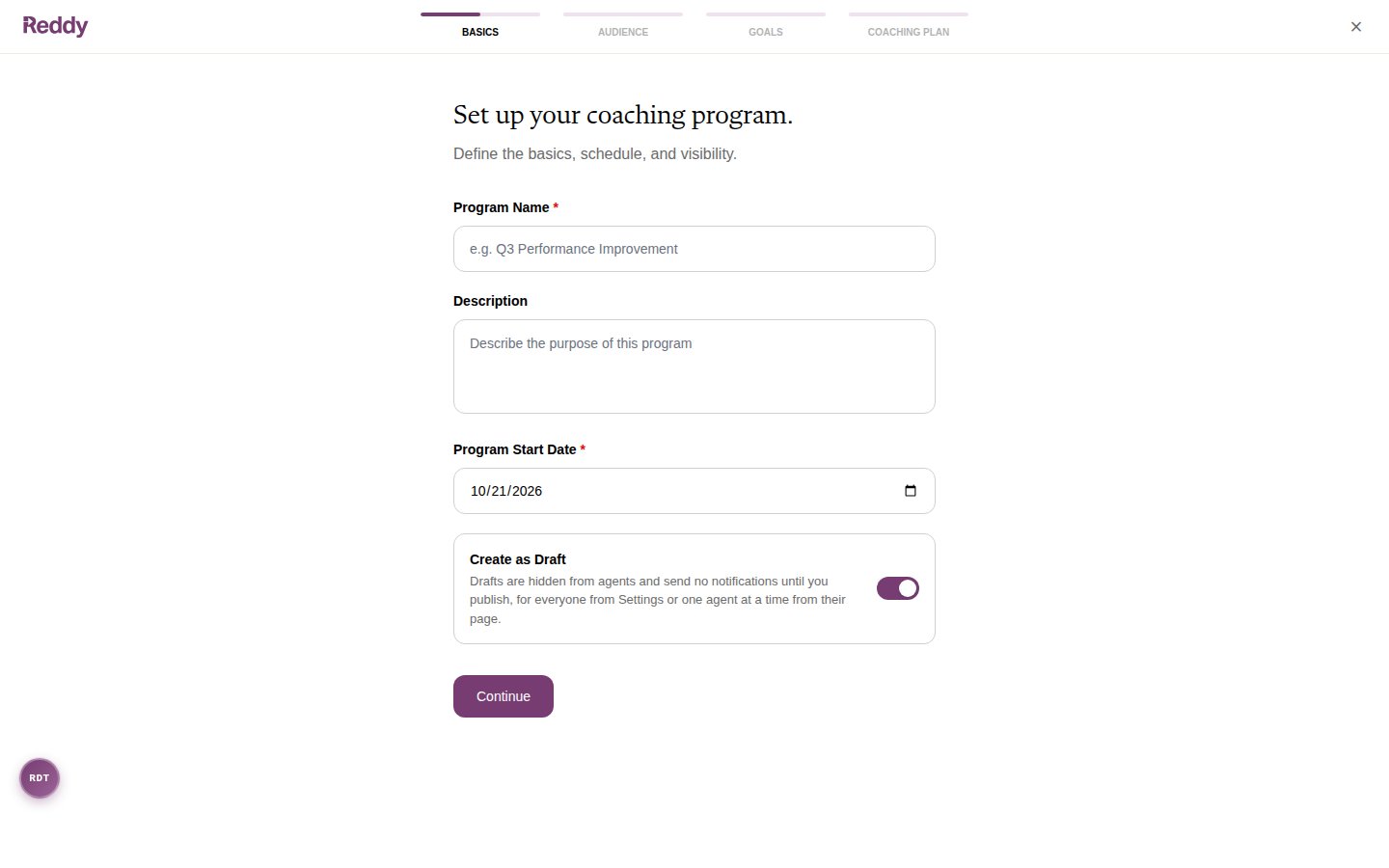
Click Continue.
Step 2: Audience
Choose which agents the program covers. Only people with the agent role are coached; managers are never enrolled.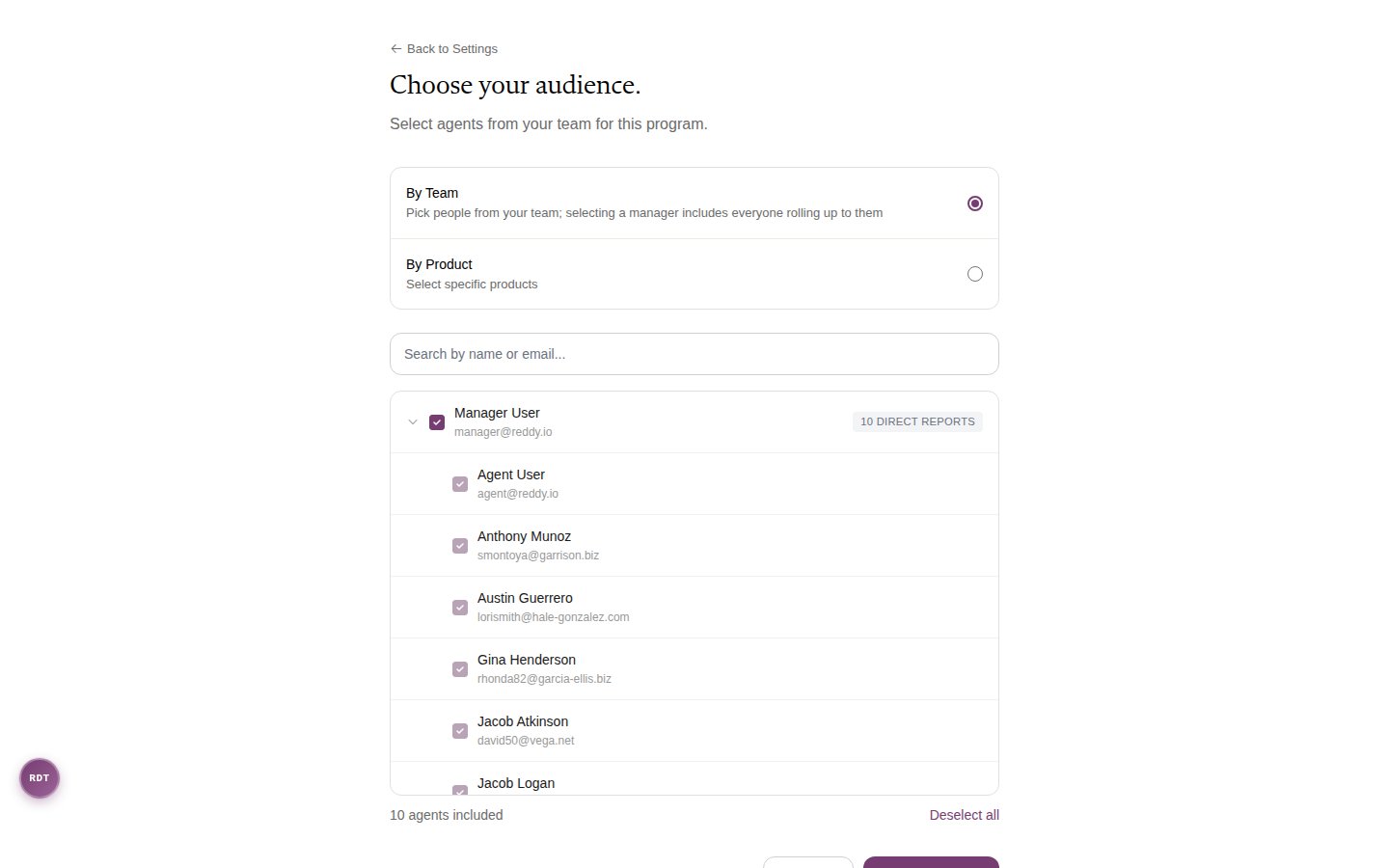
- By Team
- By Product
- Company Wide
Pick people from your org tree. Search by name or email, then tick the people you want.
- Ticking an agent includes just that agent.
- Ticking a manager includes everyone who reports up to them, at every level. People already covered this way show a lighter checkmark.
- The count under the list shows how many agents are included. Deselect all clears your picks.
Step 3: Goals
Set one to three goals that apply to every agent in the audience. Every program needs at least one goal to be created. You can add, change, or remove goals later, for the whole program or for individual agents. For each goal, choose:- Metric: what you are measuring. You can pick Average Handle Time or any combined metric your company has defined.
- When do you expect the agents to achieve this goal?: 7, 30, 60, or 90 days from the program start date.
- Target Type: a set number, an improvement on the agent’s own starting point, or a range to stay within.
Step 4: Coaching Plan
Choose how to start:- Build your own: add steps one at a time.
- Use a template: copy the steps of a published plan template. Later changes to the template do not affect this program.
Use the arrows to reorder steps and the trash icon to remove one. An empty plan is allowed. For more detail, see Coaching Plans and Templates.
Click Create Program.
What happens when you click Create Program
If you left Create as Draft on, the program is saved as a draft. Nothing is scheduled and nobody is notified. Review it, then publish from the program’s Settings tab, or publish for one agent at a time from their page. If you turned Create as Draft off, the program goes live straight away:- Each agent in the audience gets their own copy of the coaching plan, with real sessions and tasks on the calculated dates.
- You are the coach on the scheduled sessions, and you own the plan’s manager tasks.
- Each agent gets a “New coaching program” notification.