

You only see a program once your manager has published it for you. If Coaching is empty, you are not enrolled in a program yet. Your manager will add you when it is ready.
Your Coaching page
The page lists the programs you are enrolled in, with counts for active programs, upcoming sessions, total sessions, and open tasks. Use the Active, Upcoming, and Completed buttons to switch between programs. If you are in just one active program, Reddy takes you straight to it.Your program page
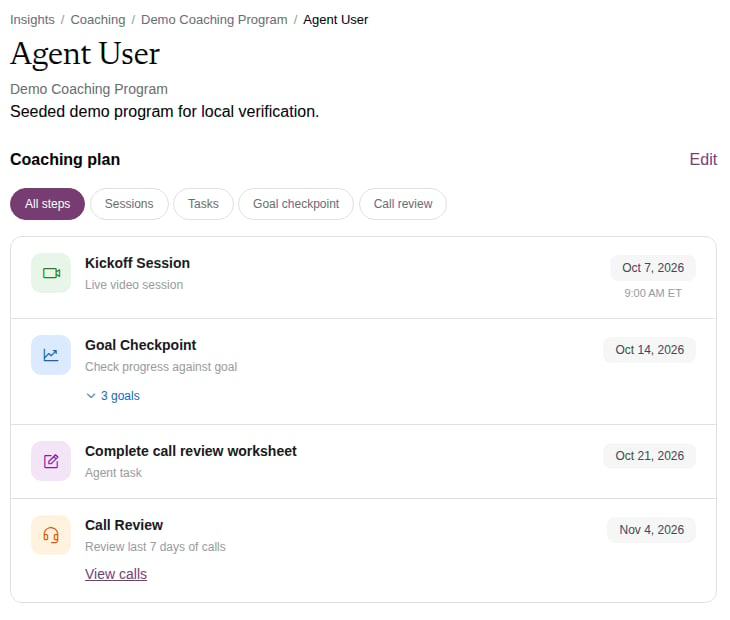
- Coaching plan: your timeline of sessions, tasks, lessons, and goal checkpoints, with dates. Use the filter buttons to see one type at a time. Click Start lesson to open an assigned lesson or simulation.
- Goals: up to three goals, with your current result, your starting point (Baseline), and the target (Goal). Results update once a day and include calls up to yesterday. See Reading a goal card.
- Sessions: your upcoming and recent sessions. Click View to open one.
- Tasks: your coaching to-dos. Open a task to add notes, update its status, or click Mark Complete.
Joining a coaching session
1
Prepare
Open the session ahead of time. Add anything you want to discuss under Talking Points; your coach sees it too.
2
Wait for your coach to start
Until then you see “You will be able to join the session once the manager starts it.”
3
Join
When the session is in progress, click Join Session. Allow camera and microphone access when your browser asks.
After a session
Once your coach saves the review, open the session to read the Summary, play back the recording, and read the transcript. Then respond:- Acknowledge Review if you agree.
- Dispute if you disagree. Explain why in the comment; your manager will see it.
Notifications
You get an in-app notification (the bell at the top of the page) when:- You are enrolled in a program
- A goal is set or updated for you
- A session is scheduled, rescheduled, cancelled, or written up
- Your coaching plan changes