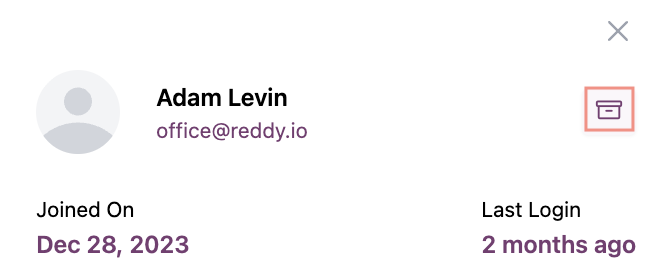
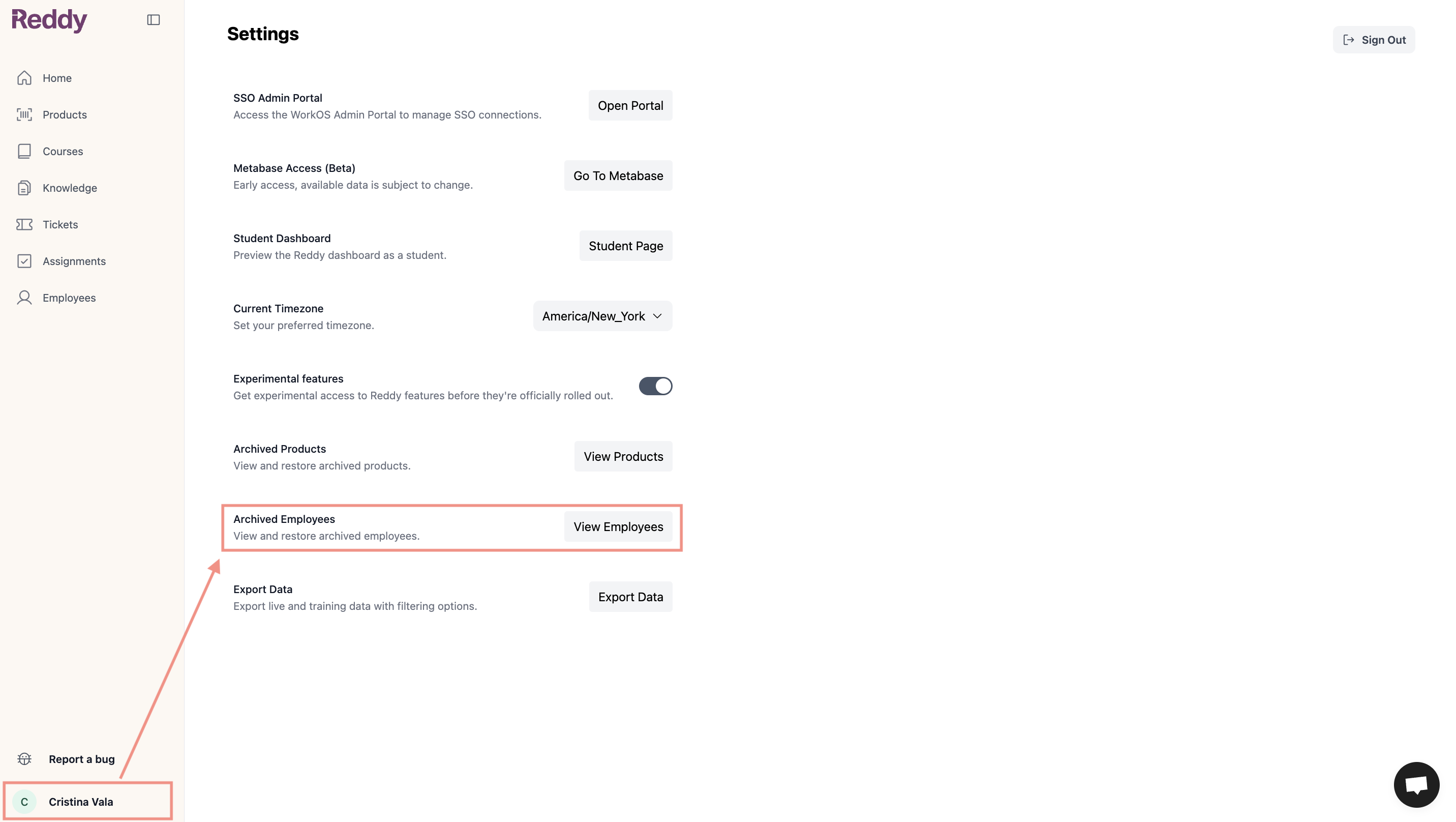
Reddy is rolling out a new roster-based Employees experience. If your Employees page shows an Actions menu in the top right, use the Roster tab below. Otherwise, use the Legacy tab.
- Roster
- Legacy
Archiving a User
1
Navigate to Employees
Click Employees in the left navigation and search for the user.
2
Archive from the row menu
Click the … menu at the right end of their row and choose Archive, then confirm.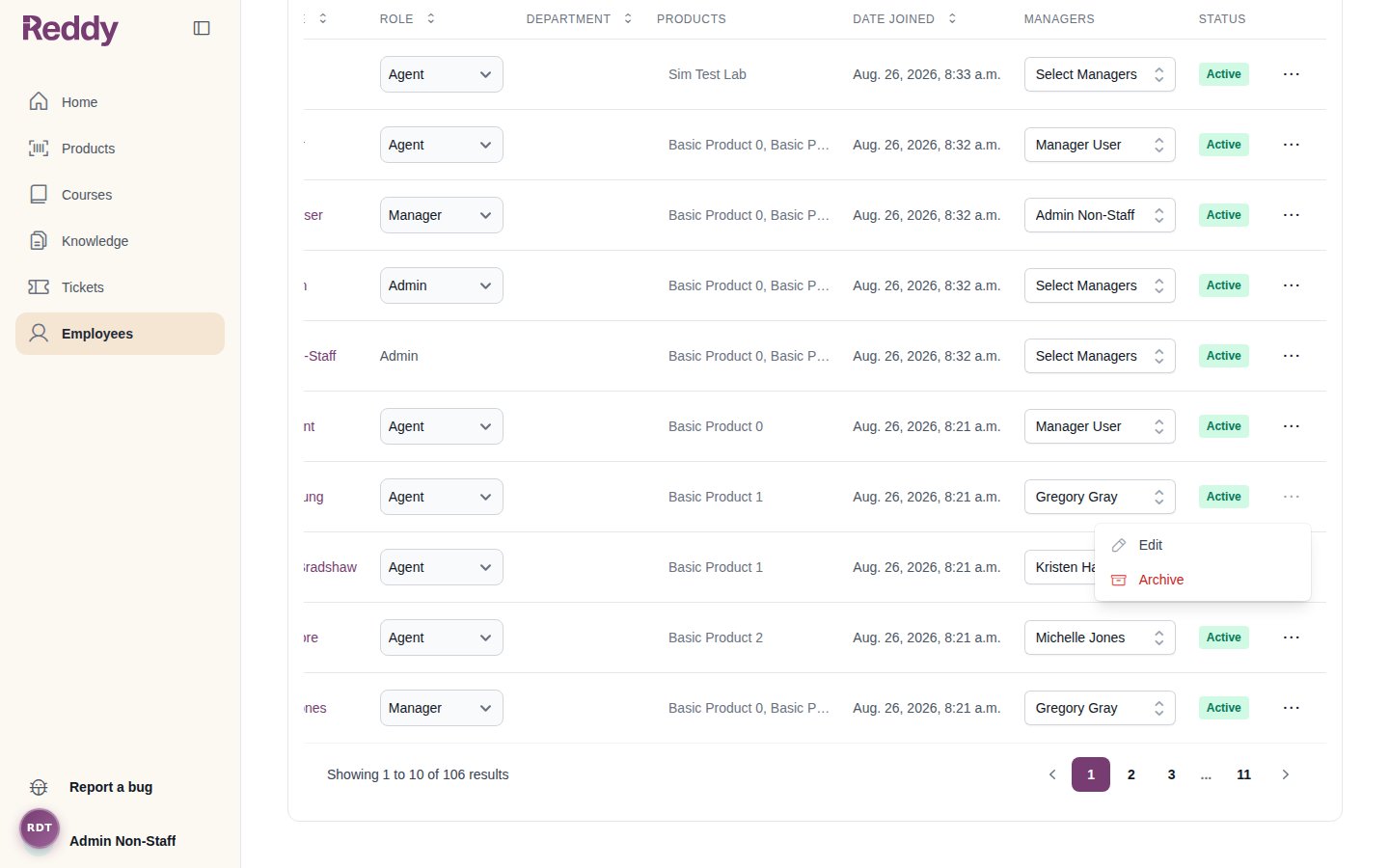
You cannot archive yourself, and the company must always keep at least one active admin. Archiving a manager also removes them as manager from their direct reports.
Unarchiving a User
1
Show archived employees
On the Employees page, check Show archived in the filter bar. Archived users appear with an “Archived” status badge.
2
Restore the user
Click the … menu on their row and choose Unarchive, then confirm.
The user regains access with their previous role and permissions.
Archiving in Bulk
To offboard many people at once, use a roster upload: Actions -> Replace roster. Anyone active in Reddy but missing from the uploaded file is archived, and the review step shows exactly who before anything happens. See Roster Uploads.FAQ
Can archived users still log in?
Can archived users still log in?
No. Archived users cannot log in to Reddy. Their profiles and data are hidden from dashboards and reports by default.
What happens to archived user data?
What happens to archived user data?
All historical data is preserved in the system including call recordings, performance metrics, reports, and training history. By default it is hidden from dashboards, reports, and insights. To see it, add the Archived Employees filter and choose Include to view it alongside active staff, or Only to view archived employees alone.