

Locating Call Records
- Home Dashboard
- Agent Profile
Access call records from the Home dashboard to review both training simulations and live calls.Switch Between Training and Live:
- Click Training or Live to switch views
- The active button turns purple and displays those records
- Default view shows training records
Contact your Reddy Project Manager to change the organization-wide default to show live call records instead.
Filtering Call Records
Reddy uses a dynamic filtering system that defaults to the last 2 weeks of call records (excluding calls under 1 minute).Filter Types
Standard Filters
Standard Filters
Available for both training and live calls:
- Agent Name/Email: View specific agents
- Manager Name/Email: Filter by manager
- Product: Filter by assigned products
- Date Range: Custom time periods
- Duration: Filter by call length (minutes)
- Compliance Score: QA performance thresholds
- Archived Employees: Archived employees’ calls are hidden by default. Choose Include to count them alongside active staff, or Only to see archived employees alone
Training-Specific Filters
Training-Specific Filters
Additional filters for training simulations:
- Recipe: Filter by scenario within a training simulation
- Training Name: Specific training simulations
- Training Type: Category of training
- Training with Recipe: Simulations that include scenarios
A training simulation represents a call type (e.g., Refund Request). Recipes are the scenarios within it (e.g., refund via store credit, refund to card, overcome objection with discount).
Custom Filters
Custom Filters
Add organization-specific filters for live calls (e.g., hire date, ad campaign, sales closed) by sending custom metadata via API.Add metadata to calls
Using Filters
- Apply, Edit & Reset
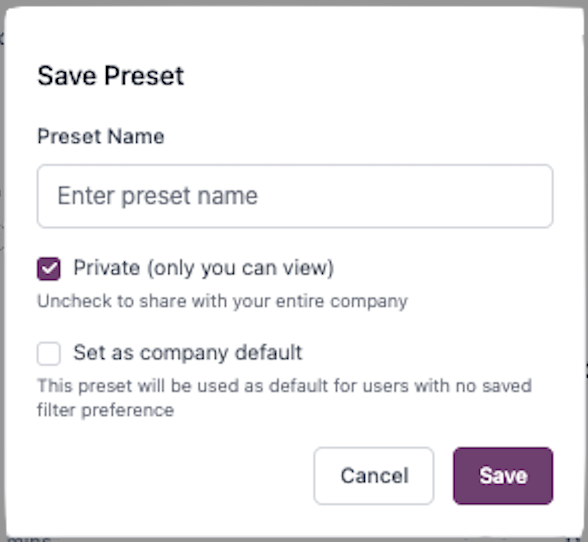
- Preset Filters
Apply Filters:
- Click Add Filter to open the filter menu
- Select your desired filter options
- Click Apply Filter to update the dashboard
Viewing Call Records
Click View on any call record to open the detailed QA page.- QA Scorecard
- Recording
- Insights
- Transcript
- Chat
- Keyboard Shortcuts
QA Checklist:
Review all QA items with Pass/Fail/Review statuses for the call.Understanding Score Icons:
- R icon: Automatically scored by Reddy AI
- No icon: Not yet scored, configured for manual scoring
- Verification icon (checkmark): Score verified by someone at your organization
FAQ
Can I export call data?
Can I export call data?
Yes. Use the export function on the main dashboard to download filtered call data as a CSV file.
How do I flag a QA item for review?
How do I flag a QA item for review?
On the QA Scorecard tab, click the flag icon next to any QA item to mark it for review. This helps track items that need additional attention or discussion.Learn more about submitting QA corrections
Can I compare multiple calls?
Can I compare multiple calls?
For multi-call analysis, use the Chat with Transcripts feature to query data across multiple call records simultaneously.Chat with multiple call records
What if a call recording is missing?
What if a call recording is missing?
Ensure calls are being recorded through your integration. Contact your Reddy Project Manager if recordings are consistently missing.