

Access to reports is no longer automatic for every admin. An admin sees the Reports tab only after a report owner grants them Read or Edit access. Managers and agents continue to see their own published reports as before.
Access levels
Owners are assigned by Reddy during setup. If you need to change who owns reports at your organization, contact your Customer Success Manager. Owners manage Read and Edit access for everyone else themselves, using the steps below.
Grant report access
Only report owners see the Report Access controls. If you do not see them, you are not a report owner.
1
Open Settings
Click the gear (Settings) icon at the bottom of the left navigation bar, then open the General tab.
2
Find Report Access
Scroll to the Report Access section and click Manage report access.
3
Set each admin's access
For each admin, check Read to let them view reports, or Edit to also let them create and change reports. Use the search box to find a specific admin.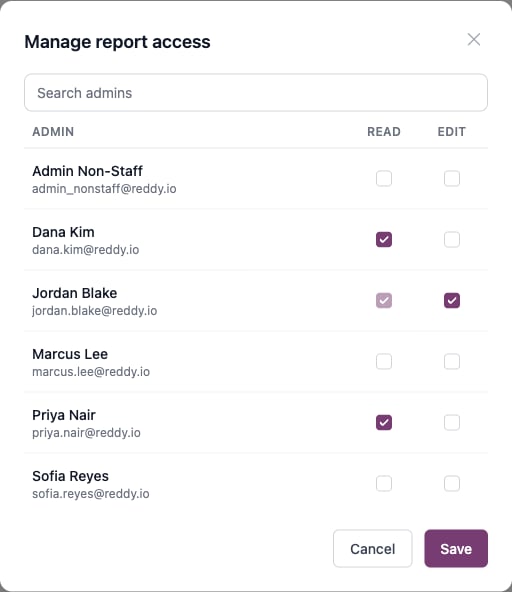
4
Save
Click Save. Each admin is updated to Viewer, Editor, or no access to match what you selected.
What each access level sees
- Viewers (read-only)
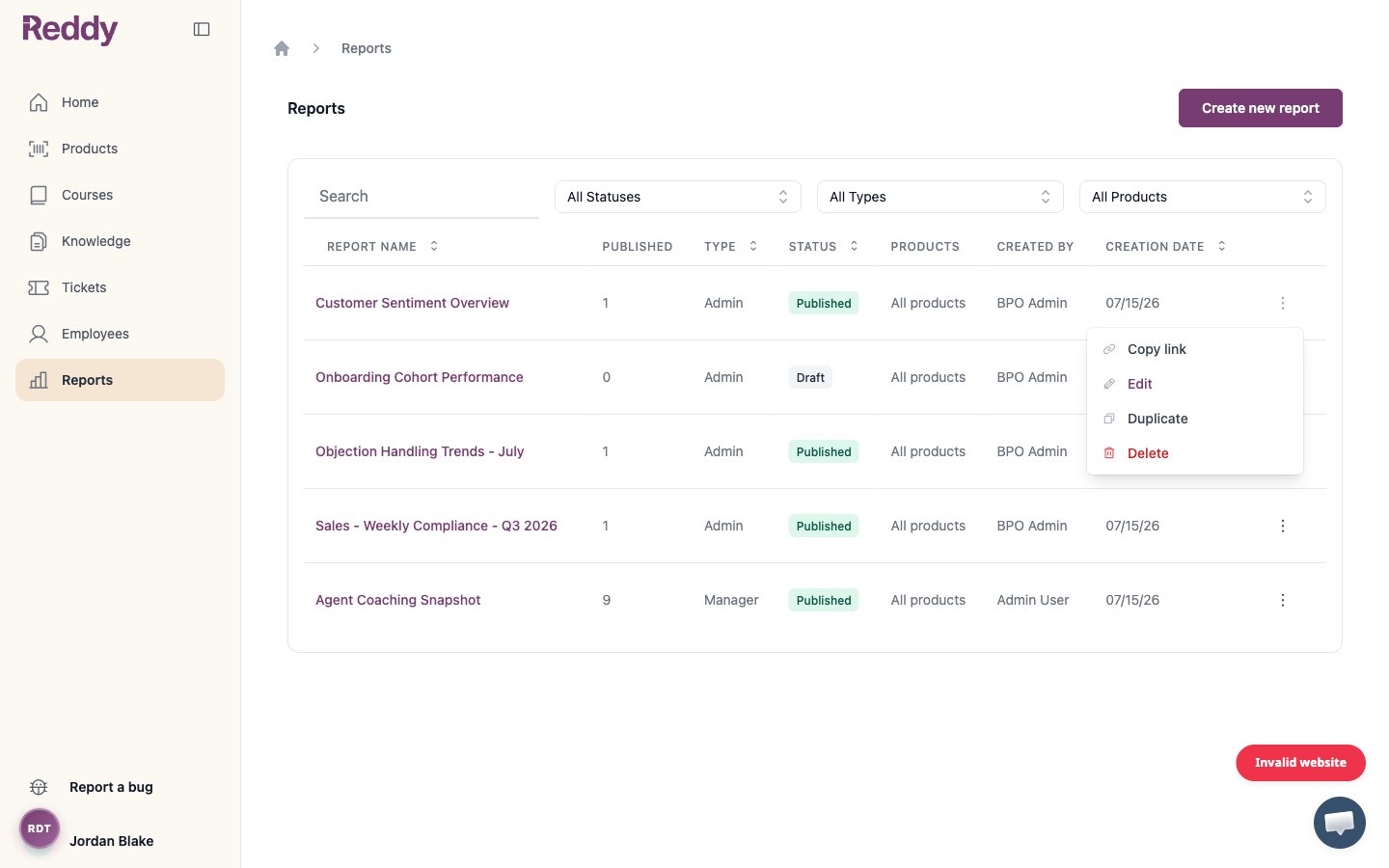
- Editors
Viewers can browse the reports list and open any report, but every editing control is hidden. In the report actions menu, viewers get a View option instead of Edit, with no Duplicate or Delete.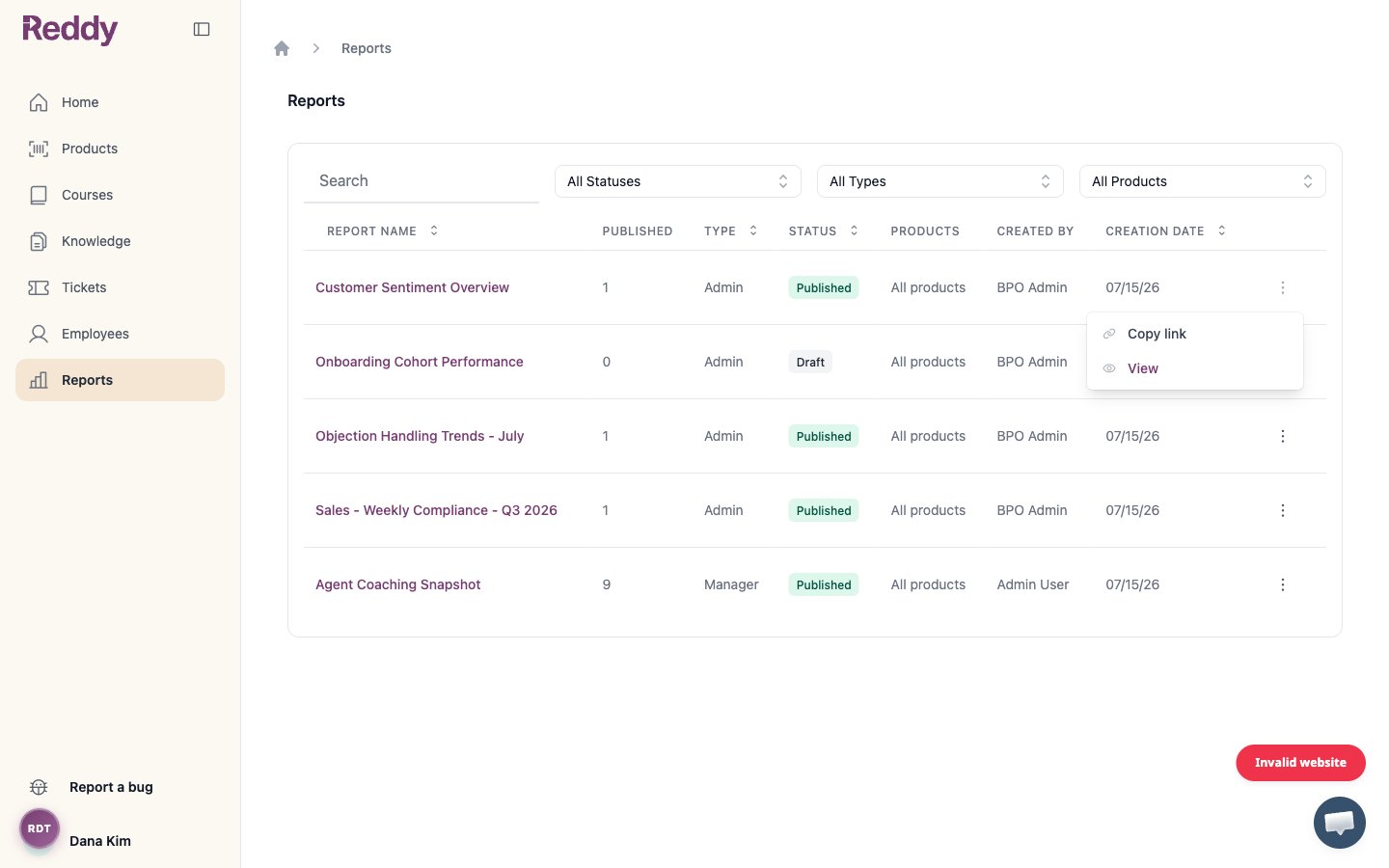
Let agents and managers see their reports
Report owners also control whether published manager and agent reports are visible to those employees. Two toggles in the same General settings section handle this:- Let agents see their published reports — when on, published agent reports are visible to the agents they cover.
- Let managers see their published reports — when on, published manager reports are visible to the managers they cover.
These defaults apply to reports published after the setting is changed. Already-published reports keep the visibility they had when they were published.
FAQ
What's the difference between Read and Edit?
What's the difference between Read and Edit?
Read (Viewer) lets an admin open and browse reports but change nothing. Edit (Editor) additionally lets them create, edit, publish, rename, duplicate, and delete reports. Checking Edit always includes Read.
An admin says they can't see the Reports tab. Why?
An admin says they can't see the Reports tab. Why?
They have not been granted report access. Ask a report owner to open Settings > General > Manage report access and check Read (for view-only) or Edit for that admin.
Why isn't a report owner listed in the access matrix?
Why isn't a report owner listed in the access matrix?
Owners are managed separately by Reddy and are never changed from this screen, so they do not appear in the Read/Edit list. To change owners, contact your Customer Success Manager.
Can a viewer see every report?
Can a viewer see every report?
Viewers see every report in your company except any that have been specifically hidden from read-only viewers. Owners, editors, and Reddy staff always see every report.
How do I turn someone's access off?
How do I turn someone's access off?
In Manage report access, uncheck both Read and Edit for that admin, then click Save. They lose access to the Reports tab.