

1
Navigate to Products tab
Click on the Products tab on the left side menu.
2
Open product page
Click on a product to open the product page.
3
Access Quality Assurance
Click the “Quality Assurance” box at the top of the page.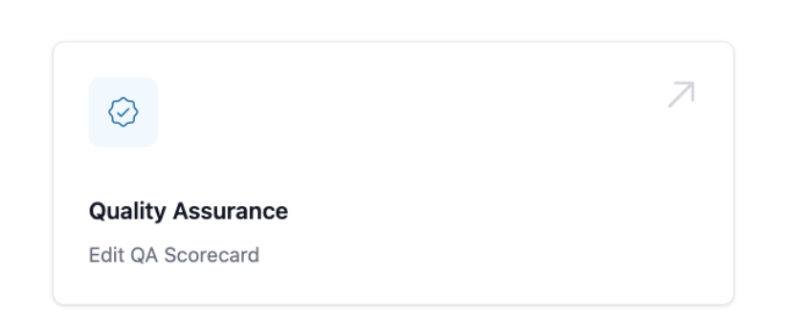
4
Edit QA items
From here you can edit the QA items for this specific product.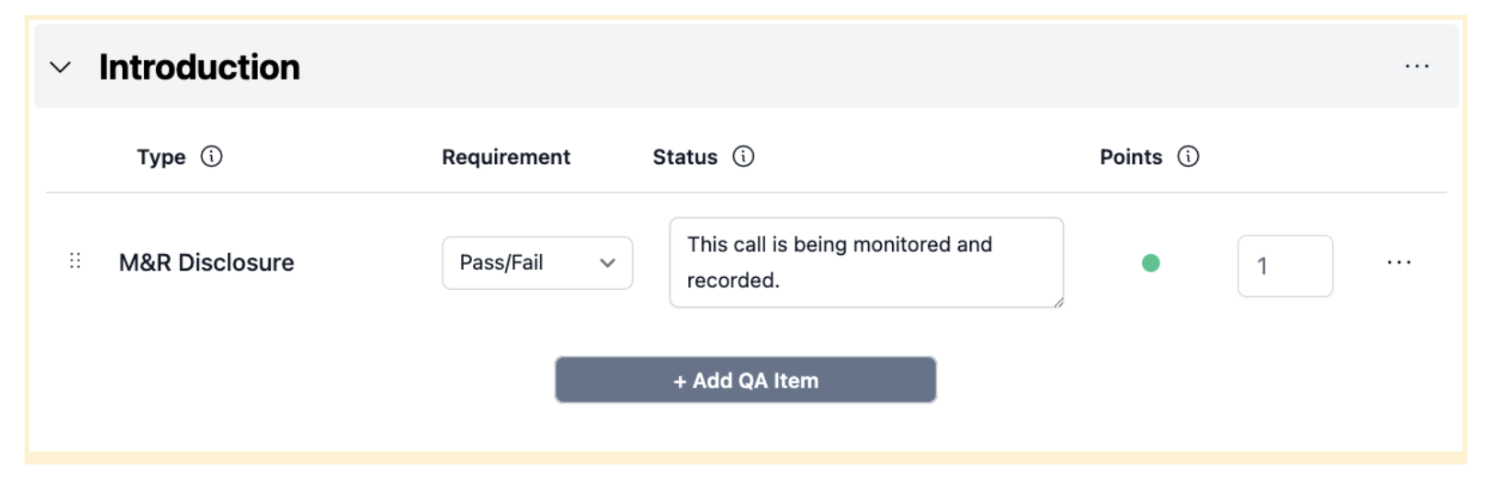
5
Add new section
Use “+Add section” to create a new section on the QA scorecard.
6
Configure QA items
Set up each QA item with the following options:
- Title: Click on the name of the QA to edit it, click the check mark to save
- Type:
- Pass/Fail: Grading determines only success or failure
- Score: Provides a grade based on performance quality
- Requirement: Explain each requirement in detail - Reddy AI will transform this into an AI-driven QA
- Status:
- Green: QA is up and running
- Yellow: Reddy AI needs to update before it will be live
- Points: Determine how many points each QA item is worth
- Organize: Use the :: drag symbol to reorder QA items and move them between sections
Reddy AI automatically transforms your detailed requirements into intelligent grading criteria that evaluates agent performance during simulations.