

content_type to a video/* MIME type (for example video/mp4). This guide walks through each scenario. Once the call is processed, all the insights will be visible on the dashboard.
Select a Product
You can fetch the list of products and their IDs through the Product List API. Each product has a set of QA items used to grade a call. Use this request to get the list of products.Send a Call to Reddy
To create a call, you can provide a transcript, a media file, or both. Thefilename parameter is optional - if you’re only sending a transcript and no media file, you can omit it entirely.
When you include
filename, you can optionally send content_type (the MIME type of the file). For audio, content_type can be omitted and the format is auto-detected. For video, content_type is required. See Create Call.agent_email must be the email of a user who already exists and is active in the same company that owns your API token. If the email is not a registered user in your company, the request fails with a 404 “User with email … not found”. You can add users from the Reddy admin dashboard before sending calls.Matching ignores capitalisation. Jane.Doe@Company.com and jane.doe@company.com reach the same agent, so you can send addresses exactly as your own directory stores them. The address is recorded with the capitalisation you sent.Redaction is not applied to the audio if the transcript is provided. If you have sensitive information in the audio that you want to silence, make sure you do that using word-level timestamps in your transcription before sending to Reddy.
Speaker Separation
You’ll see that in the previous example we included aspeaker object. This controls how Reddy identifies which speaker is the agent versus the customer in your audio. We support several options to identify speakers depending on your audio format.
Choose the right strategy
When to use each mode
- Use
diarizeif you have mono audio (or stereo audio that is identical on L/R channels). - Use
channelsif your audio already separates speakers per channel. Optionally passspeaker.channel_mapif you know which channel is which (most accurate).
The
channels request parameter is deprecated in favor of speaker.separation and speaker.channel_map.Responses
With filename: The response includes a signed Google Cloud Storage URL for uploading the media file:Skip to the view results section if you’re not uploading a media file.
Audio content type
Thecontent_type field is optional for audio calls. When omitted, the audio format is auto-detected during transcription. You can also set it to application/octet-stream explicitly for the same behavior.
If you do provide a specific audio/* content type (for example audio/wav or audio/mp4), the filename extension must match or create-call returns 422.
Sending video instead of audio
Use the same Create Call endpoint. The response shape is identical.What to change on create-call
For
.mp4 and .webm, pick the MIME type that matches your file: audio/mp4 for audio-only, video/mp4 for screen recordings.
Supported video MIME types
Video calls accept only thesecontent_type values. The filename extension must match. Other types or extensions (for example mkv, avi, or no extension) return 422 at create-call.
Upload
- Set the PUT
Content-Typeheader to the same value you sent ascontent_typeon create-call. - Maximum file size is 250 MB. The upload URL expires after 1 hour.
Upload the Media File (Optional)
If you included afilename in your call creation request and received an upload URL, continue with this step to attach the file.
Use this request to upload and attach the file to the call. The URL will be the upload_url you got from the previous request.
This upload URL expires after 1 hour. Maximum file size is 250 MB.
View Results
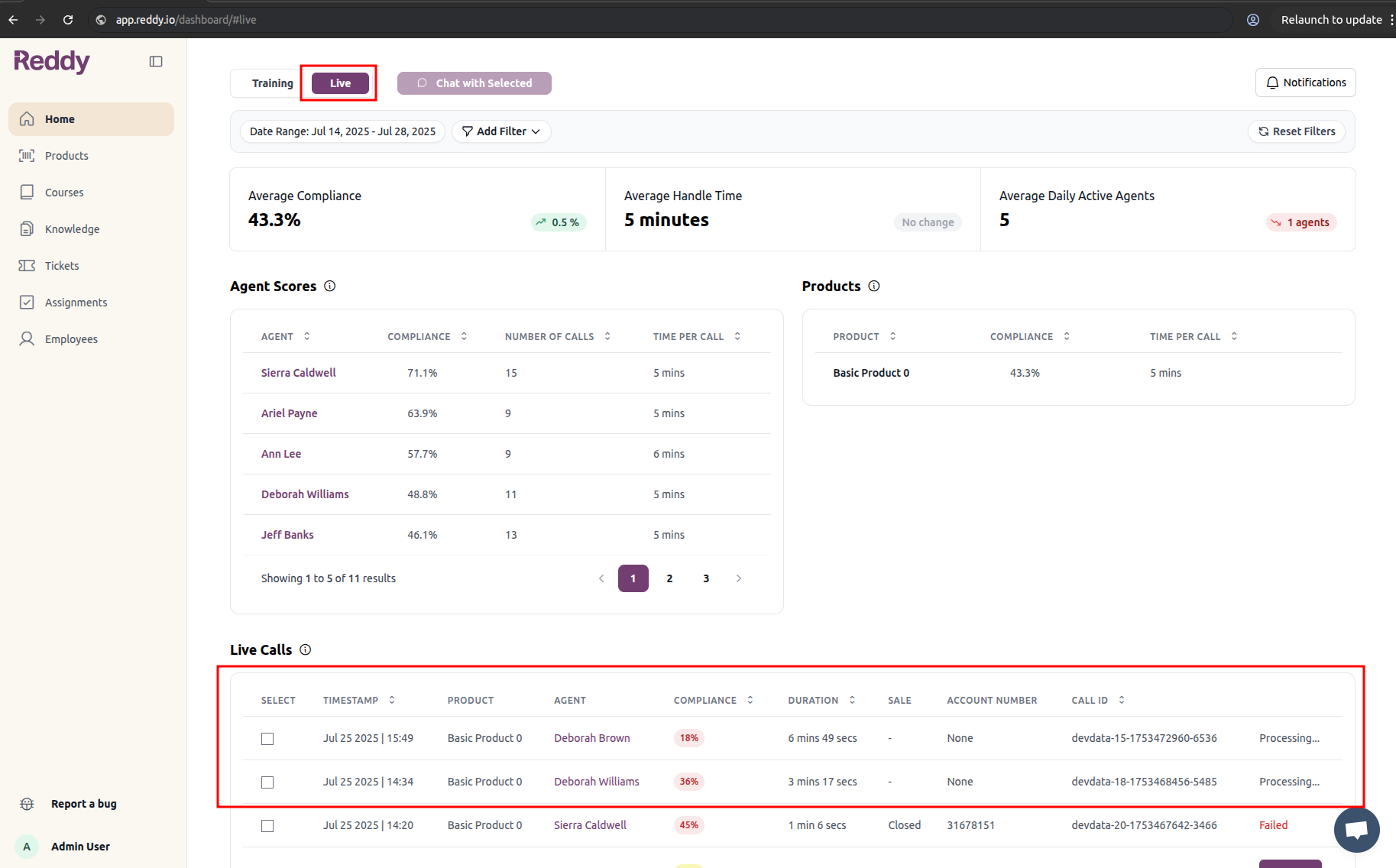
Once the call is processed, it will be listed in the Live Calls table (in the “Live” tab on the dashboard home page).Calls under 60 seconds are not shown in this dashboard by default.
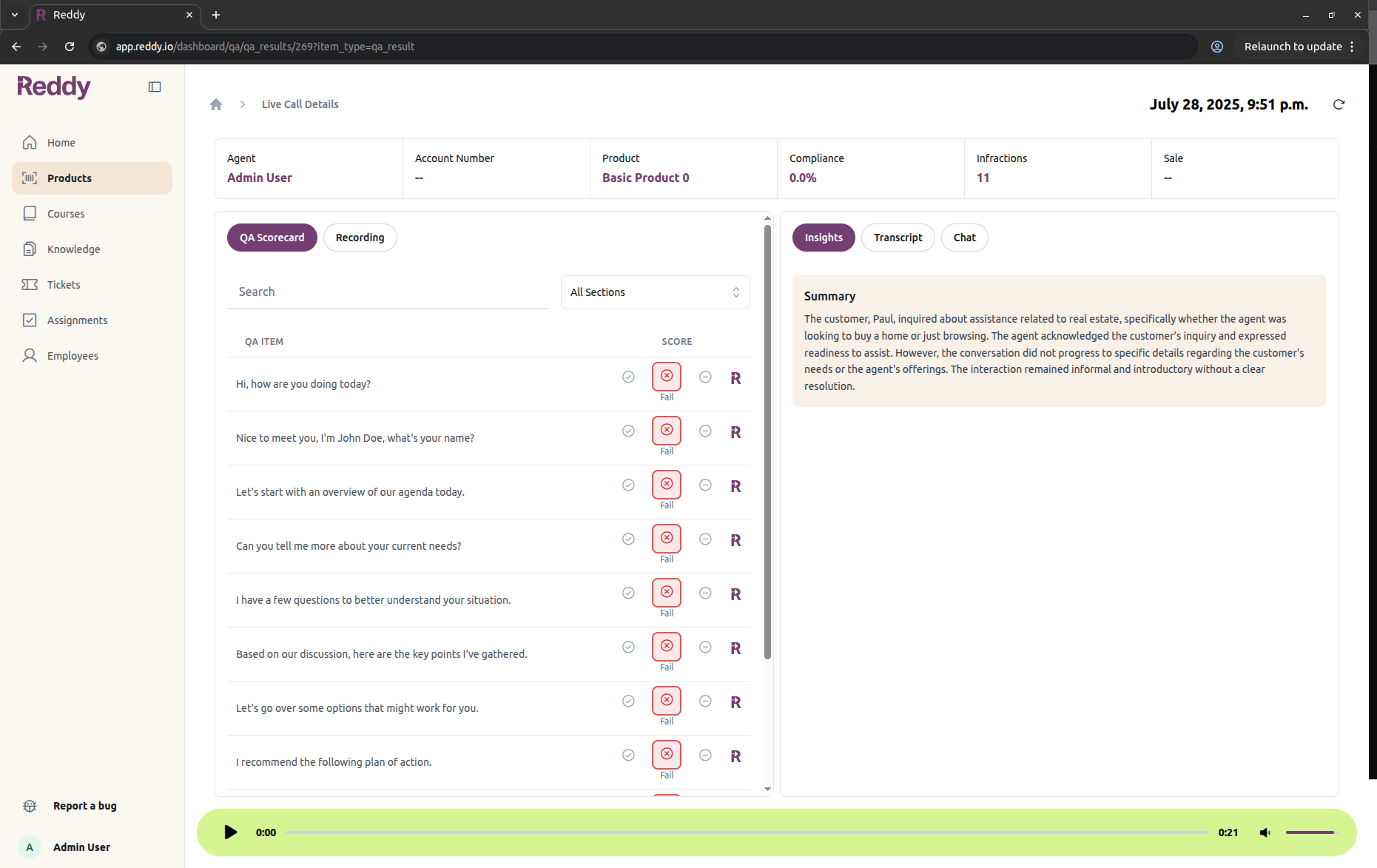
For a video call, the “Recording” tab on this page plays the uploaded video instead of showing an audio player. Managers and admins see this tab; agents do not.
Questions? Check the API reference for the full endpoint spec.