

Overview
The Developer API tool provides visibility into your API requests, helping you debug and resolve integration issues quickly. Access the API monitoring dashboard in your Settings > Developer tab. At the top you’ll see an overview of your API request volume over the last 30 days: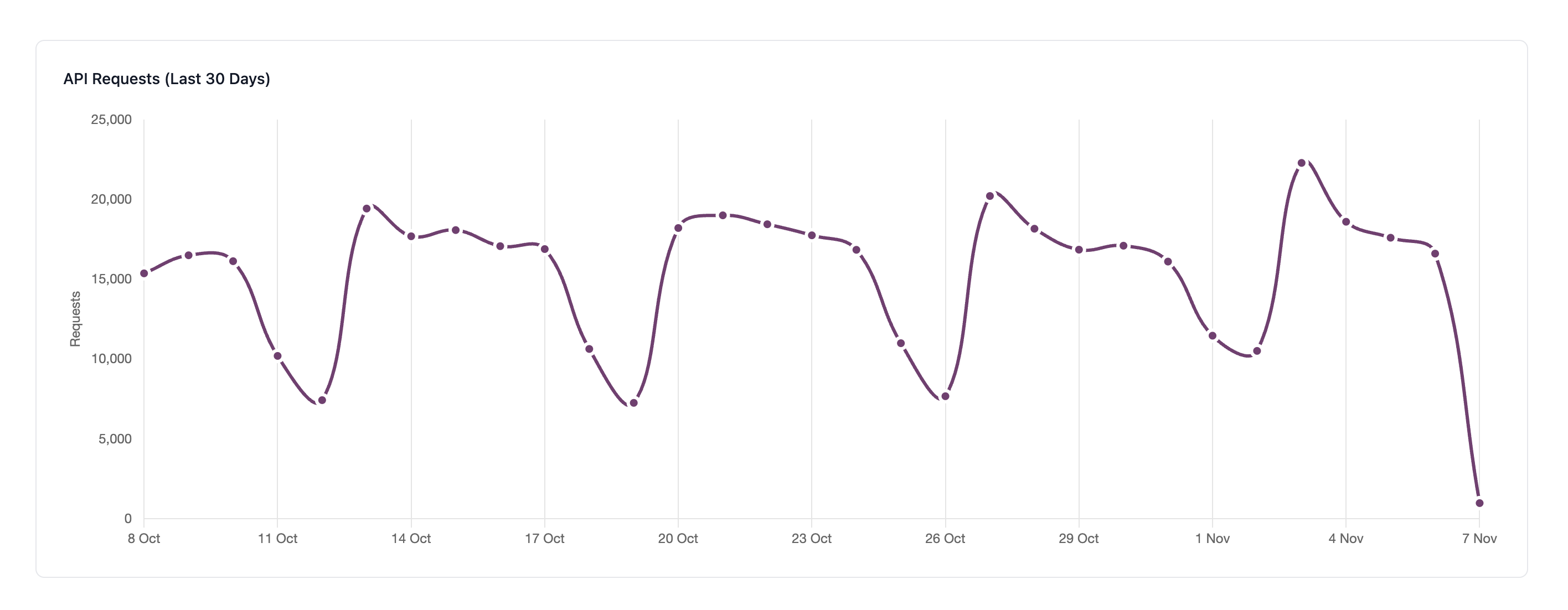
API Request Logs
This is a log of your API requests from the last 30 days. The logs display up to 100 of your most recent requests that match the filter and search options you’ve selected. Reach out to Reddy Support if you need access to API logs older than 30 days.Log Information
Each log entry includes:- Timestamp: When the request was made (format:
YYYY-MM-DD HH:MM:SS) - Method: HTTP method used (
GET,POST,PUT,DELETE) - Endpoint: The API endpoint path (e.g.,
/api/v1/conversations) - Status: HTTP response status code (e.g.,
200,201,404,422) - Response Time: Request duration in milliseconds (e.g.,
127.37ms)
Viewing Request Details
Click on any log entry to go to the expanded view with full request and response details, including any error messages (if applicable).Live Monitoring
The API logs update in real-time with a Live indicator showing active monitoring. Click the pause button to toggle this off if you want to freeze the current table: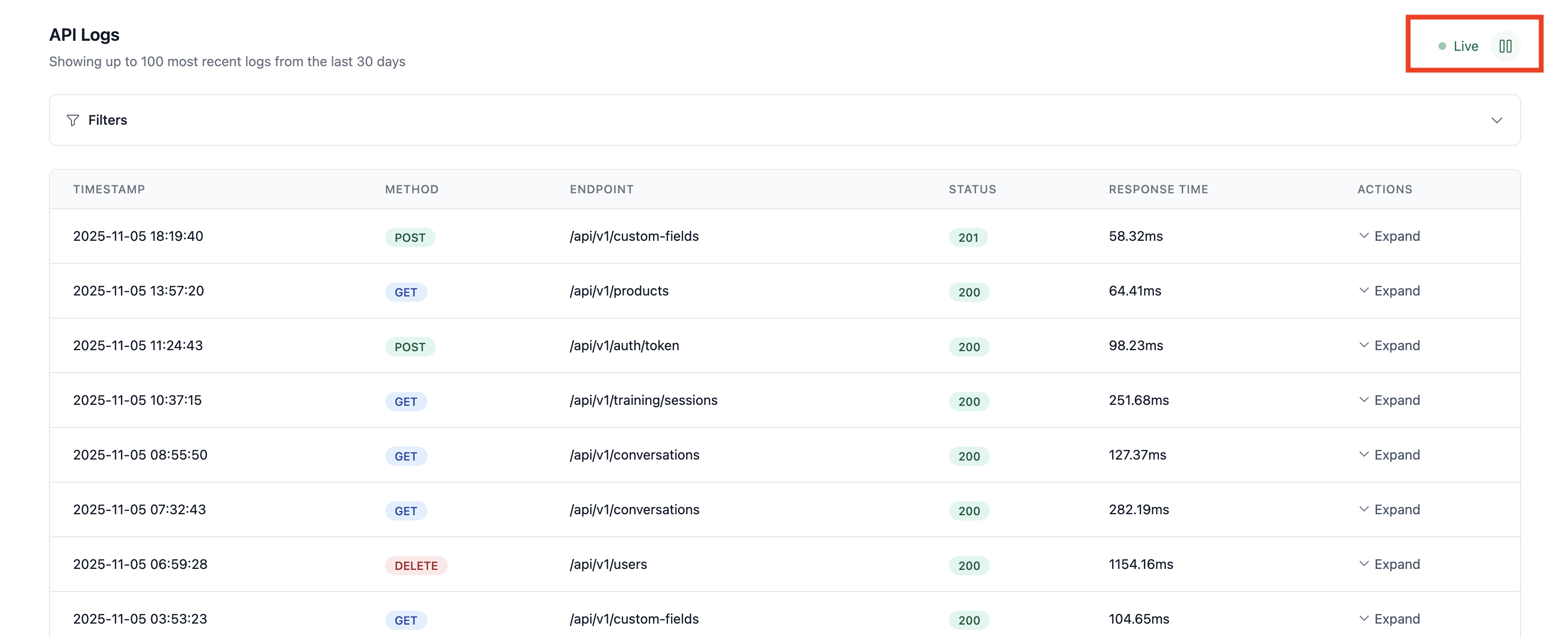
Filtering Logs
Use the filters panel to narrow down your logs by status code, endpoint, request body, etc. Note that the start and end date ranges are for the time the API request was received, not the timestamp in the request body (e.g., for the /call/create endpoint).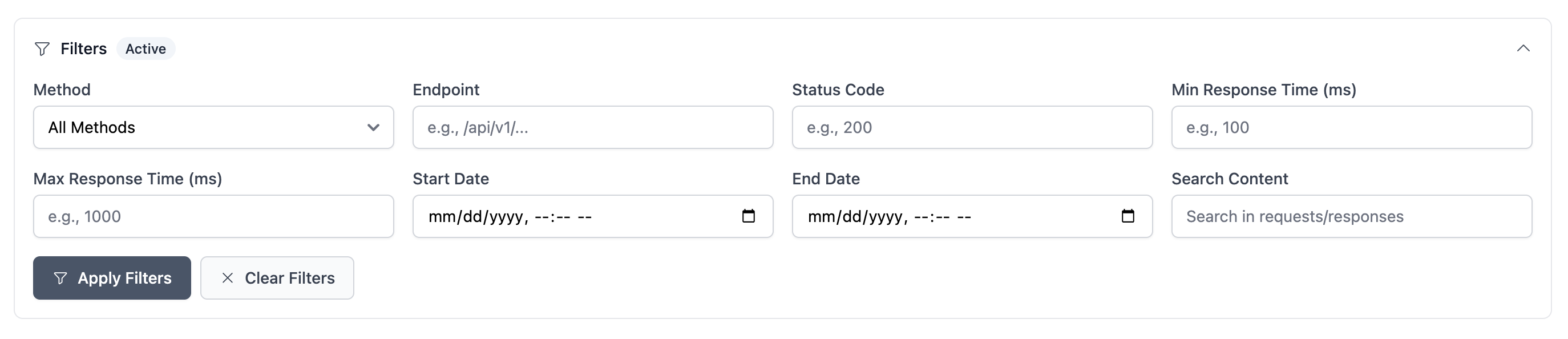
Common Status Codes
Quick Links
Monitor Missing Resources
Regularly check for 404 status codes to identify issues early.
Check Rate Limits
Monitor for 429 responses and adjust your retry strategy if needed.