

Troubleshooting Steps
Refresh the page
Start by refreshing the page. This may reveal additional microphone options if you plugged in a new mic or changed Windows settings.
Check microphone selection
Check the dropdown menu for available microphone options and choose the correct device for your microphone.
These options are defined by Windows based on connected devices. Try each option to determine which one works best.
Grant browser permissions
Watch for a popup requesting permission to access your microphone.If the popup has closed, check near the search bar in your browser for permission settings.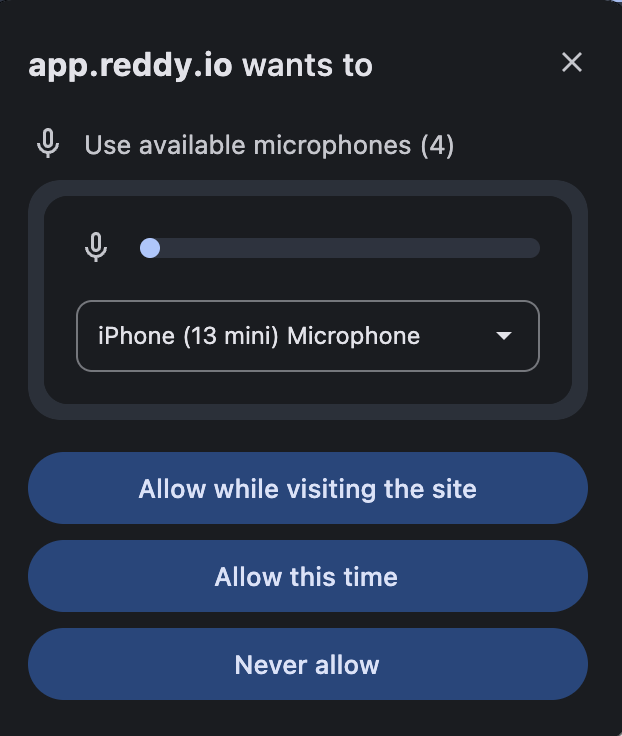
Ensure you’ve clicked Allow to grant microphone access.
External microphone check
If problems continue, consider using an external microphone check tool to verify Windows settings.
You can use webcammictest.com to test your microphone outside of the Reddy platform.
Still Having Issues?
If problems persist after following all the steps above, contact Reddy support for further assistance.Get Help
Click here to chat with our support team for immediate assistance with microphone issues.
For the best training experience, we recommend using a high-quality headset with a built-in microphone to ensure clear audio during simulations.