Managers can only update agents assigned to them and adjust products/courses they’re assigned to.
Individual Updates
Products & Courses
Managers
Role
Navigate to Employees tab
Go to the Employees tab on the left menu bar. Search for the agent you want to update.
Open agent profile
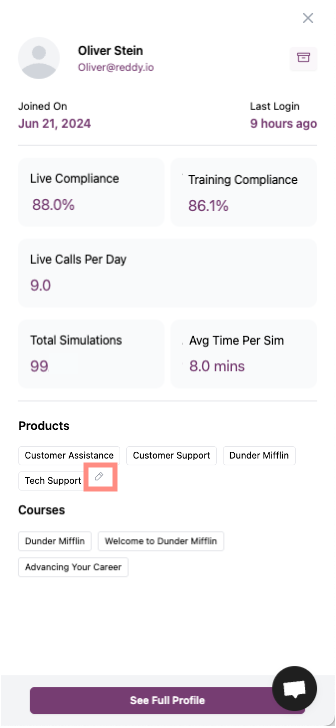
Click the agent’s name to open the agent profile panel.
Edit assignments
Hover over the last product or course listed and click the pencil icon to open the assignment dropdown. Apply changes
Select or deselect products and courses, then click “Apply Changes”.Scroll down if needed to see the “Apply Changes” button—it’s required for updates to save.
Navigate to Employees tab
Go to the Employees tab on the left menu bar. Search for the agent you want to update.
Open manager dropdown
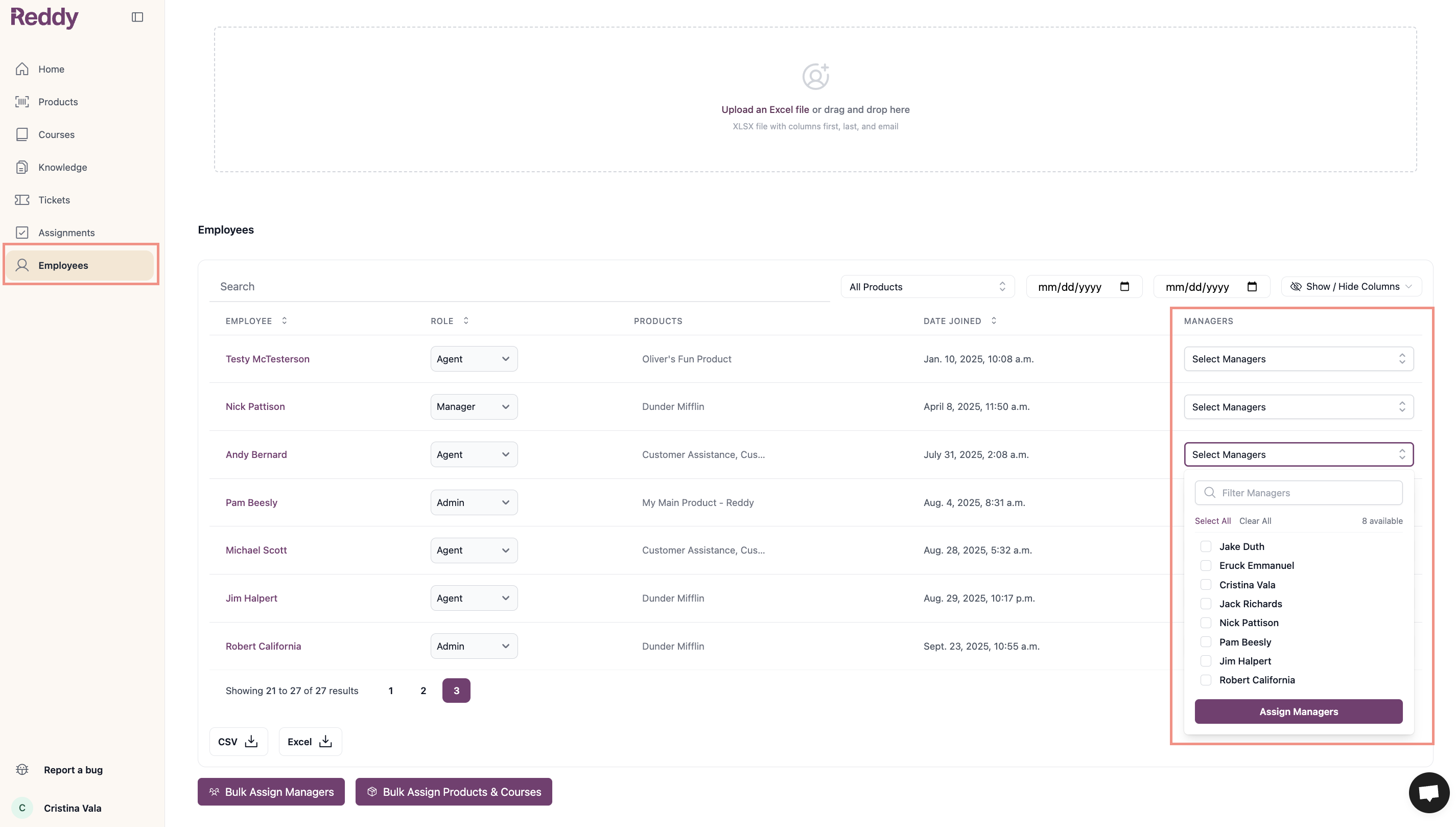
Click the “Select Managers” dropdown in the Managers column to the right of the agent’s name.
Select managers
Use the search box to filter managers or select from the list. You can assign multiple managers to one agent. Save changes
Click “Assign Managers” to save your selections.Use “Select All” or “Clear All” to quickly manage multiple manager assignments.
Navigate to Employees tab
Go to the Employees tab on the left menu bar. Search for the user you want to update.
Select role
Click the Role dropdown in the Role column to the right of the user’s name and select Agent, Manager, or Admin.
Save changes
The role change saves automatically.Only admins can change user roles.
Bulk Updates
Use the buttons below the employees table for bulk changes:
- Bulk Assign Managers: Assign multiple agents to managers at once
- Bulk Assign Products & Courses: Update products and courses for multiple agents
Only admins can use bulk assignment features.
Export Employees Table
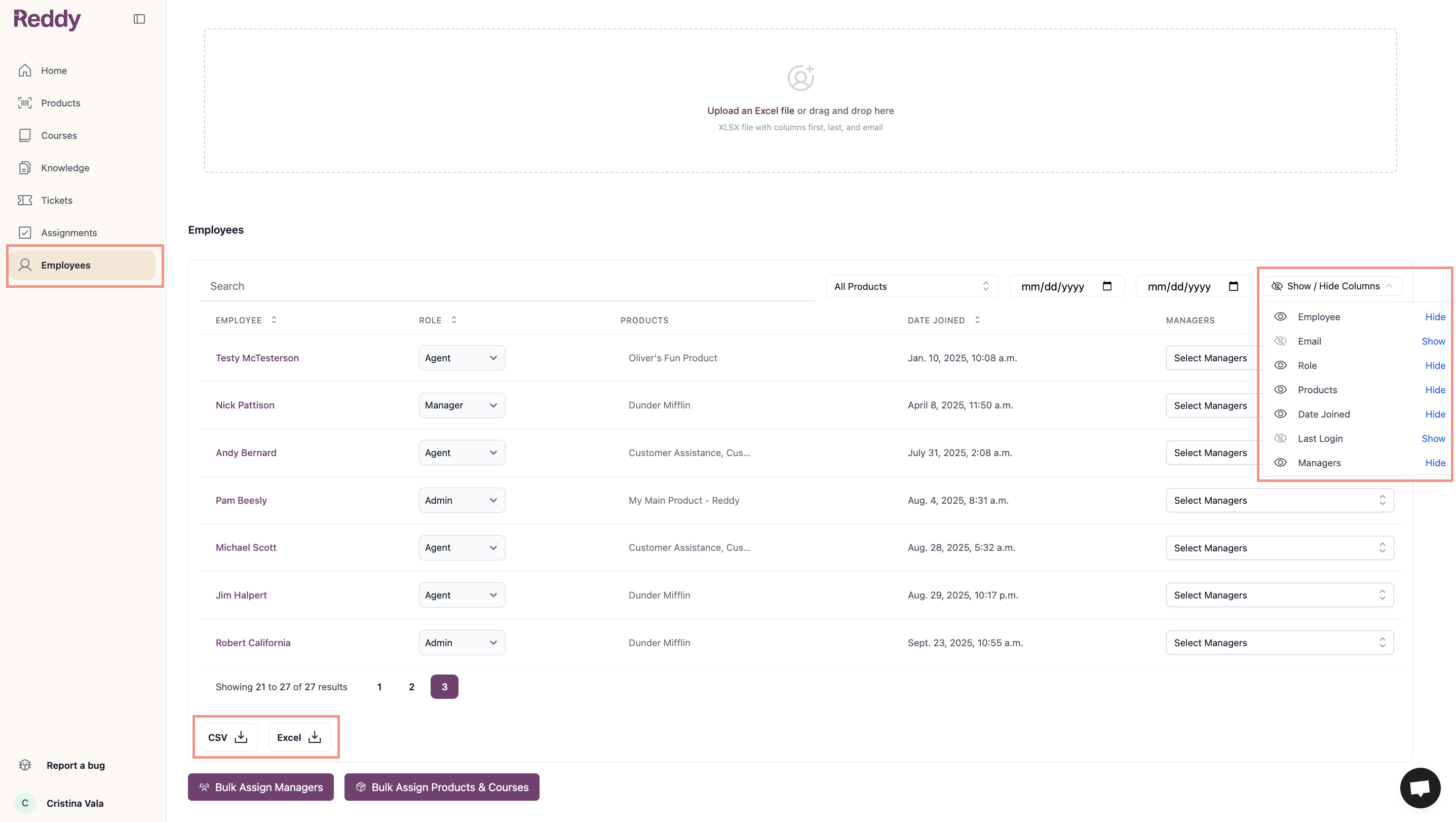
Export current assignments to review who needs updates before making bulk changes. The export includes all currently visible columns (Employee, Email, Role, Products, Date Joined, Last Login, Managers).
Adjust column visibility using the “Show / Hide Columns” button in the top right before exporting.