> ## Documentation Index
> Fetch the complete documentation index at: https://docs.reddy.io/llms.txt
> Use this file to discover all available pages before exploring further.
# Ticketing System
> Submit, track, and manage requests across Reddy and internal teams
The Reddy ticketing system streamlines request management between your team and Reddy during onboarding and beyond. All requests are tracked, visible, and actionable—nothing gets lost in email threads.
## How It Works
Track ad hoc requests in one centralized location:
* Custom configuration requests
* Knowledge base upload requests
* Integration setup needs
Submit ongoing requests for collaboration:
* Product enhancement or new feature requests
* Training simulation requests (new or modifications)
* Report or data requests
* User management assistance
## Accessing Tickets
Navigate to the **Tickets** tab to view and manage requests.
Click **"Create Ticket"** in the top right corner.
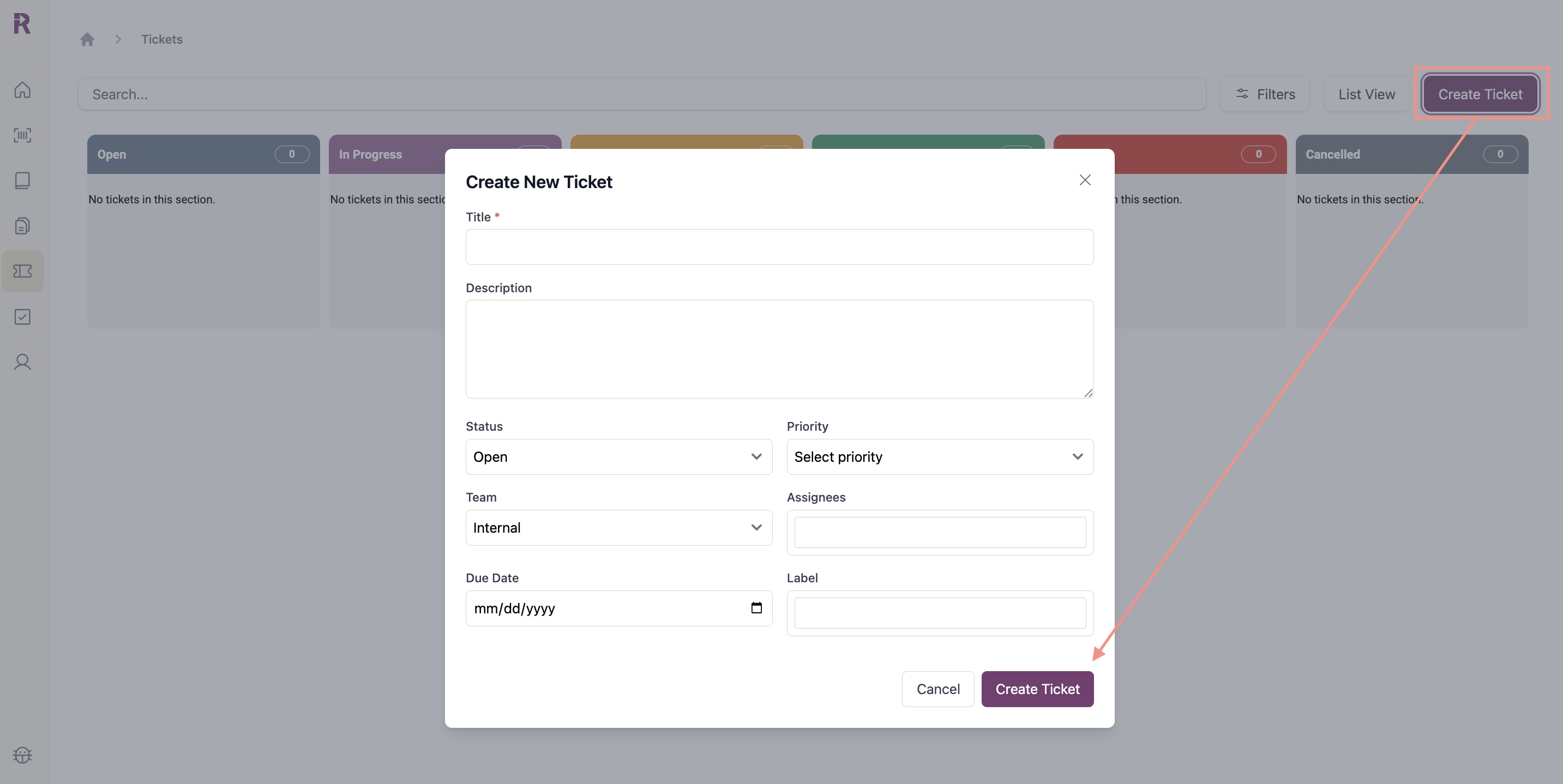 * **Title:** Brief, descriptive summary (required)
* **Description:** Detailed explanation of request or issue
* **Labels:** Categorize using recommended labels
- **Feature Request** - New capabilities or improvements
- **Data Request** - Exports, historical data, or custom reports
- **QA** - QA setup, scoring, or feedback
- **Training Sim Update** - Updates to existing simulations
- **Training New Sim Request** - New simulation creation
- **User Management** - Role changes, permissions, or new user setup
- **Custom Config Request** - Client-specific configurations or workflows
Contact your Reddy Project Manager to create or remove labels for your organization's ticketing system.
* **Status:** Open, In Progress, In Review, Blocked, Done
* **Priority:** Low, Medium, High, Critical
* **Due Date:** Target completion date
* **Team:** Internal or Reddy
- If the task requires action from your organization, select **Internal** and assign the ticket to a team member
- If the task requires Reddy support, select **Reddy**
* **Assignees:** Team members assigned to the ticket
**Internal Team:** Assign the ticket to one or more people within your organization. They will receive a notification in Reddy's notification panel. Only individuals with active Reddy accounts will appear in the assignee dropdown.
**Reddy Team:** The assignee field is disabled. Your Reddy Project Manager will review and assign the ticket to the appropriate Reddy team member.
Click **Submit** to create the ticket. You'll receive notifications when status changes or teammates are assigned.
**View Options:**
* **List View:** Sortable table with all ticket details
* **Kanban View:** Visual board organized by status
**Filter and Search:**
Use filters and search to quickly find or organize tickets by status, priority, label, or assignee.
**Ticket Activity:**
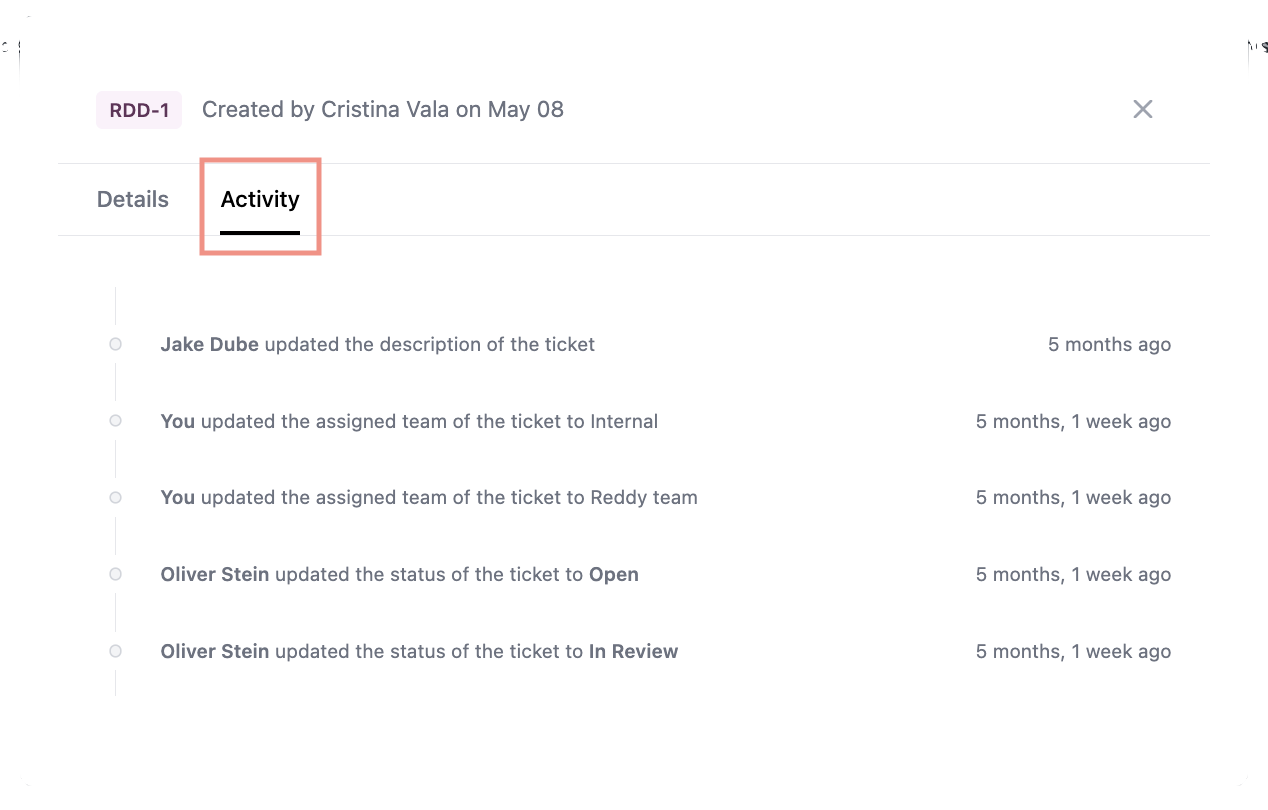
Click a ticket to open details, then switch to the **Activity** tab to view change history with date, action, and user.
* **Title:** Brief, descriptive summary (required)
* **Description:** Detailed explanation of request or issue
* **Labels:** Categorize using recommended labels
- **Feature Request** - New capabilities or improvements
- **Data Request** - Exports, historical data, or custom reports
- **QA** - QA setup, scoring, or feedback
- **Training Sim Update** - Updates to existing simulations
- **Training New Sim Request** - New simulation creation
- **User Management** - Role changes, permissions, or new user setup
- **Custom Config Request** - Client-specific configurations or workflows
Contact your Reddy Project Manager to create or remove labels for your organization's ticketing system.
* **Status:** Open, In Progress, In Review, Blocked, Done
* **Priority:** Low, Medium, High, Critical
* **Due Date:** Target completion date
* **Team:** Internal or Reddy
- If the task requires action from your organization, select **Internal** and assign the ticket to a team member
- If the task requires Reddy support, select **Reddy**
* **Assignees:** Team members assigned to the ticket
**Internal Team:** Assign the ticket to one or more people within your organization. They will receive a notification in Reddy's notification panel. Only individuals with active Reddy accounts will appear in the assignee dropdown.
**Reddy Team:** The assignee field is disabled. Your Reddy Project Manager will review and assign the ticket to the appropriate Reddy team member.
Click **Submit** to create the ticket. You'll receive notifications when status changes or teammates are assigned.
**View Options:**
* **List View:** Sortable table with all ticket details
* **Kanban View:** Visual board organized by status
**Filter and Search:**
Use filters and search to quickly find or organize tickets by status, priority, label, or assignee.
**Ticket Activity:**
Click a ticket to open details, then switch to the **Activity** tab to view change history with date, action, and user.
 **Auto-Removal:**
Tickets marked Done are auto-removed from view after 7 days.
## Notifications
You'll receive notifications when:
* A ticket is assigned to you
* Status changes on your tickets
* Team members are assigned
**Auto-Removal:**
Tickets marked Done are auto-removed from view after 7 days.
## Notifications
You'll receive notifications when:
* A ticket is assigned to you
* Status changes on your tickets
* Team members are assigned