> ## Documentation Index
> Fetch the complete documentation index at: https://docs.reddy.io/llms.txt
> Use this file to discover all available pages before exploring further.
# Agent Training
> Getting started guide for agents using Reddy for training and live call assistance
Reddy is your real-time co-pilot for every call. Get instant feedback, stay compliant with QA requirements, and improve continuously—no waiting for manager reviews.
This guide covers everything you need to get started.
## Getting Started
### Accessing Reddy
**Web Application Access:**
* Navigate to [app.reddy.io](https://app.reddy.io)
* Log in with your company credentials (SSO)
* Access training simulations, performance dashboard, and learning materials
[Login guide →](/manual/login_to_reddy) | [Reddy LMS overview →](/manual/training/reddy_lms_overview)
**Desktop Application Access:**
* Open the Reddy desktop application
* Ensure it's running before taking calls
* Desktop app provides real-time call guidance and QA tracking
## Reddy Quick Start
Get up to speed with Reddy's core features. Choose your workflow below to learn what's available:
### Training Simulations
Practice calls in a safe environment before going live. Get immediate feedback on performance and QA compliance.
**Simulation Types:**
* **Call-Based:** Customer interactions with AI to test product knowledge and communication skills
**To Complete:**
* Listen to the customer
* Follow call procedures
* Complete all required QA items
Course completion updates after **all** assigned simulations are finished, not after each individual simulation.
[Complete simulation guide →](/manual/training/simulation_guide)
### Live Assist
Real-time guidance during actual customer calls. Desktop app provides live transcripts, QA tracking, and AI assistance while you focus on the customer.
**During Your Call:**
* Desktop app runs in the background
* Transcript displays in real-time
* QA checklist tracks requirements
* AI assistance available on demand
#### Product Verification
Reddy auto-detects the product based on queue name (95% accuracy) and displays the appropriate QA checklist.
**Verify Product Accuracy:**
Check that the displayed product matches your call. If incorrect, manually select the correct product from the dropdown.
**Manual Override:**
Agents can override the detected product if needed. The QA checklist and grading adjust accordingly.
Product swaps are limited to products assigned to your agent profile. Keep your assigned products updated.
**Important:** Completed QA items won't show as checked after product change, but post-call grading ensures your score reflects actual performance.
#### Post-Call Grading
Reddy re-grades everything after the call for accuracy, ensuring your QA score reflects actual performance rather than just real-time tracking.
For detailed Live Assist guide, see [Using Live Assist](/manual/live-assist/using-live-assist).
The transcript shows everything said during the call in real-time. Review what the customer said if you missed it.
**Auto Scroll:** Automatically follows the conversation to the latest verbiage.
**Manual Control:**
* Scroll up to reference earlier call moments
* Auto scroll disables when you scroll up
* Click **"Scroll to End"** to return to the current part and re-enable auto scrolling
The QA checklist shows required steps for every call.
* Follow checklist to ensure smooth call flow
* **Hover over QA items** to see specific requirements
* Collapse completed items to focus on what's next
QA items automatically collapse when completed. Collapse manually to keep your view focused.
Click between QA checklist and transcript panel as needed during calls.
* QA checklist: Track call requirements
* Transcript panel: Review conversation details
When a customer asks a question you don't know, use Ask Reddy instead of putting them on hold.
* Click the **"Ask Reddy"** button in your application interface
* Reddy analyzes the recent transcript to infer the question
* AI searches all company documents instantly
* Get accurate answers in seconds
Ask Reddy pulls from your company's knowledge base. If answers seem incomplete, suggest your manager upload additional training materials.
[Ask Reddy overview →](/onboarding/learning-development/ask-reddy)
Click the **Summary** button during a call to get key call details: caller name, email, phone, address, and brief summary.
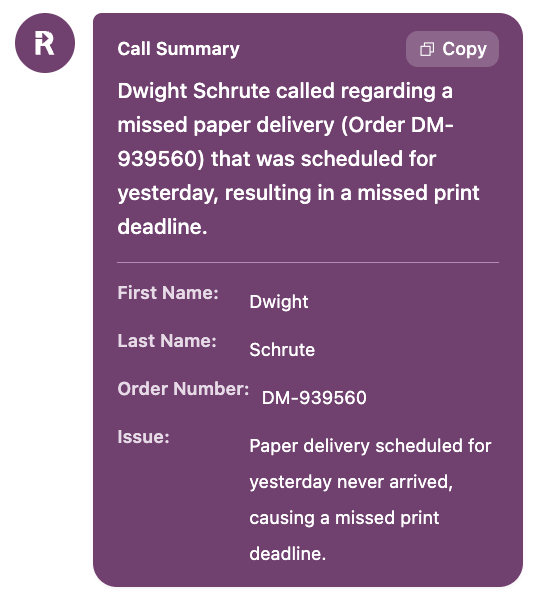 **Pro Tip:** Hover over any detail to reveal a copy icon. Click to copy, then paste into your internal tools.
Summary details are customized for your company's needs. Need additional details summarized? Ask your manager.
## Feedback and Grading
Get detailed performance insights after every interaction—no waiting for manager reviews.
### Post-Simulation Feedback
After each simulation, review your performance and see what to improve.
**Progress Indicators:**
* **Total Progress:** Shows runs completed (e.g., 3 out of 5 runs)
* **Compliance Rating:** Your score on the most recent attempt
If you haven't met completion requirements (minimum runs or score), click **"Continue Lesson"** to practice again. Once requirements are met, you'll advance to the next lesson.
**Performance Summary:**
Encouraging message with specific feedback on critical steps you missed and areas you handled well.
**Quality Assurance:**
* **Missed:** QA items you didn't complete
* **Passed:** QA items you completed successfully
* **Not Applicable:** QA items that didn't apply to this call
Click any QA item to view grading criteria and understand requirements.
Review feedback after every simulation. Identify patterns and focus on consistent improvement.
### Post-Call Feedback
After each live call, review your personalized performance analysis.
**Feedback Panel:**
Click **"Feedback"** in the post-call pop-up to open deeper call insights with action-ready summaries.
**What You'll See:**
**Agent Areas of Improvement:**
Customizable summary highlighting key wins, compliance gaps, and next-best actions prioritized for quick follow-up.
**Agent Strengths:**
Recognition of what you did well—specific skills and behaviors you demonstrated effectively.
**Call Summary:**
Overview of the customer interaction, key discussion points, and resolution details.
**QA Item Breakdown:**
* **Missed QAs:** Requirements you didn't complete (shown in red)
* **What Went Well:** Requirements you completed successfully (shown in green)
Feedback summaries are customized for your organization. Contact your Reddy CSM to configure summarizations for your team's specific needs.
Review feedback while the call is fresh. Identify patterns and adjust your approach for the next customer interaction.
### Your Performance Dashboard
Access your agent dashboard in the web application to view performance metrics, QA scores over time, and improvement trends.
**Key Metrics:**
* **QA Compliance Scores:** Average across training and live calls
* **Training Completion:** Progress on assigned courses
* **Call Quality:** Performance on live interactions
* **Trends:** Improvement over days, weeks, and months
Use your dashboard to set improvement goals, identify skill gaps, track progress, and demonstrate growth to managers.
Check your dashboard regularly to see your progress and stay motivated.
### Manager Coaching Feedback
Your manager can leave coaching feedback on both training simulations and live calls. This creates a direct communication channel for performance improvement and recognition.
**When Your Manager Leaves Feedback:**
1. You'll receive an **in-app notification** in your agent dashboard
2. Click the notification to go directly to the call record
**Viewing Feedback:**
Navigate to the Feedback tab on any call record to see your manager's coaching comments. Feedback is specific to that call and focuses on what you did well and opportunities for improvement.
**Responding to Feedback:**
After reading your manager's feedback, choose how to respond:
Click **Acknowledge** when you:
* Understand the feedback
* Agree with the coaching points
* Plan to apply the feedback to future calls
After acknowledging, you can optionally add a comment explaining your plan to improve or thanking your manager for specific guidance.
Click **Dispute** when you:
* Disagree with the feedback
* Have context your manager may not have considered
* Want to discuss the feedback further
After disputing, **always add a comment** to explain your perspective. This helps your manager understand your reasoning and creates an opportunity for productive coaching conversations.
**Closing the Loop:**
When you respond (acknowledge or dispute), your manager receives a notification linking back to the Feedback tab. This ensures your response is seen and creates an opportunity for follow-up conversations when needed.
View manager feedback as coaching, not criticism. Even when feedback highlights improvement areas, it's designed to help you succeed and handle customer interactions with confidence.
For detailed feedback workflow, see [Responding to Manager Feedback](/manual/qa/responding-to-feedback).
## Keep Learning
Training doesn't stop after onboarding. Your manager can assign targeted practice to help you master specific skills while you're already taking customer calls.
**Training Notifications:**
Check the notification bell in your agent dashboard for new assignments. When assigned additional practice:
* You'll receive an alert with a **"Practice"** button
* Click to jump directly to the simulation
* Complete the training at your convenience
* Notification marks as read once finished
Managers assign extra practice to reinforce skills, not as a penalty. It's a tool to help you excel and handle customer interactions with confidence.
Notifications appear only in the agent dashboard (web application), not in Live Assist.
## Common Questions
Before your first training session, complete the microphone check. This ensures Reddy can hear your simulations and provide accurate feedback.
If your microphone fails the check, most problems have quick fixes. [Microphone troubleshooting guide →](/manual/training/microphone_troubleshooting)
Course completion status updates only after you finish **all** assigned simulations in the course, not after each individual simulation.
Check your course dashboard to see remaining simulations. Once all are complete, your status will update.
Hover your mouse over any QA checklist item to see the specific requirement. This shows exactly what you need to do to complete that item successfully.
Training and performance review: Yes, access via web browser at app.reddy.io
Live Assist: No, requires desktop application for real-time call assistance.
Ask Reddy pulls from your company's knowledge base. If information is missing:
* Ask your manager (like you normally would)
* Suggest your manager upload missing content to the knowledge base
* Over time, Ask Reddy will become more comprehensive
Leadership reviews your call data to provide coaching and support your development. Reddy helps you improve **before** leadership reviews your performance, so you can address issues proactively. Think of it as getting a preview of your performance review after every call.
## Report Issues
When you encounter problems, report them directly in Reddy. This ensures your issue reaches support immediately, technical details are automatically captured, and resolution is faster.
While telling your manager is helpful, reporting in Reddy guarantees it's tracked and investigated promptly.
[Get Help & Report Issues →](/manual/support-bug-reporting)
## Additional Resources
Complete guide for training simulations
Fix common microphone issues
Navigate the learning management system
Report issues and contact support
**Pro Tip:** Hover over any detail to reveal a copy icon. Click to copy, then paste into your internal tools.
Summary details are customized for your company's needs. Need additional details summarized? Ask your manager.
## Feedback and Grading
Get detailed performance insights after every interaction—no waiting for manager reviews.
### Post-Simulation Feedback
After each simulation, review your performance and see what to improve.
**Progress Indicators:**
* **Total Progress:** Shows runs completed (e.g., 3 out of 5 runs)
* **Compliance Rating:** Your score on the most recent attempt
If you haven't met completion requirements (minimum runs or score), click **"Continue Lesson"** to practice again. Once requirements are met, you'll advance to the next lesson.
**Performance Summary:**
Encouraging message with specific feedback on critical steps you missed and areas you handled well.
**Quality Assurance:**
* **Missed:** QA items you didn't complete
* **Passed:** QA items you completed successfully
* **Not Applicable:** QA items that didn't apply to this call
Click any QA item to view grading criteria and understand requirements.
Review feedback after every simulation. Identify patterns and focus on consistent improvement.
### Post-Call Feedback
After each live call, review your personalized performance analysis.
**Feedback Panel:**
Click **"Feedback"** in the post-call pop-up to open deeper call insights with action-ready summaries.
**What You'll See:**
**Agent Areas of Improvement:**
Customizable summary highlighting key wins, compliance gaps, and next-best actions prioritized for quick follow-up.
**Agent Strengths:**
Recognition of what you did well—specific skills and behaviors you demonstrated effectively.
**Call Summary:**
Overview of the customer interaction, key discussion points, and resolution details.
**QA Item Breakdown:**
* **Missed QAs:** Requirements you didn't complete (shown in red)
* **What Went Well:** Requirements you completed successfully (shown in green)
Feedback summaries are customized for your organization. Contact your Reddy CSM to configure summarizations for your team's specific needs.
Review feedback while the call is fresh. Identify patterns and adjust your approach for the next customer interaction.
### Your Performance Dashboard
Access your agent dashboard in the web application to view performance metrics, QA scores over time, and improvement trends.
**Key Metrics:**
* **QA Compliance Scores:** Average across training and live calls
* **Training Completion:** Progress on assigned courses
* **Call Quality:** Performance on live interactions
* **Trends:** Improvement over days, weeks, and months
Use your dashboard to set improvement goals, identify skill gaps, track progress, and demonstrate growth to managers.
Check your dashboard regularly to see your progress and stay motivated.
### Manager Coaching Feedback
Your manager can leave coaching feedback on both training simulations and live calls. This creates a direct communication channel for performance improvement and recognition.
**When Your Manager Leaves Feedback:**
1. You'll receive an **in-app notification** in your agent dashboard
2. Click the notification to go directly to the call record
**Viewing Feedback:**
Navigate to the Feedback tab on any call record to see your manager's coaching comments. Feedback is specific to that call and focuses on what you did well and opportunities for improvement.
**Responding to Feedback:**
After reading your manager's feedback, choose how to respond:
Click **Acknowledge** when you:
* Understand the feedback
* Agree with the coaching points
* Plan to apply the feedback to future calls
After acknowledging, you can optionally add a comment explaining your plan to improve or thanking your manager for specific guidance.
Click **Dispute** when you:
* Disagree with the feedback
* Have context your manager may not have considered
* Want to discuss the feedback further
After disputing, **always add a comment** to explain your perspective. This helps your manager understand your reasoning and creates an opportunity for productive coaching conversations.
**Closing the Loop:**
When you respond (acknowledge or dispute), your manager receives a notification linking back to the Feedback tab. This ensures your response is seen and creates an opportunity for follow-up conversations when needed.
View manager feedback as coaching, not criticism. Even when feedback highlights improvement areas, it's designed to help you succeed and handle customer interactions with confidence.
For detailed feedback workflow, see [Responding to Manager Feedback](/manual/qa/responding-to-feedback).
## Keep Learning
Training doesn't stop after onboarding. Your manager can assign targeted practice to help you master specific skills while you're already taking customer calls.
**Training Notifications:**
Check the notification bell in your agent dashboard for new assignments. When assigned additional practice:
* You'll receive an alert with a **"Practice"** button
* Click to jump directly to the simulation
* Complete the training at your convenience
* Notification marks as read once finished
Managers assign extra practice to reinforce skills, not as a penalty. It's a tool to help you excel and handle customer interactions with confidence.
Notifications appear only in the agent dashboard (web application), not in Live Assist.
## Common Questions
Before your first training session, complete the microphone check. This ensures Reddy can hear your simulations and provide accurate feedback.
If your microphone fails the check, most problems have quick fixes. [Microphone troubleshooting guide →](/manual/training/microphone_troubleshooting)
Course completion status updates only after you finish **all** assigned simulations in the course, not after each individual simulation.
Check your course dashboard to see remaining simulations. Once all are complete, your status will update.
Hover your mouse over any QA checklist item to see the specific requirement. This shows exactly what you need to do to complete that item successfully.
Training and performance review: Yes, access via web browser at app.reddy.io
Live Assist: No, requires desktop application for real-time call assistance.
Ask Reddy pulls from your company's knowledge base. If information is missing:
* Ask your manager (like you normally would)
* Suggest your manager upload missing content to the knowledge base
* Over time, Ask Reddy will become more comprehensive
Leadership reviews your call data to provide coaching and support your development. Reddy helps you improve **before** leadership reviews your performance, so you can address issues proactively. Think of it as getting a preview of your performance review after every call.
## Report Issues
When you encounter problems, report them directly in Reddy. This ensures your issue reaches support immediately, technical details are automatically captured, and resolution is faster.
While telling your manager is helpful, reporting in Reddy guarantees it's tracked and investigated promptly.
[Get Help & Report Issues →](/manual/support-bug-reporting)
## Additional Resources
Complete guide for training simulations
Fix common microphone issues
Navigate the learning management system
Report issues and contact support