> ## Documentation Index
> Fetch the complete documentation index at: https://docs.reddy.io/llms.txt
> Use this file to discover all available pages before exploring further.
# Testers and Rounds
> Assign testers, set deadlines and run counts, and manage a simulation's testing rounds
A simulation in **test mode** is played by a small group of testers before trainees see it. Their runs, thumbs and survey answers collect into numbered **rounds**. This page covers the people and the rounds: who tests, how much, by when, and what you can do to a round. What happens with their feedback is in [Reviewing and Approving Changes](/manual/training/approving-changes).
## The tester course
Every mini module gets a tester course when its build finishes. It is named after the simulation with **- testing** on the end and lives under **Courses** like any other course. Testers are whoever is assigned that course.
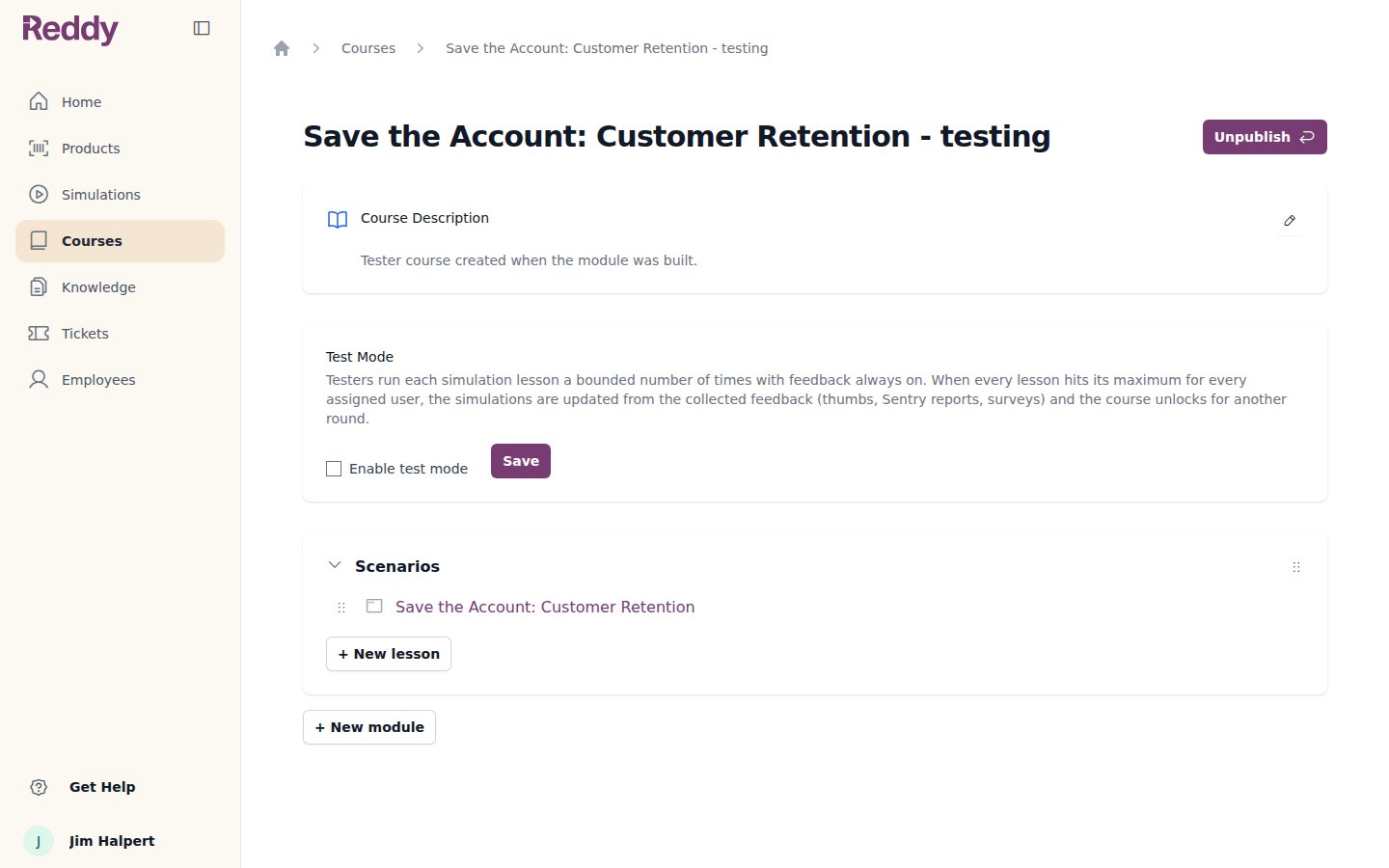 The course's **Test Mode** section is what puts it in the testing loop. Reddy turns it on when the module is built and off when the module graduates. You can use the same switch on a course you made yourself to put any simulation, including a Reddy-built one, into a testing round.
## Assigning testers
Go to **Employees** and click the person's name. Their side panel opens.
Under **Courses**, pick the simulation's tester course. The assignment saves straight away and the tester is notified.
The course's **Test Mode** section is what puts it in the testing loop. Reddy turns it on when the module is built and off when the module graduates. You can use the same switch on a course you made yourself to put any simulation, including a Reddy-built one, into a testing round.
## Assigning testers
Go to **Employees** and click the person's name. Their side panel opens.
Under **Courses**, pick the simulation's tester course. The assignment saves straight away and the tester is notified.
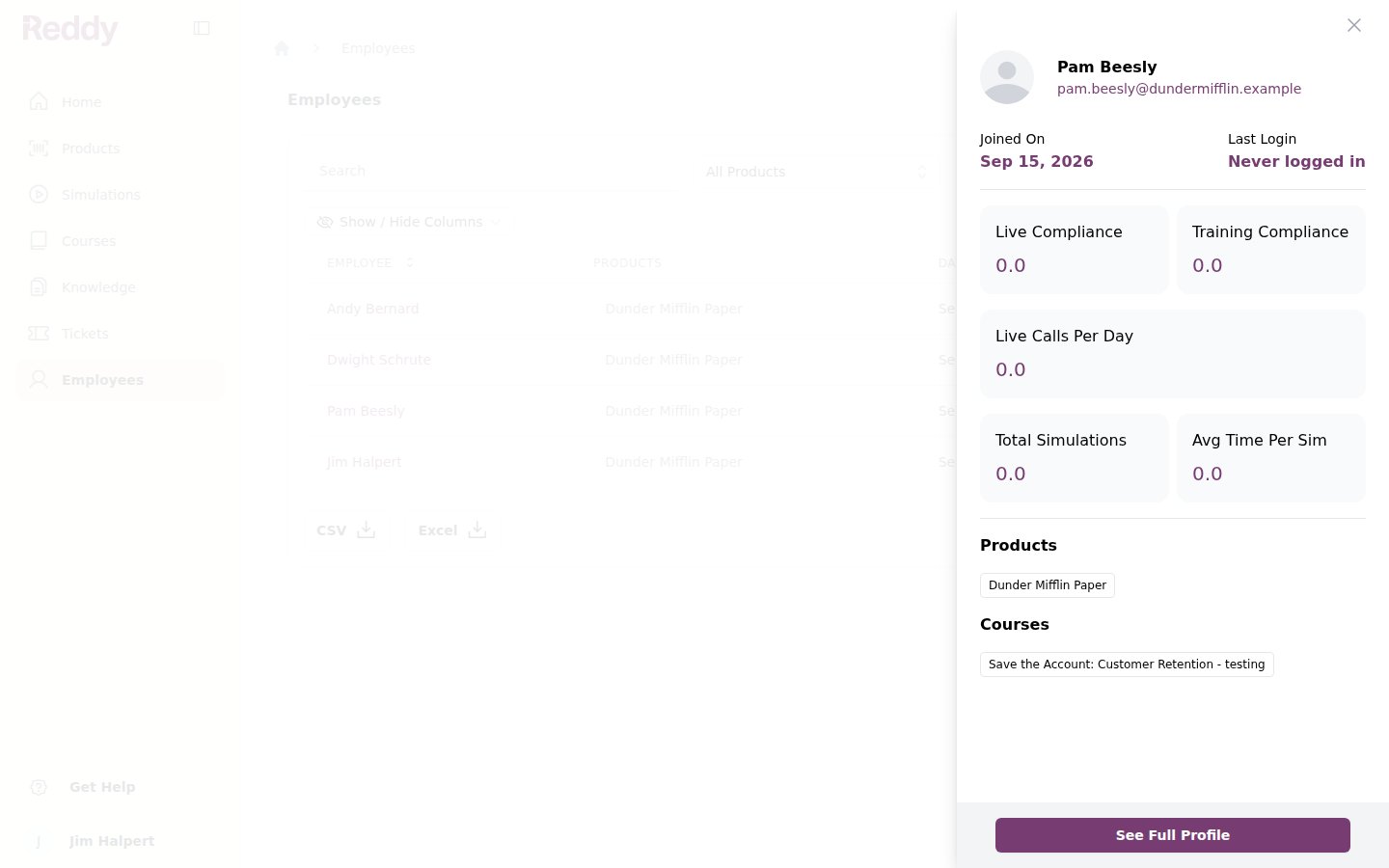 A tester needs the simulation's product on their profile as well as the course. Product access is set in the same panel under **Products**. See [Assigning Products and Managers](/manual/team-management/assigning_products_and_managers).
Testers added after a round has started join the current round. Removing the course from someone takes them out of future rounds; what they already said stays in Results.
## What testers see
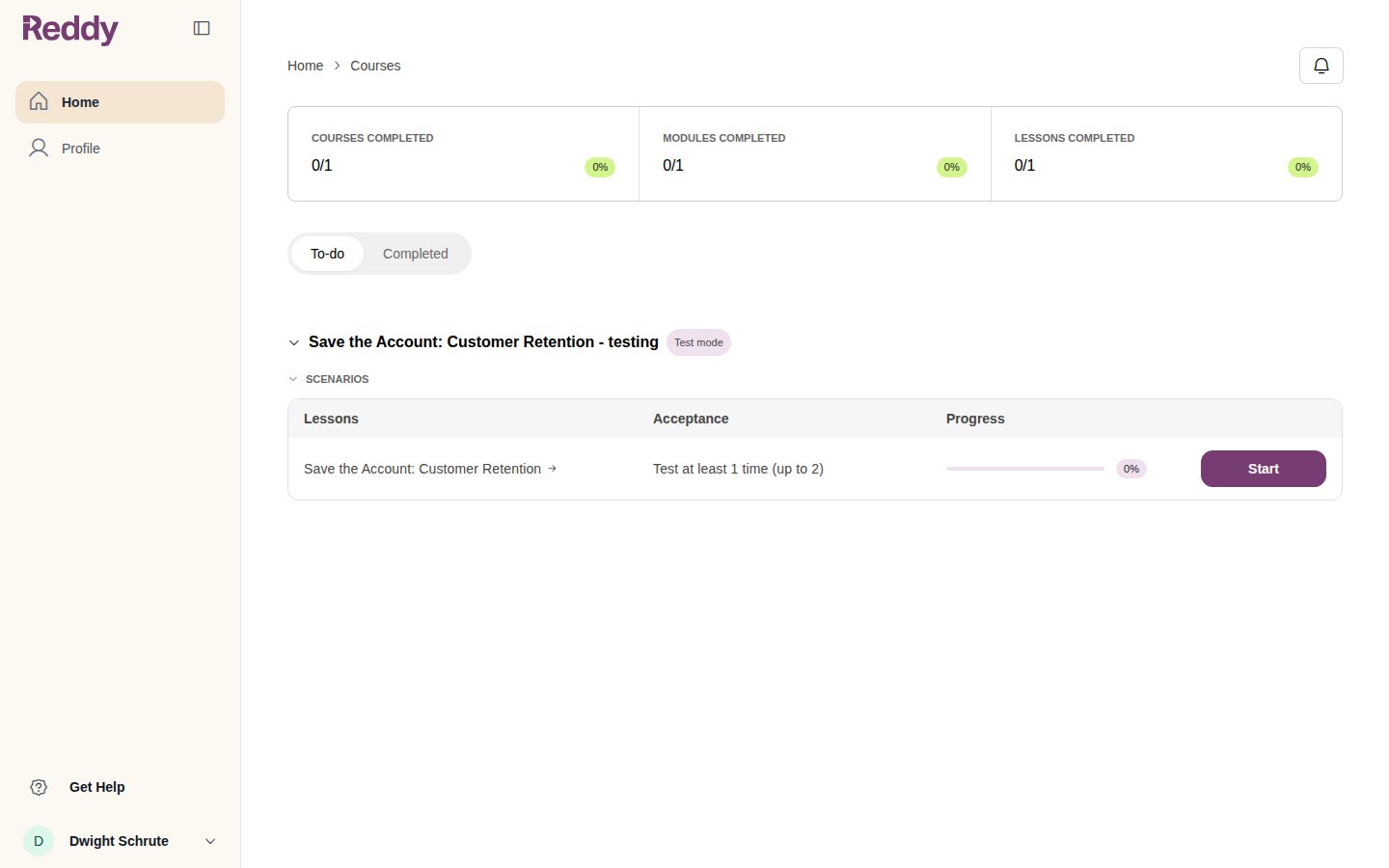
The tester course appears on the tester's dashboard marked **Test mode**, with the acceptance rule for the round: play at least the minimum number of times, up to the maximum.
A tester needs the simulation's product on their profile as well as the course. Product access is set in the same panel under **Products**. See [Assigning Products and Managers](/manual/team-management/assigning_products_and_managers).
Testers added after a round has started join the current round. Removing the course from someone takes them out of future rounds; what they already said stays in Results.
## What testers see
The tester course appears on the tester's dashboard marked **Test mode**, with the acceptance rule for the round: play at least the minimum number of times, up to the maximum.
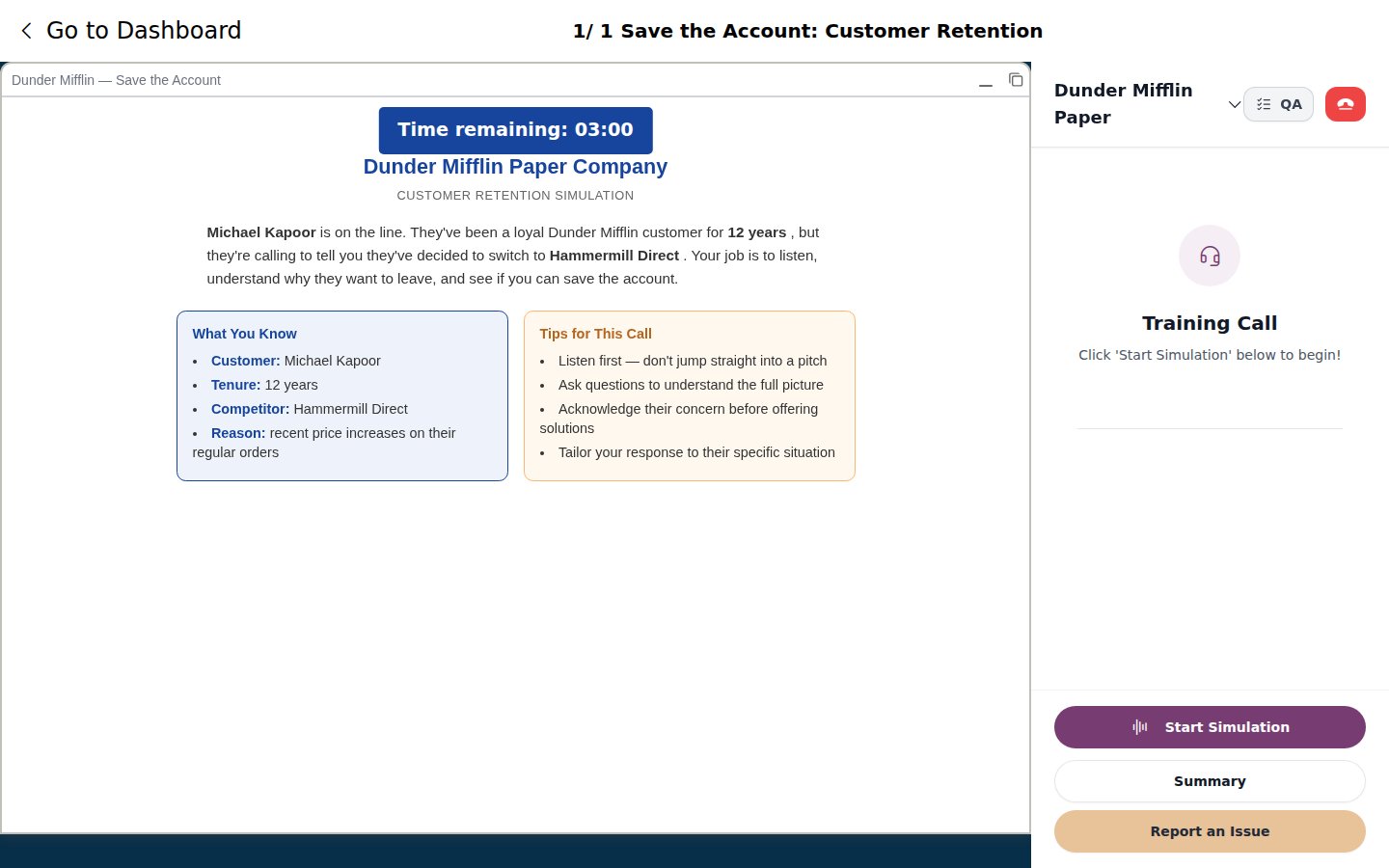
 **Start** opens the simulation exactly as a trainee would see it. Testers leave a thumbs up or down on the customer's lines during the call and fill in the survey afterwards.
 Once a tester has reached the maximum runs for the round, the lesson locks for them until the round moves on. That keeps everyone testing the same version.
## Runs, deadlines and reminders
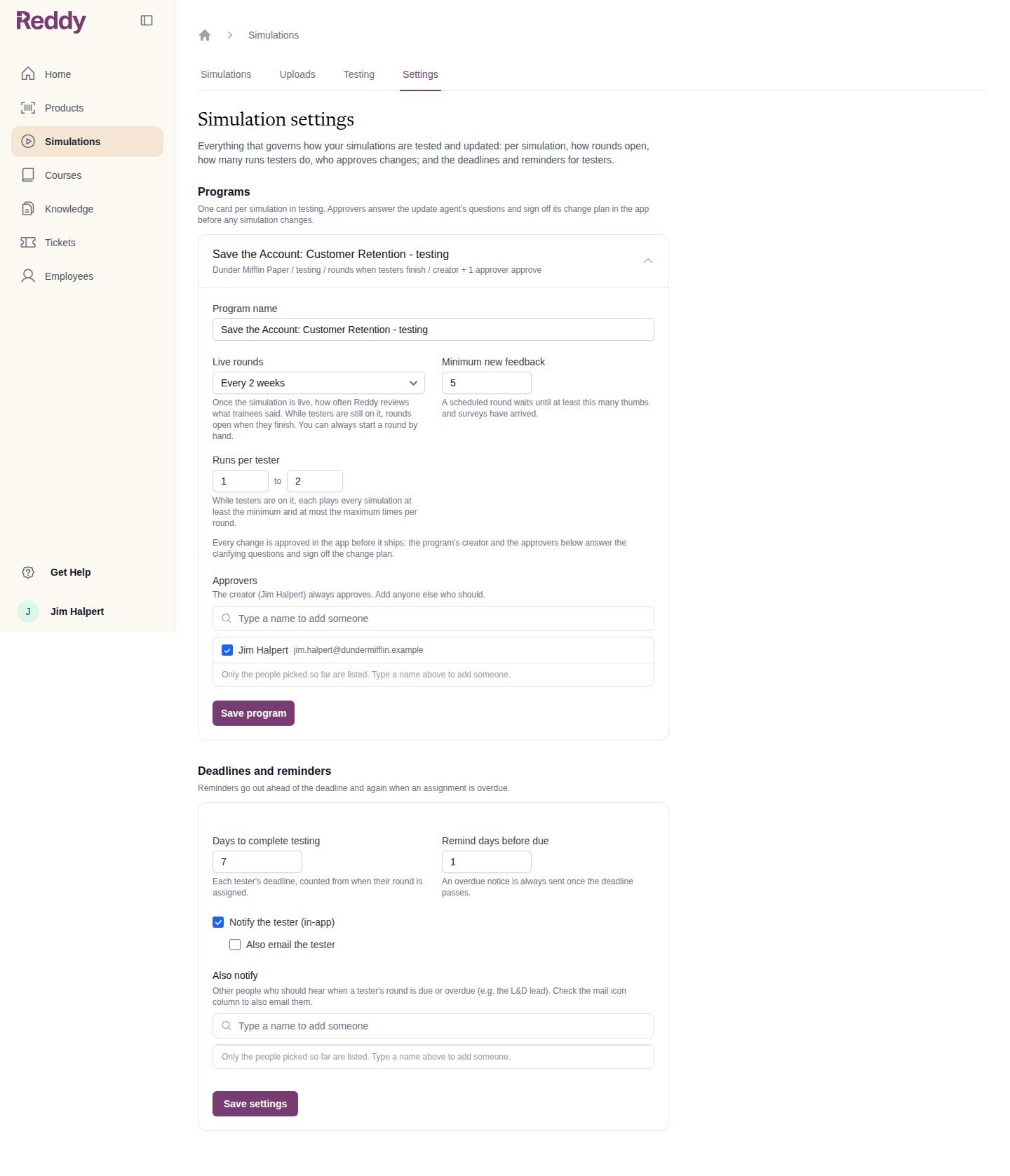
These live on the **Settings** tab of the Simulations area. Runs per tester and approvers are per simulation; deadlines and reminders apply to every tester.
Once a tester has reached the maximum runs for the round, the lesson locks for them until the round moves on. That keeps everyone testing the same version.
## Runs, deadlines and reminders
These live on the **Settings** tab of the Simulations area. Runs per tester and approvers are per simulation; deadlines and reminders apply to every tester.
 | Setting | What it does |
| -------------------------------------------- | --------------------------------------------------------------------------------------------------------------------------------------------------- |
| **Runs per tester** | Each tester plays every simulation at least the minimum and at most the maximum times per round. The round closes when everyone has met the minimum |
| **Approvers** | Who answers Reddy's questions and signs off change plans. The program's creator always approves |
| **Live rounds** and **Minimum new feedback** | How rounds open once the simulation is live; see [Graduating to Trainees](/manual/training/graduating-to-trainees) |
| **Days to complete testing** | Each tester's deadline, counted from when their round is assigned |
| **Remind days before due** | When the reminder goes out. An overdue notice is always sent once the deadline passes |
| **Notify the tester** and **Also notify** | Who hears about due and overdue rounds, in-app and optionally by email |
## Following a round
Open the simulation and click **Testing**. The round card shows where the round is, runs collected, testers done, the next deadline and the last update that shipped.
| Setting | What it does |
| -------------------------------------------- | --------------------------------------------------------------------------------------------------------------------------------------------------- |
| **Runs per tester** | Each tester plays every simulation at least the minimum and at most the maximum times per round. The round closes when everyone has met the minimum |
| **Approvers** | Who answers Reddy's questions and signs off change plans. The program's creator always approves |
| **Live rounds** and **Minimum new feedback** | How rounds open once the simulation is live; see [Graduating to Trainees](/manual/training/graduating-to-trainees) |
| **Days to complete testing** | Each tester's deadline, counted from when their round is assigned |
| **Remind days before due** | When the reminder goes out. An overdue notice is always sent once the deadline passes |
| **Notify the tester** and **Also notify** | Who hears about due and overdue rounds, in-app and optionally by email |
## Following a round
Open the simulation and click **Testing**. The round card shows where the round is, runs collected, testers done, the next deadline and the last update that shipped.
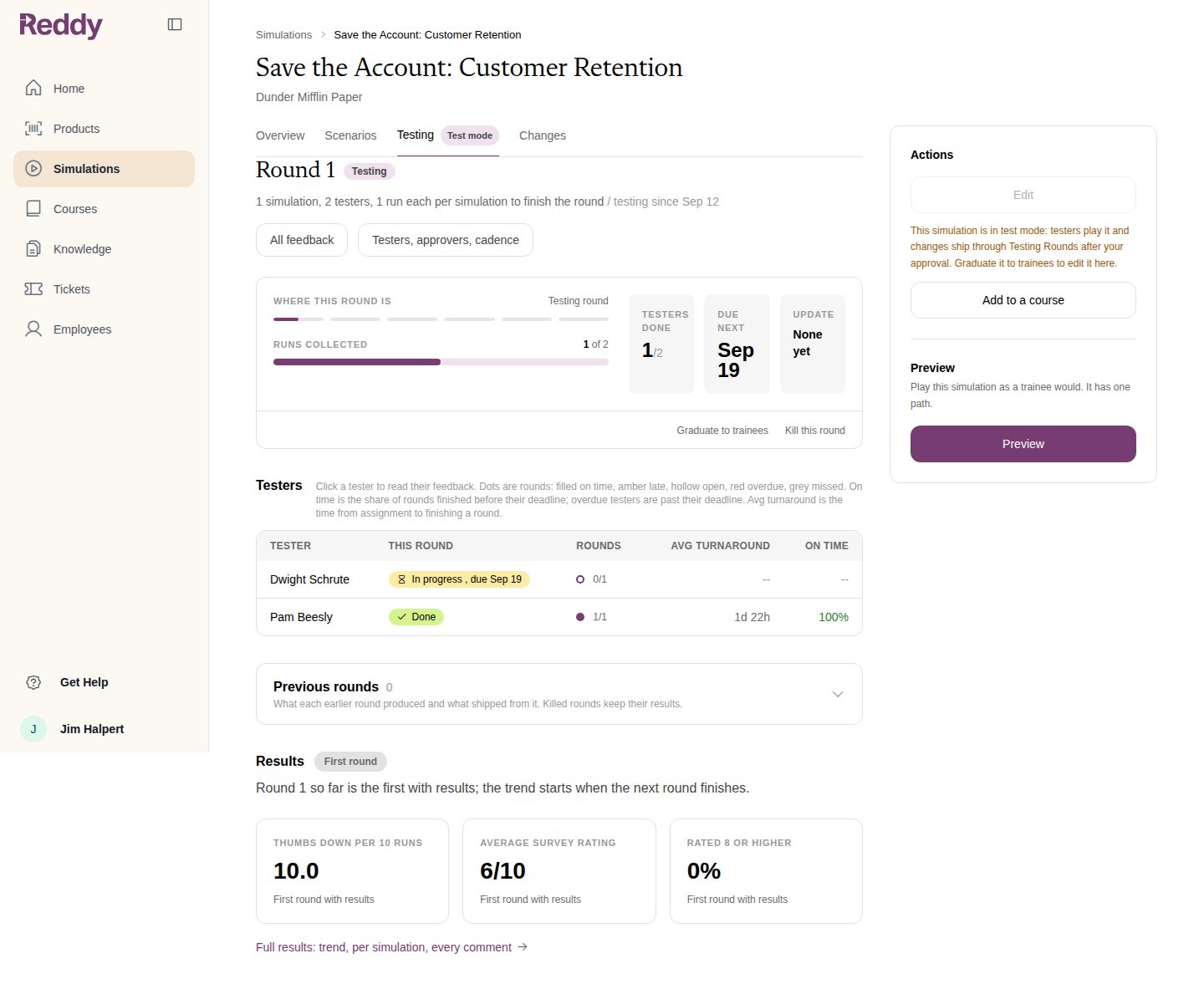 The **Testers** table shows each person's status in this round and their record across rounds:
| Column | What it shows |
| ------------------ | ------------------------------------------------------------------------------------ |
| **This round** | **Done**, **In progress** with the due date, or **Overdue** |
| **Rounds** | One dot per round: filled on time, amber late, hollow open, red overdue, grey missed |
| **Avg turnaround** | Time from assignment to finishing a round |
| **On time** | Share of rounds finished before their deadline |
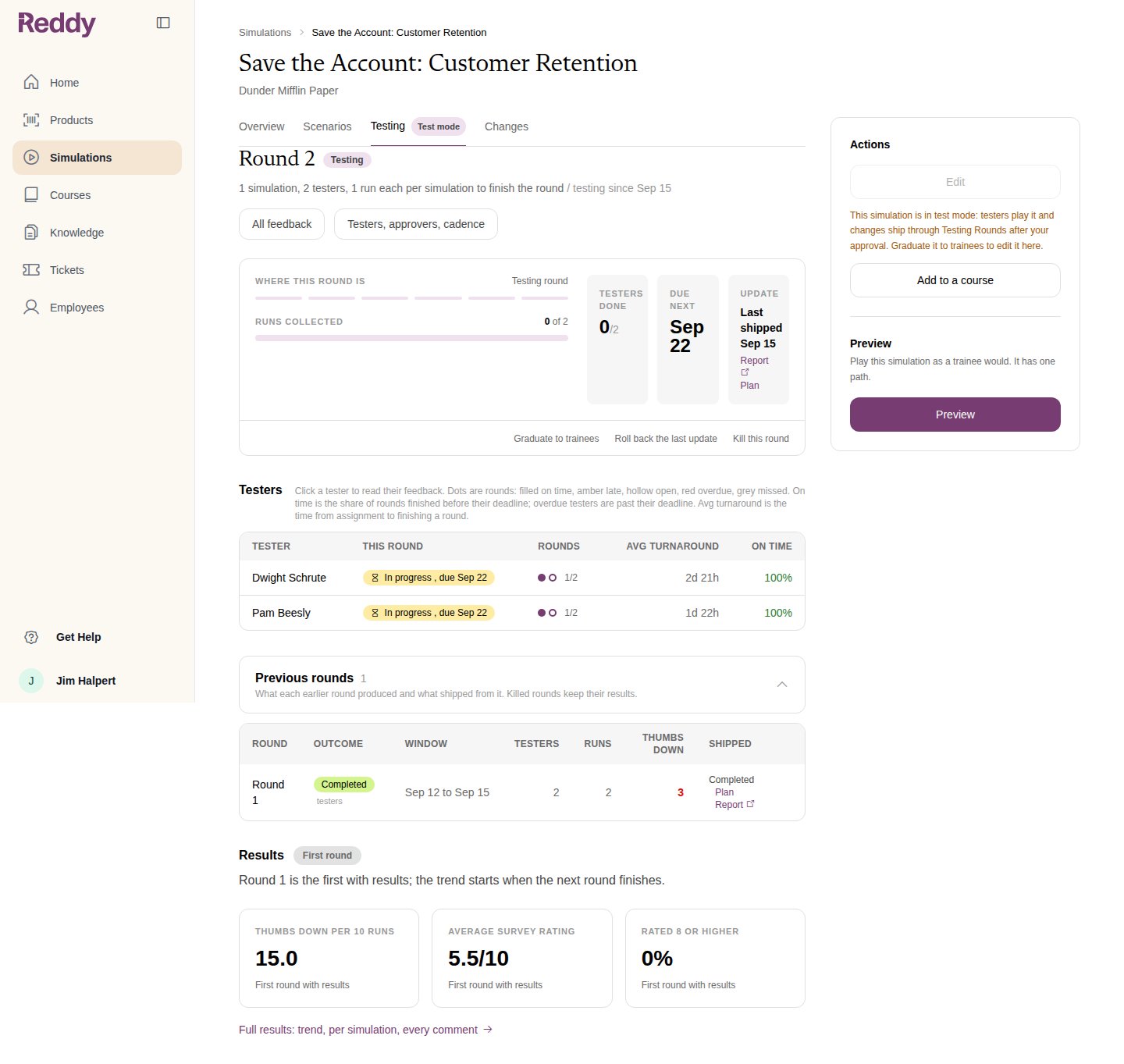
Click a tester to read their feedback. **Previous rounds** keeps every earlier round with its window, testers, runs, thumbs down and what shipped from it.
The **Testers** table shows each person's status in this round and their record across rounds:
| Column | What it shows |
| ------------------ | ------------------------------------------------------------------------------------ |
| **This round** | **Done**, **In progress** with the due date, or **Overdue** |
| **Rounds** | One dot per round: filled on time, amber late, hollow open, red overdue, grey missed |
| **Avg turnaround** | Time from assignment to finishing a round |
| **On time** | Share of rounds finished before their deadline |
Click a tester to read their feedback. **Previous rounds** keeps every earlier round with its window, testers, runs, thumbs down and what shipped from it.
 ## Managing a round
| Action | Where | What it does |
| ----------------------------- | ----------------------------------------------------- | ---------------------------------------------------------------------------------------------------------------------------------- |
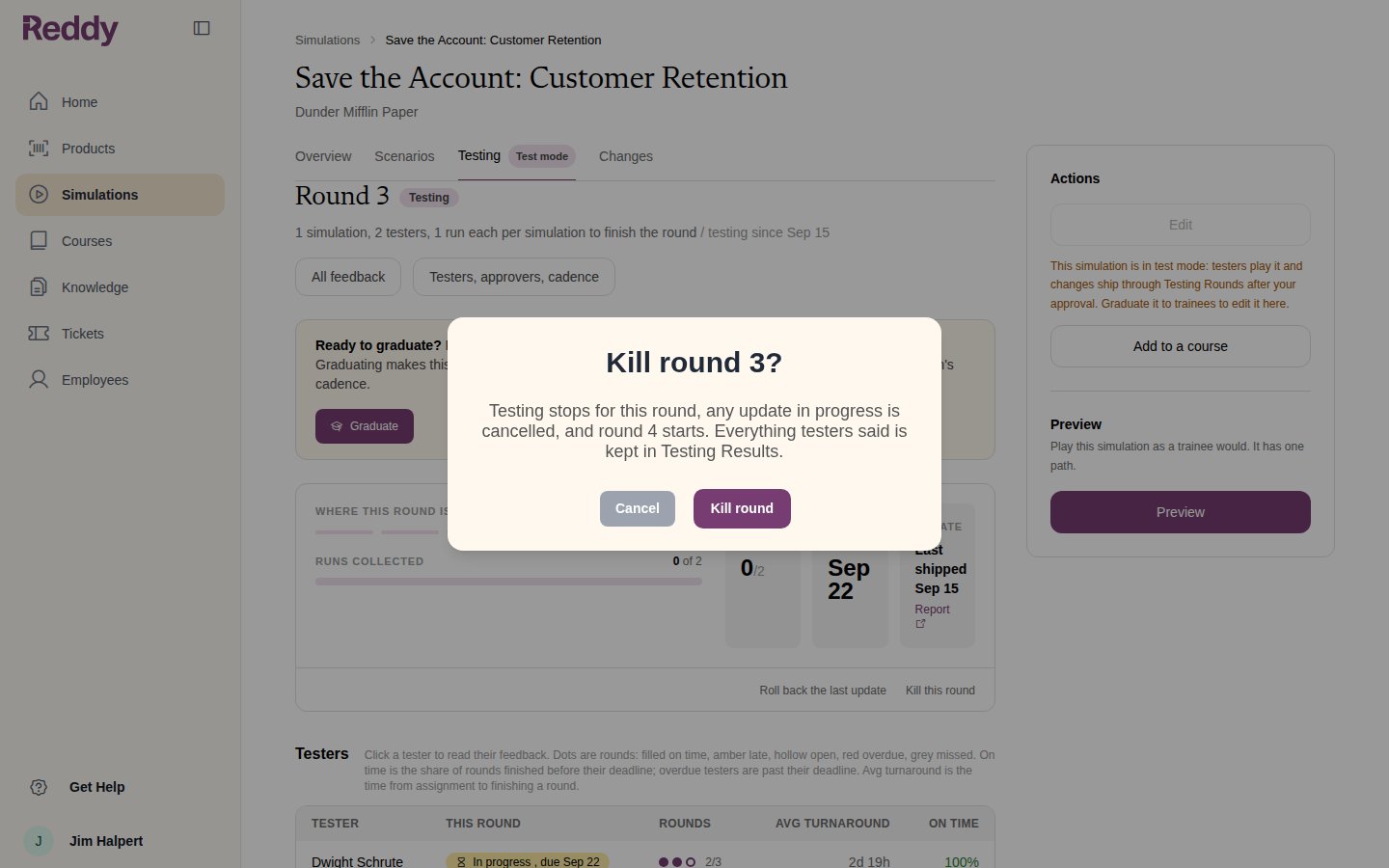
| **Kill this round** | Round card | Stops testing for this round, cancels any update in progress, and opens the next round. Everything testers said is kept in Results |
| **Start over** | Round card, while an update is waiting on an approver | Discards Reddy's questions and plan and reads the round's feedback again from the start |
| **Start a round now** | Round card, once the simulation is live | Opens a review of trainee feedback without waiting for the cadence |
| **Graduate to trainees** | Round card | Ends testing and makes the simulation live. See [Graduating to Trainees](/manual/training/graduating-to-trainees) |
| **Roll back the last update** | Round card | Undoes the newest change through the approval flow. See [Rolling Back a Change](/manual/training/rolling-back-a-change) |
Each one asks you to confirm first.
## Managing a round
| Action | Where | What it does |
| ----------------------------- | ----------------------------------------------------- | ---------------------------------------------------------------------------------------------------------------------------------- |
| **Kill this round** | Round card | Stops testing for this round, cancels any update in progress, and opens the next round. Everything testers said is kept in Results |
| **Start over** | Round card, while an update is waiting on an approver | Discards Reddy's questions and plan and reads the round's feedback again from the start |
| **Start a round now** | Round card, once the simulation is live | Opens a review of trainee feedback without waiting for the cadence |
| **Graduate to trainees** | Round card | Ends testing and makes the simulation live. See [Graduating to Trainees](/manual/training/graduating-to-trainees) |
| **Roll back the last update** | Round card | Undoes the newest change through the approval flow. See [Rolling Back a Change](/manual/training/rolling-back-a-change) |
Each one asks you to confirm first.
 ## FAQ
There is no minimum. A round closes when every assigned tester has met the minimum runs, so a round with one tester closes after one run. Two or three testers give Reddy more to read.
No. Deactivated users drop out of the round. If a tester is still active but never plays, kill the round or remove the course from their profile.
Yes. Make a course with the simulation as a lesson, tick **Enable test mode** on the course, and assign testers. It gets a Testing tab and rounds like a mini module.
Either they have reached the maximum runs for this round, or an update is shipping. The lesson unlocks when the next round opens.
## FAQ
There is no minimum. A round closes when every assigned tester has met the minimum runs, so a round with one tester closes after one run. Two or three testers give Reddy more to read.
No. Deactivated users drop out of the round. If a tester is still active but never plays, kill the round or remove the course from their profile.
Yes. Make a course with the simulation as a lesson, tick **Enable test mode** on the course, and assign testers. It gets a Testing tab and rounds like a mini module.
Either they have reached the maximum runs for this round, or an update is shipping. The lesson unlocks when the next round opens.