> ## Documentation Index
> Fetch the complete documentation index at: https://docs.reddy.io/llms.txt
> Use this file to discover all available pages before exploring further.
# Systems Simulations Built by Reddy
> Send Reddy your materials and the team builds a full systems simulation for you
A **systems simulation** is the longer, more robust kind of training: the trainee works a call while using the same screens they use on the job. You do not build these yourself. You send Reddy your materials, tell us what the simulation should teach, and the team builds it and lets you know when it is ready to preview.
## Requesting a simulation
From **Simulations**, click **Create new simulation**. Enter a **Training Name**, pick the **Product**, and choose **Systems Simulation** as the type. Optionally add a **Call type**, the reason for the call as the Simulations list will show it. Click **Create**.
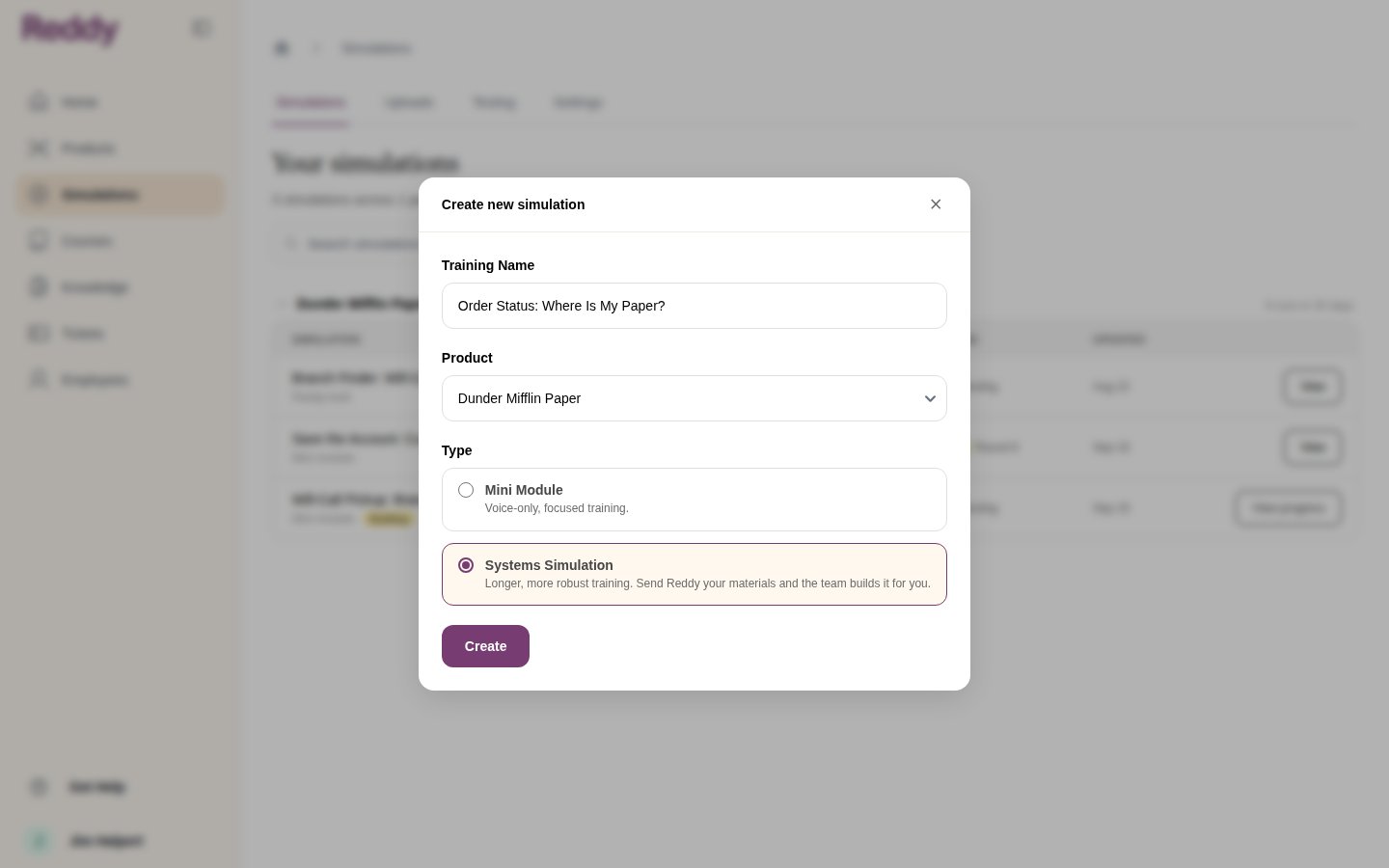 Drop in call recordings, transcripts, process docs, screenshots, spreadsheets: anything that shows what a great call looks like. Files can be up to **2 GB** each, so full screen recordings and long call audio are fine.
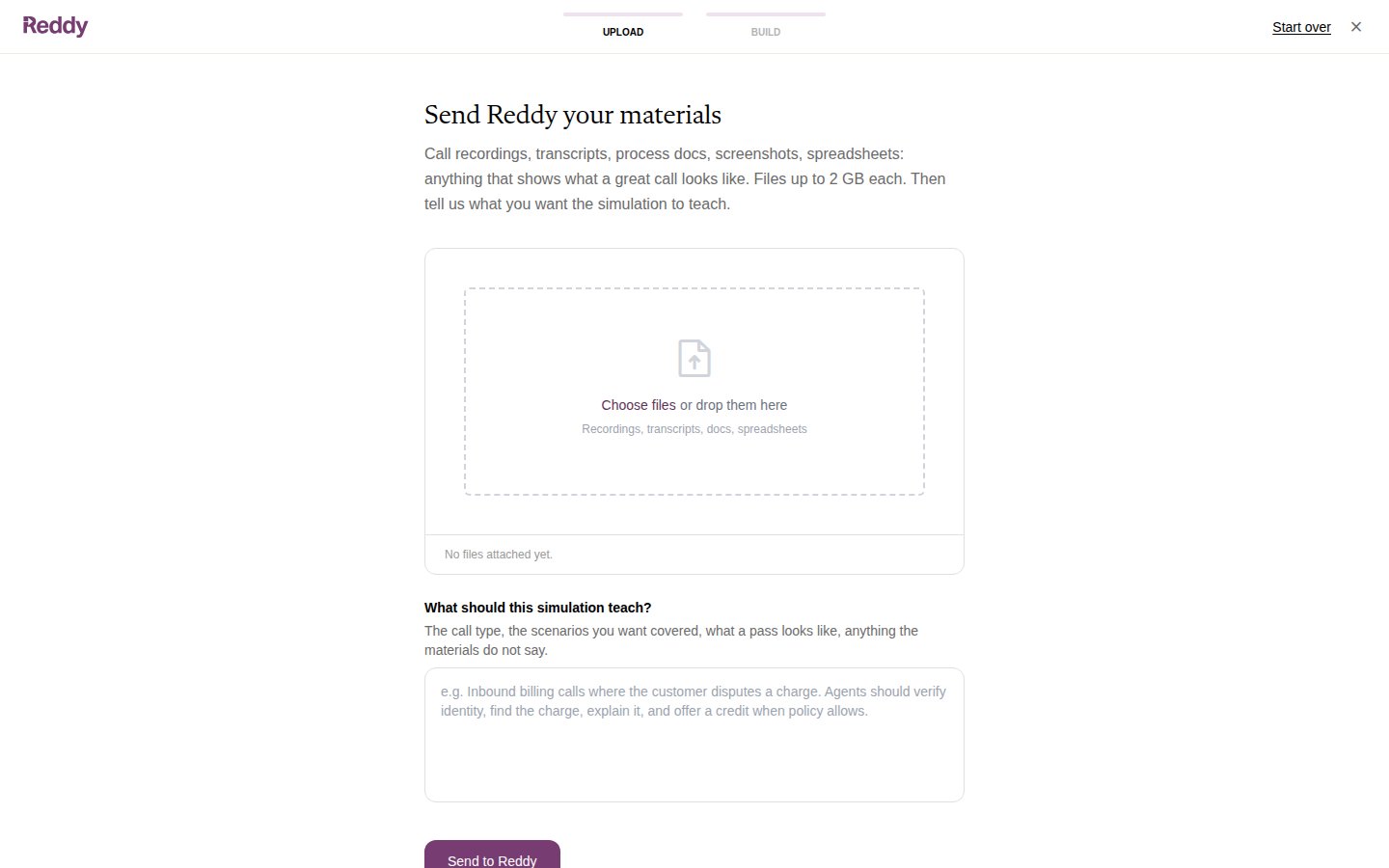 Files upload straight from your browser and appear under **Attached** as they land. Then describe what you want the simulation to teach: the call type, the scenarios to cover, what a pass looks like, and anything the materials do not say.
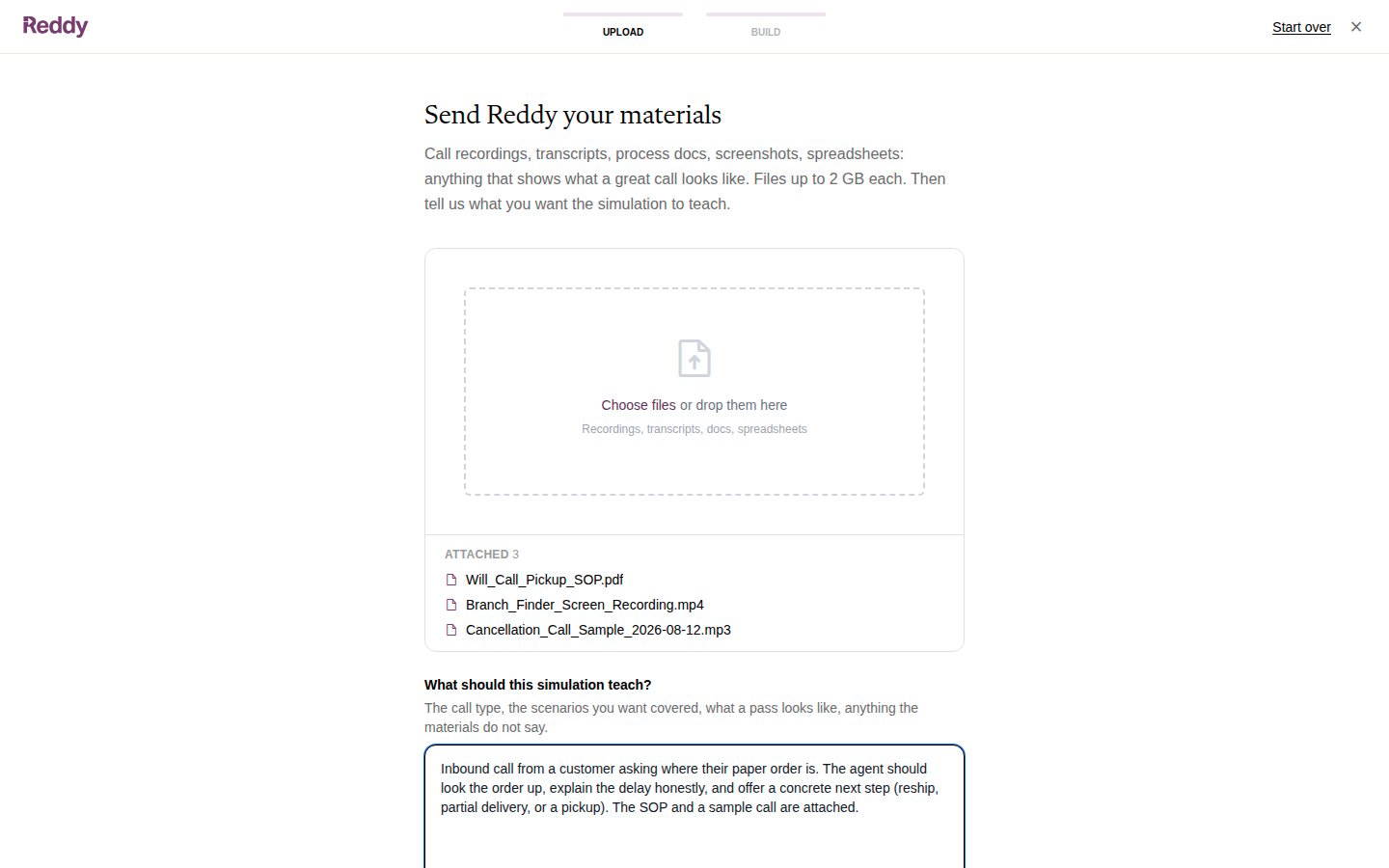 Click **Send to Reddy**. The request goes to the team with your materials and your description.
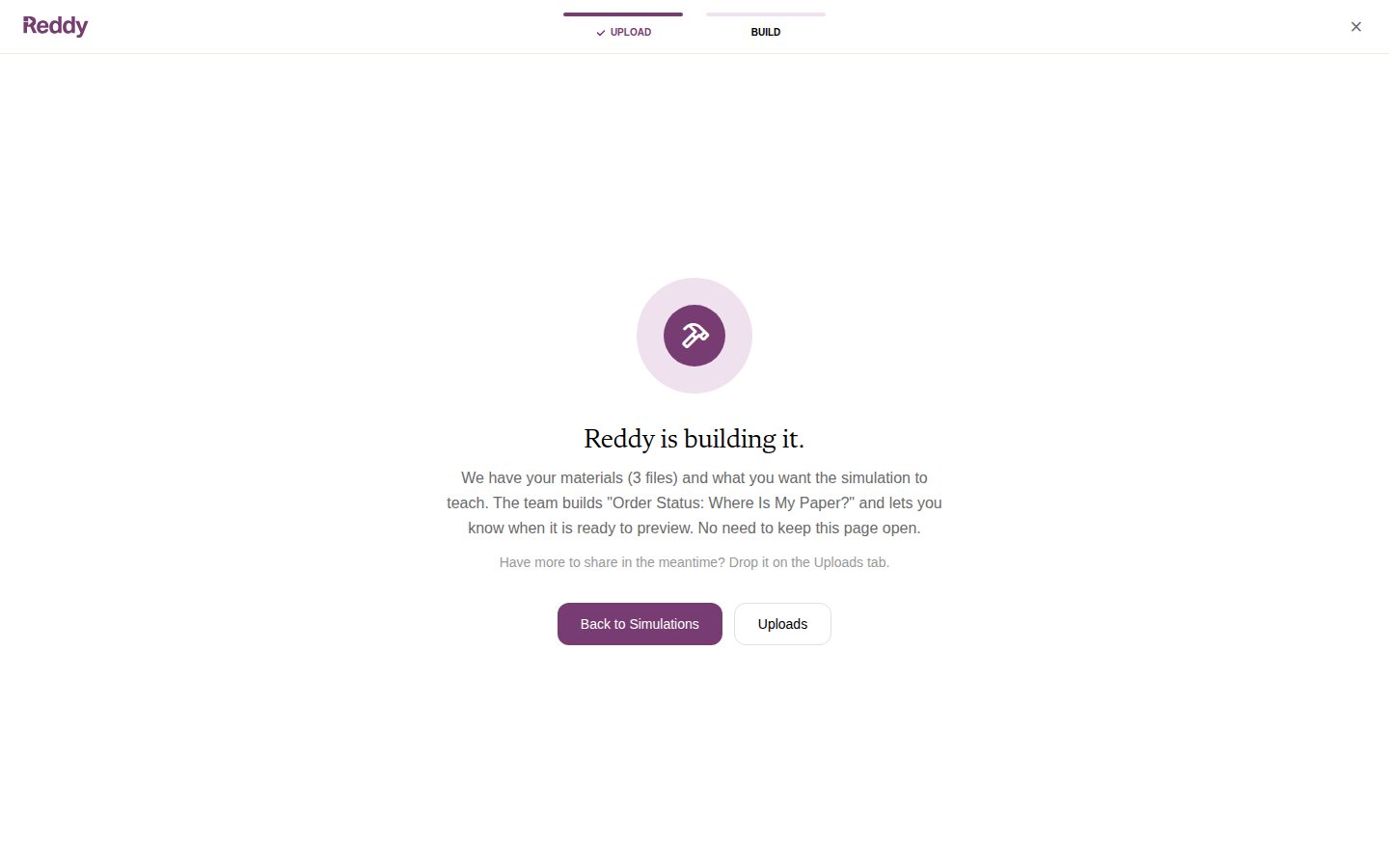 You do not need to keep the page open. The simulation shows in your list as **Reddy-built** with a **Building** pill and **Reddy is building it** under Testing until it is ready.
Have more to share while Reddy is building? Drop it on the **Uploads** tab. Arriving there from the simulation's page attaches the files to that simulation.
## What happens next
1. Reddy builds the simulation from your materials and notifies you when it is ready to preview.
2. The simulation appears in your list like any other. Open it for its scenarios, add it to a course, and preview it as a trainee would.
3. If you want testers on it before trainees, ask your Reddy contact to set up a testing program for it. From there it follows the same [testing rounds](/manual/training/testers-and-rounds) as a mini module: testers play it, Reddy reads their feedback, and every change is approved by you before it ships.
## FAQ
Recordings (audio and video), transcripts, PDFs, Word documents, screenshots and spreadsheets. Each file can be up to 2 GB.
Your files are listed by name on the request and later on the simulation's **Changes** tab, so you can see what Reddy worked from. They cannot be downloaded or played back from those pages.
Yes. Use the **Uploads** tab. If you open it from the simulation's page, the uploads are attached to that simulation.
Longer than a mini module, because the team builds the on-screen systems as well as the call. Reddy notifies you when it is ready to preview.
You do not need to keep the page open. The simulation shows in your list as **Reddy-built** with a **Building** pill and **Reddy is building it** under Testing until it is ready.
Have more to share while Reddy is building? Drop it on the **Uploads** tab. Arriving there from the simulation's page attaches the files to that simulation.
## What happens next
1. Reddy builds the simulation from your materials and notifies you when it is ready to preview.
2. The simulation appears in your list like any other. Open it for its scenarios, add it to a course, and preview it as a trainee would.
3. If you want testers on it before trainees, ask your Reddy contact to set up a testing program for it. From there it follows the same [testing rounds](/manual/training/testers-and-rounds) as a mini module: testers play it, Reddy reads their feedback, and every change is approved by you before it ships.
## FAQ
Recordings (audio and video), transcripts, PDFs, Word documents, screenshots and spreadsheets. Each file can be up to 2 GB.
Your files are listed by name on the request and later on the simulation's **Changes** tab, so you can see what Reddy worked from. They cannot be downloaded or played back from those pages.
Yes. Use the **Uploads** tab. If you open it from the simulation's page, the uploads are attached to that simulation.
Longer than a mini module, because the team builds the on-screen systems as well as the call. Reddy notifies you when it is ready to preview.