> ## Documentation Index
> Fetch the complete documentation index at: https://docs.reddy.io/llms.txt
> Use this file to discover all available pages before exploring further.
# Simulations Hub
> One place for every simulation: what it trains, who is testing it, what changed and when
The **Simulations** tab lists every simulation your company has, whether you built it with the [Mini Module Builder](/manual/training/mini-module-builder) or asked Reddy to build it as a [systems simulation](/manual/training/systems-simulation-requests). Open one for its plan, its scenarios, its testing rounds and a full history of every change.
Managers see the simulations for the products they are assigned to; admins see every product in the company.
Assign testers, set deadlines and run counts, manage rounds.
Read Reddy's reading of a round, answer its questions, approve the plan.
End testing, go live, keep improving from trainee feedback.
Every change that shipped, who asked, who approved, what it touched.
Undo the newest change through the same approval flow.
Send materials up to 2 GB and let the team build it.
## The Simulations list
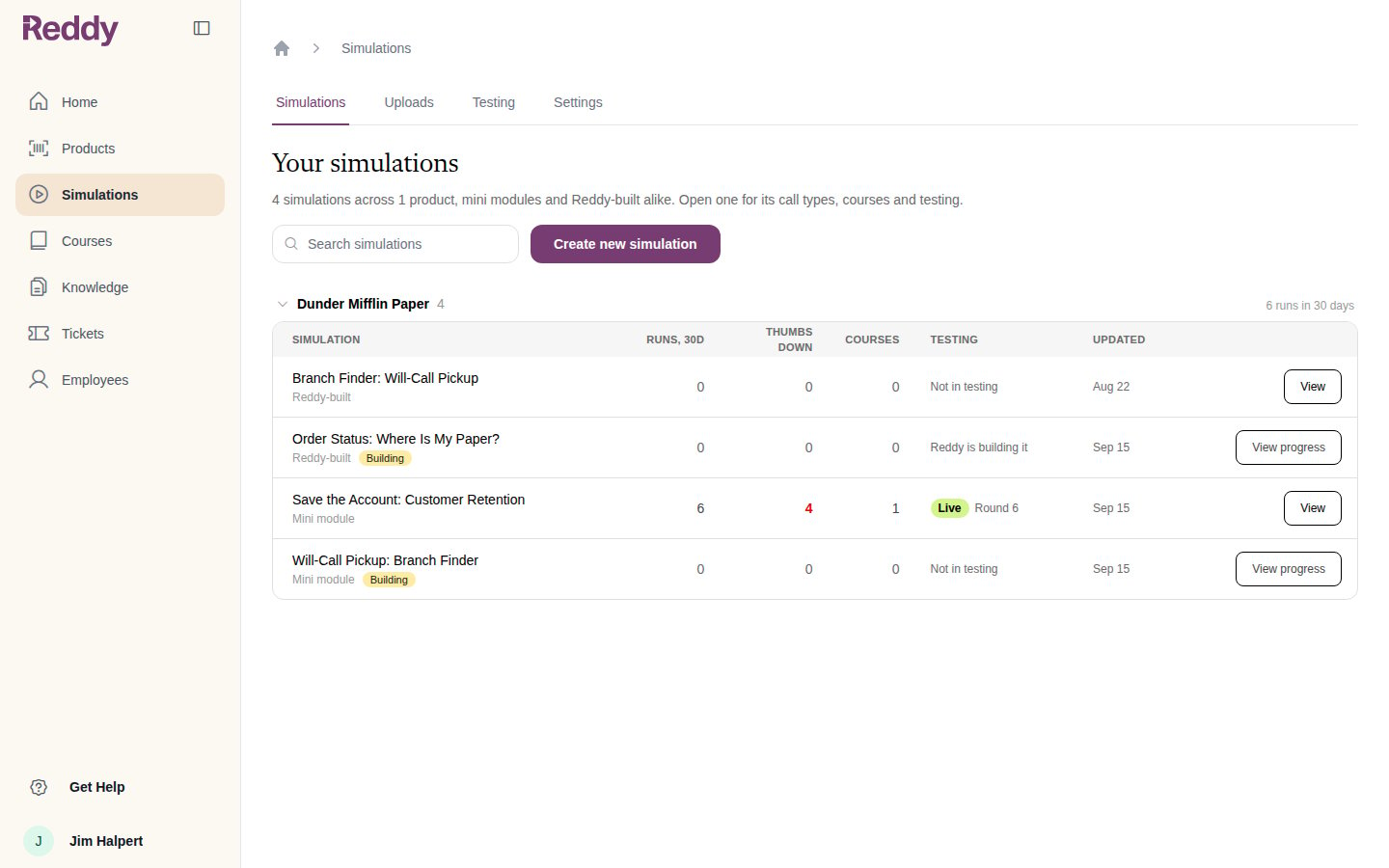
Click **Simulations** in the left navigation. Simulations are grouped by product, and each row shows the numbers that matter right now.
 | Column | What it means |
| --------------- | ---------------------------------------------------------------------------------------------------------------------------------------------- |
| **Simulation** | The name, and whether it is a **Mini module** you built or a **Reddy-built** systems simulation. A **Building** pill means it is not ready yet |
| **Runs, 30d** | How many times it was played in the last 30 days |
| **Thumbs down** | Negative feedback on the simulation's lines in the last 30 days |
| **Courses** | How many courses include it |
| **Testing** | **Testing** or **Live** with the round number, **Not in testing**, or **Reddy is building it**. Click it to jump to the Testing tab |
| **Updated** | When it last changed |
Use the search box to filter by name. **Create new simulation** opens the create dialog described in the two builder guides.
## A simulation's page
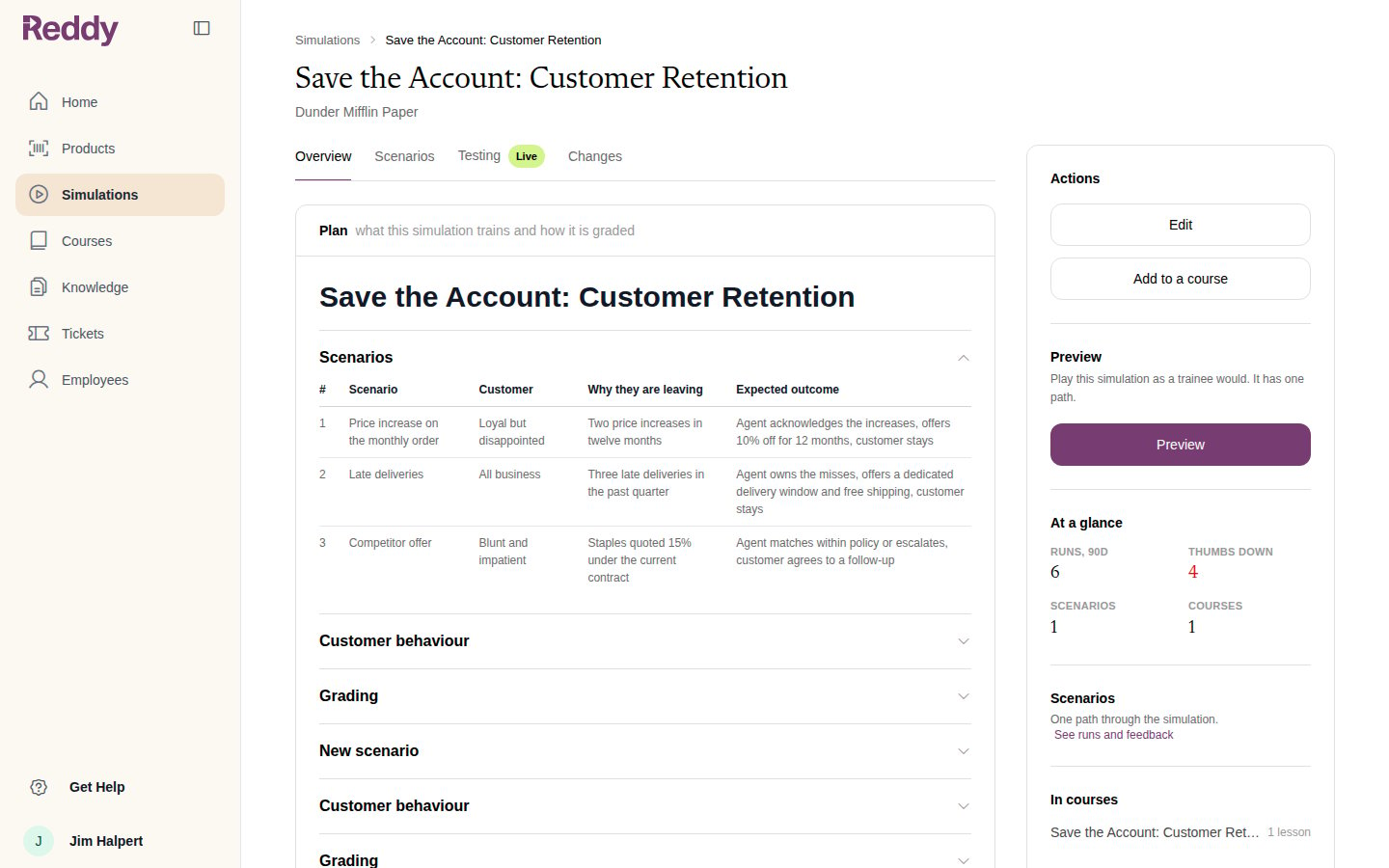
Click **View** on any row. The page opens on **Overview**, with the sidebar actions (**Edit**, **Add to a course**, **Preview**) and the at-a-glance numbers.
| Column | What it means |
| --------------- | ---------------------------------------------------------------------------------------------------------------------------------------------- |
| **Simulation** | The name, and whether it is a **Mini module** you built or a **Reddy-built** systems simulation. A **Building** pill means it is not ready yet |
| **Runs, 30d** | How many times it was played in the last 30 days |
| **Thumbs down** | Negative feedback on the simulation's lines in the last 30 days |
| **Courses** | How many courses include it |
| **Testing** | **Testing** or **Live** with the round number, **Not in testing**, or **Reddy is building it**. Click it to jump to the Testing tab |
| **Updated** | When it last changed |
Use the search box to filter by name. **Create new simulation** opens the create dialog described in the two builder guides.
## A simulation's page
Click **View** on any row. The page opens on **Overview**, with the sidebar actions (**Edit**, **Add to a course**, **Preview**) and the at-a-glance numbers.
 | Tab | What you find there |
| ------------- | ---------------------------------------------------------------------------------------------------------------------------------- |
| **Overview** | The plan: what the simulation trains and how it is graded, plus the courses it is in |
| **Scenarios** | Each path through the simulation, with the runs and feedback it has collected |
| **Testing** | The current round, testers, results and every earlier round. **Test mode** while testers are on it, **Live** once trainees have it |
| **Changes** | Every version that shipped, with its audit line. See [Versions and Audit Trail](/manual/training/changes-and-versions) |
While a simulation is in test mode, **Edit** is disabled. Changes ship through the testing round after your approval instead. Graduate the simulation to trainees to edit it here again.
## Testing across all simulations
The **Testing** tab at the top of the Simulations area shows every simulation's testing status in one table. Open a row to drill into that simulation's Testing tab.
| Tab | What you find there |
| ------------- | ---------------------------------------------------------------------------------------------------------------------------------- |
| **Overview** | The plan: what the simulation trains and how it is graded, plus the courses it is in |
| **Scenarios** | Each path through the simulation, with the runs and feedback it has collected |
| **Testing** | The current round, testers, results and every earlier round. **Test mode** while testers are on it, **Live** once trainees have it |
| **Changes** | Every version that shipped, with its audit line. See [Versions and Audit Trail](/manual/training/changes-and-versions) |
While a simulation is in test mode, **Edit** is disabled. Changes ship through the testing round after your approval instead. Graduate the simulation to trainees to edit it here again.
## Testing across all simulations
The **Testing** tab at the top of the Simulations area shows every simulation's testing status in one table. Open a row to drill into that simulation's Testing tab.
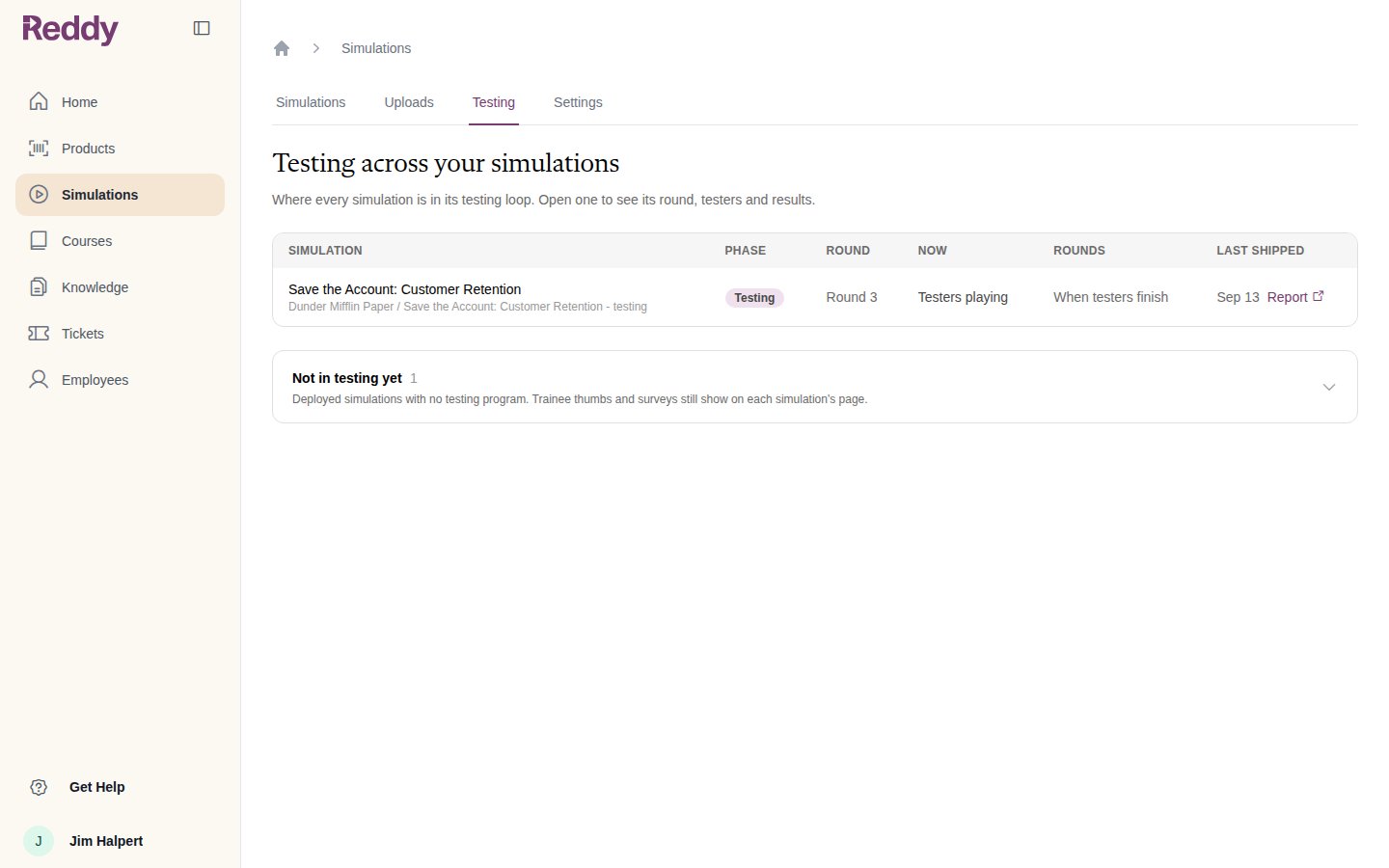 Simulations with no testing program yet are listed under **Not in testing yet**. Trainee thumbs and surveys still show on each of their pages.
## Uploads
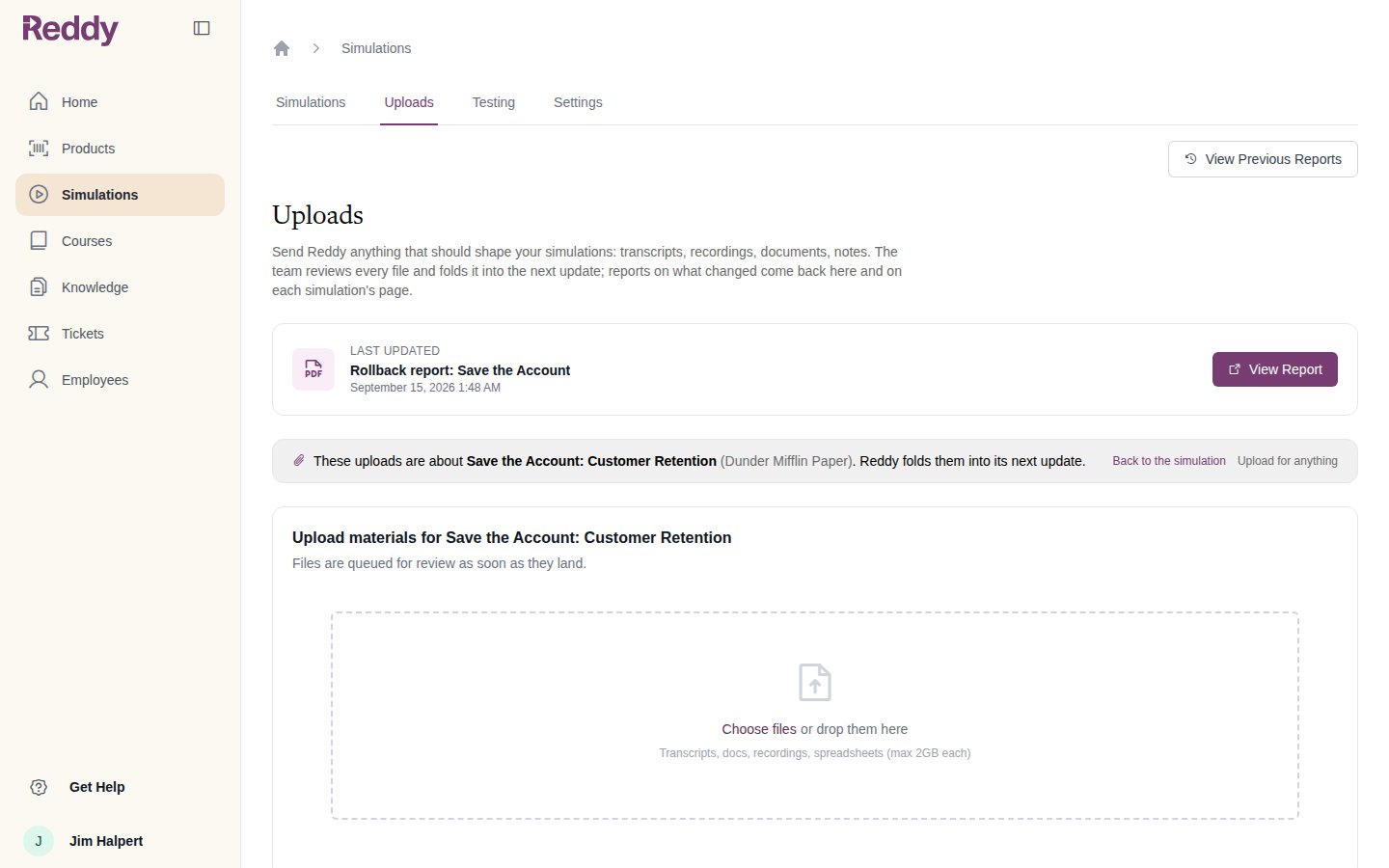
The **Uploads** tab is where you send Reddy anything that should shape your simulations: transcripts, recordings, documents, notes. Files can be up to **2 GB** each. The team reviews every file and folds it into the next update; reports on what changed come back here and on each simulation's page.
Simulations with no testing program yet are listed under **Not in testing yet**. Trainee thumbs and surveys still show on each of their pages.
## Uploads
The **Uploads** tab is where you send Reddy anything that should shape your simulations: transcripts, recordings, documents, notes. Files can be up to **2 GB** each. The team reviews every file and folds it into the next update; reports on what changed come back here and on each simulation's page.
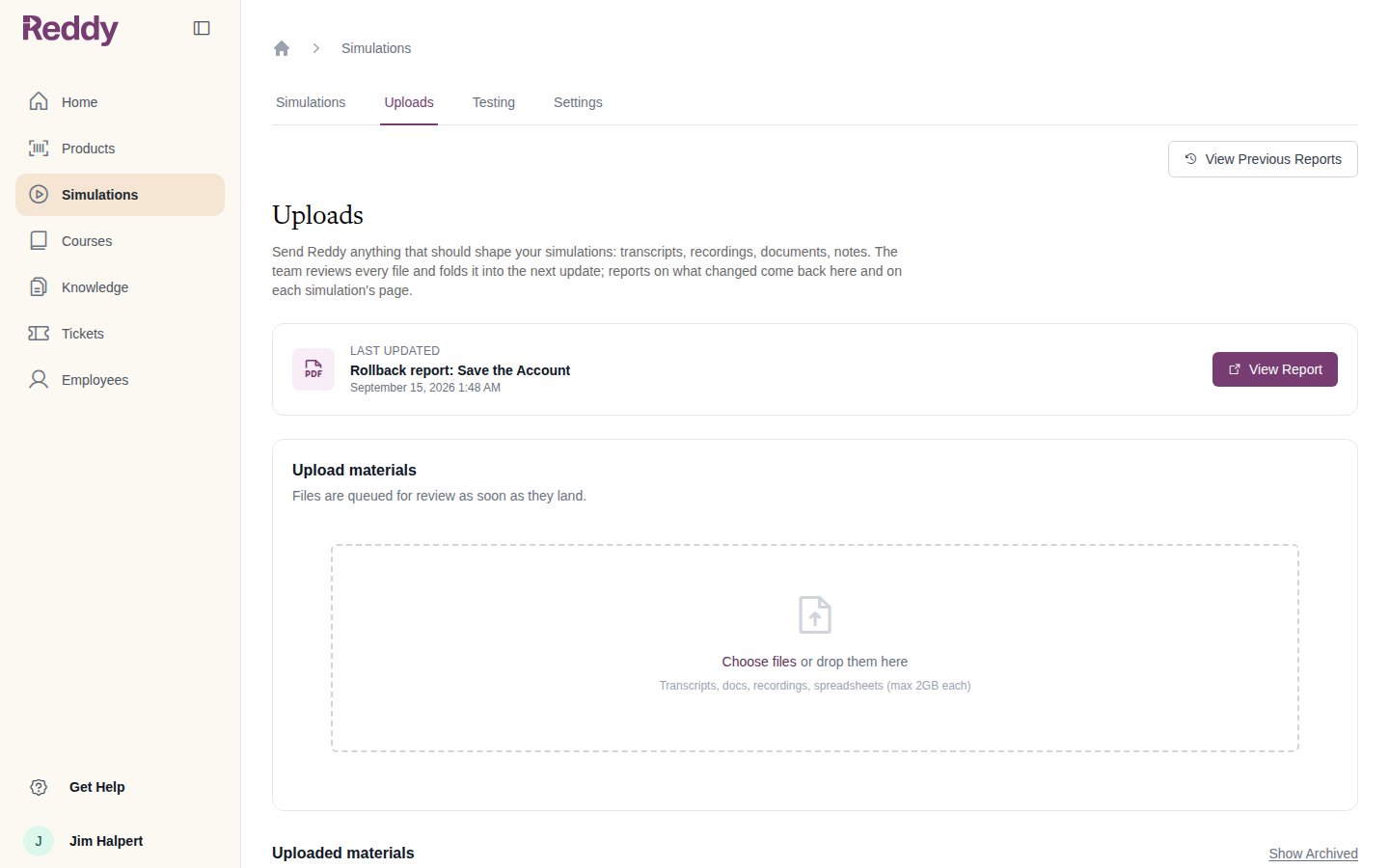 Arriving from a simulation's page attaches the uploads to that simulation. A banner names it, with a link to switch back to uploading for anything.
 ## Settings
The **Settings** tab holds runs per tester, approvers and the live-round cadence for each simulation in testing, plus tester deadlines and reminders. It is described in [Testers and Rounds](/manual/training/testers-and-rounds#runs-deadlines-and-reminders).
## FAQ
It is the **Uploads** tab. Everything you uploaded before, and every report Reddy sent back, is still there.
Managers see the simulations for the products they are assigned to. Ask an admin to assign the product on the manager's profile.
Not from the simulation's page. Uploaded materials are listed by name so you can see what Reddy worked from. If you need a copy back, ask your Reddy contact.
## Settings
The **Settings** tab holds runs per tester, approvers and the live-round cadence for each simulation in testing, plus tester deadlines and reminders. It is described in [Testers and Rounds](/manual/training/testers-and-rounds#runs-deadlines-and-reminders).
## FAQ
It is the **Uploads** tab. Everything you uploaded before, and every report Reddy sent back, is still there.
Managers see the simulations for the products they are assigned to. Ask an admin to assign the product on the manager's profile.
Not from the simulation's page. Uploaded materials are listed by name so you can see what Reddy worked from. If you need a copy back, ask your Reddy contact.