> ## Documentation Index
> Fetch the complete documentation index at: https://docs.reddy.io/llms.txt
> Use this file to discover all available pages before exploring further.
# Getting Started with Reddy
> Your guide to navigating the Reddy dashboard and starting your first lesson
## Getting Started
When you first open Reddy, complete a quick mic check:
1. Click **Start Recording**
2. Say any word or phrase
3. Click **Continue**
If your microphone fails the check, [troubleshoot common issues](/manual/microphone_troubleshooting).
Your dashboard has two main views:
Shows all courses, modules, and lessons assigned to you
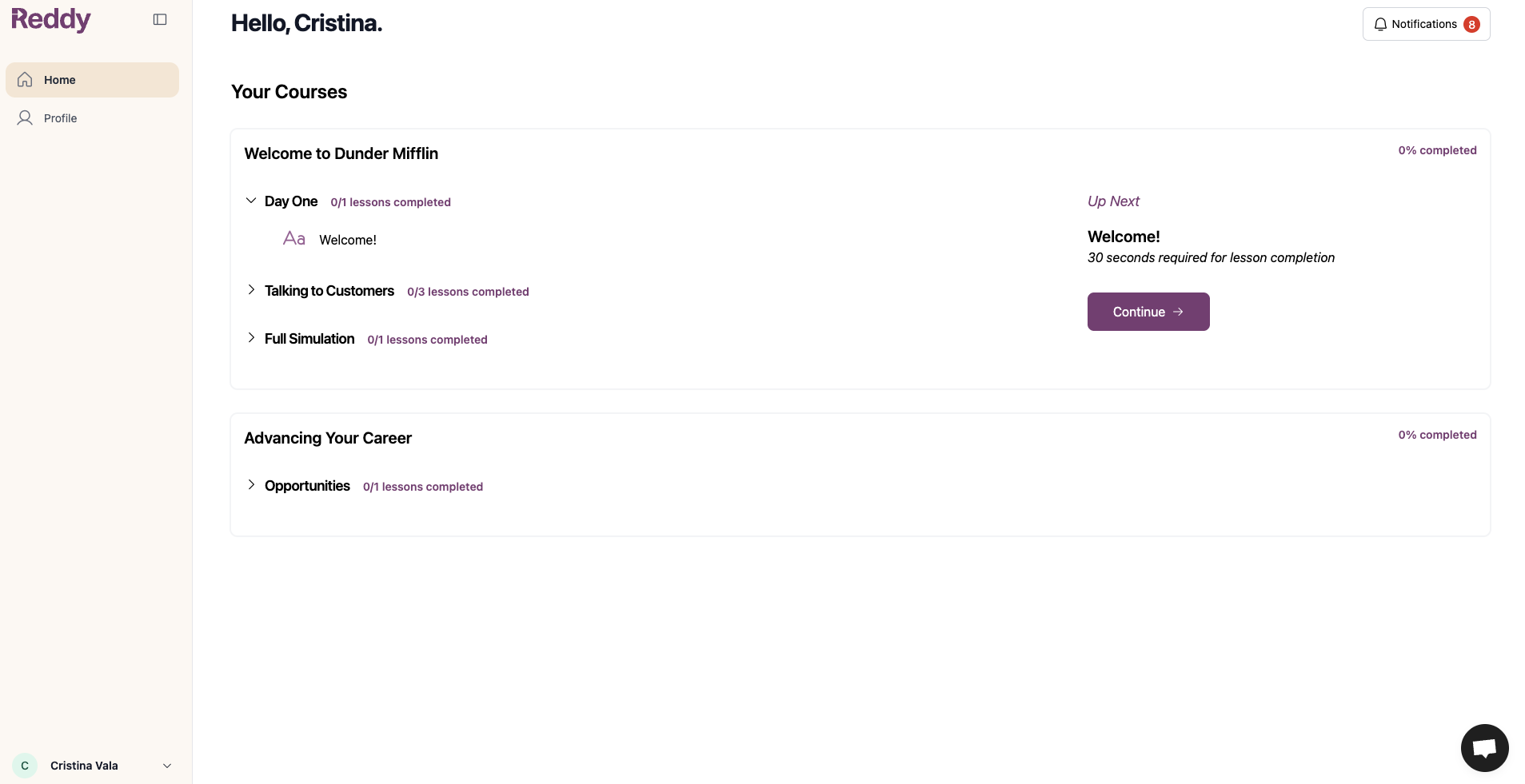 **How Your Training is Organized**
Contain all your training materials
**Example:** "Welcome to Dunder Mifflin" and "Advancing Your Career" are courses
Group related topics together within a course
**Example:** "Day One," "Talking to Customers," and "Full Simulation" are modules
Individual practice scenarios you complete within each module
**Example:** The "Day One" module contains one lesson: "Welcome!"
A module may contain multiple lessons in different formats (content to read, videos, interactive simulations, etc).
Click **Continue** to start the next lesson queued for you. You can also access any lesson directly by clicking the lesson name.
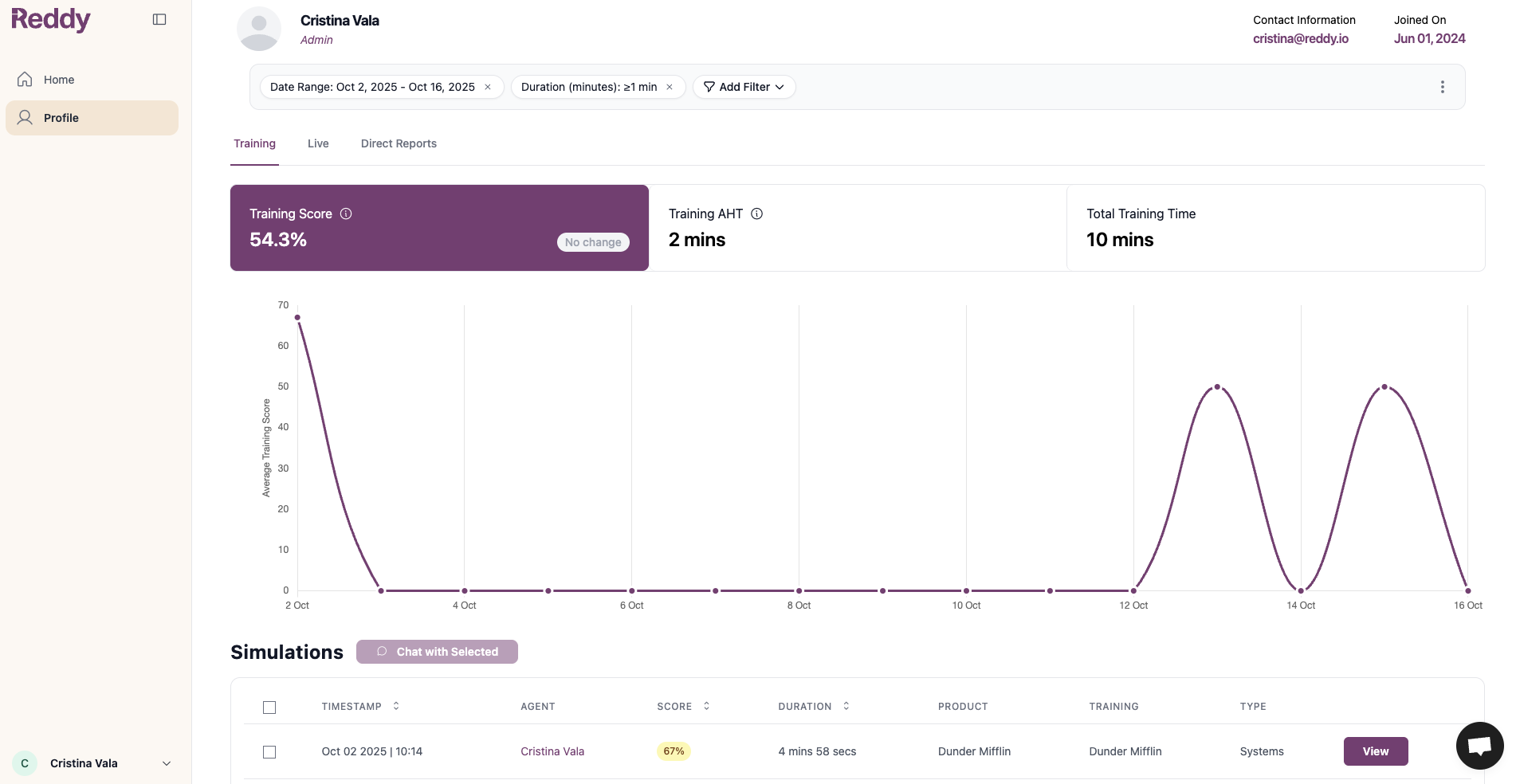
Track your performance metrics and review previous simulation attempts
**How Your Training is Organized**
Contain all your training materials
**Example:** "Welcome to Dunder Mifflin" and "Advancing Your Career" are courses
Group related topics together within a course
**Example:** "Day One," "Talking to Customers," and "Full Simulation" are modules
Individual practice scenarios you complete within each module
**Example:** The "Day One" module contains one lesson: "Welcome!"
A module may contain multiple lessons in different formats (content to read, videos, interactive simulations, etc).
Click **Continue** to start the next lesson queued for you. You can also access any lesson directly by clicking the lesson name.
Track your performance metrics and review previous simulation attempts
 ## Completing Lessons
Each lesson requires:
1. **Minimum score** (usually 50% or higher)
2. **Multiple successful runs** (usually 5 attempts)
A "run" is one practice session. You need to pass multiple times to show consistent mastery.
**Track Your Progress:**
* Grey bar next to each lesson shows completion progress
* Click your **Profile** tab for detailed metrics
Both criteria must be met to complete a lesson. If you finish 5 runs but haven't reached the minimum score, keep practicing to improve your performance.
## Next Steps
Ready to get started? Click the **Continue** button in the "Up Next" panel on the right side of your Home dashboard to jump into the lesson queued up for you.
Want a deeper overview of what to expect in your first interactive simulation? Check out our complete guide first.
Step-by-step walkthrough of your first simulation from start to finish
## Completing Lessons
Each lesson requires:
1. **Minimum score** (usually 50% or higher)
2. **Multiple successful runs** (usually 5 attempts)
A "run" is one practice session. You need to pass multiple times to show consistent mastery.
**Track Your Progress:**
* Grey bar next to each lesson shows completion progress
* Click your **Profile** tab for detailed metrics
Both criteria must be met to complete a lesson. If you finish 5 runs but haven't reached the minimum score, keep practicing to improve your performance.
## Next Steps
Ready to get started? Click the **Continue** button in the "Up Next" panel on the right side of your Home dashboard to jump into the lesson queued up for you.
Want a deeper overview of what to expect in your first interactive simulation? Check out our complete guide first.
Step-by-step walkthrough of your first simulation from start to finish