> ## Documentation Index
> Fetch the complete documentation index at: https://docs.reddy.io/llms.txt
> Use this file to discover all available pages before exploring further.
# Microphone Troubleshooting
> Step-by-step guide to resolve microphone issues during training simulation setup
## Troubleshooting Steps
Start by refreshing the page. This may reveal additional microphone options if you plugged in a new mic or changed Windows settings.
Check the dropdown menu for available microphone options and choose the correct device for your microphone.
These options are defined by Windows based on connected devices. Try each option to determine which one works best.
If only one option (e.g., "microphone 1") is visible initially, proceed to the next step.
Click the **Start Mic Test** button at the bottom of the page.
You may need to scroll down slightly to see this button on smaller screens.
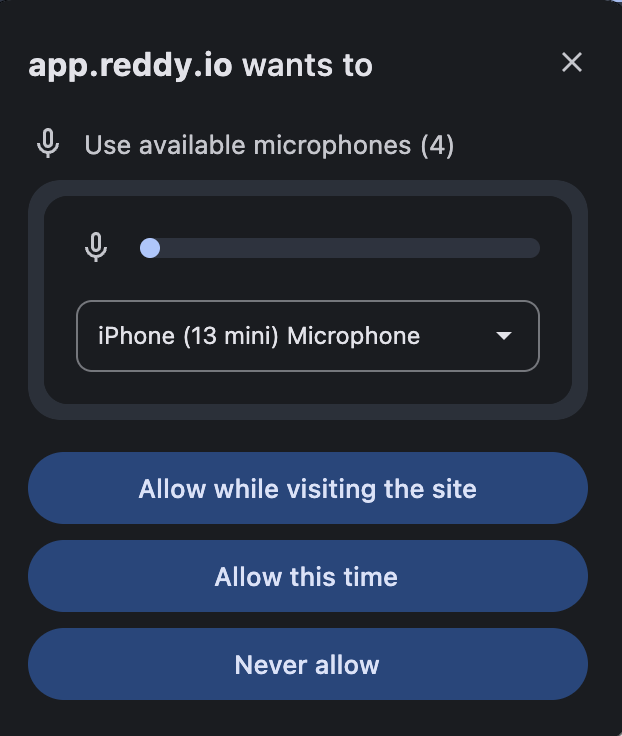
Watch for a popup requesting permission to access your microphone.
If the popup has closed, check near the search bar in your browser for permission settings.
Ensure you've clicked **Allow** to grant microphone access.
 If problems continue, consider using an external microphone check tool to verify Windows settings.
You can use [webcammictest.com](https://webcammictest.com/check-mic.html) to test your microphone outside of the Reddy platform.
## Still Having Issues?
If problems persist after following all the steps above, contact Reddy support for further assistance.
Click here to chat with our support team for immediate assistance with microphone issues.
For the best training experience, we recommend using a high-quality headset with a built-in microphone to ensure clear audio during simulations.
If problems continue, consider using an external microphone check tool to verify Windows settings.
You can use [webcammictest.com](https://webcammictest.com/check-mic.html) to test your microphone outside of the Reddy platform.
## Still Having Issues?
If problems persist after following all the steps above, contact Reddy support for further assistance.
Click here to chat with our support team for immediate assistance with microphone issues.
For the best training experience, we recommend using a high-quality headset with a built-in microphone to ensure clear audio during simulations.