> ## Documentation Index
> Fetch the complete documentation index at: https://docs.reddy.io/llms.txt
> Use this file to discover all available pages before exploring further.
# Creating Courses
> Step-by-step guide for creating and managing courses in the Reddy platform
## Course Types
* **Company Courses:** Organization-wide training, must be assigned to agents
* **Product Courses:** Product-specific training, requires product assignment first
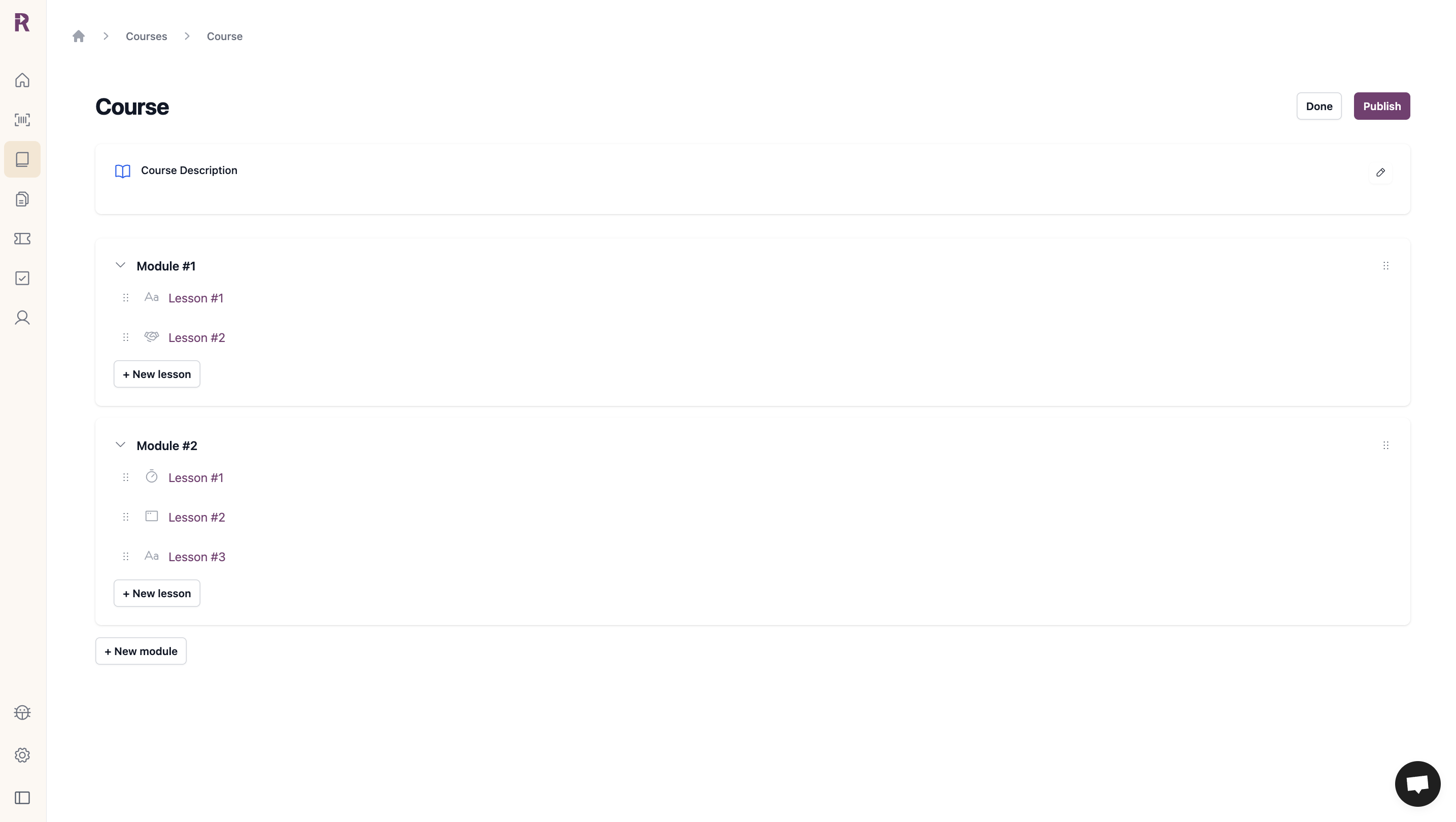
**Course Structure:** Course → Module → Lesson
## Creating a Course
Click the Course tab on the navigation panel.
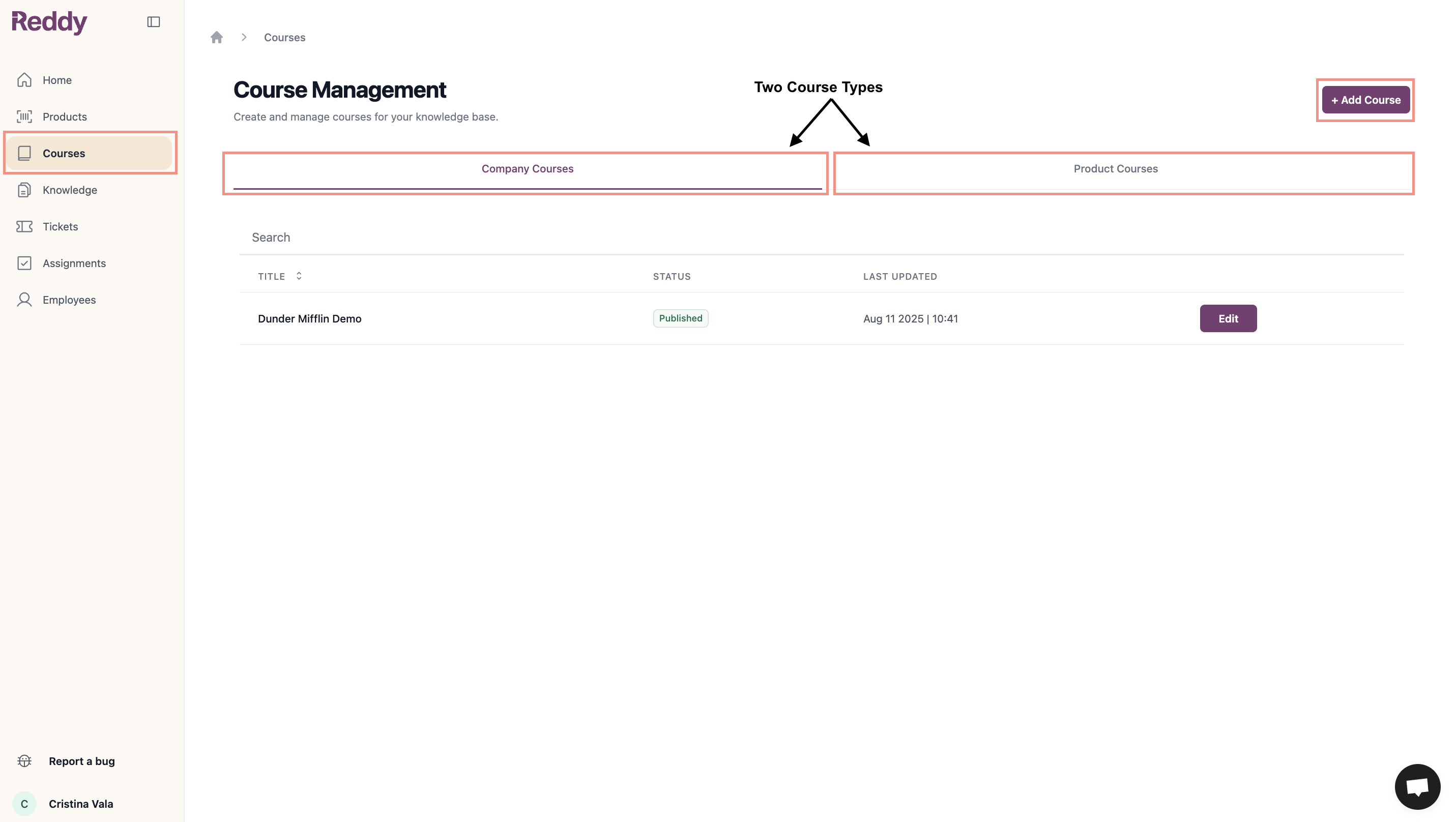 Click "+ Add Course" button.
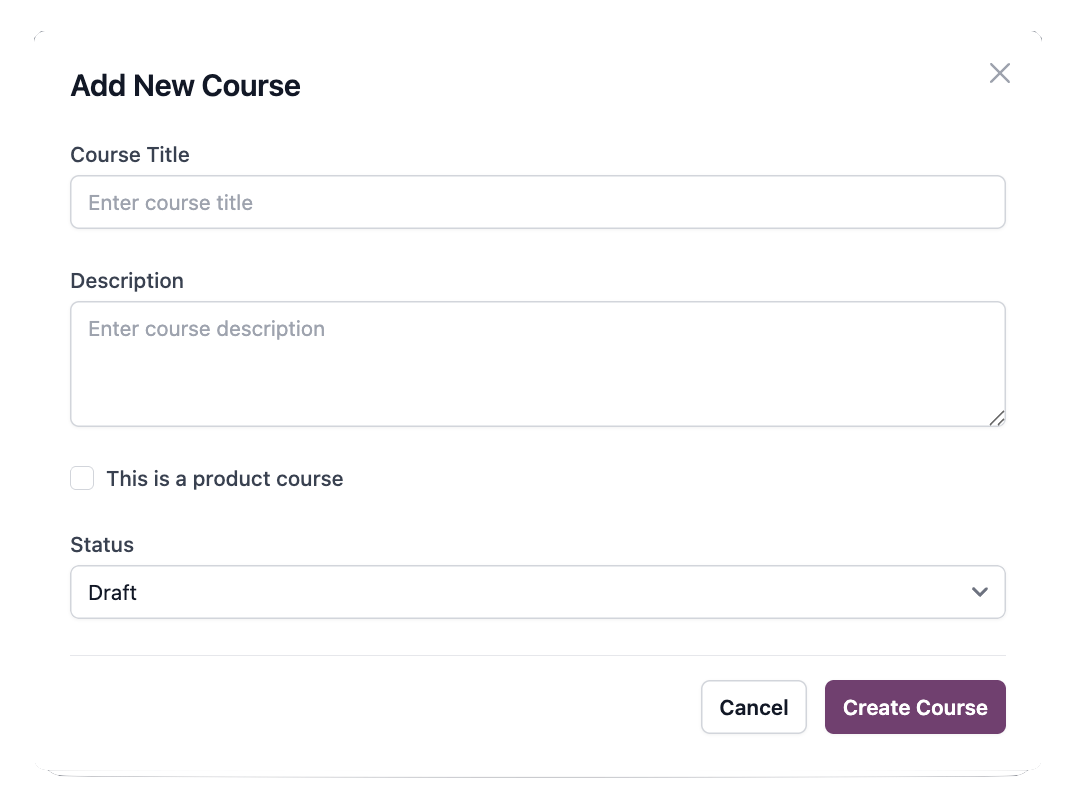
* Enter course title and description
* **Check checkbox** for product-specific, **leave unchecked** for company-wide
* Keep status as **Draft**
* Click **Create Course**
Click "+ Add Course" button.
* Enter course title and description
* **Check checkbox** for product-specific, **leave unchecked** for company-wide
* Keep status as **Draft**
* Click **Create Course**
 1. Click **"+ New module"** to add modules
2. Within modules, click **"+ New lesson"** to add lessons
3. Drag to reorder
1. Click **"+ New module"** to add modules
2. Within modules, click **"+ New lesson"** to add lessons
3. Drag to reorder
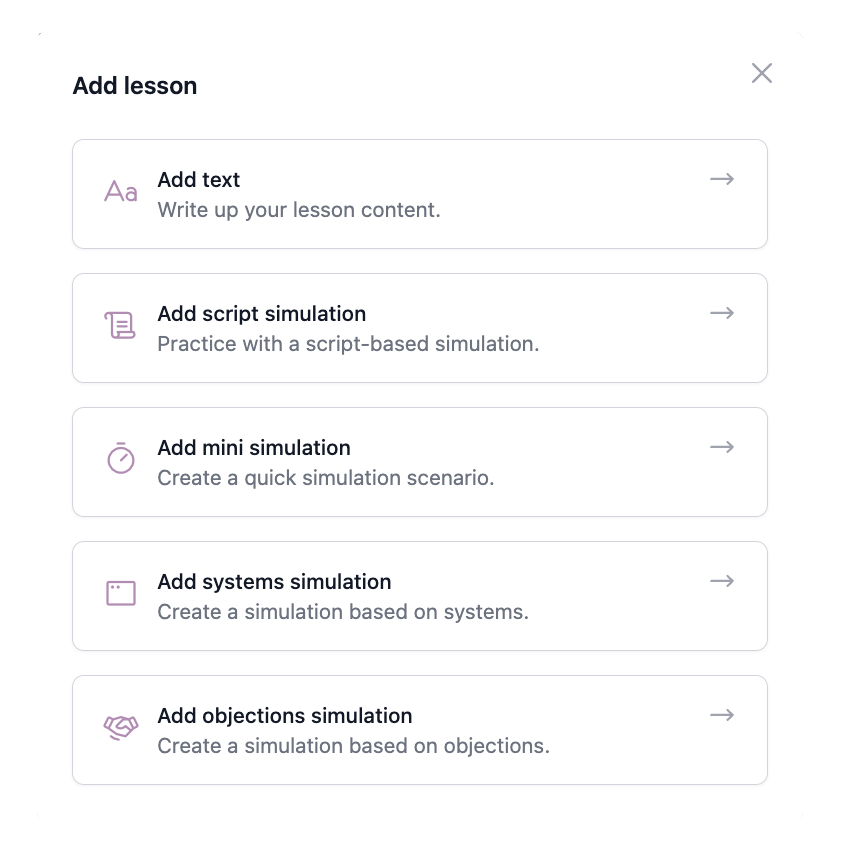
 **Available Lesson Types:**
* Text-based lessons
* Objections simulation
* Text-based lessons
* Script simulation
* Mini simulation
* Systems simulation
* Objections simulation
**Available Lesson Types:**
* Text-based lessons
* Objections simulation
* Text-based lessons
* Script simulation
* Mini simulation
* Systems simulation
* Objections simulation
 **Lesson Basics:**
* Lesson title
* Introduction blurb (optional - preview on LMS)
**Lesson Configuration:**
**Add Content:**
* Text, embedded images/videos, hyperlinked websites
Ensure embedded content and hyperlinked sites are whitelisted domains.
**Settings:**
* Set up content (Reddy assists with HTML styling)
* Set completion duration (optional - prevents advancing until time passes)
**Select Simulation:**
Choose from dropdown
Only pre-created simulations for the product appear. Work with Reddy to create simulations first.
**Set Completion (Optional):**
* Minimum score
* Number of runs
**How It Works:** Agents must complete all runs AND meet minimum score. If runs complete but score unmet, they continue practicing.
**Default:** 5 runs, 50% minimum score.
**Set Completion (Optional):**
* Minimum score
**Format:**
Rapid-fire objections (4 randomized per practice). Agents respond with rebuttals.
**Grading:**
Based on general criteria (understanding, benefit-based approach, call flow transition) not specific QA items.
Objections configured by Reddy as company-specific or product-specific.
Review settings and click **Publish** to make available to users.
## Managing Courses
### Draft vs. Published
* **Draft:** Not visible to users. Safe to build and edit.
* **Published:** Live and accessible. Changes apply immediately.
**Save Without Publishing:** Click **"Done"** to save in Draft. Click **"Publish"** when ready.
Courses won't appear in the student dashboard until they have at least one Module with at least one Lesson built out. Publishing an empty course structure will not make it visible to agents.
### Assigning Courses
**Company Courses:** Must be assigned to agents, no prerequisites.
**Product Courses:** Agents must have product assigned first. Only related courses appear as options.
To assign product courses, first assign the product to the agent's profile.
[Learn how to manage product and course assignments](/manual/team-management/assigning_products_and_managers)
## FAQ
Build out at least one Module with at least one Lesson, then the course will appear for assigned agents.
Publishing a course is not enough. The course structure must be complete:
**Required:** Course → Module → Lesson
**Incomplete structures won't appear:**
* Course with no Modules
* Course with Module but no Lessons
Yes. Changes to published courses apply immediately and are visible to all assigned agents. Test changes in a Draft course first if you need to review before making live.
Drag and drop modules and lessons in the course structure view to reorder them. Changes save automatically.
**Lesson Basics:**
* Lesson title
* Introduction blurb (optional - preview on LMS)
**Lesson Configuration:**
**Add Content:**
* Text, embedded images/videos, hyperlinked websites
Ensure embedded content and hyperlinked sites are whitelisted domains.
**Settings:**
* Set up content (Reddy assists with HTML styling)
* Set completion duration (optional - prevents advancing until time passes)
**Select Simulation:**
Choose from dropdown
Only pre-created simulations for the product appear. Work with Reddy to create simulations first.
**Set Completion (Optional):**
* Minimum score
* Number of runs
**How It Works:** Agents must complete all runs AND meet minimum score. If runs complete but score unmet, they continue practicing.
**Default:** 5 runs, 50% minimum score.
**Set Completion (Optional):**
* Minimum score
**Format:**
Rapid-fire objections (4 randomized per practice). Agents respond with rebuttals.
**Grading:**
Based on general criteria (understanding, benefit-based approach, call flow transition) not specific QA items.
Objections configured by Reddy as company-specific or product-specific.
Review settings and click **Publish** to make available to users.
## Managing Courses
### Draft vs. Published
* **Draft:** Not visible to users. Safe to build and edit.
* **Published:** Live and accessible. Changes apply immediately.
**Save Without Publishing:** Click **"Done"** to save in Draft. Click **"Publish"** when ready.
Courses won't appear in the student dashboard until they have at least one Module with at least one Lesson built out. Publishing an empty course structure will not make it visible to agents.
### Assigning Courses
**Company Courses:** Must be assigned to agents, no prerequisites.
**Product Courses:** Agents must have product assigned first. Only related courses appear as options.
To assign product courses, first assign the product to the agent's profile.
[Learn how to manage product and course assignments](/manual/team-management/assigning_products_and_managers)
## FAQ
Build out at least one Module with at least one Lesson, then the course will appear for assigned agents.
Publishing a course is not enough. The course structure must be complete:
**Required:** Course → Module → Lesson
**Incomplete structures won't appear:**
* Course with no Modules
* Course with Module but no Lessons
Yes. Changes to published courses apply immediately and are visible to all assigned agents. Test changes in a Draft course first if you need to review before making live.
Drag and drop modules and lessons in the course structure view to reorder them. Changes save automatically.