> ## Documentation Index
> Fetch the complete documentation index at: https://docs.reddy.io/llms.txt
> Use this file to discover all available pages before exploring further.
# Assigning Training Modules
> Assign one-off training simulations to reinforce skills for individual agents or groups
Assign targeted training simulations to agents for skill reinforcement outside of structured courses.
Agents can only be assigned simulations for products they're already assigned to. For example, if an agent is assigned to "AT\&T Sales," you can only assign them AT\&T-related training simulations.
## Assigning to Individual Agents
Go to **Employees** tab and click the agent's name to open their profile.
Click **"Select Modules to Assign"** dropdown and choose the training simulation(s).
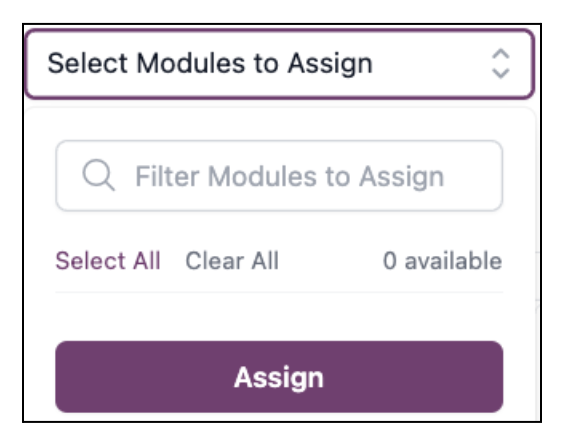 Only simulations for the agent's assigned products appear in the dropdown.
Click **Apply** to assign the training. The agent receives an instant notification.
## Bulk Assignment
Assign training to multiple agents simultaneously.
Navigate to **Assignments** from the left navigation.
Click **Bulk Assign** in the top right corner.
Choose agents to assign training:
* **Quick select:** Select all direct reports
* **Manual entry:** Enter agent emails (comma-separated)
Search or browse available training simulations.
Click **Bulk Assign** to complete. All selected agents receive notifications immediately.
Use bulk assignment when multiple agents need reinforcement on the same skill or after identifying common performance gaps.
## Agent Experience
When you assign training, here's what agents see:
**Notification Alert:**
* Notification bell appears in their dashboard
* Alert displays with a **"Practice"** button
* Click to jump directly to the assigned simulation
**Completing Training:**
* Agents complete the simulation at their convenience
* Notification marks as read once finished
* Assignment status updates automatically in the Assignments table
## Tracking Assignments
View and manage all training assignments in the **Assignments** tab.
### Assignments Table
**Available Columns:**
* **Completed:** Status indicator (green checkmark when complete)
* **Assignee:** Agent name
* **Assignment:** Training simulation name
* **Assigned By:** Manager who made the assignment
* **Date Assigned:** When the assignment was created
* **Due Date:** Target completion date (if set)
* **Date Completed:** When agent finished the training
**Table Customization:**
Click **Show/Hide Columns** (eye icon) to adjust which columns display in your table view.
**Search & Filter:**
Use the search bar to find specific agents or assignments quickly.
**Pagination:**
Navigate through pages to view all assignments. Results show 10 assignments per page.
## FAQ
Yes. When creating assignments, you can set a due date to establish completion expectations. Agents see this in their notification.
You can't. The system only shows simulations for products the agent is already assigned to, ensuring assignments are relevant to their role.
No. Agents see the assignment notification and training details, but not who assigned it.
Check the Assignments table. Completed assignments show a green checkmark in the "Completed" column and display the completion date.
Assignments remain visible for tracking purposes. If an agent hasn't started, contact your Reddy Project Manager for removal options.
Only simulations for the agent's assigned products appear in the dropdown.
Click **Apply** to assign the training. The agent receives an instant notification.
## Bulk Assignment
Assign training to multiple agents simultaneously.
Navigate to **Assignments** from the left navigation.
Click **Bulk Assign** in the top right corner.
Choose agents to assign training:
* **Quick select:** Select all direct reports
* **Manual entry:** Enter agent emails (comma-separated)
Search or browse available training simulations.
Click **Bulk Assign** to complete. All selected agents receive notifications immediately.
Use bulk assignment when multiple agents need reinforcement on the same skill or after identifying common performance gaps.
## Agent Experience
When you assign training, here's what agents see:
**Notification Alert:**
* Notification bell appears in their dashboard
* Alert displays with a **"Practice"** button
* Click to jump directly to the assigned simulation
**Completing Training:**
* Agents complete the simulation at their convenience
* Notification marks as read once finished
* Assignment status updates automatically in the Assignments table
## Tracking Assignments
View and manage all training assignments in the **Assignments** tab.
### Assignments Table
**Available Columns:**
* **Completed:** Status indicator (green checkmark when complete)
* **Assignee:** Agent name
* **Assignment:** Training simulation name
* **Assigned By:** Manager who made the assignment
* **Date Assigned:** When the assignment was created
* **Due Date:** Target completion date (if set)
* **Date Completed:** When agent finished the training
**Table Customization:**
Click **Show/Hide Columns** (eye icon) to adjust which columns display in your table view.
**Search & Filter:**
Use the search bar to find specific agents or assignments quickly.
**Pagination:**
Navigate through pages to view all assignments. Results show 10 assignments per page.
## FAQ
Yes. When creating assignments, you can set a due date to establish completion expectations. Agents see this in their notification.
You can't. The system only shows simulations for products the agent is already assigned to, ensuring assignments are relevant to their role.
No. Agents see the assignment notification and training details, but not who assigned it.
Check the Assignments table. Completed assignments show a green checkmark in the "Completed" column and display the completion date.
Assignments remain visible for tracking purposes. If an agent hasn't started, contact your Reddy Project Manager for removal options.