> ## Documentation Index
> Fetch the complete documentation index at: https://docs.reddy.io/llms.txt
> Use this file to discover all available pages before exploring further.
# Roster Uploads
> Update your entire employee roster or add new employees in bulk with a CSV or XLSX upload
Roster uploads let you manage your whole team from a single spreadsheet. Upload a file, review exactly what will change, and apply everything in one step -- new hires, updates, and departures included.
Only admins can upload rosters.
Roster uploads are part of the new Employees experience. If your Employees page does not show an **Actions** menu in the top right, your workspace is still on the legacy experience -- see [Adding New Employees](/manual/team-management/adding-employees) and use the Legacy tab.
## Choose an Upload Mode
There are two upload flows. Both start from the **Actions** menu on the Employees page.
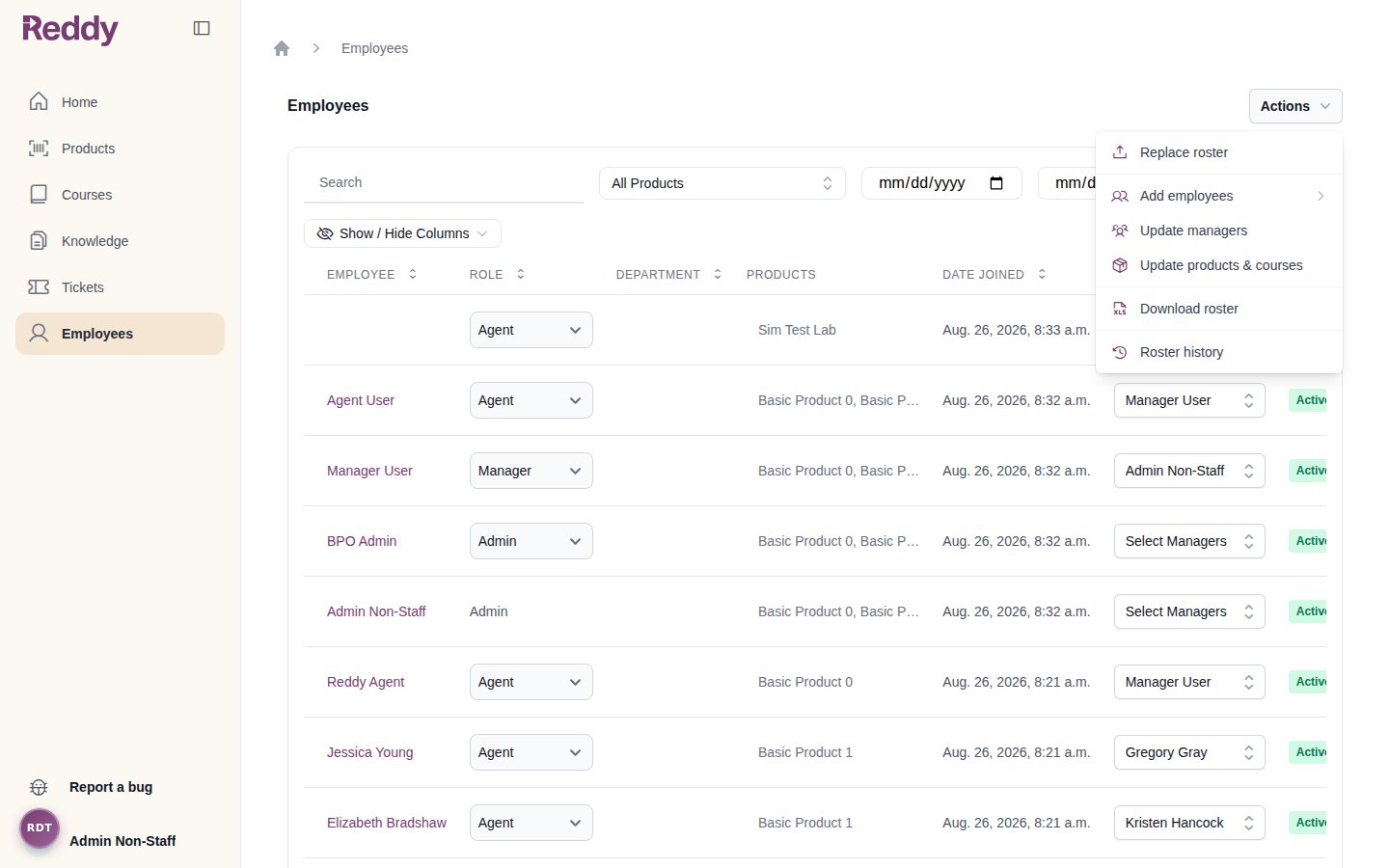 | Mode | Menu item | What it does |
| -------------------- | ----------------------------------------------- | ---------------------------------------------------------------------------------------------------------------------------------------------------- |
| Update entire roster | **Replace roster** | The file becomes your complete roster. People are added, updated, and -- if they are active in Reddy but missing from the file -- archived. |
| Add new users | **Add employees** -> **Add multiple employees** | Only creates the new people listed in the file. Existing employees are never modified or archived, even if their row in the file differs from Reddy. |
Use **Replace roster** for your regular roster sync (for example, a weekly HR export). Use **Add multiple employees** when you just have a batch of new hires and do not want to touch anyone else.
Nothing is applied in either mode until you review the changes and confirm.
## Prepare Your File
Upload a `.csv` or `.xlsx` file, up to 50 MB and 50,000 rows. The easiest starting points:
* **Replace roster**: click **Download current roster** on the upload page (or **Actions** -> **Download roster**) and edit the downloaded spreadsheet.
* **Add multiple employees**: click **Download empty template** on the upload page and fill in the new hires.
Downloads include a **Reference** sheet listing your company's products, courses, and role values. It is for reference only -- edit the **Roster** sheet.
### Columns
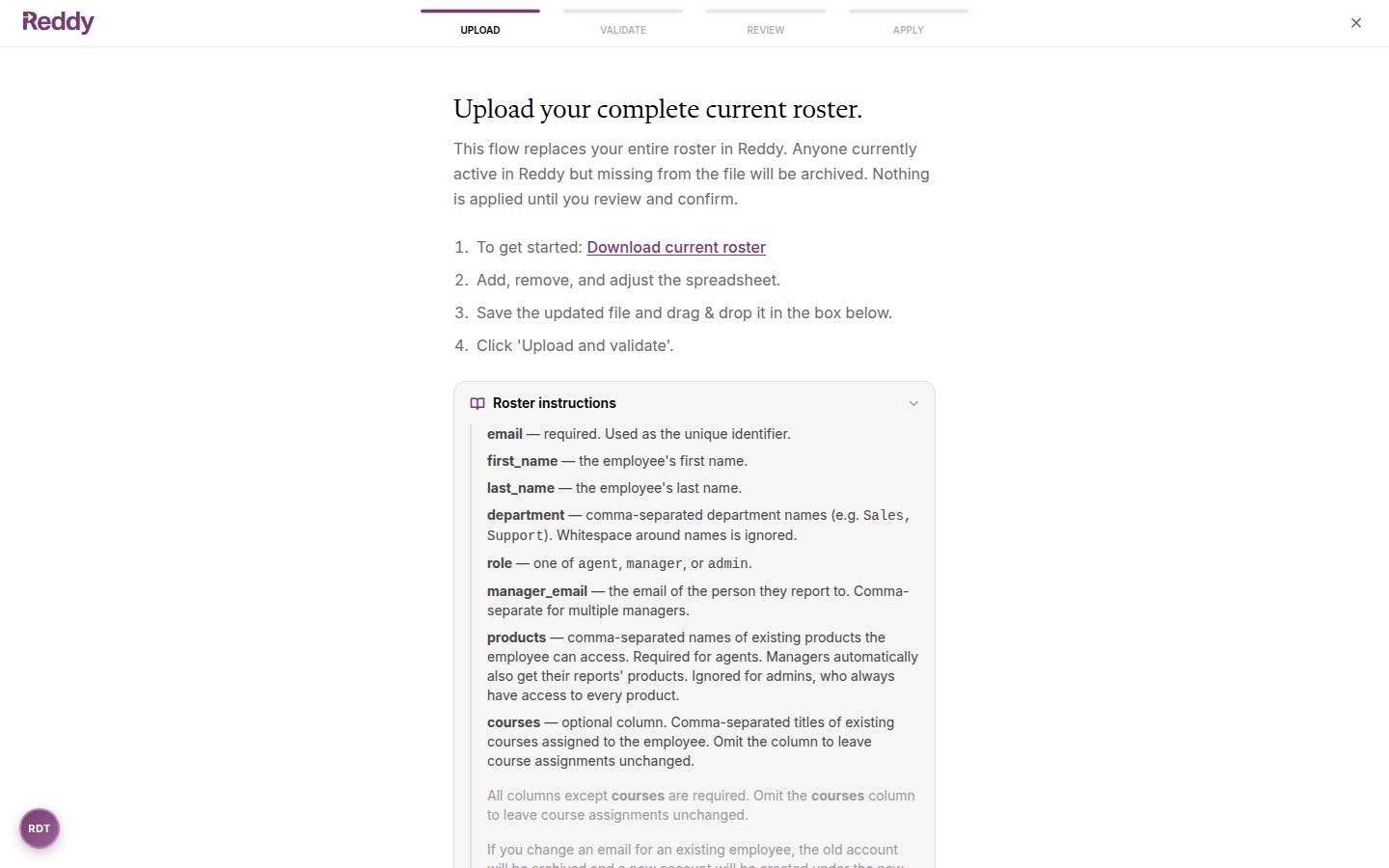
| Column | Required | Notes |
| --------------- | ----------------------- | -------------------------------------------------------------------------------------------------------------------------------------------------------------------------------------- |
| `email` | Yes | The unique identifier. Emails cannot be changed later -- changing an email archives the old account and creates a new one. |
| `first_name` | Yes | The employee's first name. |
| `last_name` | Yes | The employee's last name. |
| `department` | Yes (cell may be blank) | Comma-separated department names (e.g. `Sales, Support`). New departments are created automatically. |
| `role` | Yes | One of `agent`, `manager`, or `admin`. |
| `manager_email` | Yes (cell may be blank) | The email of the person they report to. Comma-separate for multiple managers. |
| `products` | Yes | Comma-separated names of existing products. Required for agents. Managers automatically also get their reports' products. Ignored for admins, who always have access to every product. |
| `courses` | No | Comma-separated titles of existing courses. Omit the whole column to leave course assignments unchanged; include it with a blank cell to clear them. |
| Mode | Menu item | What it does |
| -------------------- | ----------------------------------------------- | ---------------------------------------------------------------------------------------------------------------------------------------------------- |
| Update entire roster | **Replace roster** | The file becomes your complete roster. People are added, updated, and -- if they are active in Reddy but missing from the file -- archived. |
| Add new users | **Add employees** -> **Add multiple employees** | Only creates the new people listed in the file. Existing employees are never modified or archived, even if their row in the file differs from Reddy. |
Use **Replace roster** for your regular roster sync (for example, a weekly HR export). Use **Add multiple employees** when you just have a batch of new hires and do not want to touch anyone else.
Nothing is applied in either mode until you review the changes and confirm.
## Prepare Your File
Upload a `.csv` or `.xlsx` file, up to 50 MB and 50,000 rows. The easiest starting points:
* **Replace roster**: click **Download current roster** on the upload page (or **Actions** -> **Download roster**) and edit the downloaded spreadsheet.
* **Add multiple employees**: click **Download empty template** on the upload page and fill in the new hires.
Downloads include a **Reference** sheet listing your company's products, courses, and role values. It is for reference only -- edit the **Roster** sheet.
### Columns
| Column | Required | Notes |
| --------------- | ----------------------- | -------------------------------------------------------------------------------------------------------------------------------------------------------------------------------------- |
| `email` | Yes | The unique identifier. Emails cannot be changed later -- changing an email archives the old account and creates a new one. |
| `first_name` | Yes | The employee's first name. |
| `last_name` | Yes | The employee's last name. |
| `department` | Yes (cell may be blank) | Comma-separated department names (e.g. `Sales, Support`). New departments are created automatically. |
| `role` | Yes | One of `agent`, `manager`, or `admin`. |
| `manager_email` | Yes (cell may be blank) | The email of the person they report to. Comma-separate for multiple managers. |
| `products` | Yes | Comma-separated names of existing products. Required for agents. Managers automatically also get their reports' products. Ignored for admins, who always have access to every product. |
| `courses` | No | Comma-separated titles of existing courses. Omit the whole column to leave course assignments unchanged; include it with a blank cell to clear them. |
 Products and courses must already exist in Reddy -- the upload will not create them. Departments are created on the fly.
## Upload and Validate
On the Employees page, open **Actions** and choose **Replace roster** or **Add employees** -> **Add multiple employees**.
Products and courses must already exist in Reddy -- the upload will not create them. Departments are created on the fly.
## Upload and Validate
On the Employees page, open **Actions** and choose **Replace roster** or **Add employees** -> **Add multiple employees**.
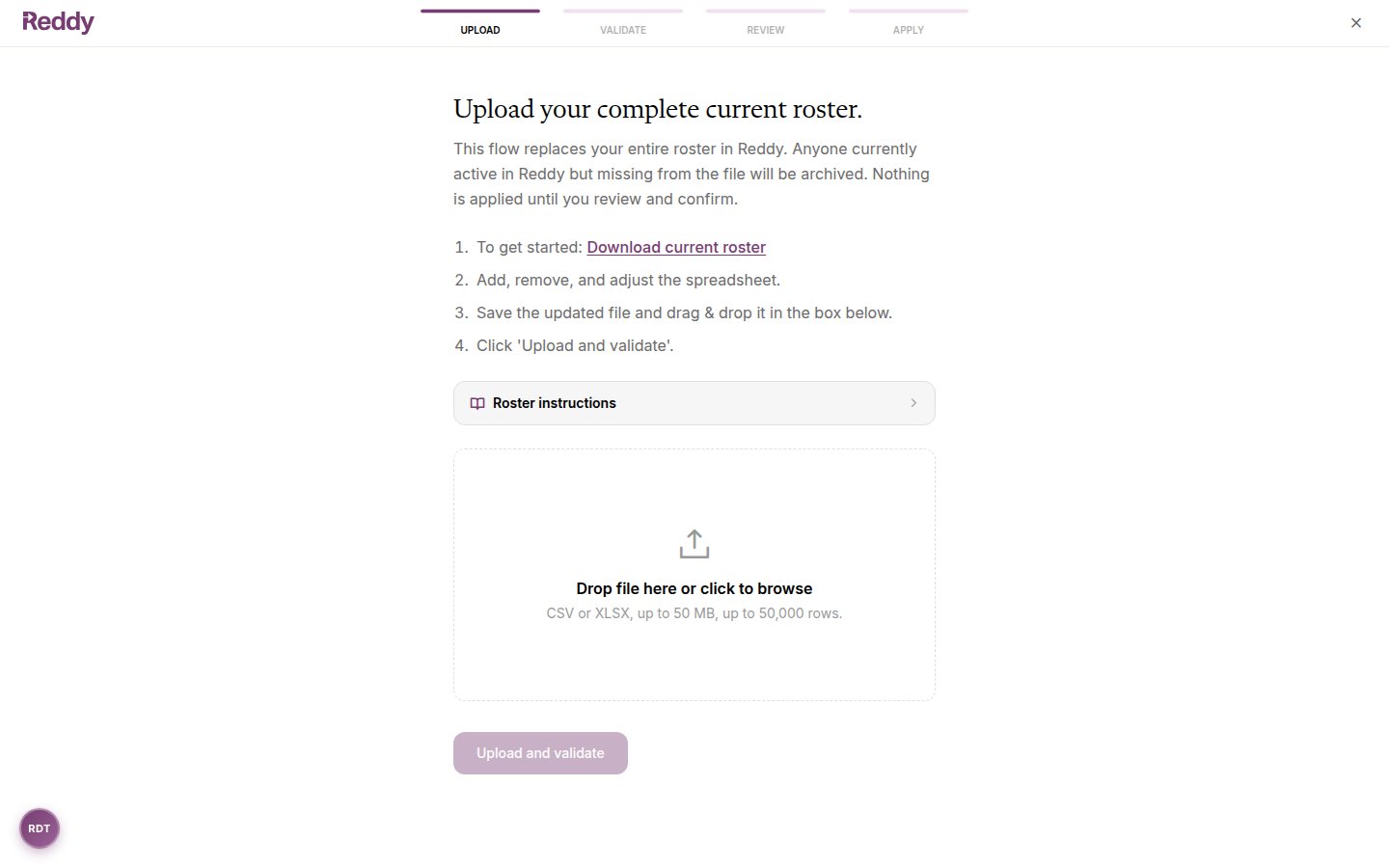 Drag and drop your file into the box (or click to browse), then click **Upload and validate**.
Reddy checks every row and reports all problems at once -- unknown roles, invalid emails, managers that cannot be found, agents without products, reporting loops, and more. Each issue lists the row number and what to fix.
Drag and drop your file into the box (or click to browse), then click **Upload and validate**.
Reddy checks every row and reports all problems at once -- unknown roles, invalid emails, managers that cannot be found, agents without products, reporting loops, and more. Each issue lists the row number and what to fix.
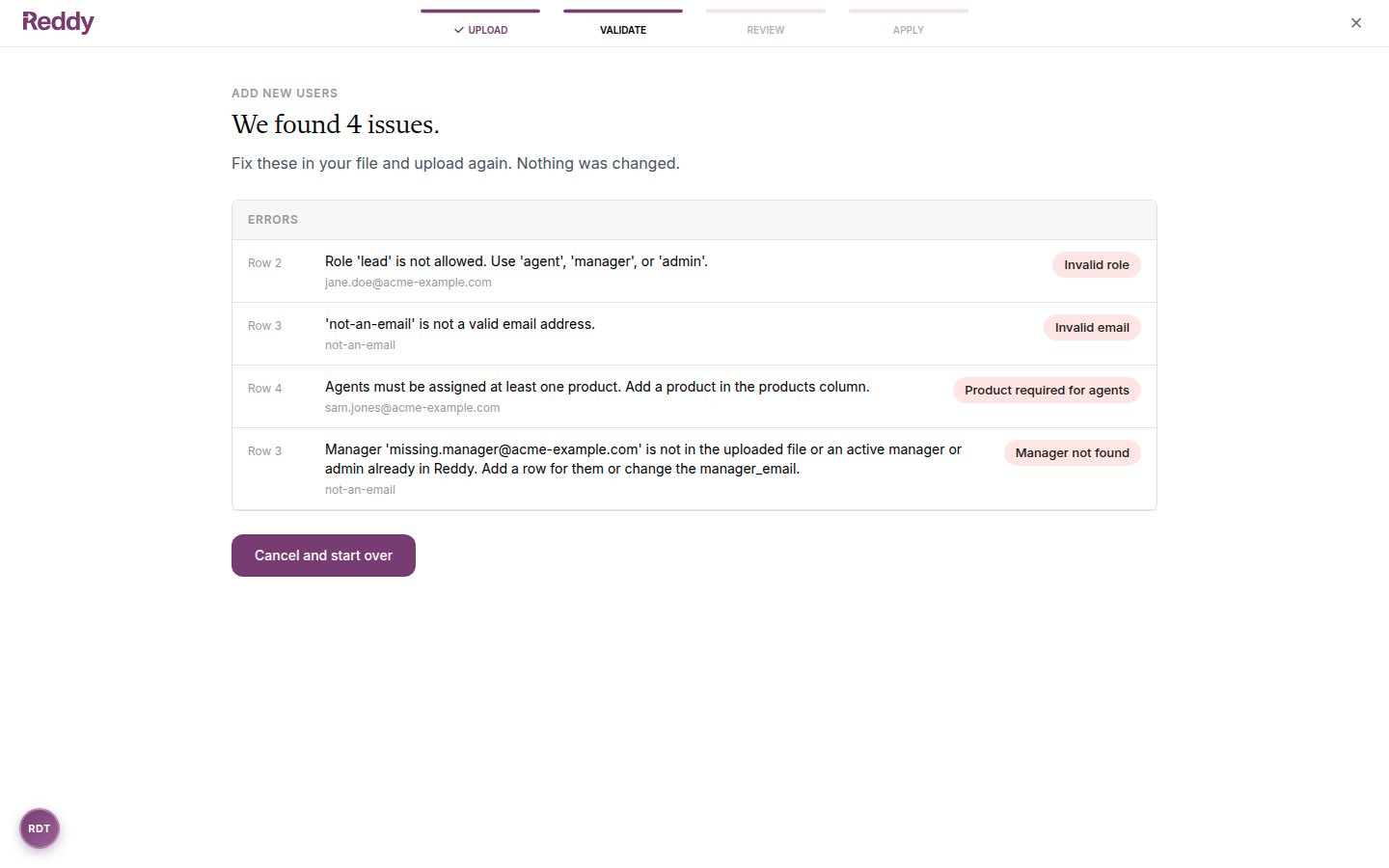 If there are any issues, nothing is changed. Fix them in your file, click **Cancel and start over**, and upload again.
## Review Before Applying
When validation passes, you land on the review screen -- a full preview of what the upload will do. Nothing has been changed yet.
If there are any issues, nothing is changed. Fix them in your file, click **Cancel and start over**, and upload again.
## Review Before Applying
When validation passes, you land on the review screen -- a full preview of what the upload will do. Nothing has been changed yet.
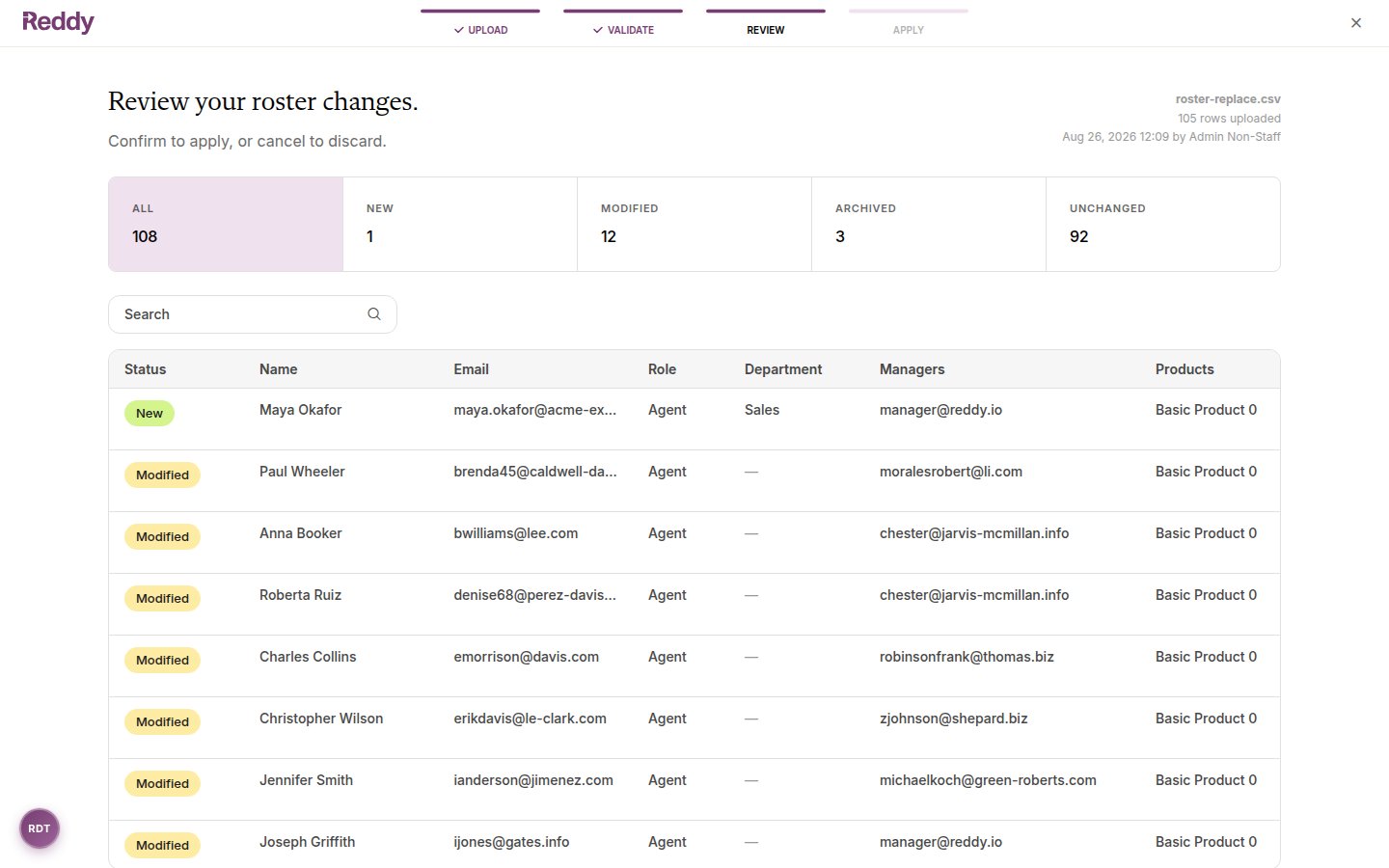 * The tiles at the top count **New**, **Modified**, **Reactivated**, **Archived**, and **Unchanged** employees. Click a tile to filter the table to just those rows.
* The **Modified** view shows exactly which fields change for each person, with old and new values side by side.
* The tiles at the top count **New**, **Modified**, **Reactivated**, **Archived**, and **Unchanged** employees. Click a tile to filter the table to just those rows.
* The **Modified** view shows exactly which fields change for each person, with old and new values side by side.
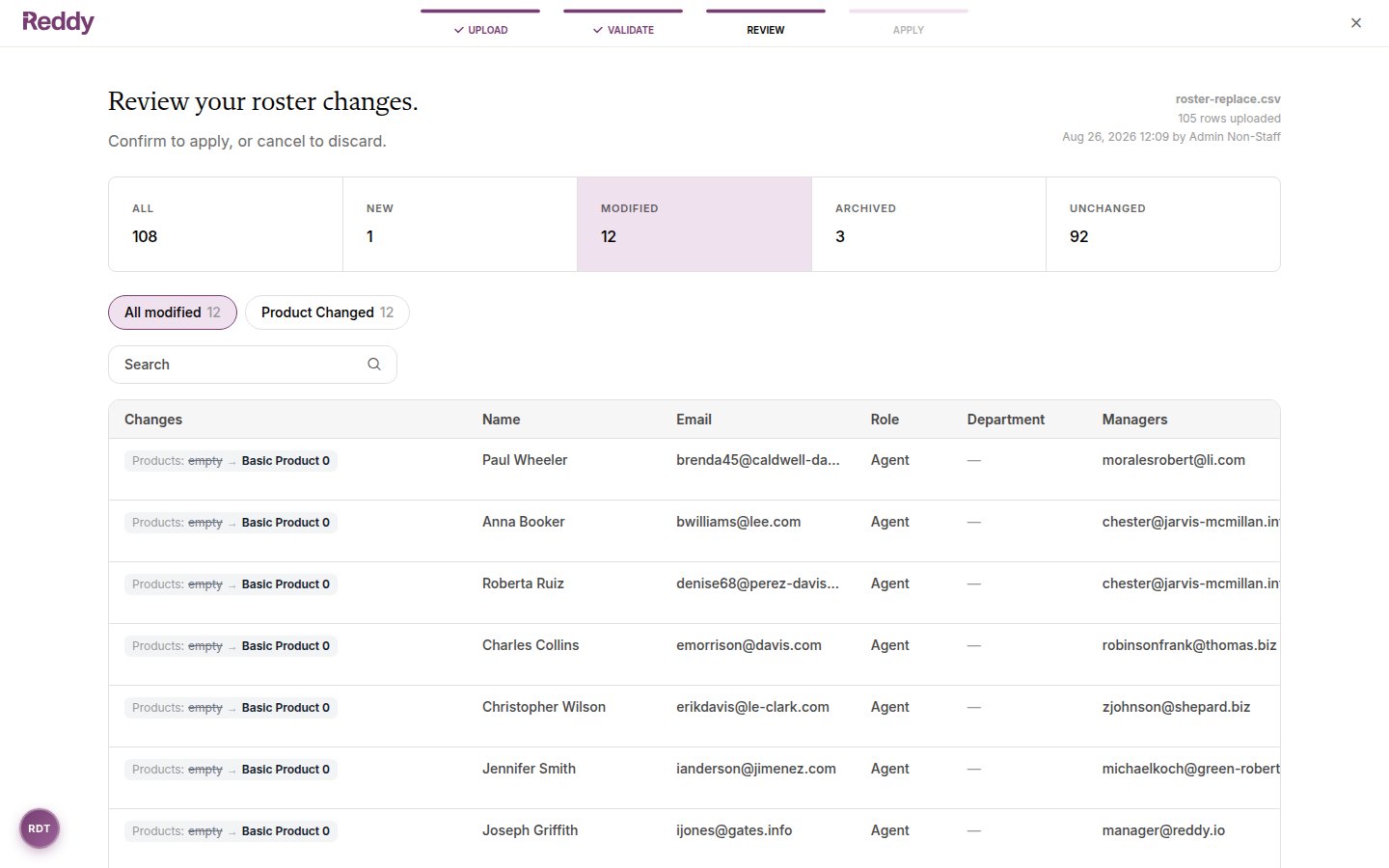 * Use the search box to check a specific person by name, email, department, or product.
* If the upload would archive 20 or more people, a warning banner asks you to double-check the Archived tab before confirming.
Click **Confirm and apply** to make the changes, or **Cancel** to discard the upload entirely.
Only one roster upload can be in progress per company. If another admin has an upload mid-flight, you will see who started it and can wait or cancel their upload.
## Apply
After you confirm, Reddy creates logins for new employees and applies all changes together. Large uploads show live progress. When it finishes you are returned to the Employees page with a confirmation, and the uploader also receives an in-app notification with the final counts.
If the roster changed while you were reviewing (for example, another admin edited someone), the apply is safely rejected and you are asked to upload and review again -- you will never apply changes you did not see.
## Roster History
Every upload is recorded. Open **Actions** -> **Roster history** to see past uploads, who ran them, their status, and their change counts.
* Use the search box to check a specific person by name, email, department, or product.
* If the upload would archive 20 or more people, a warning banner asks you to double-check the Archived tab before confirming.
Click **Confirm and apply** to make the changes, or **Cancel** to discard the upload entirely.
Only one roster upload can be in progress per company. If another admin has an upload mid-flight, you will see who started it and can wait or cancel their upload.
## Apply
After you confirm, Reddy creates logins for new employees and applies all changes together. Large uploads show live progress. When it finishes you are returned to the Employees page with a confirmation, and the uploader also receives an in-app notification with the final counts.
If the roster changed while you were reviewing (for example, another admin edited someone), the apply is safely rejected and you are asked to upload and review again -- you will never apply changes you did not see.
## Roster History
Every upload is recorded. Open **Actions** -> **Roster history** to see past uploads, who ran them, their status, and their change counts.
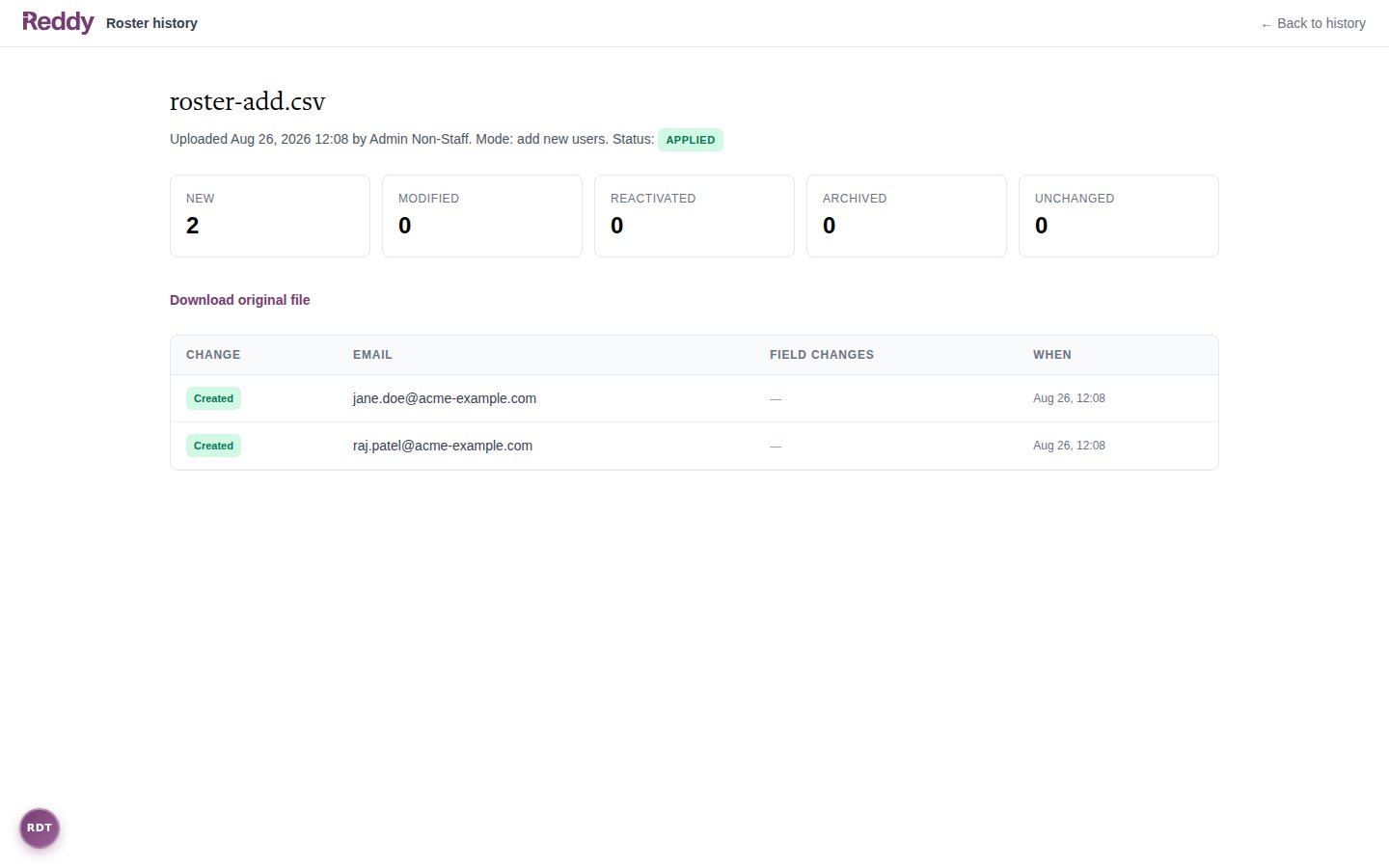
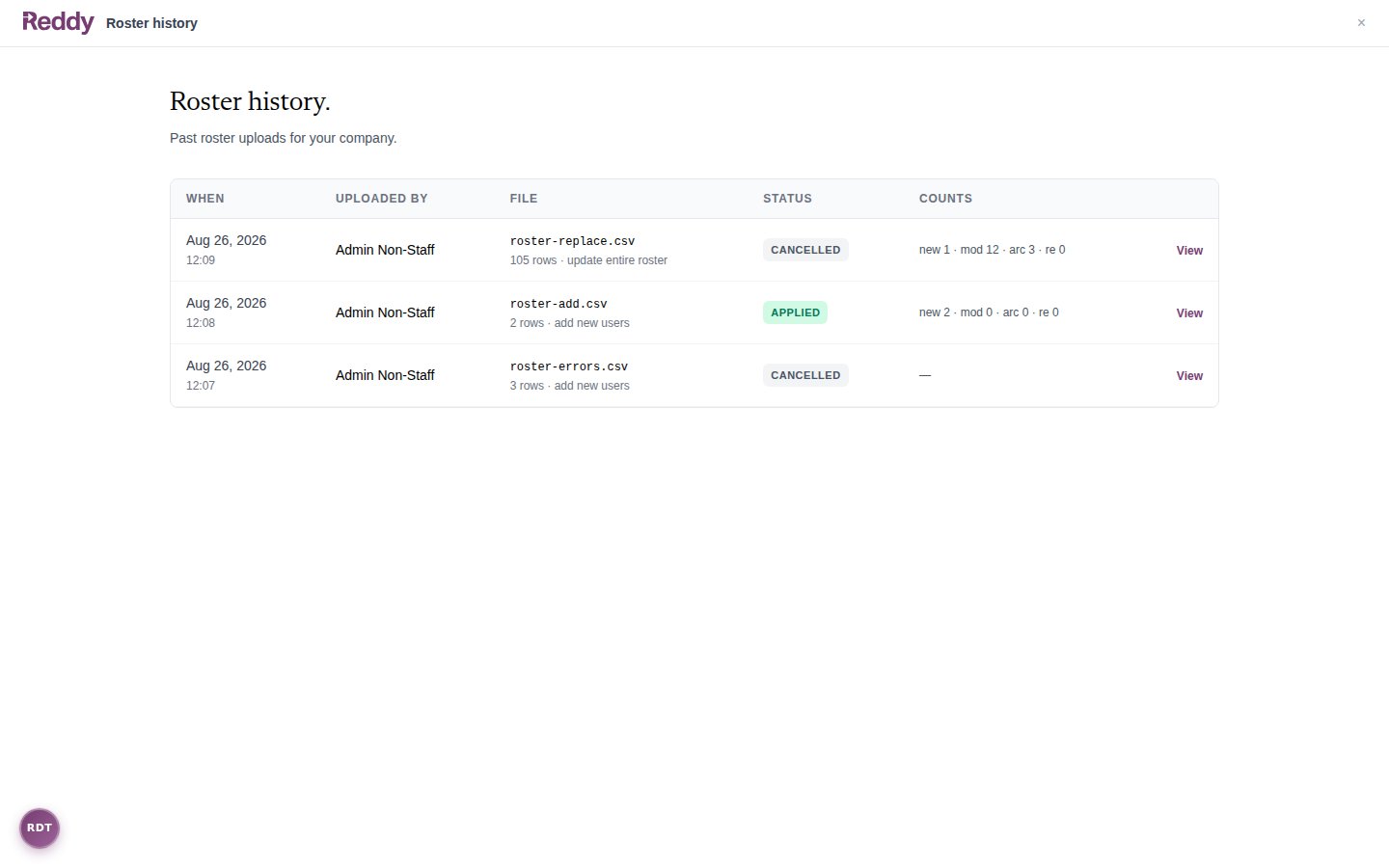 Click **View** on any upload for a per-person audit of what changed, and to download the original file that was uploaded.
 ## FAQ
You cannot archive yourself, remove your own admin role, or leave the company with no active admins. Validation blocks all three before anything is applied.
The same as archiving them individually: they can no longer log in and are filtered out of dashboards, but all their historical data is preserved. A later upload that includes them again (or the **Unarchive** row action) restores them -- the review screen counts these as **Reactivated**.
No. Email is the unique identifier. If an address changes, the upload archives the old account and creates a new one; history and assignments do not carry over. Contact support if you need an address migrated.
Product access cascades from agents up to their managers. If a new hire's products give their existing manager new access, that manager appears as Modified. No other fields on existing employees are ever touched in add mode.
Column names must match the template headers (capitalization and extra spaces are forgiven), but column order does not matter. There is no column-mapping step -- files with missing or unrecognized required columns fail validation with a clear message.
## FAQ
You cannot archive yourself, remove your own admin role, or leave the company with no active admins. Validation blocks all three before anything is applied.
The same as archiving them individually: they can no longer log in and are filtered out of dashboards, but all their historical data is preserved. A later upload that includes them again (or the **Unarchive** row action) restores them -- the review screen counts these as **Reactivated**.
No. Email is the unique identifier. If an address changes, the upload archives the old account and creates a new one; history and assignments do not carry over. Contact support if you need an address migrated.
Product access cascades from agents up to their managers. If a new hire's products give their existing manager new access, that manager appears as Modified. No other fields on existing employees are ever touched in add mode.
Column names must match the template headers (capitalization and extra spaces are forgiven), but column order does not matter. There is no column-mapping step -- files with missing or unrecognized required columns fail validation with a clear message.