> ## Documentation Index
> Fetch the complete documentation index at: https://docs.reddy.io/llms.txt
> Use this file to discover all available pages before exploring further.
# Get Help & Report Issues
> Contact support and report problems through Reddy
We prioritize keeping Reddy working smoothly, but issues happen. When they do, we're committed to resolving them quickly.
Reddy provides multiple ways to get support:
Submit a support ticket with issue details
*⭐ Preferred*
Live conversation with Reddy support team
*⚡ Best for urgent issues*
**Help us help you!** Whenever you encounter an issue, always report it through Reddy. This ensures your case is delivered directly to our support team and investigated promptly without delays.
## Choose Your Support Method
### Try These First
Before reporting an issue, try these common fixes:
The most common issue, but usually a quick fix! If your microphone fails the check before starting a simulation, try these steps:
* Check browser microphone permissions
* Test microphone in system settings
* Try a different browser
* Restart your computer
[View full troubleshooting guide](/manual/training/microphone_troubleshooting)
If you're experiencing loading problems, glitches, or errors:
* **Refresh the page** - Often resolves temporary issues
* **Clear cache and cookies** - [Clear Chrome cookies](https://support.google.com/chrome/answer/95647?hl=en\&co=GENIE.Platform%3DDesktop)
* **Try incognito/private window** - Opens a fresh browser without extensions
* **Update your browser** - Ensure you're on the latest version
* **Try a different browser** - Switch to Chrome, Firefox, or Safari
* **Try a different device** - Test if the issue persists elsewhere
### Report an Issue
Still having a problem? We're here to help. Use the "Report an Issue" button to let us know what's going on.
 Reporting issues through Reddy automatically captures technical details (browser, operating system, etc.) that help our team troubleshoot faster!
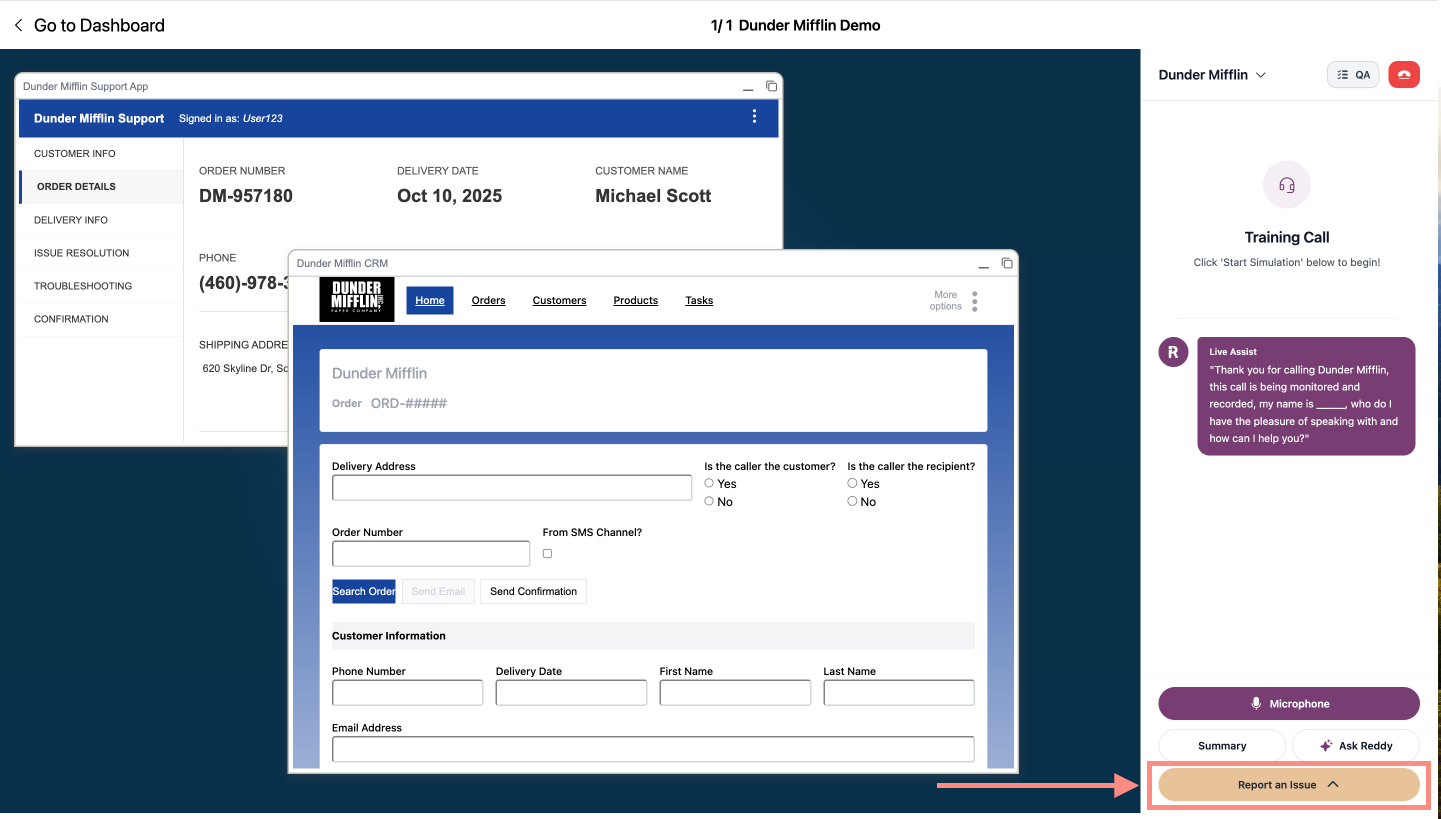
Click "Report an Issue" at the bottom of your training simulation panel.
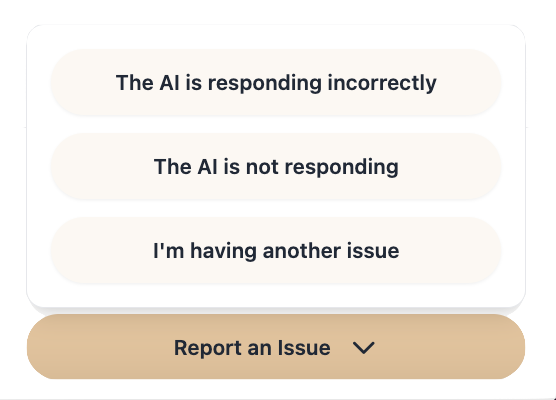
Choose from:
* The AI is responding incorrectly
* The AI is not responding
* I'm having another issue
Reporting issues through Reddy automatically captures technical details (browser, operating system, etc.) that help our team troubleshoot faster!
Click "Report an Issue" at the bottom of your training simulation panel.
Choose from:
* The AI is responding incorrectly
* The AI is not responding
* I'm having another issue
 If you selected "I'm having another issue," a form opens on the bottom right. Describe the issue with as much clarity as possible:
* What issue did you run into?
* What did you expect to happen?
Click "Send Bug Report" to submit.
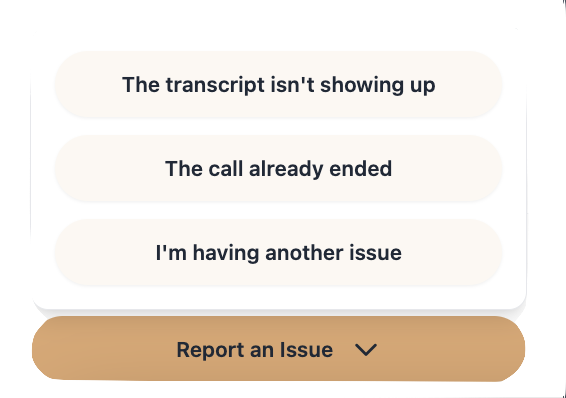
Click "Report an Issue" at the bottom of your live assist transcript panel.
Choose from:
* The transcript isn't showing up
* The call already ended
* I'm having another issue
If you selected "I'm having another issue," a form opens on the bottom right. Describe the issue with as much clarity as possible:
* What issue did you run into?
* What did you expect to happen?
Click "Send Bug Report" to submit.
Click "Report an Issue" at the bottom of your live assist transcript panel.
Choose from:
* The transcript isn't showing up
* The call already ended
* I'm having another issue
 If you selected "I'm having another issue," a form opens on the bottom right. Describe the issue with as much clarity as possible:
* What issue did you run into?
* What did you expect to happen?
Click "Send Bug Report" to submit.
### Report an Issue
Reporting issues through Reddy automatically captures technical details (browser, operating system, etc.) that help our team troubleshoot faster!
Click "Report a bug" at the bottom of your navigation panel.
If you selected "I'm having another issue," a form opens on the bottom right. Describe the issue with as much clarity as possible:
* What issue did you run into?
* What did you expect to happen?
Click "Send Bug Report" to submit.
### Report an Issue
Reporting issues through Reddy automatically captures technical details (browser, operating system, etc.) that help our team troubleshoot faster!
Click "Report a bug" at the bottom of your navigation panel.
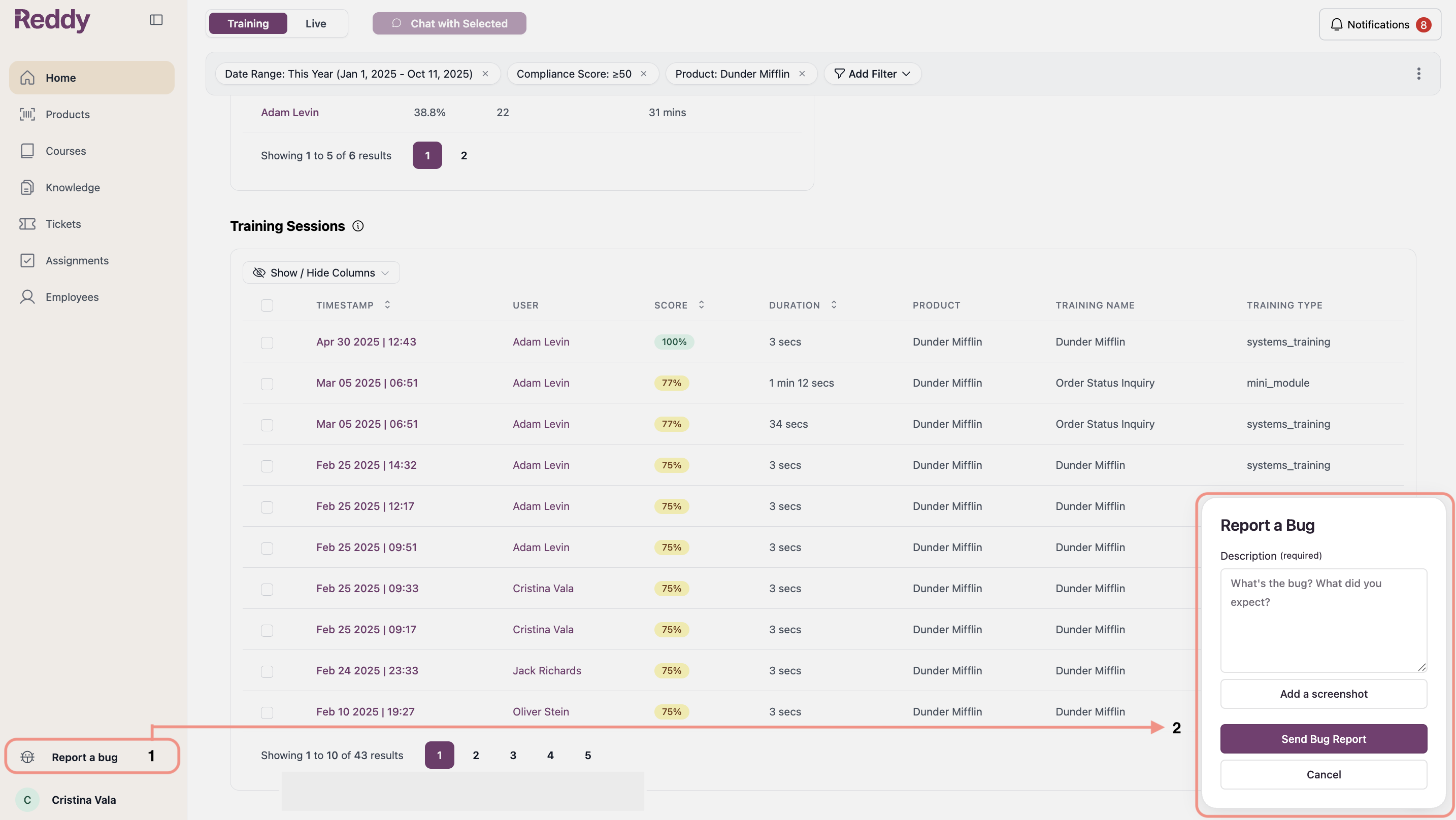 A form opens on the bottom right. Type your message describing the issue with as much detail as possible and capture a screenshot to include in the report.
Helpful details to provide:
* When the issue occurred
* What you were trying to do
* What actually happened
* Where in Reddy (page or feature)
* Error messages or feedback received
When clicking "Add a screenshot," Reddy captures your current screen. Navigate to the screen showing the issue before clicking. Screenshots are recommended for faster resolution.
Click "Send Bug Report" when you have completed providing all issue context. Reddy will get to investigating!
### Chat with Support
Use live chat for urgent issues or when you need immediate help from our support team.
Click the blue chat icon on the bottom right of your screen.
A form opens on the bottom right. Type your message describing the issue with as much detail as possible and capture a screenshot to include in the report.
Helpful details to provide:
* When the issue occurred
* What you were trying to do
* What actually happened
* Where in Reddy (page or feature)
* Error messages or feedback received
When clicking "Add a screenshot," Reddy captures your current screen. Navigate to the screen showing the issue before clicking. Screenshots are recommended for faster resolution.
Click "Send Bug Report" when you have completed providing all issue context. Reddy will get to investigating!
### Chat with Support
Use live chat for urgent issues or when you need immediate help from our support team.
Click the blue chat icon on the bottom right of your screen.
 Type your message describing the issue with as much detail as possible.
Helpful details to provide:
* When the issue occurred
* What you were trying to do
* What actually happened
* Where in Reddy (page or feature)
* Error messages or feedback received
Attach screenshots, videos, or screen recordings (recommended).
Type your message describing the issue with as much detail as possible.
Helpful details to provide:
* When the issue occurred
* What you were trying to do
* What actually happened
* Where in Reddy (page or feature)
* Error messages or feedback received
Attach screenshots, videos, or screen recordings (recommended).
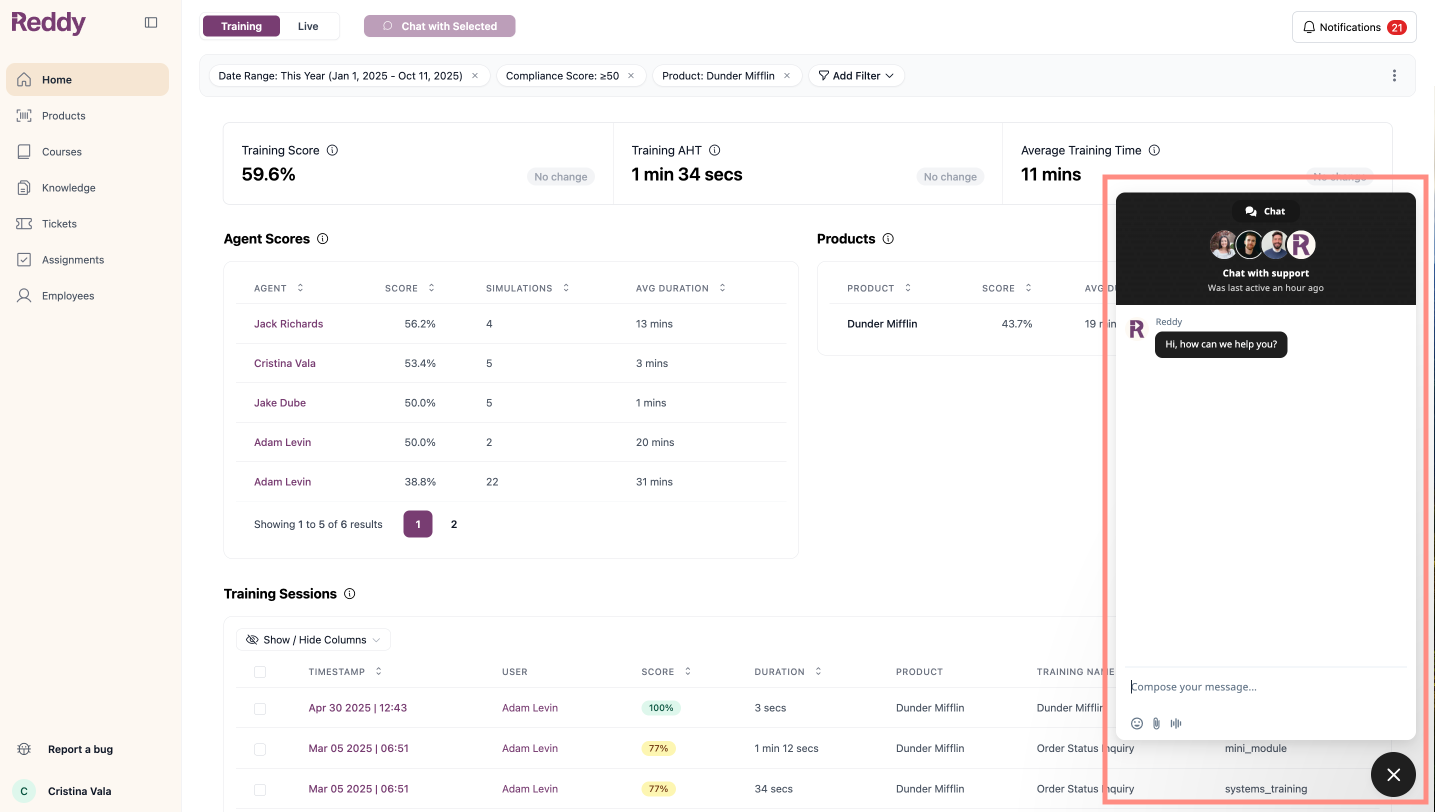 Your chat history persists. Close and reopen anytime until marked resolved.
A Reddy team member will work with you until your issue is resolved. If escalation is needed, we'll create a separate ticket for tracking.
## Additional Resources
For critical business issues, contact your Reddy Project Manager directly for immediate escalation.
Submit feature requests and enhancement ideas through the Reddy ticketing system. Detailed guide coming soon.
Check real-time status and uptime for Reddy services and scheduled maintenance.
Your chat history persists. Close and reopen anytime until marked resolved.
A Reddy team member will work with you until your issue is resolved. If escalation is needed, we'll create a separate ticket for tracking.
## Additional Resources
For critical business issues, contact your Reddy Project Manager directly for immediate escalation.
Submit feature requests and enhancement ideas through the Reddy ticketing system. Detailed guide coming soon.
Check real-time status and uptime for Reddy services and scheduled maintenance.