> ## Documentation Index
> Fetch the complete documentation index at: https://docs.reddy.io/llms.txt
> Use this file to discover all available pages before exploring further.
# Simulation Guide
> Complete guide to understanding and using Reddy simulations, from interface overview to completing your first session
## Simulation Interface Overview
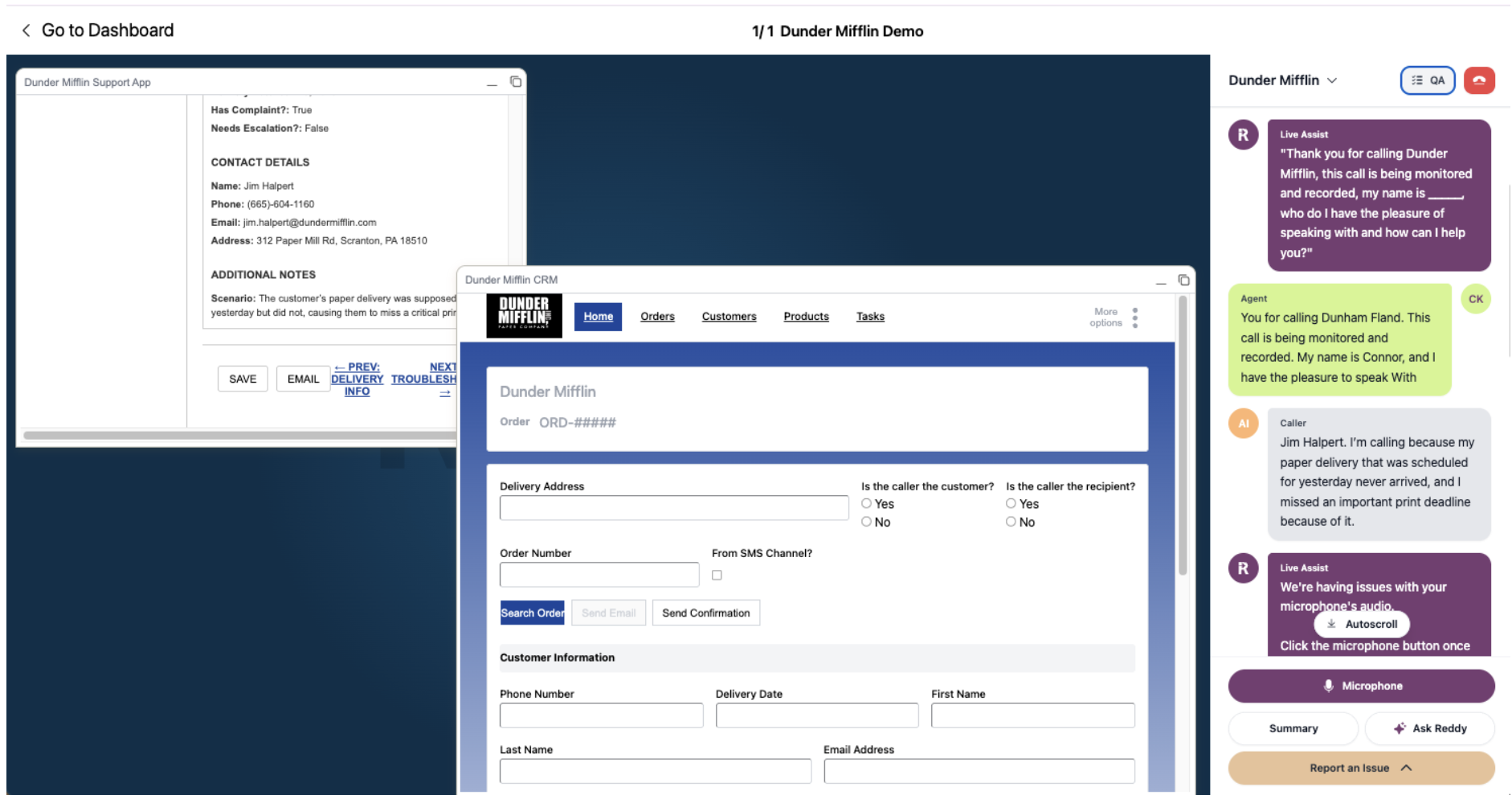 The simulation environment is split into two distinct parts:
**Simulated Desktop**
Recreations of apps that you'll use during the call and your work.
* **Realistic environment**: Mimics your actual desktop experience
* **Integrated applications**: Access to tools you'll use during real calls
* **Practice space**: Safe environment to learn and practice procedures
**Reddy Live Assist Panel**
Your real-time coaching and communication hub with multiple components:
* **Live coaching interface**: AI assistance during your simulation
* **Transcription display**: Real-time conversation tracking
* **Control panel**: Simulation management tools
## Live Assist Panel Components
The right panel displays different types of information with subtle color coding:
1. **Live Assist (purple)**
Advice from our AI coach providing real-time guidance and suggestions during your simulation.
2. **Agent transcription (grey)**
Transcription of what you say during the simulation, helping you track your own communication.
3. **Caller transcription (green)**
Transcription of the AI customer responses, so you can follow the conversation flow.
## Starting Your First Simulation
Click the **purple "Start Simulation"** button in the bottom right to begin your training session.
Your simulation is now active and ready for interaction.
When you start a simulation, Live Assist will provide you with context and instructions. Pay close attention to these initial bubbles.
The simulation environment is split into two distinct parts:
**Simulated Desktop**
Recreations of apps that you'll use during the call and your work.
* **Realistic environment**: Mimics your actual desktop experience
* **Integrated applications**: Access to tools you'll use during real calls
* **Practice space**: Safe environment to learn and practice procedures
**Reddy Live Assist Panel**
Your real-time coaching and communication hub with multiple components:
* **Live coaching interface**: AI assistance during your simulation
* **Transcription display**: Real-time conversation tracking
* **Control panel**: Simulation management tools
## Live Assist Panel Components
The right panel displays different types of information with subtle color coding:
1. **Live Assist (purple)**
Advice from our AI coach providing real-time guidance and suggestions during your simulation.
2. **Agent transcription (grey)**
Transcription of what you say during the simulation, helping you track your own communication.
3. **Caller transcription (green)**
Transcription of the AI customer responses, so you can follow the conversation flow.
## Starting Your First Simulation
Click the **purple "Start Simulation"** button in the bottom right to begin your training session.
Your simulation is now active and ready for interaction.
When you start a simulation, Live Assist will provide you with context and instructions. Pay close attention to these initial bubbles.
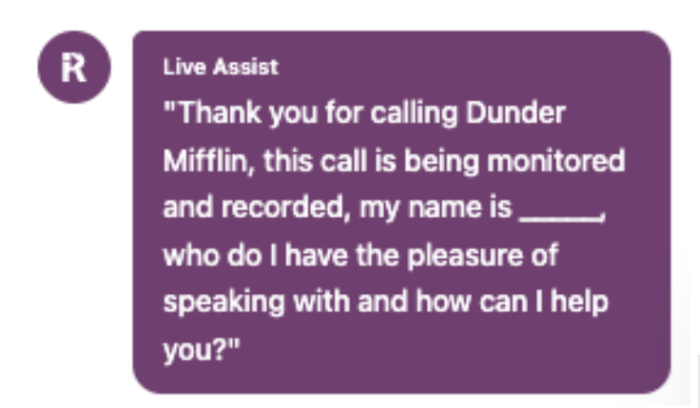 These instructions set the stage for your simulation and provide important context about the customer and situation.
Live Assist will provide you with specific instructions, such as:
**"Greet the customer and ask how you can help today."**
Follow the guidance exactly as provided by Live Assist for the best learning experience.
Begin speaking your response to the customer. For example:
**"Thanks for calling Dunder Mifflin, my name is \[your name], how can I help?"**
**Try a one second buffer before and after you start speaking** - This helps ensure your audio is captured clearly.
As soon as you stop talking, your response will be submitted automatically.
No need to click anything - just finish speaking and your turn will be processed.
The AI customer will respond back in a **green bubble** with their message.
Watch the green bubble to understand the customer's response and what they need help with.
This process continues as you:
1. **Receive Live Assist guidance** for each step
2. **Speak your response** to the customer
3. **Listen to the AI customer** in the green bubble
4. **Follow Tours** for desktop actions when needed
These instructions set the stage for your simulation and provide important context about the customer and situation.
Live Assist will provide you with specific instructions, such as:
**"Greet the customer and ask how you can help today."**
Follow the guidance exactly as provided by Live Assist for the best learning experience.
Begin speaking your response to the customer. For example:
**"Thanks for calling Dunder Mifflin, my name is \[your name], how can I help?"**
**Try a one second buffer before and after you start speaking** - This helps ensure your audio is captured clearly.
As soon as you stop talking, your response will be submitted automatically.
No need to click anything - just finish speaking and your turn will be processed.
The AI customer will respond back in a **green bubble** with their message.
Watch the green bubble to understand the customer's response and what they need help with.
This process continues as you:
1. **Receive Live Assist guidance** for each step
2. **Speak your response** to the customer
3. **Listen to the AI customer** in the green bubble
4. **Follow Tours** for desktop actions when needed
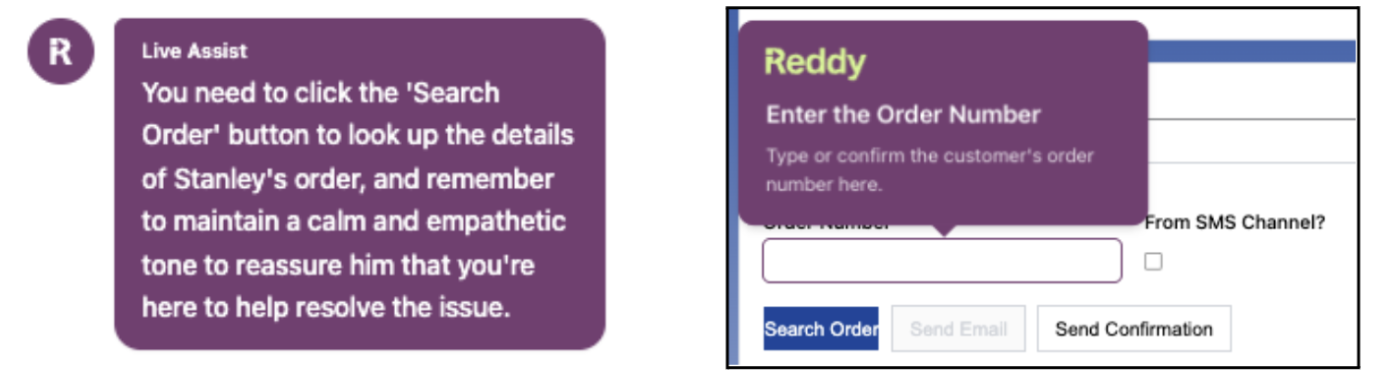 Continue this cycle until you successfully help the customer and complete all required steps and tours.
## Audio Controls
Use the audio controls to manage your participation:
* **Mute**: Click to mute yourself during the simulation
* **Unmute**: Click to unmute yourself and resume speaking
Use mute strategically when you need to think or take notes without the customer hearing you.
If you're experiencing microphone problems, we have a dedicated troubleshooting guide to help you resolve common issues.
Step-by-step guide to resolve microphone issues during training simulation setup.
## How Simulations End
### Automatic Completion
The simulation will end automatically when you complete all the required steps and tours. Simply follow the guided experience and the system will handle the rest.
### Stop Before Completion
If you need to exit the simulation before completing it:
1. Click the **red hang up button** in the top right corner
2. Confirm by clicking **End Simulation** in the popup
You'll be taken to the grading screen and your attempt will be scored based on current progress. The simulation attempt cannot be saved and continued later.
## Additional Features
### AI-Powered Tools
When a customer asks a question you don't know, use Ask Reddy instead of putting them on hold.
* Click the **"Ask Reddy"** button in your application interface
* Reddy analyzes the recent transcript to infer the question
* AI searches all company documents instantly
* Get accurate answers in seconds
Ask Reddy pulls from your company's knowledge base. If answers seem incomplete, suggest your manager upload additional training materials.
[Ask Reddy overview](/onboarding/learning-development/ask-reddy)
**Generate a summary of the call and pull out key items**
* Automatic call summarization
* Key points extraction
* Important details highlighting
**Review the QAs you're being graded on**
* View assessment criteria
* Track your performance against standards
* Understand what's being evaluated
## Best Practices for Successful Simulation Runs
### Follow the Guided Experience
**Trust the guided experience**
* Live Assist provides real-time coaching based on the conversation
* Tours show you exactly where to click and what actions to take
* Following this guidance ensures you learn the proper procedures
Stick to the recommended flow for optimal learning.
**Stay on track with the process**
* Try not to skip around too much in the interface
* Don't click buttons out of the recommended order
* Follow the sequential steps as presented
Clicking out of order can disrupt the simulation flow and affect your learning experience.
### Learning-Focused Approach
**Go slow to learn effectively**
We all want to reduce handle times, but while you're getting the hang of the simulation environment.
Speed will come naturally as you become more comfortable with the processes.
**Get assistance when needed**
If you get stuck or something feels broken:
* Use the **"Report Issue"** button for technical problems
* Ask your supervisor for procedural clarifications
* Review the guidance provided by Live Assist
## Troubleshooting Common Issues
**Interface issues**
* Wait a few seconds for the system to process your input
* Check your internet connection
* Refresh the page if necessary (note: this will restart your simulation)
## Next Steps
After completing your first simulation:
1. **Review your performance** - Check your scores and feedback
2. **Identify improvement areas** - Look at what you can do better next time
3. **Practice regularly** - Consistent practice leads to mastery
4. **Apply learnings** - Use insights from simulations in real calls
You're now ready to complete your first simulation successfully! Remember to take your time and follow the guidance provided.
**Report an Issue**: Let us know how we can improve the simulation experience!
Continue this cycle until you successfully help the customer and complete all required steps and tours.
## Audio Controls
Use the audio controls to manage your participation:
* **Mute**: Click to mute yourself during the simulation
* **Unmute**: Click to unmute yourself and resume speaking
Use mute strategically when you need to think or take notes without the customer hearing you.
If you're experiencing microphone problems, we have a dedicated troubleshooting guide to help you resolve common issues.
Step-by-step guide to resolve microphone issues during training simulation setup.
## How Simulations End
### Automatic Completion
The simulation will end automatically when you complete all the required steps and tours. Simply follow the guided experience and the system will handle the rest.
### Stop Before Completion
If you need to exit the simulation before completing it:
1. Click the **red hang up button** in the top right corner
2. Confirm by clicking **End Simulation** in the popup
You'll be taken to the grading screen and your attempt will be scored based on current progress. The simulation attempt cannot be saved and continued later.
## Additional Features
### AI-Powered Tools
When a customer asks a question you don't know, use Ask Reddy instead of putting them on hold.
* Click the **"Ask Reddy"** button in your application interface
* Reddy analyzes the recent transcript to infer the question
* AI searches all company documents instantly
* Get accurate answers in seconds
Ask Reddy pulls from your company's knowledge base. If answers seem incomplete, suggest your manager upload additional training materials.
[Ask Reddy overview](/onboarding/learning-development/ask-reddy)
**Generate a summary of the call and pull out key items**
* Automatic call summarization
* Key points extraction
* Important details highlighting
**Review the QAs you're being graded on**
* View assessment criteria
* Track your performance against standards
* Understand what's being evaluated
## Best Practices for Successful Simulation Runs
### Follow the Guided Experience
**Trust the guided experience**
* Live Assist provides real-time coaching based on the conversation
* Tours show you exactly where to click and what actions to take
* Following this guidance ensures you learn the proper procedures
Stick to the recommended flow for optimal learning.
**Stay on track with the process**
* Try not to skip around too much in the interface
* Don't click buttons out of the recommended order
* Follow the sequential steps as presented
Clicking out of order can disrupt the simulation flow and affect your learning experience.
### Learning-Focused Approach
**Go slow to learn effectively**
We all want to reduce handle times, but while you're getting the hang of the simulation environment.
Speed will come naturally as you become more comfortable with the processes.
**Get assistance when needed**
If you get stuck or something feels broken:
* Use the **"Report Issue"** button for technical problems
* Ask your supervisor for procedural clarifications
* Review the guidance provided by Live Assist
## Troubleshooting Common Issues
**Interface issues**
* Wait a few seconds for the system to process your input
* Check your internet connection
* Refresh the page if necessary (note: this will restart your simulation)
## Next Steps
After completing your first simulation:
1. **Review your performance** - Check your scores and feedback
2. **Identify improvement areas** - Look at what you can do better next time
3. **Practice regularly** - Consistent practice leads to mastery
4. **Apply learnings** - Use insights from simulations in real calls
You're now ready to complete your first simulation successfully! Remember to take your time and follow the guidance provided.
**Report an Issue**: Let us know how we can improve the simulation experience!