> ## Documentation Index
> Fetch the complete documentation index at: https://docs.reddy.io/llms.txt
> Use this file to discover all available pages before exploring further.
# Uploading Call Recordings
> Upload call recordings to Reddy for QA evaluation and AI training
## Uploading Calls
Go to **Products** from the left menu.
Click **View** on the product to access the product page.
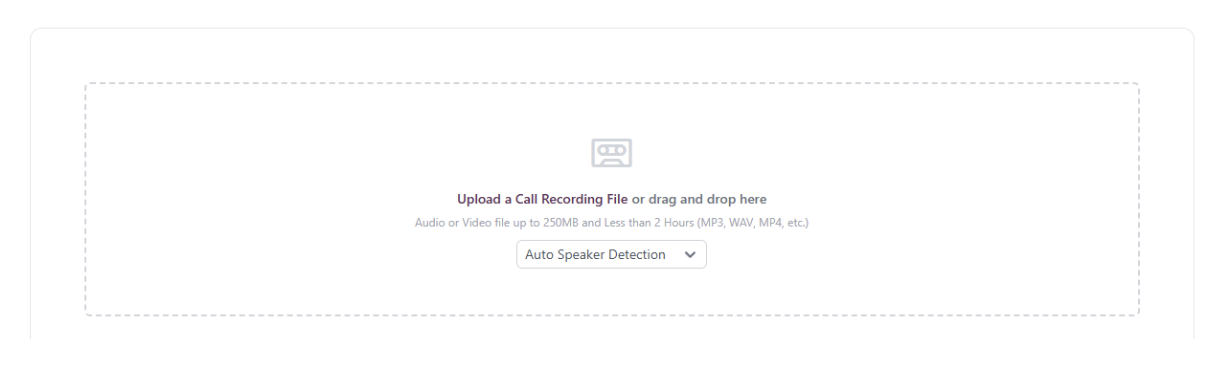
Drag and drop files into the upload box or click **"Upload a Call Recording"**.
 ## File Requirements
Most audio and video formats are supported. Common formats include:
* MP3
* WAV
* MP4
* Up to 250MB per file
* Less than 2 hours duration per file
Select the appropriate option before uploading:
* **Mono File:** Select "Auto Speaker Detection"
* **Stereo File:** Choose "Agent/Customer" or "Customer/Agent" based on audio channel configuration
## FAQ
The page doesn't auto-refresh. Refresh your browser to see uploaded files in the calls table.
Processing can take up to an hour during peak times. Check back and refresh periodically to see upload status.
## File Requirements
Most audio and video formats are supported. Common formats include:
* MP3
* WAV
* MP4
* Up to 250MB per file
* Less than 2 hours duration per file
Select the appropriate option before uploading:
* **Mono File:** Select "Auto Speaker Detection"
* **Stereo File:** Choose "Agent/Customer" or "Customer/Agent" based on audio channel configuration
## FAQ
The page doesn't auto-refresh. Refresh your browser to see uploaded files in the calls table.
Processing can take up to an hour during peak times. Check back and refresh periodically to see upload status.