> ## Documentation Index
> Fetch the complete documentation index at: https://docs.reddy.io/llms.txt
> Use this file to discover all available pages before exploring further.
# Using Live Assist
> Real-time guidance and QA tracking during customer calls
## During Your Call
* Desktop app runs in the background
* Transcript displays in real-time
* QA checklist tracks requirements
* AI assistance available on demand
## Product Verification
Reddy auto-detects the product based on queue name (95% accuracy) and displays the appropriate QA checklist.
**Verify product accuracy:** Check that the displayed product matches your call. If incorrect, manually select the correct product from the dropdown.
**Manual override:** The QA checklist and grading adjust when you change products.
Product swaps are limited to products assigned to your agent profile. Keep your assigned products updated.
Completed QA items won't show as checked after product change, but post-call grading ensures your score reflects actual performance.
## Post-Call Feedback
After each live call, review your personalized performance analysis.
**Feedback Panel:**
Click **"Feedback"** in the post-call pop-up to open deeper call insights with action-ready summaries.
**What You'll See:**
**Agent Areas of Improvement:**
Customizable summary highlighting key wins, compliance gaps, and next-best actions prioritized for quick follow-up.
**Agent Strengths:**
Recognition of what you did well—specific skills and behaviors you demonstrated effectively.
**Call Summary:**
Overview of the customer interaction, key discussion points, and resolution details.
**QA Item Breakdown:**
* **Missed QAs:** Requirements you didn't complete (shown in red)
* **What Went Well:** Requirements you completed successfully (shown in green)
## Core Features
The transcript shows everything said during the call in real-time. Review what the customer said if you missed it.
**Auto Scroll:** Automatically follows the conversation to the latest verbiage.
**Manual Control:**
* Scroll up to reference earlier call moments
* Auto scroll disables when you scroll up
* Click **"Scroll to End"** to return to the current part and re-enable auto scrolling
The QA checklist shows required steps for every call.
* Follow checklist to ensure smooth call flow
* **Hover over QA items** to see specific requirements
* Collapse completed items to focus on what's next
QA items automatically collapse when completed. Collapse manually to keep your view focused.
Click between QA checklist and transcript panel as needed during calls.
* QA checklist: Track call requirements
* Transcript panel: Review conversation details
When a customer asks a question you don't know, use Ask Reddy instead of putting them on hold.
* Click the **"Ask Reddy"** button in your application interface
* Reddy analyzes the recent transcript to infer the question
* AI searches all company documents instantly
* Get accurate answers in seconds
Ask Reddy pulls from your company's knowledge base. If answers seem incomplete, suggest your manager upload additional training materials.
[Ask Reddy overview →](/manual/ask-reddy)
Click the **Summary** button during a call to get key call details: caller name, email, phone, address, and brief summary.
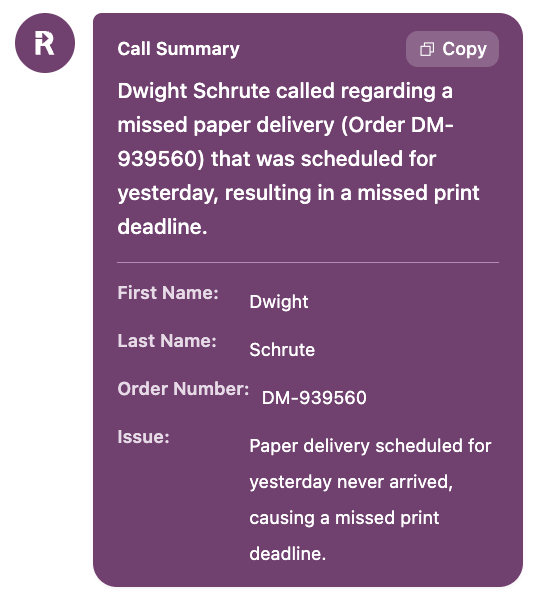 **Pro Tip:** Hover over any detail to reveal a copy icon. Click to copy, then paste into your internal tools.
Summary details are customized for your company's needs. Need additional details summarized? Ask your manager.
**Pro Tip:** Hover over any detail to reveal a copy icon. Click to copy, then paste into your internal tools.
Summary details are customized for your company's needs. Need additional details summarized? Ask your manager.