> ## Documentation Index
> Fetch the complete documentation index at: https://docs.reddy.io/llms.txt
> Use this file to discover all available pages before exploring further.
# Add Metadata to a Call
> Attach custom metadata/tags to calls for filtering and insights
You can attach custom metadata to any call to track business-specific information. This metadata shows up immediately in the Reddy dashboard and can be used as filters once your Reddy admin configures them.
## Example
Let's say you're tracking sales calls and want to monitor:
* Which lead sources convert best
* Deal values by agent
* Demo conversion rates
You can push this data to Reddy and then filter your dashboard to see only high-value deals, track conversion patterns, or identify your top performers.
## Get a conversation ID
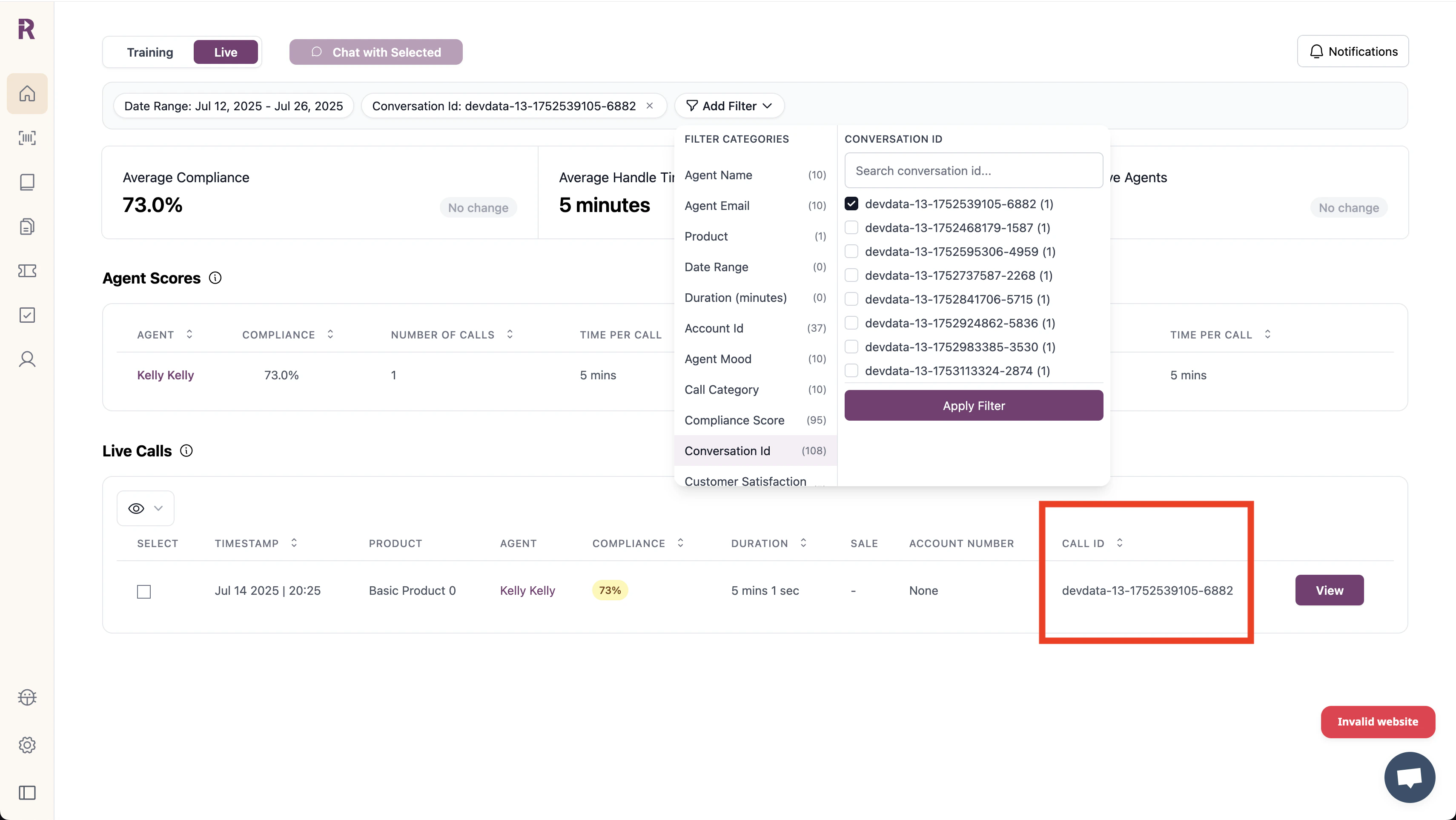
Start by searching for a recent call in your dashboard and grab the ID from the conversation ID column or call details. You can use the conversation ID filter to quickly find a specific one.
 ## Make an API call
Now let's add some sales metadata to the call:
```bash cURL theme={null}
curl -X POST 'https://app.reddy.io/api/v1/call/add_tags' \
-H 'Authorization: Bearer your_api_key' \
-H 'Content-Type: application/json' \
-d '{
"conversation_id": "conv_abc123",
"agent_email": "sarah@company.com",
"tags": [
{"key": "lead_source", "value": "webinar", "type": "string"},
{"key": "deal_value", "value": 25000, "type": "integer"},
{"key": "demo_scheduled", "value": true, "type": "boolean"}
]
}'
```
```python Python theme={null}
import requests
response = requests.post(
'https://app.reddy.io/api/v1/call/add_tags',
headers={
'Authorization': 'Bearer your_api_key',
'Content-Type': 'application/json'
},
json={
'conversation_id': 'conv_abc123',
'agent_email': 'sarah@company.com',
'tags': [
{'key': 'lead_source', 'value': 'webinar', 'type': 'string'},
{'key': 'deal_value', 'value': 25000, 'type': 'integer'},
{'key': 'demo_scheduled', 'value': True, 'type': 'boolean'}
]
}
)
```
```javascript JavaScript theme={null}
const response = await fetch('https://app.reddy.io/api/v1/call/add_tags', {
method: 'POST',
headers: {
'Authorization': 'Bearer your_api_key',
'Content-Type': 'application/json'
},
body: JSON.stringify({
conversation_id: 'conv_abc123',
agent_email: 'sarah@company.com',
tags: [
{key: 'lead_source', value: 'webinar', type: 'string'},
{key: 'deal_value', value: 25000, type: 'integer'},
{key: 'demo_scheduled', value: true, type: 'boolean'}
]
})
});
```
## Viewing the metadata in the dashboard
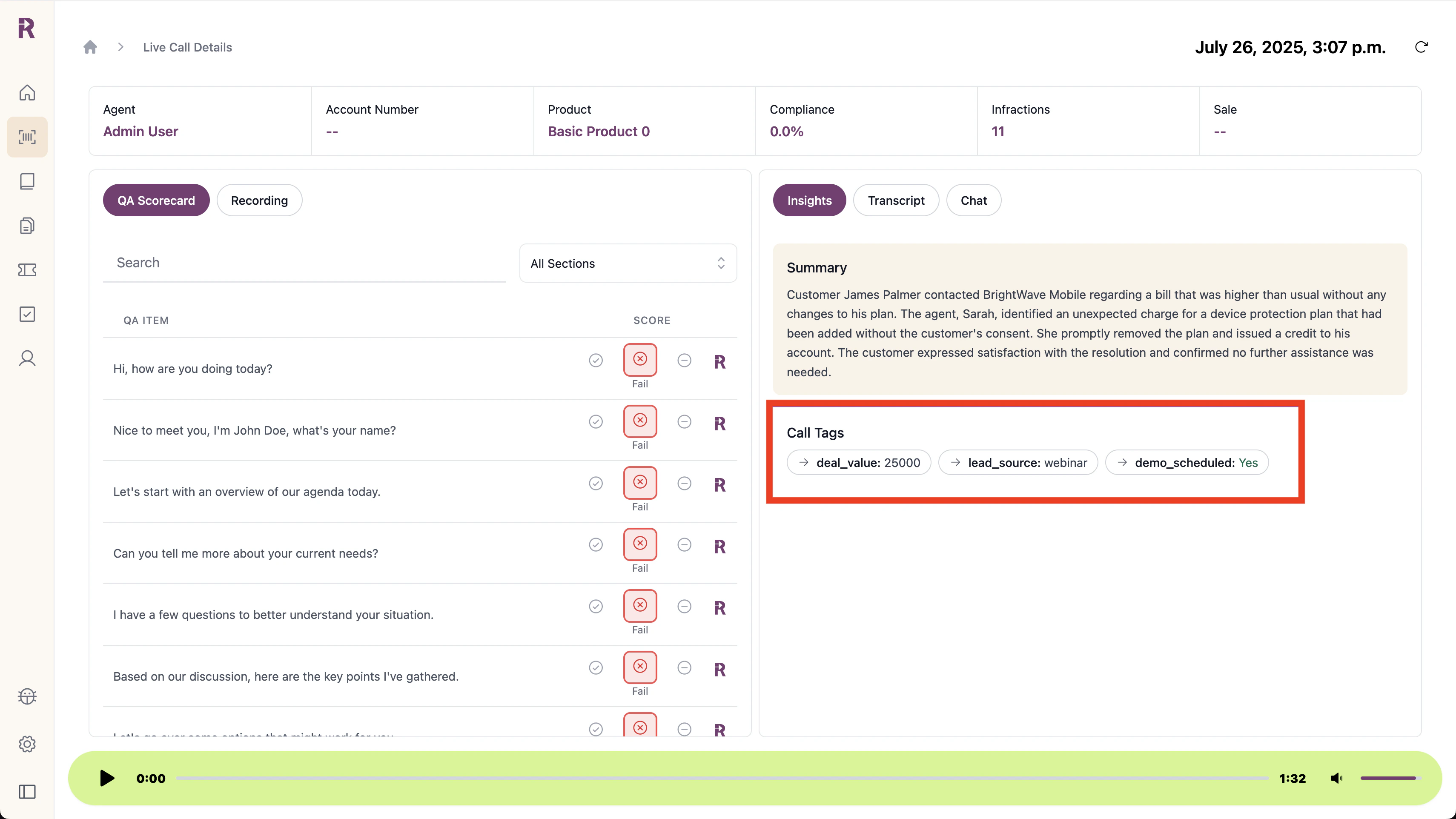
Once you've sent metadata, it should appear immediately in that call's Insights panel:
## Make an API call
Now let's add some sales metadata to the call:
```bash cURL theme={null}
curl -X POST 'https://app.reddy.io/api/v1/call/add_tags' \
-H 'Authorization: Bearer your_api_key' \
-H 'Content-Type: application/json' \
-d '{
"conversation_id": "conv_abc123",
"agent_email": "sarah@company.com",
"tags": [
{"key": "lead_source", "value": "webinar", "type": "string"},
{"key": "deal_value", "value": 25000, "type": "integer"},
{"key": "demo_scheduled", "value": true, "type": "boolean"}
]
}'
```
```python Python theme={null}
import requests
response = requests.post(
'https://app.reddy.io/api/v1/call/add_tags',
headers={
'Authorization': 'Bearer your_api_key',
'Content-Type': 'application/json'
},
json={
'conversation_id': 'conv_abc123',
'agent_email': 'sarah@company.com',
'tags': [
{'key': 'lead_source', 'value': 'webinar', 'type': 'string'},
{'key': 'deal_value', 'value': 25000, 'type': 'integer'},
{'key': 'demo_scheduled', 'value': True, 'type': 'boolean'}
]
}
)
```
```javascript JavaScript theme={null}
const response = await fetch('https://app.reddy.io/api/v1/call/add_tags', {
method: 'POST',
headers: {
'Authorization': 'Bearer your_api_key',
'Content-Type': 'application/json'
},
body: JSON.stringify({
conversation_id: 'conv_abc123',
agent_email: 'sarah@company.com',
tags: [
{key: 'lead_source', value: 'webinar', type: 'string'},
{key: 'deal_value', value: 25000, type: 'integer'},
{key: 'demo_scheduled', value: true, type: 'boolean'}
]
})
});
```
## Viewing the metadata in the dashboard
Once you've sent metadata, it should appear immediately in that call's Insights panel:
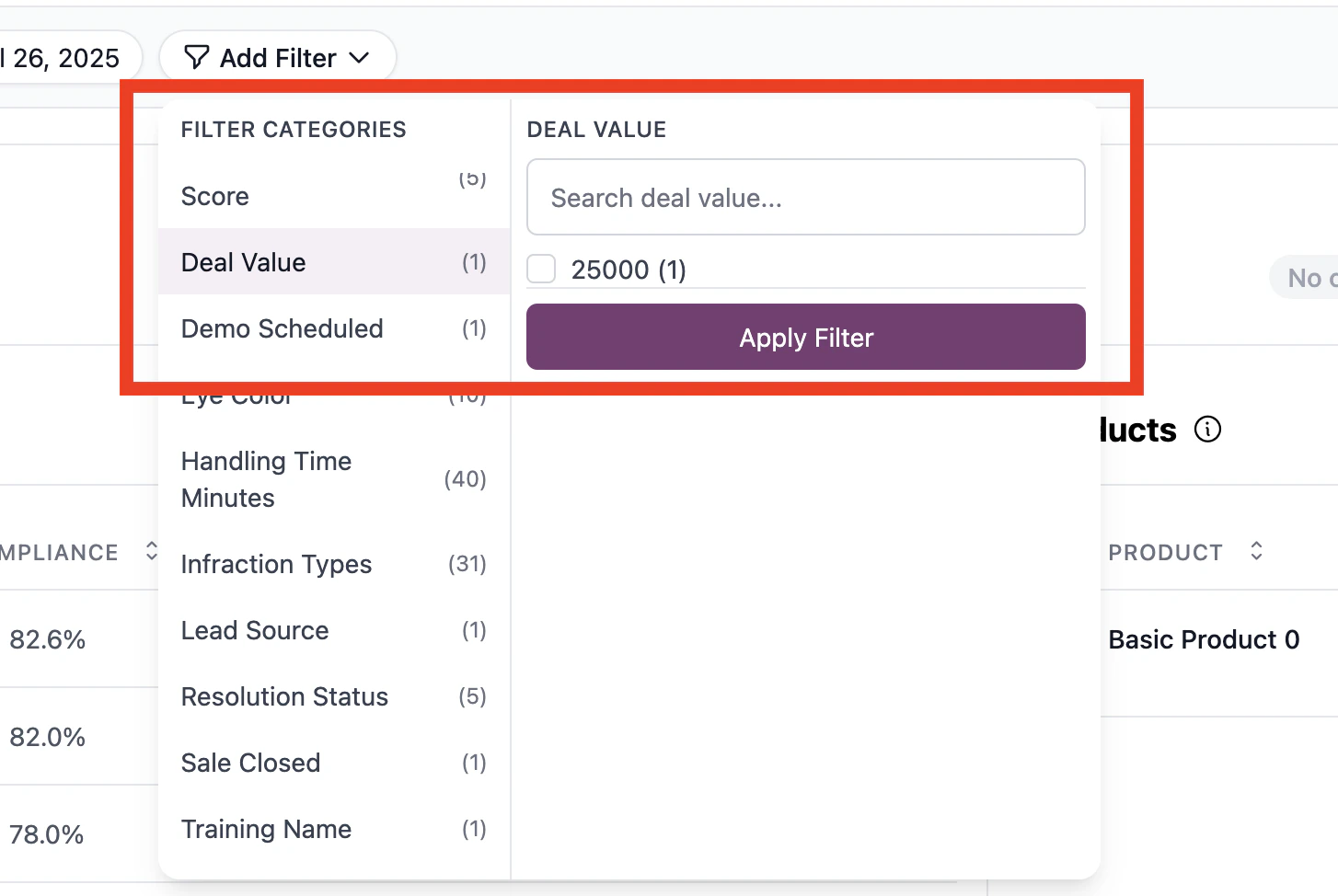
 To use this metadata for filtering:
1. Contact your Reddy admin to add your metadata fields to the dashboard
2. Once configured, you'll see your custom fields in the filter dropdown:
To use this metadata for filtering:
1. Contact your Reddy admin to add your metadata fields to the dashboard
2. Once configured, you'll see your custom fields in the filter dropdown:
 ## Common patterns
### Real-time updates during calls
If you're tracking live call events, send metadata as they happen:
```python theme={null}
# Customer mentions budget
add_tags(conversation_id, agent_email, [
{'key': 'budget_discussed', 'value': True, 'type': 'boolean'},
{'key': 'budget_amount', 'value': 50000, 'type': 'integer'}
])
# Demo gets scheduled
add_tags(conversation_id, agent_email, [
{'key': 'demo_date', 'value': '2024-03-15', 'type': 'string'},
{'key': 'demo_product', 'value': 'enterprise_suite', 'type': 'string'}
])
```
### Post-call enrichment
You can also add metadata after calls end by pulling data from your CRM:
```python theme={null}
# After call ends, enrich with CRM data
crm_data = fetch_from_salesforce(customer_email)
add_tags(conversation_id, agent_email, [
{'key': 'account_tier', 'value': crm_data['tier'], 'type': 'string'},
{'key': 'lifetime_value', 'value': crm_data['ltv'], 'type': 'integer'},
{'key': 'active_subscription', 'value': crm_data['is_active'], 'type': 'boolean'}
])
```
Metadata added after a call completes won't be included in Reddy's AI analysis (like QA compliance checks) but can be used for dashboard filtering and searching.
***
Questions? Check the [API reference](/api-reference/call/add-tags) for the full endpoint spec.
## Common patterns
### Real-time updates during calls
If you're tracking live call events, send metadata as they happen:
```python theme={null}
# Customer mentions budget
add_tags(conversation_id, agent_email, [
{'key': 'budget_discussed', 'value': True, 'type': 'boolean'},
{'key': 'budget_amount', 'value': 50000, 'type': 'integer'}
])
# Demo gets scheduled
add_tags(conversation_id, agent_email, [
{'key': 'demo_date', 'value': '2024-03-15', 'type': 'string'},
{'key': 'demo_product', 'value': 'enterprise_suite', 'type': 'string'}
])
```
### Post-call enrichment
You can also add metadata after calls end by pulling data from your CRM:
```python theme={null}
# After call ends, enrich with CRM data
crm_data = fetch_from_salesforce(customer_email)
add_tags(conversation_id, agent_email, [
{'key': 'account_tier', 'value': crm_data['tier'], 'type': 'string'},
{'key': 'lifetime_value', 'value': crm_data['ltv'], 'type': 'integer'},
{'key': 'active_subscription', 'value': crm_data['is_active'], 'type': 'boolean'}
])
```
Metadata added after a call completes won't be included in Reddy's AI analysis (like QA compliance checks) but can be used for dashboard filtering and searching.
***
Questions? Check the [API reference](/api-reference/call/add-tags) for the full endpoint spec.